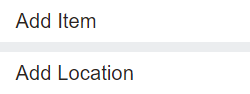
In order to add a package item, an item which contains several items to be purchased at the same time, the user can select the Add Location or the Add Item button.
Packages containing an ROI / Location
For packages containing an ROI / location, select the Add Location button.
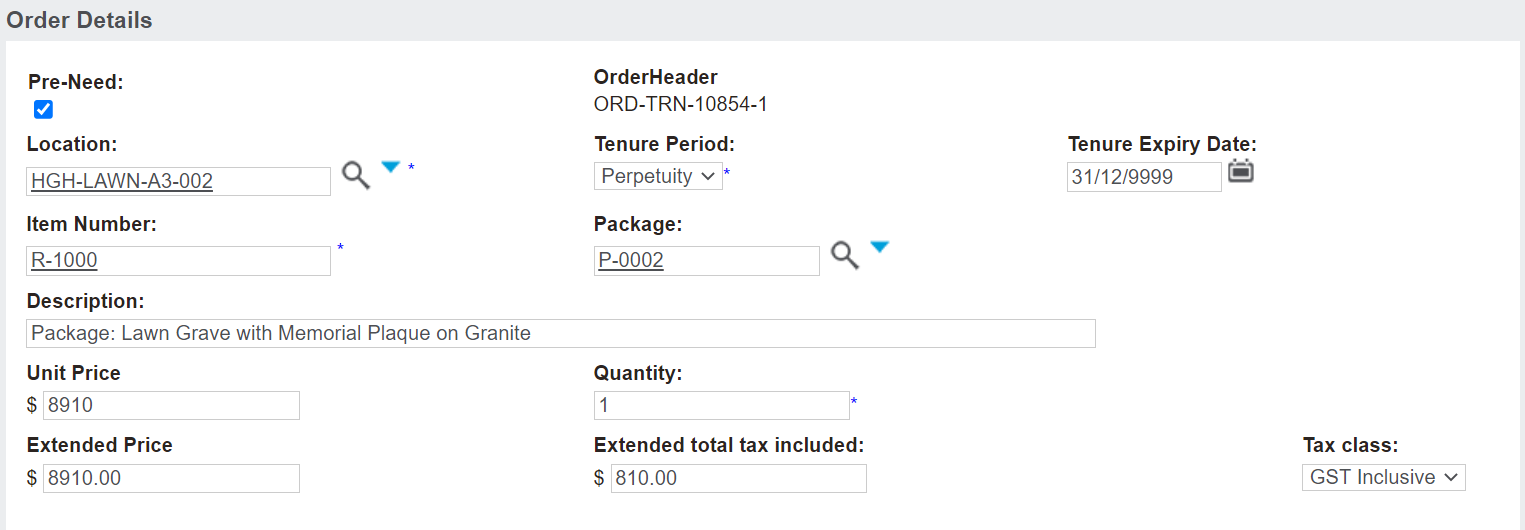
Enter in the location code, by copying and pasting into the Location field, or clicking on the blue arrow next to the field and searching for the desired location.
A few things of note regarding the location:
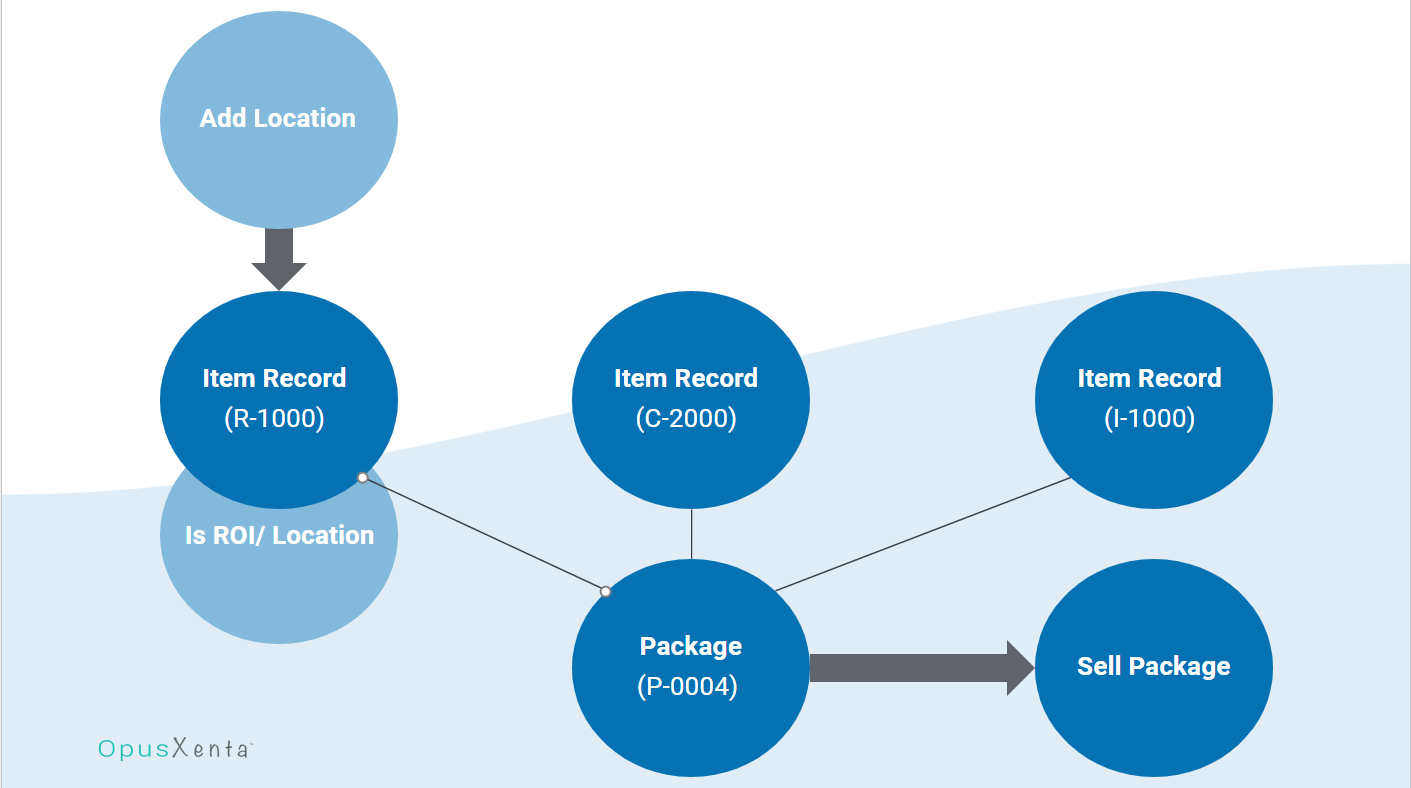
The location record chosen must be linked to an Item.
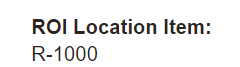
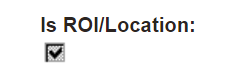
The item record chosen needs to be marked as Is ROI/Location and needs to be included as a Package Component in a package item.
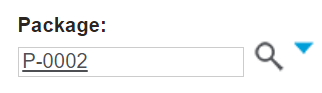
If the location record chosen is a package component of a Package item, the Package field will display.
Clicking on the magnifying glass will allow users to see the packages linked.
If a package is chosen, the description, and corresponding prices will update to reflect the package.
Packages that do not contain an ROI / Location
For packages that do not contain an ROI/location, select the Add Item button.
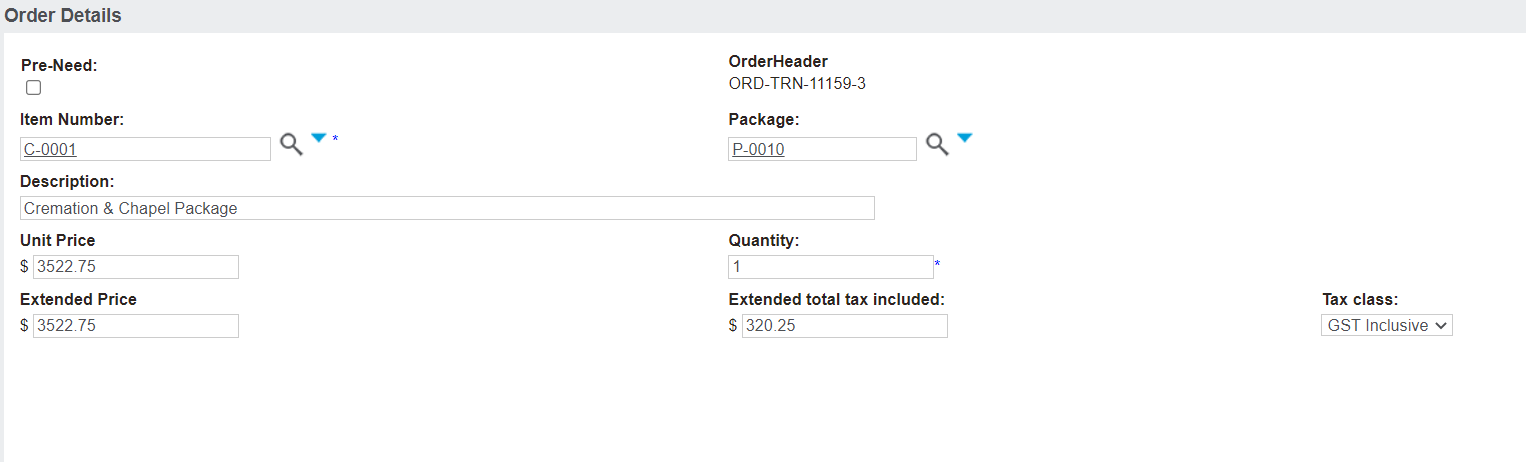
Enter in an item number which is a package component of your desired package into the Item Number field.
Where an item number that is part of a package is selected the package field becomes available to populate on the order details screen.
Clicking on the magnifying glass will allow users to see the packages linked.
If a package is chosen, the description, and corresponding prices will update to reflect the package.
Users can view the items in the package by clicking on the View Package Items button on the right-hand side of the page.
This will open a pop-up window that shows each component of the package.