Add a New Category
Upon initial deployment or creating a new category ad-hoc, it is very important to consider how the items grouped by categories will report to each general ledger account.
For example, revenue for a headstone would normally link to a Memorial item category that would be linked to a Memorial item account on the General Ledger (GL). It would not be logical for the headstone to link to a GL account for chapel services.
To add a new category, click on the New button from the right-hand side of the Category Setup area.

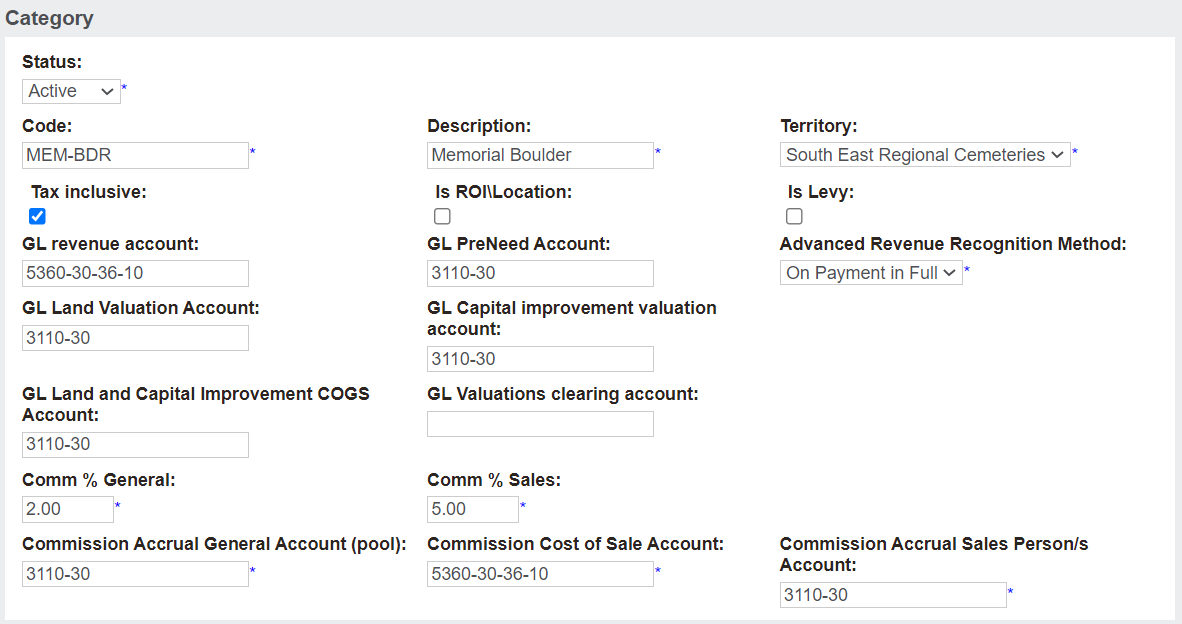
The Status will default to Active.
The Code and Description of each category is up to the user setting up the category, however, it is recommended that the cemetery follows a logical numbering convention for categories.
The Territory will default to your overarching cemetery trust.
The Tax Inclusive tick box indicates if the price shown on screen has tax included. If the box is ticked when selling an item linked to the category, the tax would be included in the total price.
If the tax was exclusive, this tick box would not be marked, and the price would be what was listed in the price list plus GST (tax).
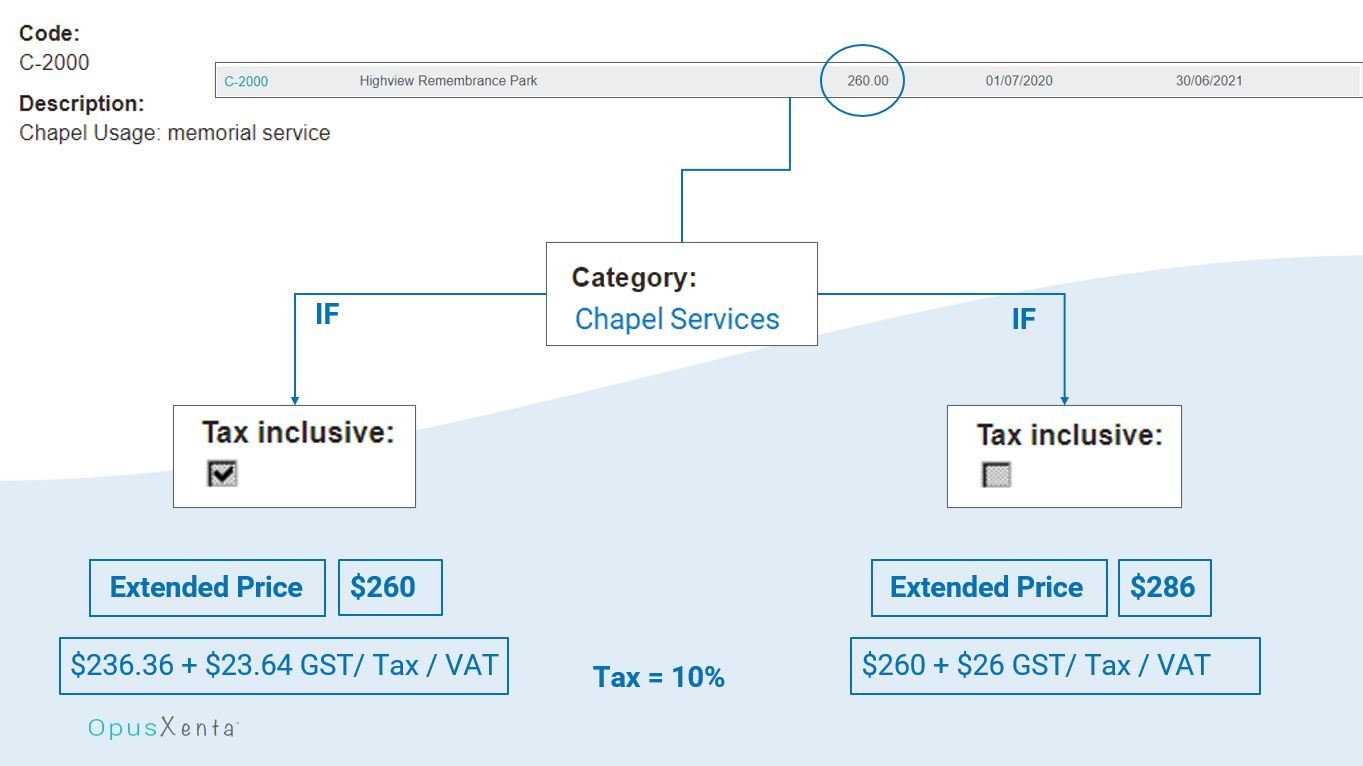
So, as per the below image, a chapel service at Highview Remembrance Park is currently listed as $260.
If the tax inclusive tickbox on the category for this item were ticked, the extended price stays at $260.
If the box was not ticked, the extended price would be $286, which is the combination of $260 for the item and $26 in GST if tax were at 10%.
The Is ROI\Location tick box would be ticked for a category respresenting Locations items. As our Memorial Boulder is not a location, this remains un-ticked.
In some locations, such as the state of New South Wales in Australia, there is a government levy above the Goods and Services Tax, Value Added Tax or sales tax, for every interment & cremation service.
If our cemetery customers need to charge a levy, the category for the levy can be marked as Is Levy to represent that.

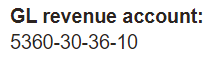
When revenue is recognised, funds will go to the GL revenue account (5360-30-36-10).
The GL preneed account is the liability account where the revenue from a pre-need sale sits as unearned income on the balance sheet, until the point that it is recognised as revenue.
For items with our Memorial Boulder category, the funds will be listed in GL account 3110-30 on the balance sheet as unearned income, until the point it is recognised as revenue.

The field of Advanced Revenue Recognition Method may or may not display, depending on whether the configuration of AdvancedRevenueRecognitionMethodNeeded is switched on. As this is a more complex topic, it will be explored in the Advanced Revenue Recognition Method section related to categories.
The fields of GL Land Valuation Account, GL Capital improvement valuation account, GL Land and Capital Improvement COGS Account, and GL Valuations clearing account will be explored further in the ROI / Location Category section.
The below fields relate to the earning of commission and will be explored in the Sales Commisson section.
-
Comm % General
-
Comm % Sales
-
Commission Accrual General Account (pool)
-
Commission Cost of Sale Account
-
Commission Accrual Sales Person /s Account
Once all fields are completed, press the Save button on the right-hand side of the page.
