To properly display this page you need a browser with JavaScript support.
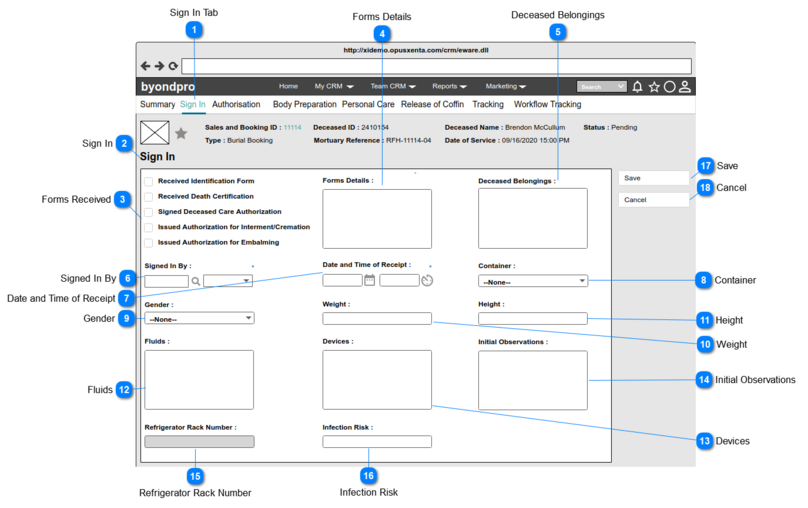
The Sign In screen can be accessed :
By clicking on the
Sign In Tab at the top navigation bar
By clicking on the workflow step "Sign In" on the Summary screen.
When the user navigates to this screen, initially screen will be in view mode (summary mode). Upon clicking the "Change" button, screen will be changed to edit mode.
Sign In Tab
Type
Notes
Rules
Compulsory
Placeholder
Format
Edit
Size
Default
Messages
Tab 2 Title
-
-
-
-
Text
-
-
-
-
Sign In
Type
Notes
Rules
Compulsory
Placeholder
Format
Edit
Size
Default
Messages
Page Title
-
-
-
-
Text
-
-
-
-
Forms Received
Type
Notes
Rules
Compulsory
Placeholder
Format
Edit
Size
Default
Messages
Set of Check Boxes
Pre-conditions:
1. List all the form types related to the funeral home process.
The form types are as follows.
Received Identification Form
Received Death Certification
Signed Deceased Care Authorization
Issued Authorization for Interment/ Cremation
Issued Authorization for Embalming
3. The user will be able to select one or more forms by selecting check box/ es.
No
-
Text
Yes
-
If any of the forms have been ticked when creating the Transfer record
Then those forms should be ticked by default
Else keep it un-ticked.
-
Forms Details
Type
Notes
Rules
Compulsory
Placeholder
Format
Edit
Size
Default
Messages
Multiline Text
This will be pre-filled, based on the details provided via Forms Details of the Transfer Record.
1. This allows to enter any characters including numbers, letters and special characters.
No
-
Text
Yes
-
Blank
-
Deceased Belongings
Type
Notes
Rules
Compulsory
Placeholder
Format
Edit
Size
Default
Messages
Multiline Text
This will be pre-filled, based on the details provided via Transfer Belongings of the Transfer Record.
1. This allows to enter any characters including numbers, letters and special characters.
No
-
Text
Yes
-
Blank
-
Signed In By
Type
Notes
Rules
Compulsory
Placeholder
Format
Edit
Size
Default
Messages
User Select
Pre-conditions:
1. By default, the logged in user's name will be set as the value of this field.
2. List the full names of the persons (will be employees of FH) created underneath the funeral home and order by ASC. 3. This element allows the user to search/ filter and select a value from the list.
4. This allows to enter any characters including numbers, letters and special characters.
Yes
-
Text
Yes
-
Full name of the
logged in user
-
Date and Time of Receipt
Type
Notes
Rules
Compulsory
Placeholder
Format
Edit
Size
Default
Messages
Date and Time
-
1. By default, current date and time will be set as the value.
2. Once the user clicks on the calendar icon (placed next to the date text field), it will show a Date Picker and the user will be able to select a date from it.
(Consider
Profile Menu -> Preferences -> Date/ Time Preferences
for the date format)
3. Once the user clicks on the clock icon (placed next to the time text field), it will show a Time Picker and the user will be able to select a time from it.
(Consider
Profile Menu -> Preferences -> Date/ Time Preferences
for the time format).
4. Both fields will ONLY allow to enter numbers.
Yes
-
Date and time
Yes
-
Current Date and Time
-
Container
Type
Notes
Rules
Compulsory
Placeholder
Format
Edit
Size
Default
Messages
Selection
Pre-conditions:
1. List the container types as the options of the selection list. The options are as follows.
No
-
Text
Yes
-
--None--
-
Gender
Type
Notes
Rules
Compulsory
Placeholder
Format
Edit
Size
Default
Messages
Selection
Pre-conditions:
1. List the gender types as the options of the selection list.
The options will be the same gender list available in Person records (IF the user has edited the gender list, it will reflect here as well).
No
-
Text
Yes
-
--None--
-
Weight
Type
Notes
Rules
Compulsory
Placeholder
Format
Edit
Size
Default
Messages
Text Field
-
1 . This allows to enter any characters including numbers, letters and special characters.
No
-
Text
Yes
-
Blank
-
Height
Type
Notes
Rules
Compulsory
Placeholder
Format
Edit
Size
Default
Messages
Text Field
-
1 . This allows to enter any characters including numbers, letters and special characters.
No
-
Text
Yes
-
Blank
-
Fluids
Type
Notes
Rules
Compulsory
Placeholder
Format
Edit
Size
Default
Messages
Multiline Text
-
1 . This allows to enter any characters including numbers, letters and special characters.
No
-
Text
Yes
-
Blank
-
Devices
Type
Notes
Rules
Compulsory
Placeholder
Format
Edit
Size
Default
Messages
Multiline Text
-
1 . This allows to enter any characters including numbers, letters and special characters.
No
-
Text
Yes
-
Blank
-
Initial Observations
Type
Notes
Rules
Compulsory
Placeholder
Format
Edit
Size
Default
Messages
Multiline Text
-
1 . This allows to enter any characters including numbers, letters and special characters.
No
-
Text
Yes
-
Blank
-
Refrigerator Rack Number
Type
Notes
Rules
Compulsory
Placeholder
Format
Edit
Size
Default
Messages
Read Only field
-
-
-
-
Text
No
-
-
-
Infection Risk
Type
Notes
Rules
Compulsory
Placeholder
Format
Edit
Size
Default
Messages
Text Field
Post-conditions:
1. If the user clicks the Save button with a value; the Infection Risk elements in the Summary screen will be displayed as "Red" color text.
1 . This allows to enter any characters including numbers, letters and special characters.
Then this field will be pre-filled and shown in red.
Else show in the default color.
No
-
Text
-
-
-
-
Save
Type
Notes
Rules
Compulsory
Placeholder
Format
Edit
Size
Default
Messages
Button
-
Upon clicking the button:
Then
1. Record will be saved and attached to the particular Sales and Booking record
2. Success message will be shown
3. The system will navigate the user to the summary of the Sign In record.
4. The "Current Stage" of the workflow will be changed to Authorisation
5. The status of the Mortuary Care record will be changed to to "Signed In".
Else
Error message will be shown.
-
-
-
-
-
Enable
Success Message:
Sign In has been completed.
Error Message:
Standard SAGE CRM error message for mandatory fields
Cancel
Type
Notes
Rules
Compulsory
Placeholder
Format
Edit
Size
Default
Messages
Button
-
Upon clicking:
1. All the input elements will be cleared/ reset
2. "Sign In" process will be discarded.
3. The user will be retained in this same tab/ screen.
-
-
-
-
-
Enable
-