To properly display this page you need a browser with JavaScript support.
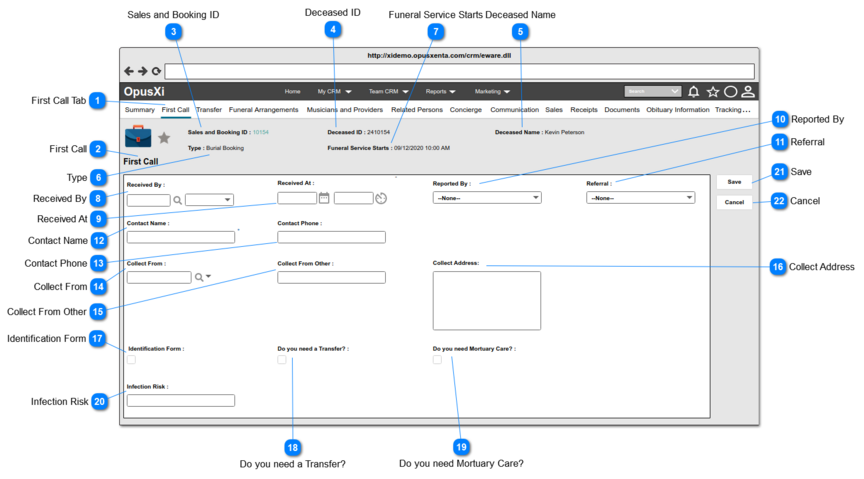
In order to access this page, for a new funeral arrangement, the user enters information on the summary screen and selects record type: Funeral. On save, they are automatically presented with the First Call / New entry screen.
To access this page on an existing record, the user has to click on the Change button of "First Call" tab of the sales and booking record.
Screen 1
First Call Tab
Type
Notes
Rules
Compulsory
Placeholder
Format
Edit
Size
Default
Messages
Tab 2 Title
This is the title of the 2nd tab of the Tab view.
1. In order to access this tab/screen, the user has to select/click on the "First Call" tab of a particular sales and booking record.
-
-
Text
-
-
-
-
First Call
Type
Notes
Rules
Compulsory
Placeholder
Format
Edit
Size
Default
Messages
Page Header
-
-
-
-
Text
-
-
-
-
Sales and Booking ID
Type
Notes
Rules
Compulsory
Placeholder
Format
Edit
Size
Default
Messages
Readonly Text
-
1. Display the Sales and Booking ID for the funeral record.
-
-
Text
-
-
-
-
Deceased ID
Type
Notes
Rules
Compulsory
Placeholder
Format
Edit
Size
Default
Messages
Readonly Text
-
1. IF a person has been entered on the sales and booking record as the deceased/reference and a Reference number has been assigned, the "Reference No" of that person will be displayed , otherwise this will be blank.
-
-
Text
-
-
-
-
Deceased Name
Type
Notes
Rules
Compulsory
Placeholder
Format
Edit
Size
Default
Messages
Readonly Text
-
1. IF a person has been entered on the sales and booking record as the deceased/reference, display the full name of the deceased person.
2. IF the deceased person record NOT yet created, show the <<Deceased Given Name>> <<Deceased Surname>> which the details provided when creating the Sales and Booking record.
3. Show as blank, IF the name of the deceased person not yet set.
-
-
Text
-
-
-
-
Type
Type
Notes
Rules
Compulsory
Placeholder
Format
Edit
Size
Default
Messages
Readonly Text
-
1. Display the Type of the Sales and Booking record.
-
-
Text
-
-
-
-
Funeral Service Starts
Type
Notes
Rules
Compulsory
Placeholder
Format
Edit
Size
Default
Messages
Readonly Text
-
1. Display the funeral service starting date and time (from Funeral Arrangements screen).
2. Consider
Profile Menu -> Preferences -> Date/Time Preferences
for the date and time format.
3. Show as blank, IF the service date and time not yet set.
-
-
Text
-
-
-
-
Received By
Type
Notes
Rules
Compulsory
Placeholder
Format
Edit
Size
Default
Messages
User Select
Pre-conditions:
1. By default, the logged-in user's name will be set as the value of this field.
2. List the full names of the persons (will be employees of FH) created underneath the funeral home and order by ASC. 3. This element conforms to standard CRM user select field controls.
Optional
-
Text
-
-
Full name of the
logged user
-
Received At
Type
Notes
Rules
Compulsory
Placeholder
Format
Edit
Size
Default
Messages
Date and Time
-
1. By default, current date and time will be set as the value.
2. This element conforms to standard CRM date/time field controls.
Optional
-
Date and time
-
-
Current Date and Time
-
Reported By
Type
Notes
Rules
Compulsory
Placeholder
Format
Edit
Size
Default
Messages
Selection
Pre-conditions:
1. By default, "--None--" option will be selected.
2. List the reporting entities as the options of the selection list. The options are as follows.
Optional
-
Text
-
-
--None--
-
Referral
Type
Notes
Rules
Compulsory
Placeholder
Format
Edit
Size
Default
Messages
Selection
Pre-conditions:
1. By default, "--None--" option will be selected.
2. List the reporting entities as the options of the selection list. The options are as follows.
Optional
-
Text
-
-
--None--
-
Contact Name
Type
Notes
Rules
Compulsory
Placeholder
Format
Edit
Size
Default
Messages
Text Field
-
1. This allows to enter any characters including numbers, letters and special characters.
2. When the user clicks on Save button without adding/entering a value, display an inline ERROR message.
Required
-
Text
-
-
-
2.Inline error message: Please enter a Contact Name
Contact Phone
Type
Notes
Rules
Compulsory
Placeholder
Format
Edit
Size
Default
Messages
Text Field
-
1. This allows to enter ONLY numbers.
Optional
-
Numbers
-
-
-
-
Collect From
Type
Notes
Rules
Compulsory
Placeholder
Format
Edit
Size
Default
Messages
Advanced
Search Select
Pre-conditions:
1. List the names of the Companies and order by ASC.
2. The columns displayed as the "View Fields" in the lookup will be,
Optional
-
Text
-
-
-
Collect From Other
Type
Notes
Rules
Compulsory
Placeholder
Format
Edit
Size
Default
Messages
Text Field
-
1. This allows to enter any characters including numbers, letters and special characters.
Optional
-
Text
-
-
-
-
Collect Address
Type
Notes
Rules
Compulsory
Placeholder
Format
Edit
Size
Default
Messages
Multiline Text
-
1. This allows to enter any characters including numbers, letters and special characters.
Optional
-
Text
-
-
-
-
Identification Form
Type
Notes
Rules
Compulsory
Placeholder
Format
Edit
Size
Default
Messages
Check Box
Post Condition:
If Identification Form = true
Optional
-
Text
-
-
-
-
Do you need a Transfer?
Type
Notes
Rules
Compulsory
Placeholder
Format
Edit
Size
Default
Messages
Check Box
The purpose of this check box is to direct the user to the New Transfer screen.
1. Refer #21 SAVE for rules
Optional
-
Text
-
-
-
-
Do you need Mortuary Care?
Type
Notes
Rules
Compulsory
Placeholder
Format
Edit
Size
Default
Messages
Check Box
The purpose of this check box is to
1. Create a Mortuary Care record in the background.
1. Refer #21 SAVE for rules
Optional
-
Text
-
-
-
-
Infection Risk
Type
Notes
Rules
Compulsory
Placeholder
Format
Edit
Size
Default
Messages
Text Field
Post-conditions:
(FYI : Changes made to "Infection Risk" element in any screen, will reflect on the "Infection Risk" elements in other screens as well.)
1 . This allows to enter any characters including numbers, letters and special characters.
2. IF the user clicks Save button WITH a value (i.e. not empty);
(FYI : The text color will be set to default, IF the value is null/empty).
Optional
-
Text
-
-
-
-
Save
Type
Notes
Rules
Compulsory
Placeholder
Format
Edit
Size
Default
Messages
Button
Post-conditions:
a.the user will be navigated to the "First Call Summary" screen (described at end of this page).
b. The mortuary care record will be created by assigning a Mortary Reference and linking the following information to the reference no.
1. For a successful First Call record creation,
1a. it will show a success message.
1b. the system will navigate the user to the "First Call Summary" page (with the prefilled data of the First Call record).
2. Mortuary Reference format: <Three digit Site Code> <Sales and Booking ID>
-
-
-
-
-
-
1a. First Call record created.
Cancel
Type
Notes
Rules
Compulsory
Placeholder
Format
Edit
Size
Default
Messages
Button
Post-conditions:
2. "First Call" add/create process will be discarded.
3. The user will be retained in this same tab/screen (view mode)
-
-
-
-
-
-
-
-
First Call Summary Screen
1. The details of the "First Call" record will be shown/displayed as readonly texts.
2. IF the
Infection Risk is NOT null; the label name and the value will be displayed in "Red" color.
3. The button available in this screen will be;
Change - Once the user clicks on this button, the system will navigate the user to the edit screen of the "First Call" record.