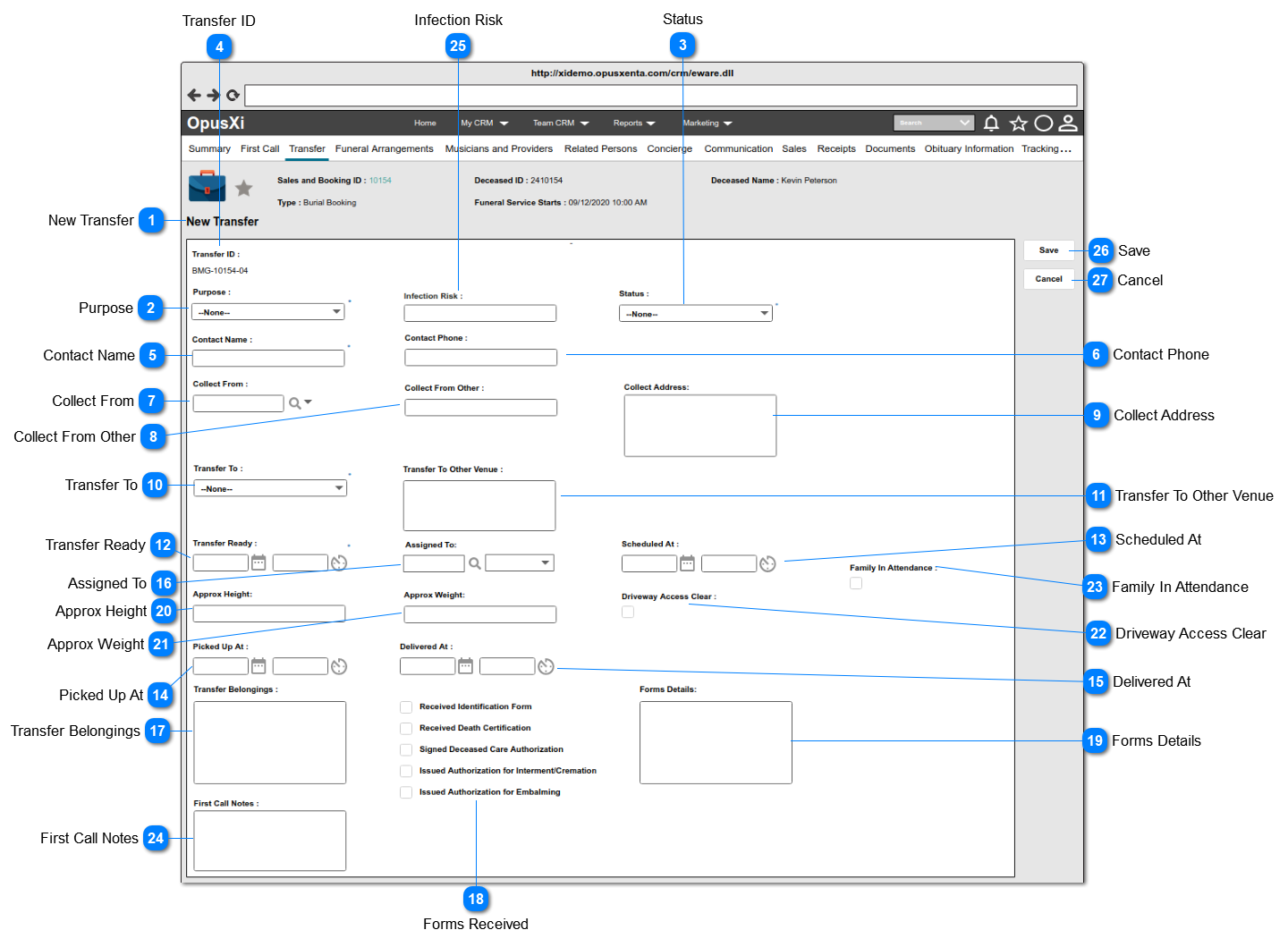
For a successfully saved First Call record with "Do You Need A Transfer" checkbox checked/selected, the system will navigate the user to this screen as well.
1. By default, current date and time will be set as the value.
2. Once the user clicks on the calendar icon (placed next to the date text field), it will show a Date Picker and the user will be able to select a date from it.
(Consider
Profile Menu -> Preferences -> Date/Time Preferences
for the date format).
3. Once the user clicks on the clock icon (placed next to the time text field), it will show a Time Picker and the user will be able to select a time from it.
(Consider
Profile Menu -> Preferences -> Date/Time Preferences
for the time format).
4. Both fields will ONLY allow to enter numbers.
5. When the user clicks on Save button without selecting a date and time, display an ERROR message.
Required
-
Date and time
-
-
Current Date and Time
5. Error message: Please select a date and time for Transfer Ready
1. Once the user clicks on the calendar icon (placed next to the date text field), it will show a Date Picker and the user will be able to select a date from it.
(Consider
Profile Menu -> Preferences -> Date/Time Preferences
for the date format).
2. Once the user clicks on the clock icon (placed next to the time text field), it will show a Time Picker and the user will be able to select a time from it.
(Consider
Profile Menu -> Preferences -> Date/Time Preferences
1. Once the user clicks on the calendar icon (placed next to the date text field), it will show a Date Picker and the user will be able to select a date from it.
(Consider
Profile Menu -> Preferences -> Date/Time Preferences
for the date format).
2. Once the user clicks on the clock icon (placed next to the time text field), it will show a Time Picker and the user will be able to select a time from it.
(Consider
Profile Menu -> Preferences -> Date/Time Preferences
1. Once the user clicks on the calendar icon (placed next to the date text field), it will show a Date Picker and the user will be able to select a date from it.
(Consider
Profile Menu -> Preferences -> Date/Time Preferences
for the date format).
2. Once the user clicks on the clock icon (placed next to the time text field), it will show a Time Picker and the user will be able to select a time from it.
(Consider
Profile Menu -> Preferences -> Date/Time Preferences
Pre-conditions: 1. There should be at least one person (will be an employee of FH) created underneath the funeral home, in order to list down as the options.
Post Conditions:
1. If there is a value entered for this field, status should be automatically changed to Assigned.
1. List the full names of the persons (will be employees of FH) created underneath the funeral home and order by ASC.
2. This element allows the user to search/filter and select a value from the list.
3. This allows to enter any characters including numbers, letters and special characters.
4.If the user clicks Save without entering a value when the field is compulsory show an error message.
If the Status = Assigned Then make this compulsory
-
Text
-
-
The same user selected to "Assigned User" when creating the Sales and Booking record or otherwise keep it blank.
1a. the system will navigate the user to the "Transfer Summary" page (with the prefilled data of the Transfer record).
1b. it will create a calendar/comms entry automatically (deliberately avoiding requirement for user to separately open/create new appointment for the this "Transfer" entry) for the assignee (selected via Assigned To ) on the date and time (selected via Scheduled At). But avoid showing the "Transfer" event on the timeline of the sales and booking screen.
(FYI :- Requires a new Action called "Transfer" in Comms table and "Transfer" option should be available in the "Action" selection in order to filter the scheduled "Transfer" entries.
Cross-reference: Site, S&B ID, Transfer ID, Assigned User)
1. The details of the "Transfer" record will be shown/displayed as read-only texts.
2. IF the Infection Risk is NOT null; the label name and the value will be displayed in "Red" color.
3. The buttons available at this screen are as follows:
Change Attributes - Once the user clicks on this button, the system will navigate the user to the edit screen of the Transfer record.
Print - When the user clicks on the button, the system will navigate the user to the "Print" page, where the user can select the document template and document format PDF (i.e. print button needs to be in format to allow addition of multiple print templates/layouts, as already used in "S&B summary/application documents") OR send the document via an email.
Cancel - The user will be navigated to the Screen 1 of Transfer List page.