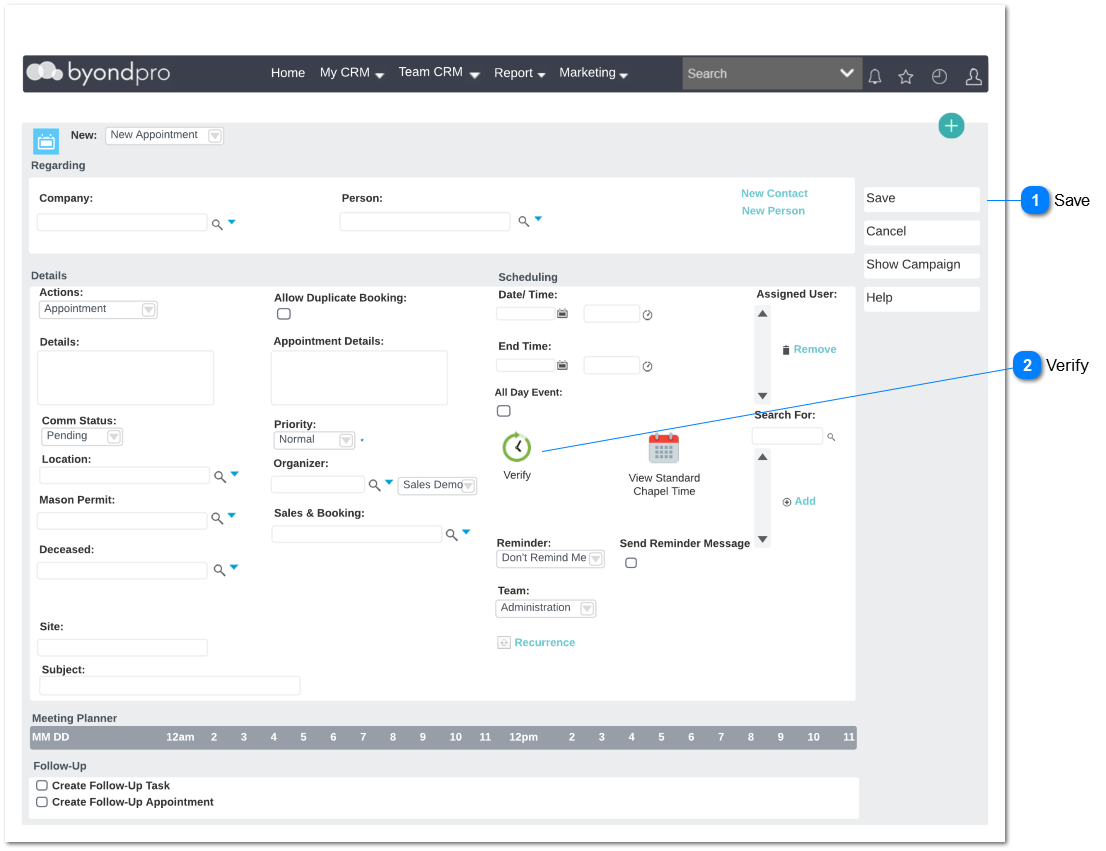
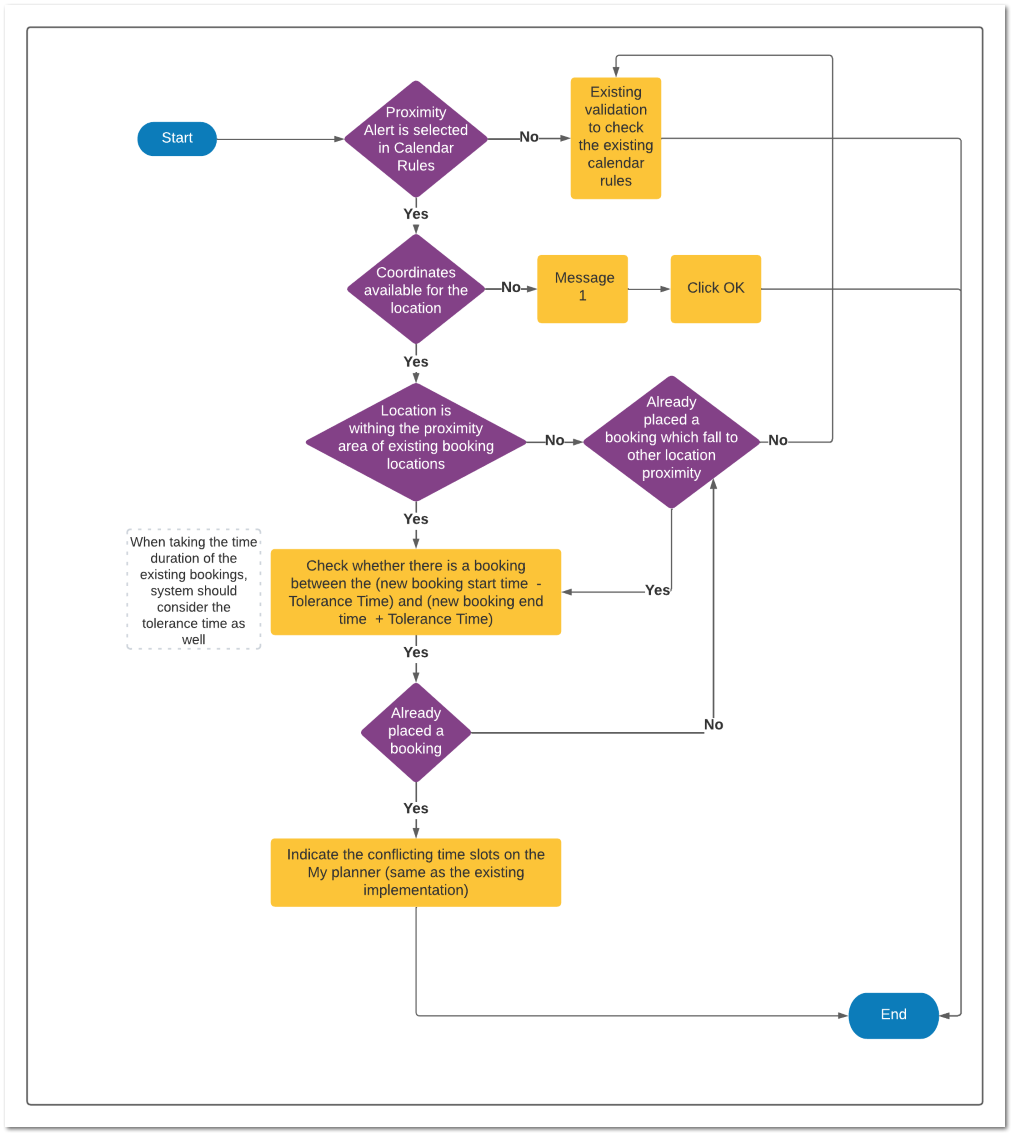
This section is added to implement the Geo-spatial calendar rules for the existing New Appointment screen. All the existing rules will be remained as it is.
Configurations need to be set up
Set up a new configuration to configure the alert type that the user required.
Administration -> Cemetery System Setup -> Custom Configuration -> New
Name : SalesAndBookingProximityAlert
Description: Define Alert Type for proximity alerts in the Sales and Booking -> Appointment
Detail: This section is added to implement the Geo-spatial calendar rules for the existing New Appointment screen. Error/ warning is generated based on selected alert type at the point saving a new appointment
Options: Error, Warning, Not Required
Default Value: Not Required
Note: If there is a typo error in the above mentioned option values, system will taken as "Not Required"
Dependencies with the other modules
Cemetery System Configuration -> CSC Version 3.0 -> Calendar Rules
Administration -> Cemetery System Setup -> Custom Configuration -> SalesAndBookingProximityAlert
Data flow
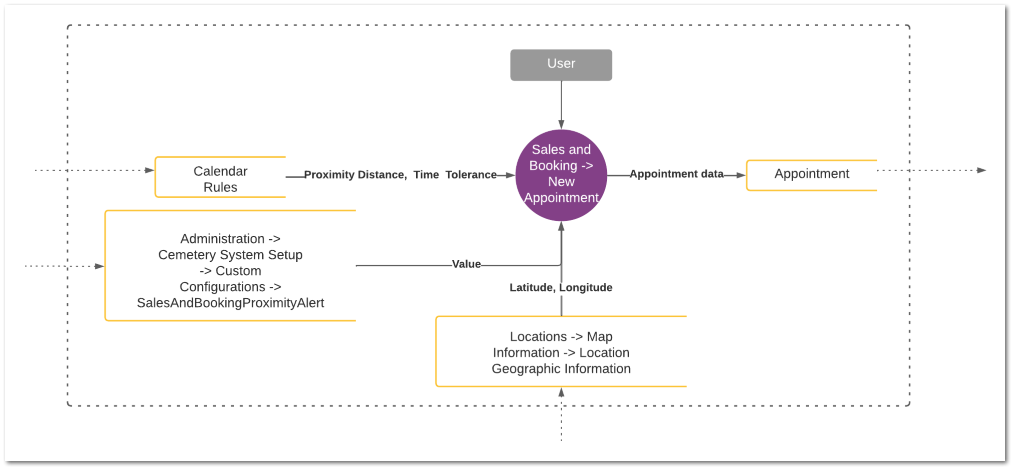
Below data flow diagram illustrate how the data of the other modules is being used for this Geo-spatial calendar rule setup.
2. Upon saving the booking, appointment should be available on the timeline in the Summary screen of the Sales and Booking record.
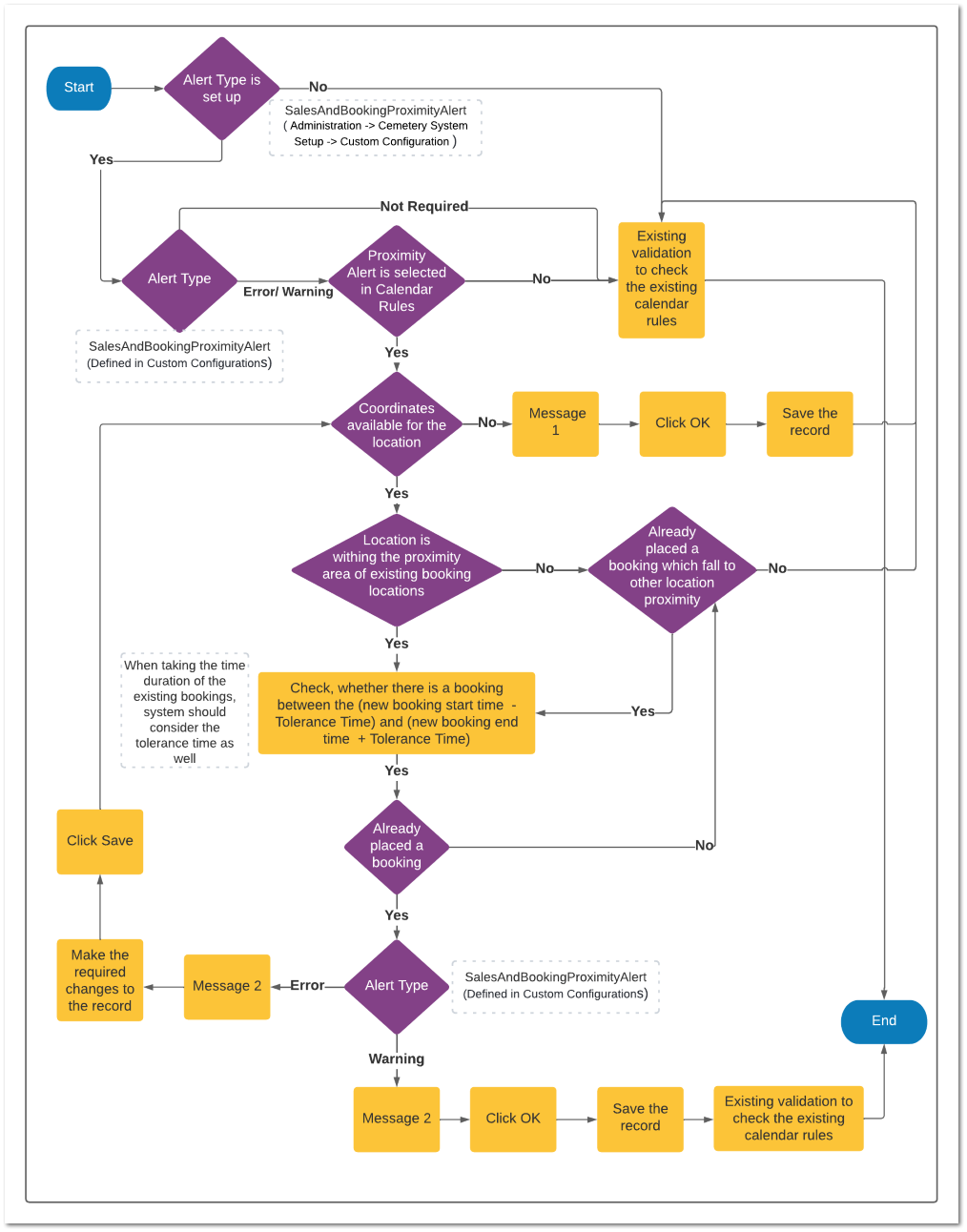
a. If the booking location is within the proximity area of an existing booking location within the (new booking start time - Tolerance Time) and (new booking end time + Tolerance Time), it should show in RED when displaying that particular booking on the timeline.
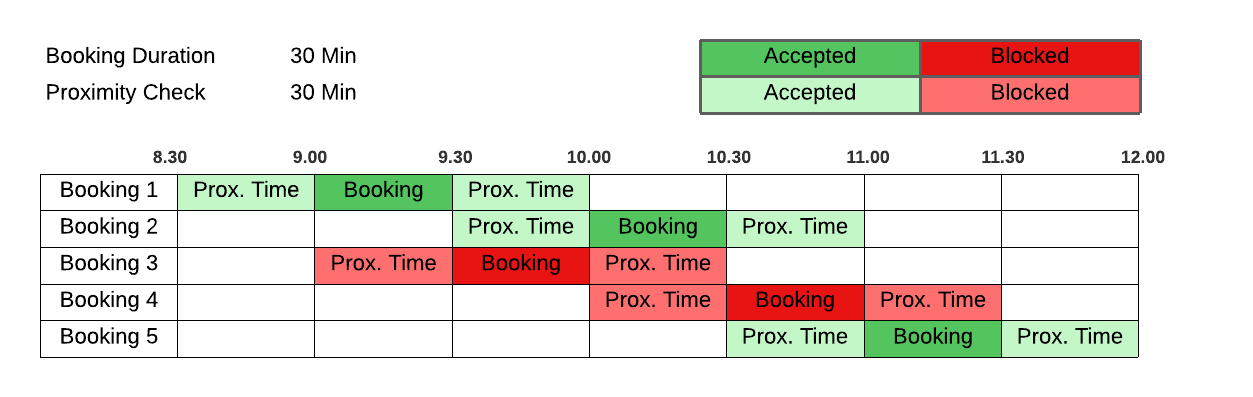
As per table bellow proximity time define should be maintained between bookings and any booking on proximity time and booking time should not be allowed.
NOTE:
This should apply when the user changes the existing location from the summary screen as well.
-
-
-
-
-
-
Message 1:
No proximity alert available.
Message 2:
This booking is conflicting with one of the existing appointment(s) scheduled from <date> <start time - Tolerance time> to <date> <end time + Tolerance time>and within the near proximity of
Transaction #: <Transaction No>
Site: <Site>
Deceased Name: <Deceased Name>
Calendar booking acceptance and blocking based proximity time
This booking is conflicting with one of the existing appointment(s) scheduled from <date> <start time - Tolerance time> to <date> <end time + Tolerance time>and within the near proximity of