To properly display this page you need a browser with JavaScript support.
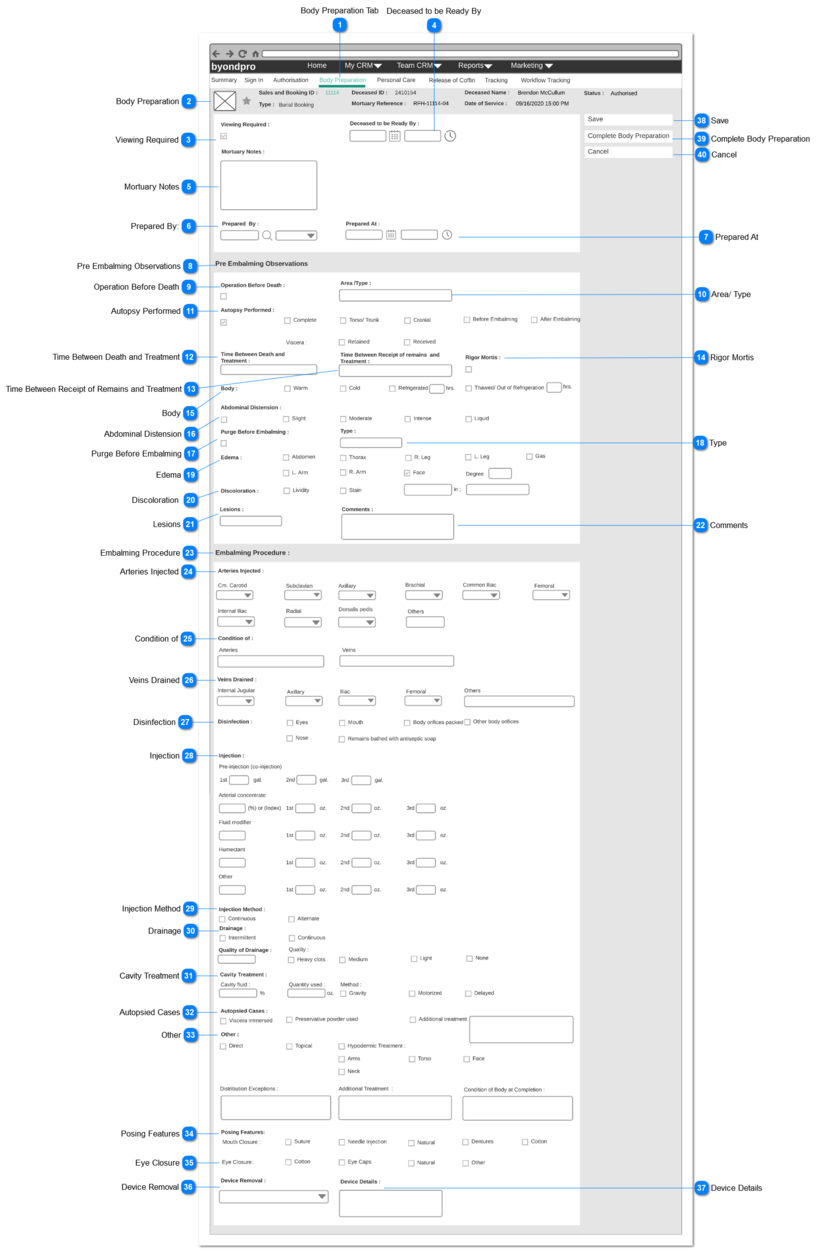
Body Preparation page can be accessed
By clicking on the Workflow step "Body Preparation" on the Summary screen.
When the user navigates to this screen, initially screen will be in view mode (summary mode). Upon clicking the "Change" button, screen will be changed to edit mode.
Body Preparation Tab
Type
Notes
Rules
Compulsory
Placeholder
Format
Edit
Size
Default
Messages
Tab 5 Title
-
-
-
-
Text
-
-
-
-
Body Preparation
Type
Notes
Rules
Compulsory
Placeholder
Format
Edit
Size
Default
Messages
Page Header
-
-
-
-
Text
-
-
-
-
Viewing Required
Type
Notes
Rules
Compulsory
Placeholder
Format
Edit
Size
Default
Messages
Check Box
-
-
No
-
Text
-
-
Unchecked/ deselected
-
Deceased to be Ready By
Type
Notes
Rules
Compulsory
Placeholder
Format
Edit
Size
Default
Messages
Date and Time
-
1 . Once the user clicks on the calendar icon (placed next to the date text field), it will show a Date Picker and the user will be able to select a date from it.
(Consider
Profile Menu -> Preferences -> Date/ Time Preferences
for the date format)
2. Once the user clicks on the clock icon (placed next to the time text field), it will show a Time Picker and the user will be able to select a time from it.
(Consider
Profile Menu -> Preferences -> Date/ Time Preferences
for the time format)
3. Both fields will ONLY allow to enter numbers.
No
-
Date and time
-
-
Blank
-
Mortuary Notes
Type
Notes
Rules
Compulsory
Placeholder
Format
Edit
Size
Default
Messages
Multiline Text
-
1. This allows to enter any characters including numbers, letters and special characters.
No
-
Text
-
-
Blank
-
Prepared By:
Type
Notes
Rules
Compulsory
Placeholder
Format
Edit
Size
Default
Messages
User Select
Pre-conditions:
1. By default, the logged in user's name will be set as the value of this field.
2. List the full names of the persons (will be employees of FH) created underneath the funeral home and order by ASC. 3. This element allows the user to search/ filter a value from the list and select.
4. This allows to enter any characters including numbers, letters and special characters.
No
-
Text
Yes
-
Full name of the
logged in user
-
Prepared At
Type
Notes
Rules
Compulsory
Placeholder
Format
Edit
Size
Default
Messages
Date and Time
-
1. By default, current date and time will be set as the value.
2. Once the user clicks on the calendar icon (placed next to the date text field), it will show a Date Picker and the user will be able to select a date from it.
(Consider
Profile Menu -> Preferences -> Date/ Time Preferences
for the date format)
3. Once the user clicks on the clock icon (placed next to the time text field), it will show a Time Picker and the user will be able to select a time from it.
(Consider
Profile Menu -> Preferences -> Date/ Time Preferences
for the time format).
4. Both fields will ONLY allow to enter numbers.
No
-
Date and time
Yes
-
Current Date and Time
-
Pre Embalming Observations
Type
Notes
Rules
Compulsory
Placeholder
Format
Edit
Size
Default
Messages
Section Header
-
-
-
-
Text
-
-
-
-
Operation Before Death
Type
Notes
Rules
Compulsory
Placeholder
Format
Edit
Size
Default
Messages
Check Box
-
-
No
-
-
Yes
-
Unchecked
-
Area/ Type
Type
Notes
Rules
Compulsory
Placeholder
Format
Edit
Size
Default
Messages
Text Field
-
-
No
-
Yes
100 characters
Blank
-
Autopsy Performed
Type
Notes
Rules
Compulsory
Placeholder
Format
Edit
Size
Default
Messages
Check Box
-
1.If this field is ticked
Then below check box options should be enabled to select the required options.
No
-
-
Yes
-
Unchecked
-
Time Between Death and Treatment
Type
Notes
Rules
Compulsory
Placeholder
Format
Edit
Size
Default
Messages
Text filed
-
-
No
-
-
Yes
-
Blank
-
Time Between Receipt of Remains and Treatment
Type
Notes
Rules
Compulsory
Placeholder
Format
Edit
Size
Default
Messages
Text filed
-
-
No
-
-
Yes
-
Blank
-
Rigor Mortis
Type
Notes
Rules
Compulsory
Placeholder
Format
Edit
Size
Default
Messages
Check box
-
-
No
-
Yes
-
Unchecked
-
Body
Type
Notes
Rules
Compulsory
Placeholder
Format
Edit
Size
Default
Messages
-
-
This field has below check box options.
Refrigerated - There should be a text filed followed by "hrs." text
Thawed/ Out of refrigeration - There should be a text field followed by "hrs." text
No
-
Yes
-
Unchecked
-
Abdominal Distension
Type
Notes
Rules
Compulsory
Placeholder
Format
Edit
Size
Default
Messages
Check Box
-
1. If this filed is checked
Then below check box options should be enabled to select the required option.
No
-
-
Yes
-
Unchecked
-
Purge Before Embalming
Type
Notes
Rules
Compulsory
Placeholder
Format
Edit
Size
Default
Messages
Check Box
-
-
No
-
-
Yes
-
Unchecked
-
Type
Type
Notes
Rules
Compulsory
Placeholder
Format
Edit
Size
Default
Messages
Text Filed
-
-
No
-
-
Yes
100 characters
Blank
-
Edema
Type
Notes
Rules
Compulsory
Placeholder
Format
Edit
Size
Default
Messages
-
-
1. This field has below check box options with the ability to select the required option.
Face - There should be a field called "Degree" followed by a text field
No
-
-
Yes
-
Unchecked
-
Discoloration
Type
Notes
Rules
Compulsory
Placeholder
Format
Edit
Size
Default
Messages
-
-
1. This field has below check box options with the ability to select the required option.
Stain -There should be two text boxes with "in"' text in between the text boxes.
No
-
-
Yes
-
Unchecked
-
Lesions
Type
Notes
Rules
Compulsory
Placeholder
Format
Edit
Size
Default
Messages
Text field
-
-
No
-
-
Yes
100 characters
Blank
-
Comments
Type
Notes
Rules
Compulsory
Placeholder
Format
Edit
Size
Default
Messages
Multi-line Text
-
-
No
-
-
Yes
-
Blank
-
Embalming Procedure
Type
Notes
Rules
Compulsory
Placeholder
Format
Edit
Size
Default
Messages
Section Header
-
-
-
-
-
-
-
-
-
Arteries Injected
Type
Notes
Rules
Compulsory
Placeholder
Format
Edit
Size
Default
Messages
-
-
1. This field has following options with "Left" and "Right" drop-down values for each option.
No
-
-
Yes
-
Blank
-
Condition of
Type
Notes
Rules
Compulsory
Placeholder
Format
Edit
Size
Default
Messages
-
-
1. This field has following options with a text field for each.
No
-
-
yes
100 characters
Blank
-
Veins Drained
Type
Notes
Rules
Compulsory
Placeholder
Format
Edit
Size
Default
Messages
-
-
1. This field has following options with "Left" and "Right" drop-down values for each option.
Internal Jugular
No
-
-
Yes
-
Blank
-
Disinfection
Type
Notes
Rules
Compulsory
Placeholder
Format
Edit
Size
Default
Messages
-
-
1. This field has following options with a check box for each.
Remains bathed with antiseptic soap
No
-
-
yes
-
Unchecked
-
Injection
Type
Notes
Rules
Compulsory
Placeholder
Format
Edit
Size
Default
Messages
-
-
1. This field has following options.
Pre-Injection (co-injection) : there should be three text fields for 1st, 2nd and 3rd followed by "gal" text for each
1. There should be a text field followed by "(%) or (index)" for each
2. There should be three text fields for 1st, 2nd and 3rd followed by "oz" text for each
1. There should be a text field .
2. There should be three text fields for 1st, 2nd and 3rd followed by "oz" text for each
1. There should be a text field .
2. There should be three text fields for 1st, 2nd and 3rd followed by "oz" text for each
1. There should be a text field .
2. There should be three text fields for 1st, 2nd and 3rd followed by "oz" text for each
No
-
-
Yes
-
Blank
-
Injection Method
Type
Notes
Rules
Compulsory
Placeholder
Format
Edit
Size
Default
Messages
-
-
1. This field has following options with a check box for each.
No
-
-
Yes
-
Unchecked
-
Drainage
Type
Notes
Rules
Compulsory
Placeholder
Format
Edit
Size
Default
Messages
-
-
1. This field has following options with a check box for each.
No
-
-
Yes
-
Unchecked
-
Cavity Treatment
Type
Notes
Rules
Compulsory
Placeholder
Format
Edit
Size
Default
Messages
-
-
1. Cavity Fluid : there should be a text field followed by a "%"
2. Quantity used :
there should be a text field followed by a "oz."
3. Method : There should be three check boxes for following.
No
-
-
Yes
-
Text filed: blank
Checkbox: unchecked
-
Autopsied Cases
Type
Notes
Rules
Compulsory
Placeholder
Format
Edit
Size
Default
Messages
-
-
1. This field has following options with a check box for each.
Additional Treatment : There should be a text field
No
-
-
Yes
-
Check-box : Unchecked
Text Filed : Blank
-
Other
Type
Notes
Rules
Compulsory
Placeholder
Format
Edit
Size
Default
Messages
-
-
1. This field has following options with a check-box for each.
Hypodermic treatment : If this option is checked Then check boxes for following options should be enabled. Arms,
Torso
Face
Neck
2. There should be three multi-line text boxes for following:
Condition of Body at Completion
No
-
-
Yes
-
Check-box : Unchecked
Text box : Blank
-
Posing Features
Type
Notes
Rules
Compulsory
Placeholder
Format
Edit
Size
Default
Messages
-
-
1. This field has following options with a check box for each.
No
-
-
Yes
-
Unchecked
-
Eye Closure
Type
Notes
Rules
Compulsory
Placeholder
Format
Edit
Size
Default
Messages
-
-
1. This field has following options with a check box for each.
No
-
-
Yes
-
Unchecked
-
Device Removal
Type
Notes
Rules
Compulsory
Placeholder
Format
Edit
Size
Default
Messages
Selection
Pre-conditions:
1. List the Device Removal types as the options of the selection list.
The options are as follows.
No
-
Text
-
-
--None
-
Device Details
Type
Notes
Rules
Compulsory
Placeholder
Format
Edit
Size
Default
Messages
Multi-line text
-
-
No
-
-
Yes
100 characters
Blank
-
Save
Type
Notes
Rules
Compulsory
Placeholder
Format
Edit
Size
Default
Messages
Button
-
Upon clicking the button:
1. Record will be saved and attached to the particular Sales and Booking record
2. Success message will be shown
3. The system will navigate the user to the summary of the Body Preparation record.
-
-
-
-
-
Enable
Success Message :
Body Preparation record has been created.
Complete Body Preparation
Type
Notes
Rules
Compulsory
Placeholder
Format
Edit
Size
Default
Messages
Button
-.
Upon clicking the button:
Then
1. Record will be saved and attached to the particular Sales and Booking record
2. Success message will be shown
3. The system will navigate the user to the summary of the Body Preparation record.
4. The "Current Stage" of the workflow will be changed to Personal Care
5. The status of the Mortuary Care record will be changed to to "Prepared".
Else
Error message will be shown.
-
-
-
-
-
Active
Success Message: Body Preparation has been completed.
Error Message:
Standard SAGE CRM error message for mandatory fields
Cancel
Type
Notes
Rules
Compulsory
Placeholder
Format
Edit
Size
Default
Messages
Button
-
Upon clicking:
1. Clear/ reset all the input elements.
2. "Body Preparation" process will be discarded.
3. The user will be retained in this same tab/ screen.
-
-
-
-
-
Enable
-