PowerBi On-Premises Gateway Configuration
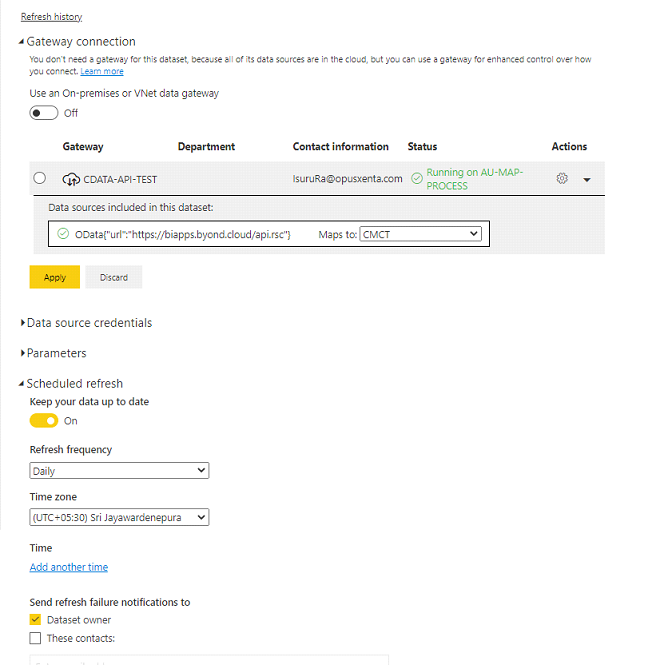
Our customers do not need to configure the gateway in order to manage scheduled data refresh functions, when using the ODATA connection method.
A gateway for API based dataset is not necessary because all of its data sources are in the cloud. All published reports can refresh and schedule without gateway with our API.
A gateway can be used for enhanced control over how you connect .
Download PowerBi Gateway using this link:
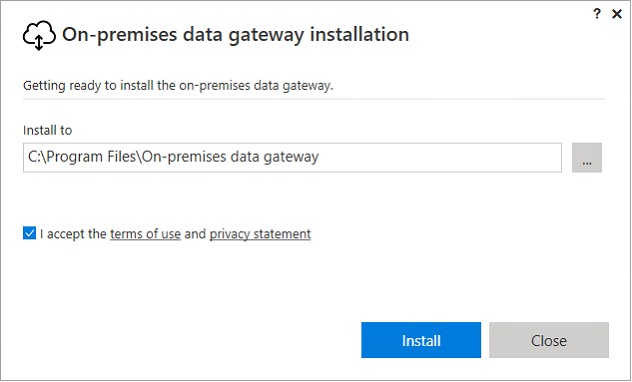
In the gateway installer, keep the default installation path, accept the terms of use, and then select Install.
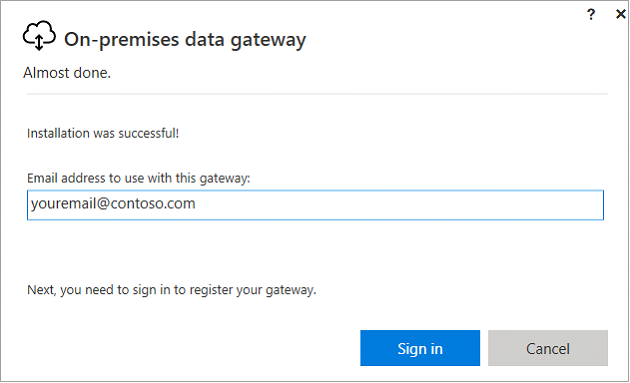
Enter the email address for your Office 365 organization account, and then select Sign in.
The gateway is associated with your Office 365 organization account. You manage gateways from within the associated service.
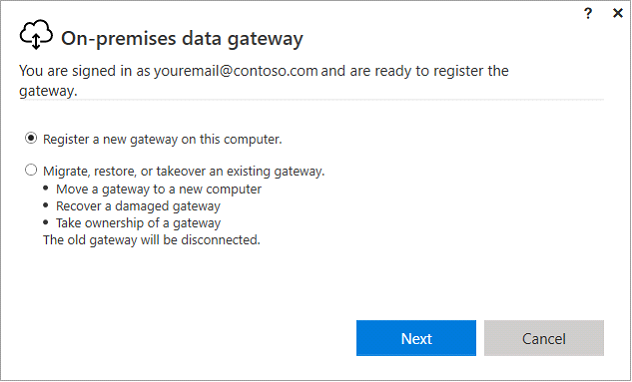
You're now signed in to your account.
Select Register a new gateway on this computer, then press Next.
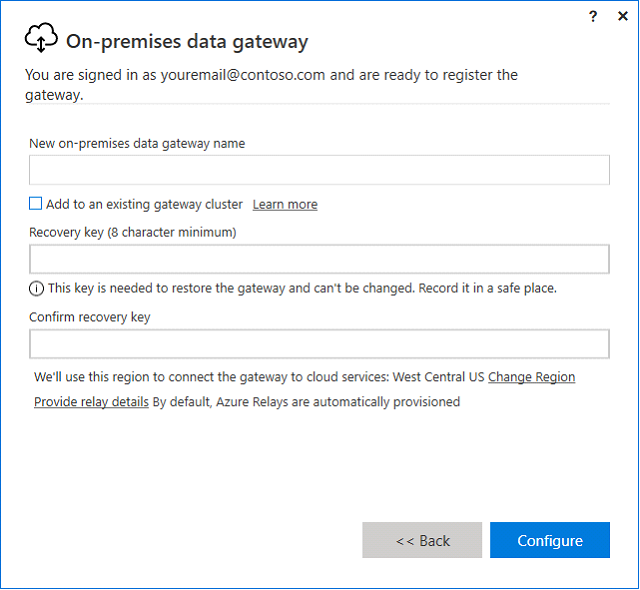
Enter a name for the gateway. The name must be unique across the tenant.
Also enter a recovery key. You'll need this key if you ever want to recover or move your gateway.
Select Configure.
Note the Add to an existing gateway cluster checkbox. We'll use this checkbox in the next section of this article.
You can change the region that connects the gateway to cloud services.
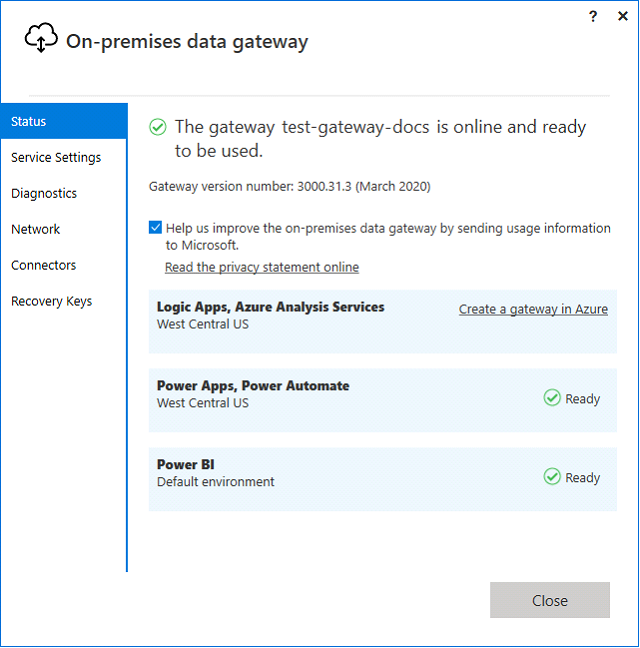
Review the information in the final window.
In this example, the same account is used for Power BI, Power Apps, and Power Automate, the gateway is available for all three services. Select Close.
Go to your PowerBi Web Portal
Click on Settings->Manage Gateways
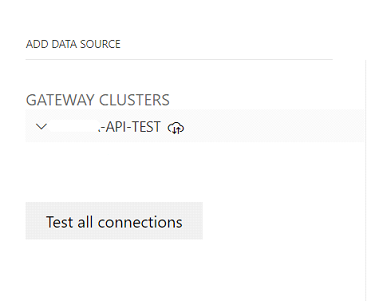
In the gateways you can see your newly created gateway in gateway clusters
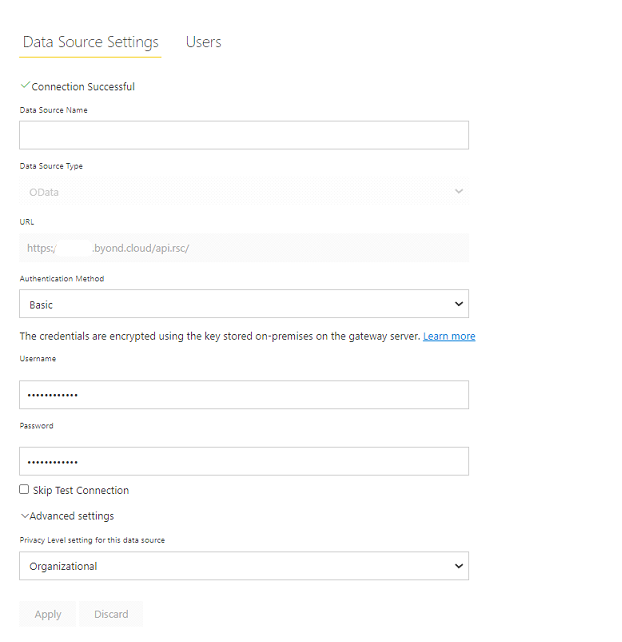
Configure your gateway data source settings as below.
Click data source name as you want
Select “ODATA” as source type
Paste given URL in the URL section
Select Authentication type as Basic
Add given username
Add given password
Click apply.
Now your gateway is fully configured API.