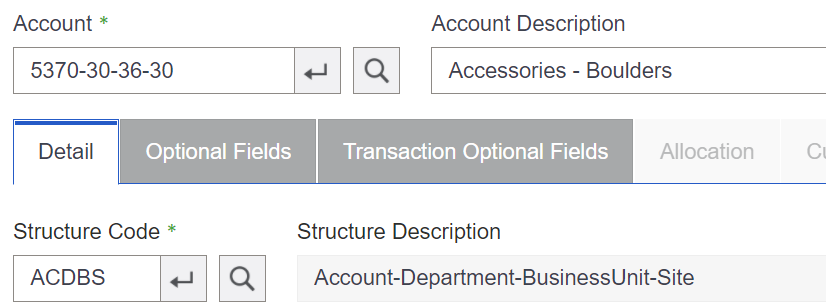
In our example, the GL revenue account has been added to Sage 300.
Once the error is fixed, it’s now time to process the invoice.
Navigate back to the invoice and press the Resync Invoice button.
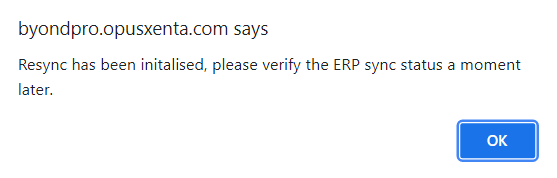
A message will advise the resync has been initialised. Press OK.
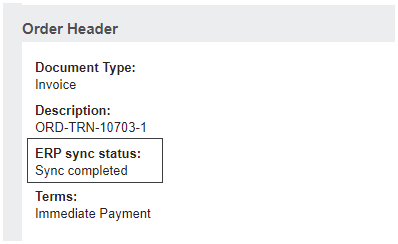
Once the sync has been completed the invoice will now have been processed.
Once the resync has been completed successfully, the finance team can then process the appropriate correction general ledger journals to ensure the correct general ledger account movements have been processed in Sage 300.
Or, they may wish to process a
credit note to reverse the transaction. Then, inactivate the incorrect general ledger account and update the item category to the correct general ledger account and re-invoice.
The finance team will need to consider the timing of the updates to be performed.’
Following the correction journal entry, the finance team should then mark the general ledger account as inactive in Sage 300.
Then, in byondpro, the finance user will need to look at the items included in the invoice.
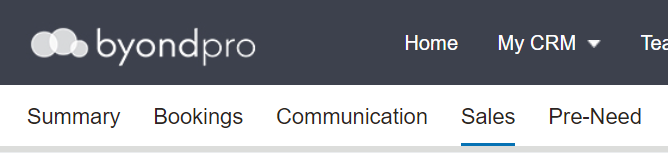
From the Sales tab of the Sales & Booking, click on the sales order hyperlink to go into the Sales Order.
You will need to check each of the items on the sales order to identify which one resulted in the sync error.
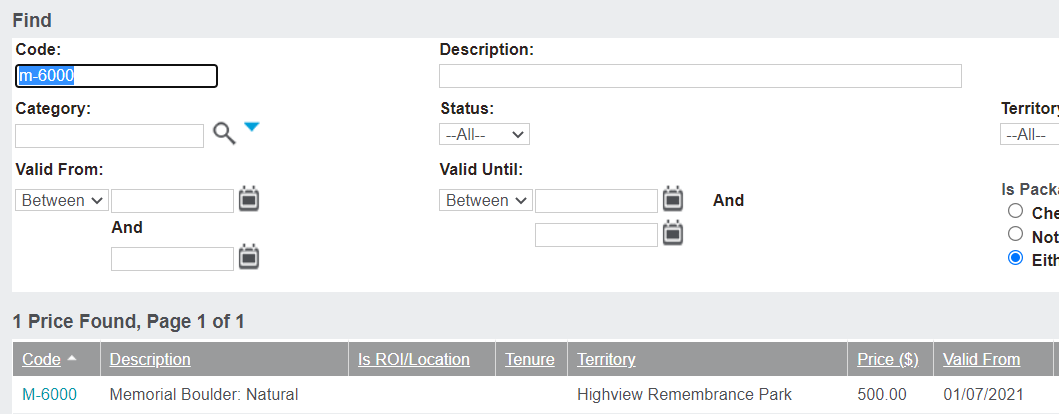
In our example, the item M-6000 was the only item sold on the invoice.
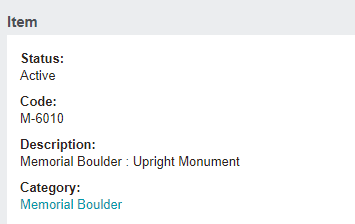
Locate the item from byondpro and access the Category the item is linked to.
Find the item /s, using the Items tile on the dashboard.
Once the item is located, go into the item by clicking on the item code hyperlink.
From the item, go into the category by clicking on the Category hyperlink.
Or go directly to the item category through Profile Menu -> Administration -> Cemetery System Setup -> Category Setup.
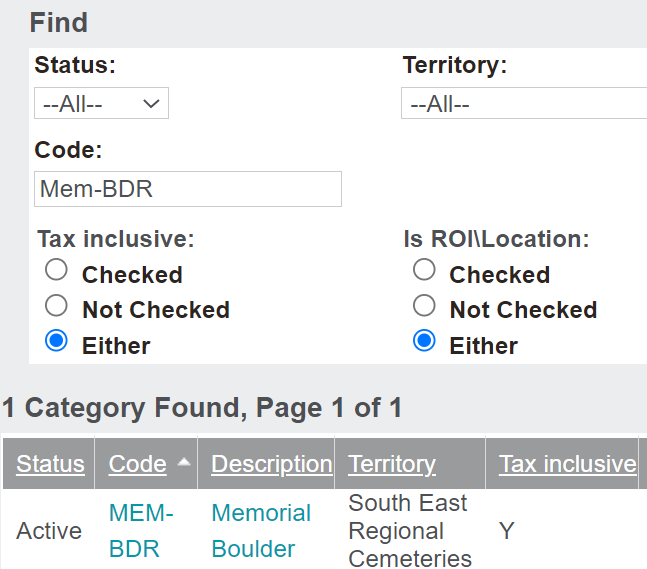
Locate the category of the item using the search fields and press Find.
Click on the Category hyperlink to go into the category to correct the general ledger account settings.
Should there be more than one item on the invoice, you may need to review every item and item category on the invoice until the incorrect GL account is found.
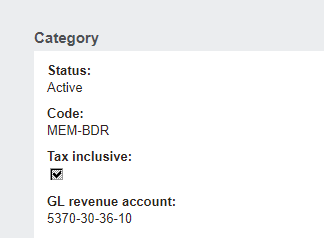
Returning to our example, the revenue account on the category is listed as 5370-30-36-10.
And as identified, this is the incorrect code within Sage 300.
The finance team will have made the appropriate corrections as required for this transaction, as outlined above.
For example, they may have decided to create a credit note in byondpro and push this through the integration, rather than complete a manual journal in Sage 300.
If the appropriate checks have been made, you can now edit the category and update the GL revenue account (or whichever account triggered the initial failure) to the correct general ledger account.
The finance team may now wish to process a new invoice, if they have processed a credit note in byondpro.
The new invoice will reflect the updated item category settings to the correct general ledger account.