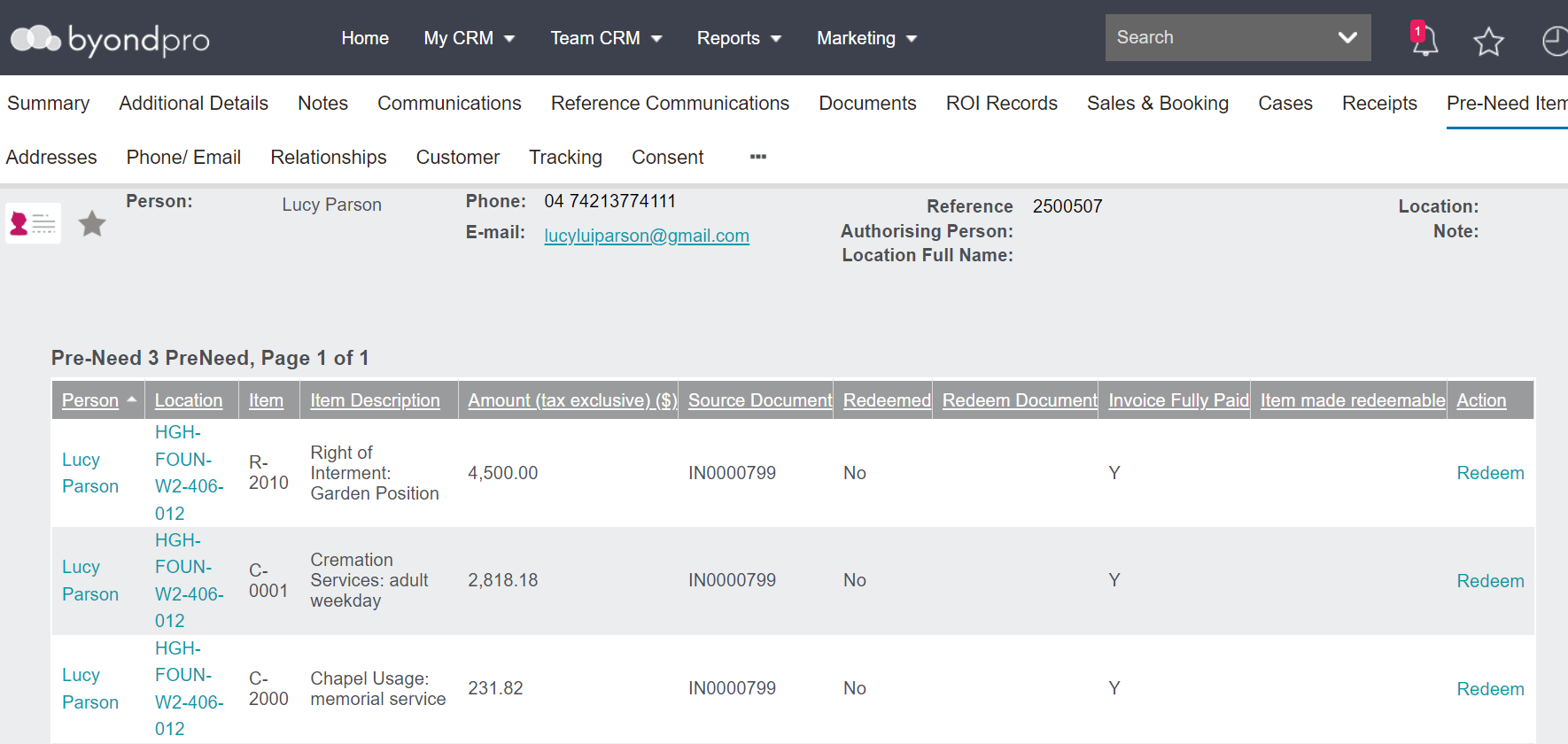
Items sold as pre-need where the invoice is paid in full, will display as redeemable on the Pre-Need Items tab of the person record and location record.
If the items are not marked as redeemable and you wish to redeem them, please visit the Making Items Redeemable section of this document.
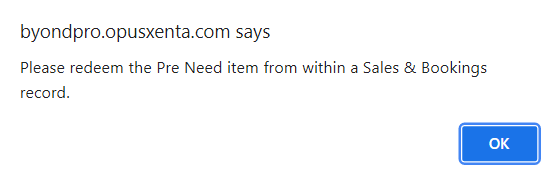
An attempt to redeem the items from the person or location record will result in a message advising to redeem the item from a Sales & Booking.
When the 'owner' of the items is ready to take up these items, this must be done from a Sales & Booking.
The reason the items need to be redeemed in a Sales & Booking is so any appointments required to be made, such as a Chapel Service appointment for a Chapel Service item, can be booked at the same time as redemption.
From the Sales & Booking tab of the person record linked to the pre-need items, choose the New Sales & Booking button on the right-hand side of the page.
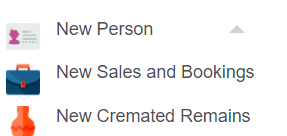
You can also click on the plus symbol on the top right-hand side of the page and choose the New Sales and Booking option, however, this method results in having to enter in the person record details.
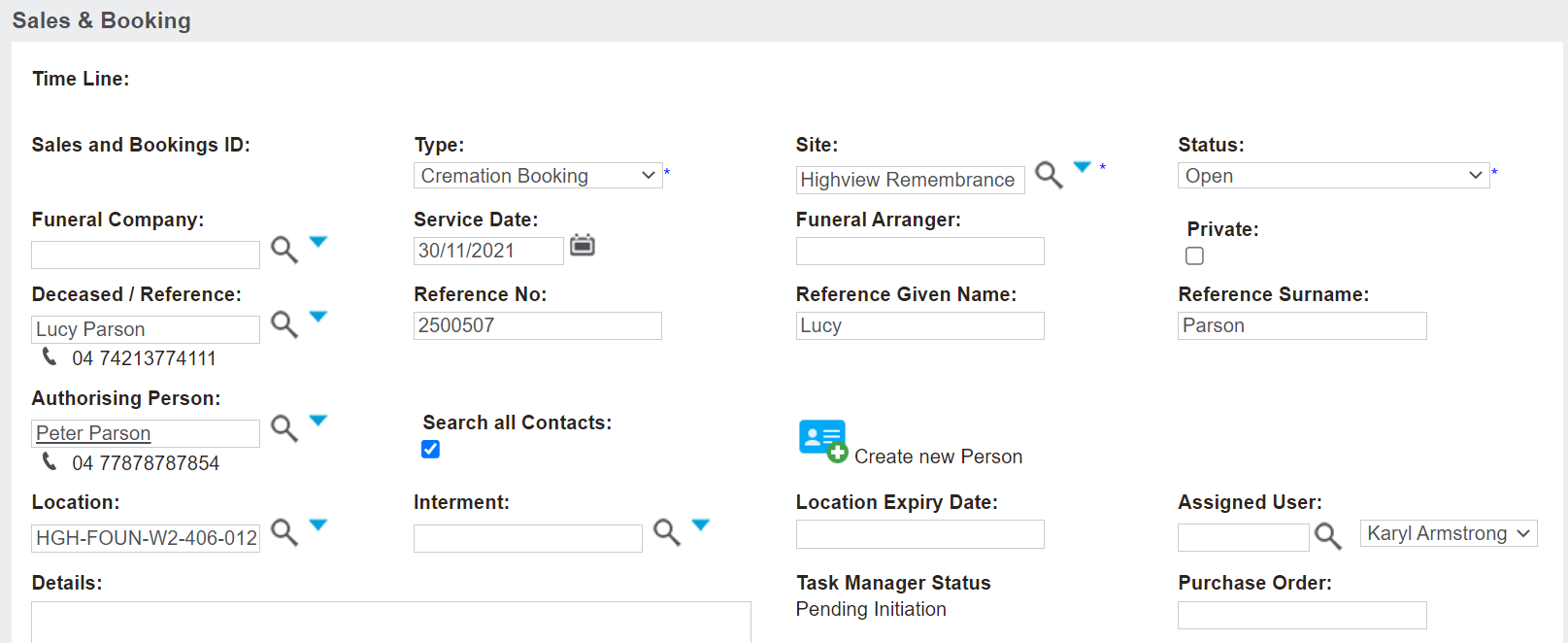
Complete the fields with as much information as possible.
In this scenario, a user would likely choose the:
-
Type field, Burial Booking or Cremation Booking
-
Site field, the site the person, location and items are linked to
-
Service Date field, the date of the expected burial or cremation
-
Reference Contact field, the deceased record and the person the items are linked to
-
Authorising Person field, who has authorisation over the deceased
-
Location field, the location the reference contact is to be interred in.
The fields and what is required to complete at the start may vary based on each customer’s database, their internal processes, and the information the user has at the time of creating the booking.
Once completed, choose Save on the top right-hand side of the page.
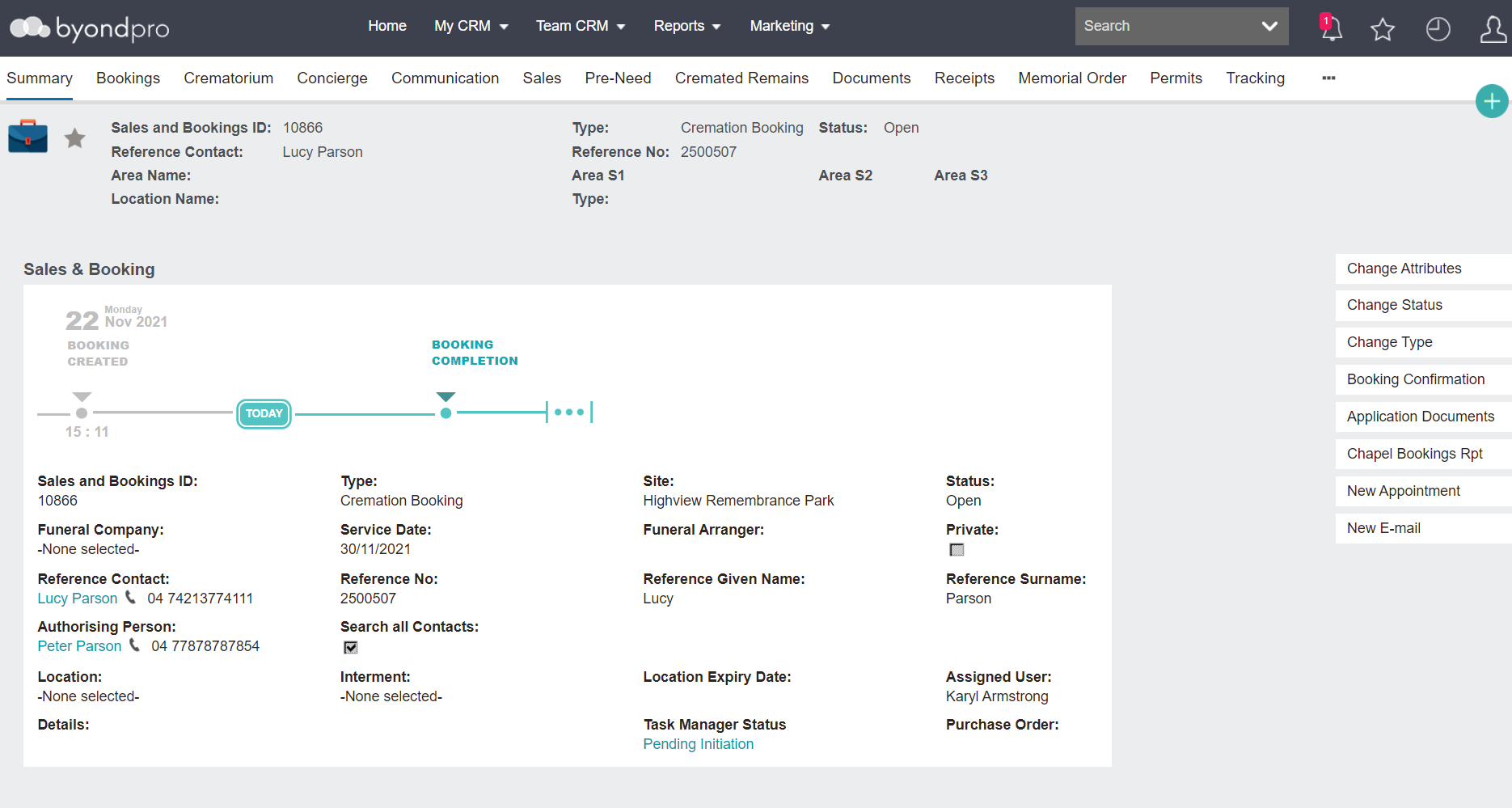
The booking will now display.
Now could be the time to book in any appointments, such as the Interment Service or Chapel Service. Users can also complete the Bookings, Burials / Cremations tab, and the Concierge tab, if in use.
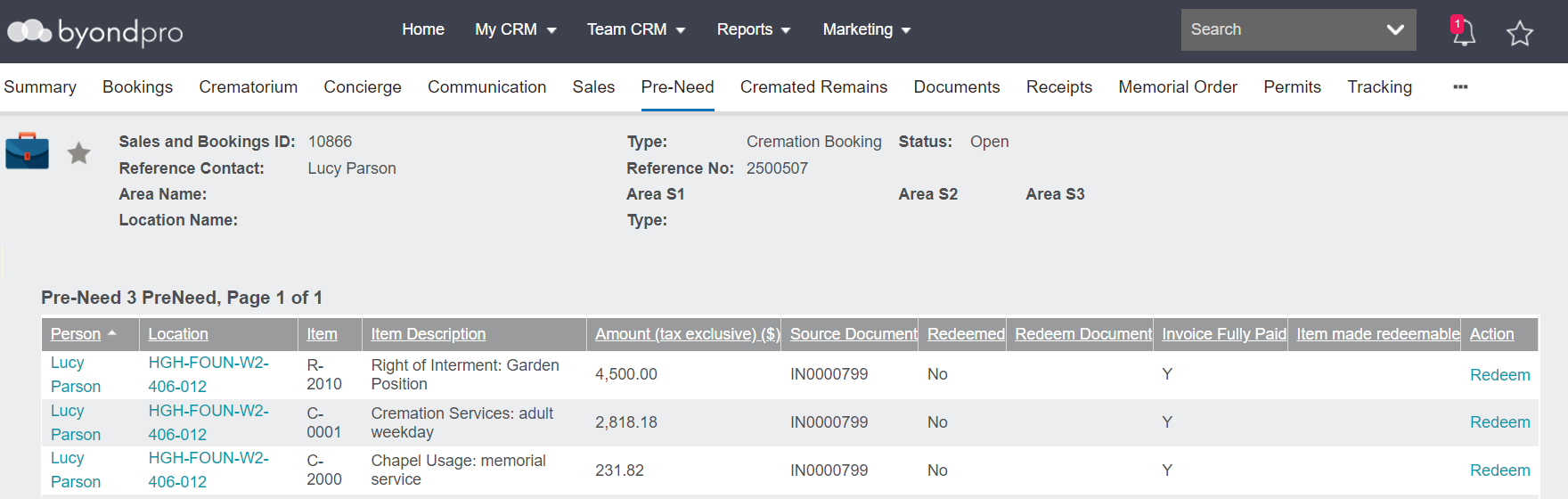
To redeem the pre-need items, go to the Pre-Need tab of the booking.
By adding the location code and the person record into the summary screen of the Sales & Booking, the items linked to these records will display.
If no location was added to the summary of the sales and booking and the items were not linked to the person record entered in the summary tab, the items would not appear.
Items that are ready to redeem will display the word 'Redeem' have under the action header.
Items that are not ready to be redeemed because the invoice has not been paid in full, will be blank under the action header.
After completing any checks or balances required, click on the word redeem in line with the item (s) to be redeemed.
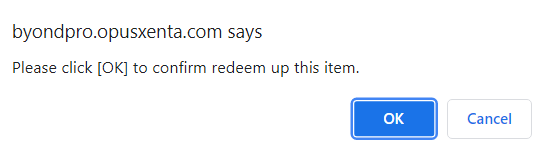
A message will display asking to confirm redeeming of this item. If this is the desired action, press OK.
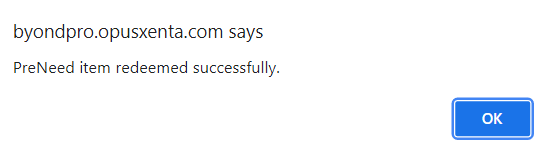
Once redeemed, a message will state the Pre-Need item was redeemed successfully.
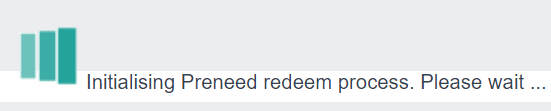
Where a customer is integrated to Sage 300, the sync process takes a short time. There will be a message stating 'Initialising PreNeed Redemption Process.'
Press OK on the message.
The item will display as redeemed, with a reference to the redeem document number, which will be the Sales & Booking I.D.
There will no longer be an option to redeem the item.
This process would need to be completed for each item being redeemed in the Sales & Booking.