Cemeteries can capture the activities of the mason by logging each time the mason comes on site to complete work.
These entries allow the user to record by whom the works were inspected, and details of the works carried out at each visit.
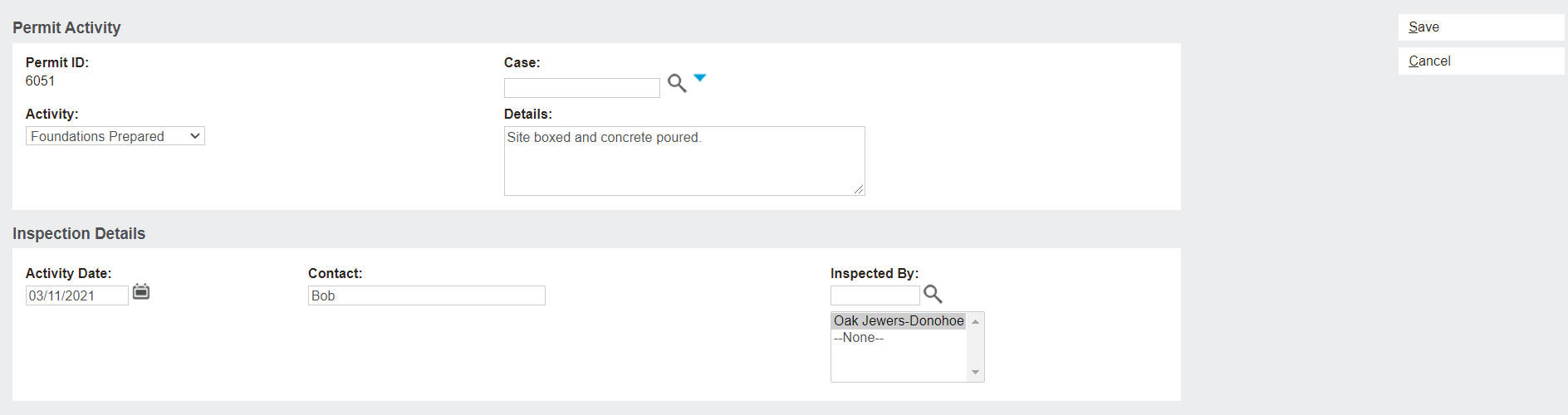
From the mason permit record, click on the Permit Activity button on the right-hand side of the screen to record a new permit activity.
The resulting screen includes two blocks:
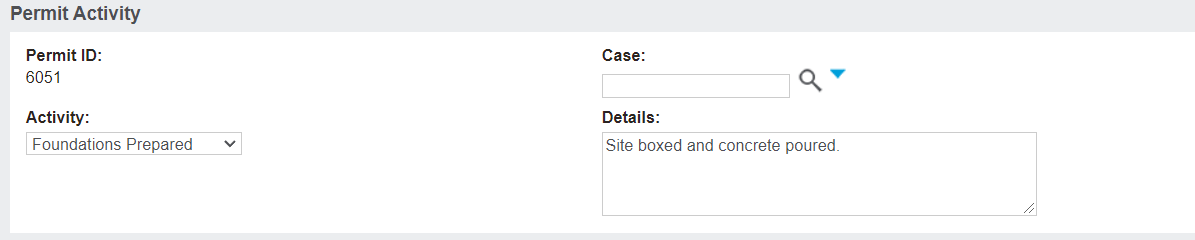
Permit Activity
The Permit ID auto-fills from the linked permit record.
If the mason permit or the action being recorded is related to an active Case, the case can be linked here.
The type of Activity being completed can be selected from a drop-down menu.
Specific Details about the works carried out can be captured.
Inspection Details
The Activity Date is the date that the activity is undertaken.
The Contact from the mason company that did the work can be listed.
The Inspected By field is auto populated with the cemetery user that is creating the permit action record.
If another staff member inspected the site, then the magnifying glass can be clicked to show a full list of cemetery staff members, or the search bar can be used to find the required staff member.
Once all the required fields are filled out, click on Save on the right-hand side of the screen.
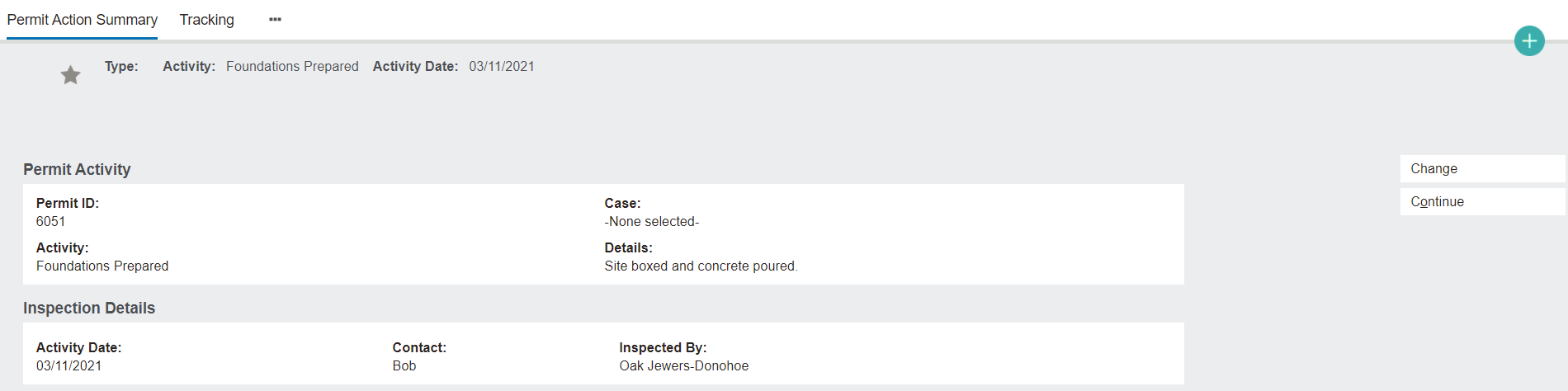
Back on the Permit Summary page, navigate to the Permit Actions tab to see a list of all the recorded activities.
Clicking on the Activity hyperlink opens the Permit Action Summary, where you can edit the details of the action by clicking the Change button on the right-hand side of the screen.