Package Items
Cemeteries may often sell items together, which can be simplified by setting up package items.
By setting up items as part of a package, this allows users to sell the items in one quick action, rather than adding items to a sales order separately.
Additionally, if the cemetery has the option to offer discounts when items are purchased together, the package item will allow for this functionality.
Packages can be sold when a location is linked to a ROI\Location item.
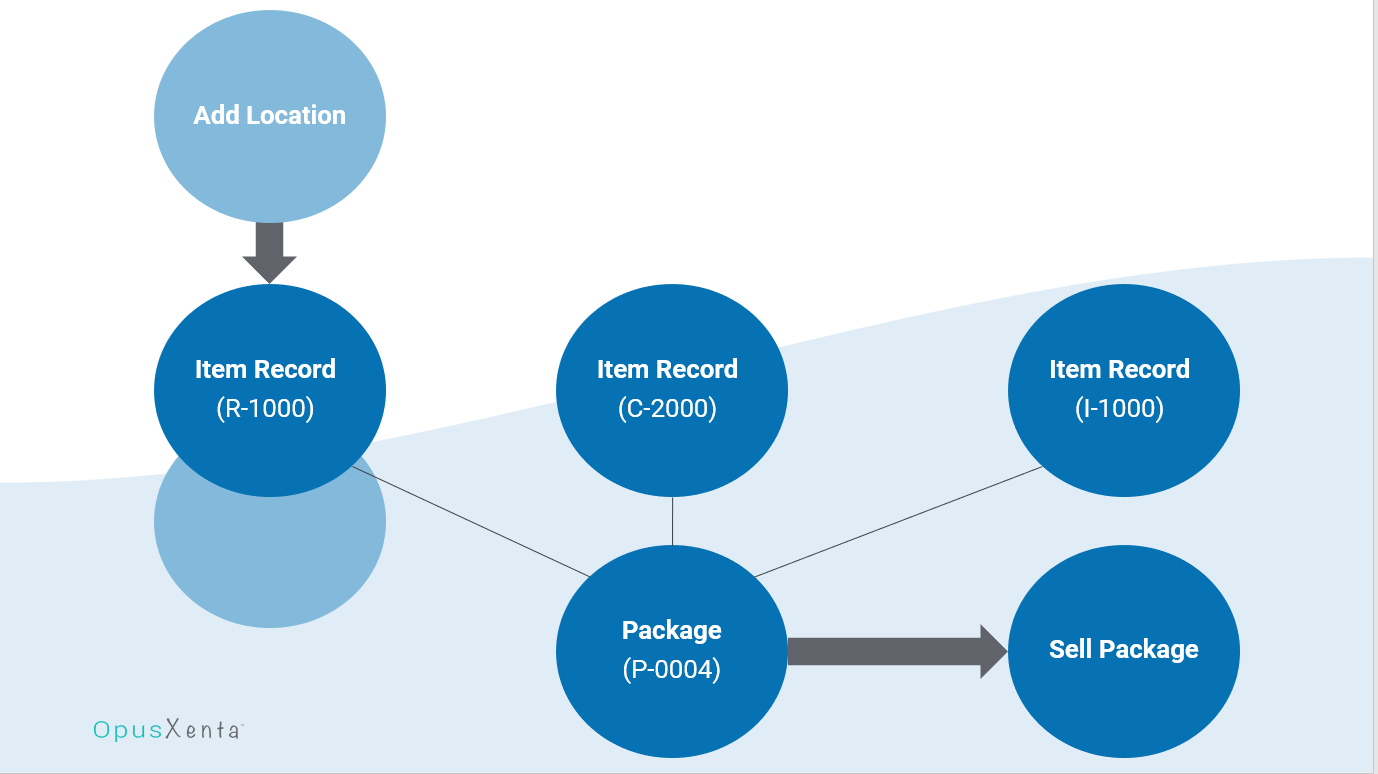
Packages can be sold when linked to items as well.
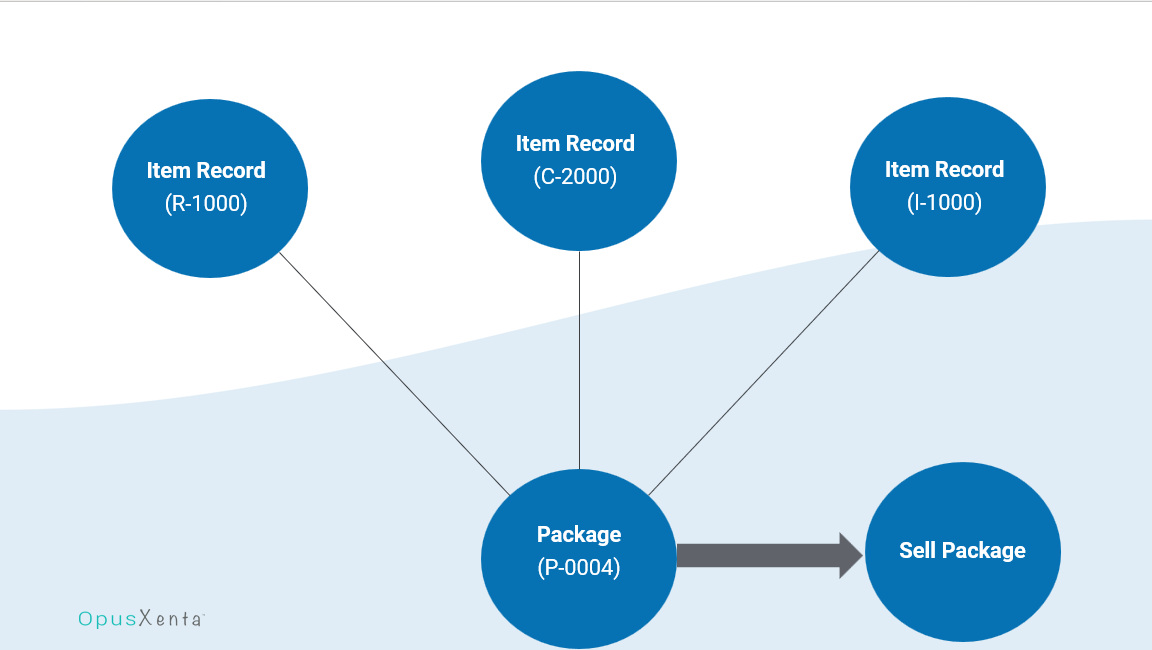
It’s possible to include any combination of items in a package, for example a cremation package including a cremation service and chapel usage.
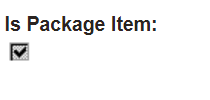
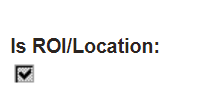
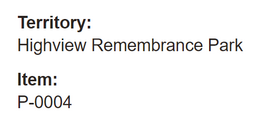
See below image of our package item P-0004.
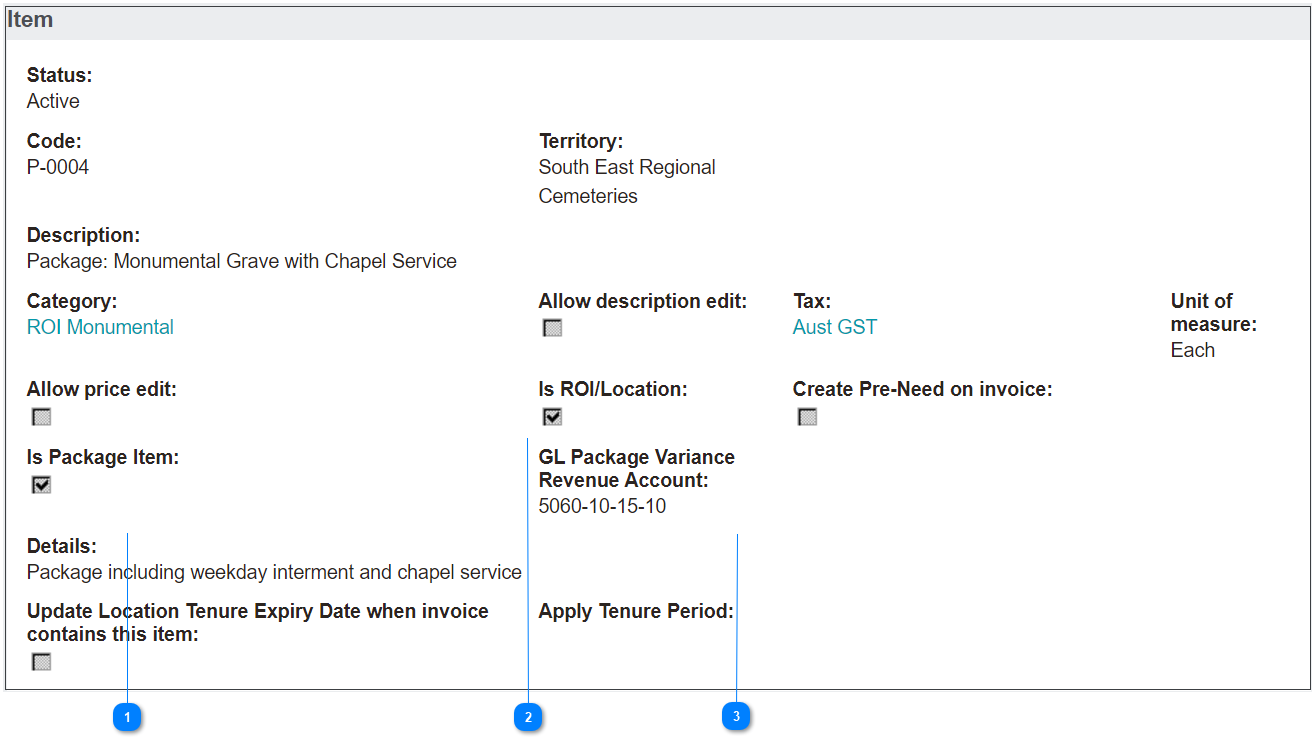



It is possible to have the sum of all the prices of the package components to not equal the pricing allocated to the package, in the example of a discount being offered.
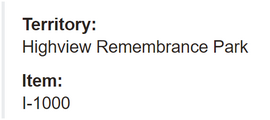
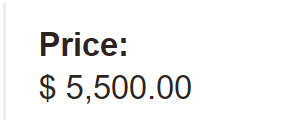
In our example below, we can see the package components and the prices of I-1000, C-2000, and R-1000. If we add the prices together, the package would be priced at $7,260.00.
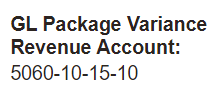
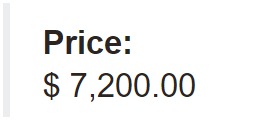
However, as per the last image, the P-0004 package is priced at $7,200.00, leaving a variance of revenue of $60.00.
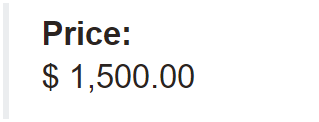
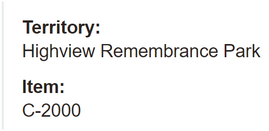
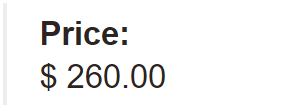
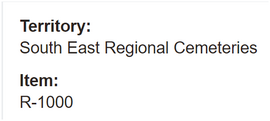
This price variance could be because there was a discount on offer or due to an error in setting up the package pricing initially. Whatever the cause, this account will be the account on the GL that the variance posts to.
Cemetery staff will need to review the variance account to ensure that the values posted are not the result of incorrect package pricing. If so, the package pricing will need to be corrected.
Package Components tab
Once an item is added that is marked as a package, a new tab labelled Package Components appears.
This tab is the place to add what items are included as package components.
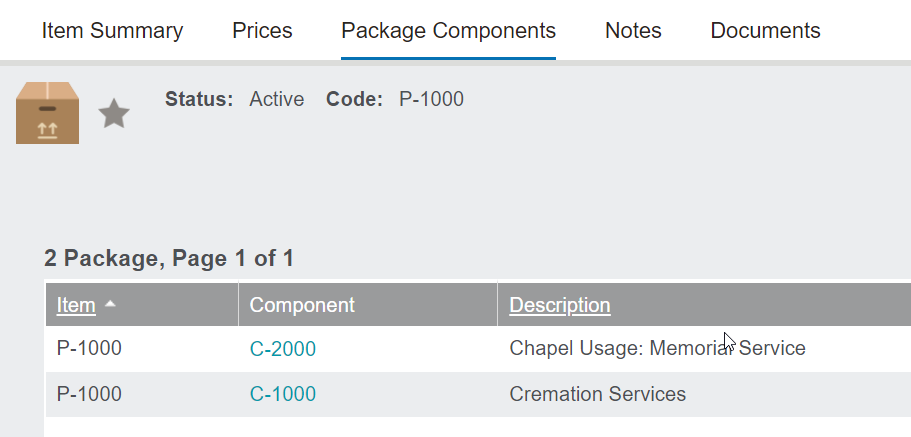
For an existing package, the items included will display the package item code, the component / item code and description, and whether the item is an ROI/Location item.

Clicking on the item code will bring you to the package component page for that item, not the full item record.

Add a New Package Component
Returning back to the Package Component tab, in the case of setting up a new package, add the individual package components by choosing the New Package Component button on the right-hand side of the page.
Simply use the search select field to locate the item in the Component field. Then press Save on the right-hand side of the page.

Complete the process again for each package component.
Once all package components have been added, complete the setup of the package item by adding the price /s.
If there is no discount applicable, users should check that the sum of the components equals the price. If there is a discount applicable, check the sum of the components less the discount equals the price.
Please note that if adding more package components to an existing package, you have the following options:
-
Create a new package, add all the items and pricing to the new package. This will keep the existing package in byondpro.
-
Add items to an existing package and update the pricing to ensure that the pricing reflects all package components. This option would override the existing package.