Move Single Location Code
The Move Single Location Code option allows users to move one location record from one Area or Sub-area to another. It will update the relevant Area and Sub-area segment of the location code accordingly. Type can be updated at the same time.
Once selecting a single location from the selection list, you will be able to press the Move Single Location Code button on the right-hand side of the page.

The screen will display the current location code in the Move From section.
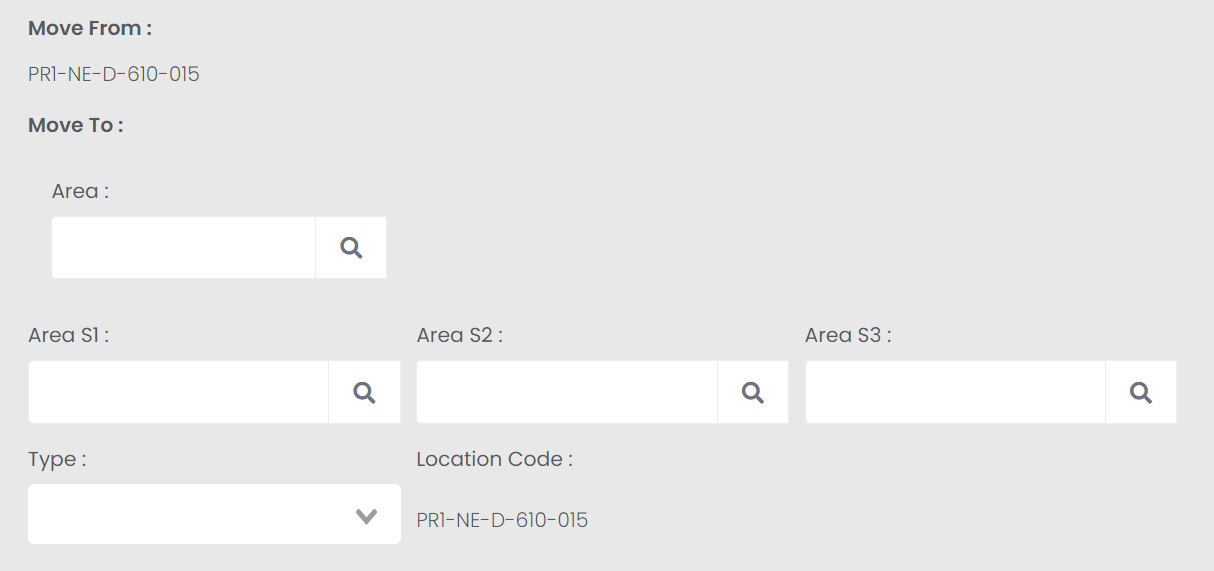
At any stage, should you wish to cancel the process, press the Cancel button on the right-hand side of the page.
This action will bring you back to the original Location Code Change Tool screen.

Users can change any of the following:
-
Area and any Sub-Areas
-
Type
-
Area and any Sub-Areas and TypeTo change the area or sub-areas, use the applicable search select field to locate the correct Area or Sub-Area.Select the Area first and the sub-area selections will be restricted to sub-areas within the area, if there are any.
If changing a Sub-area, select the appropriate sub-area.
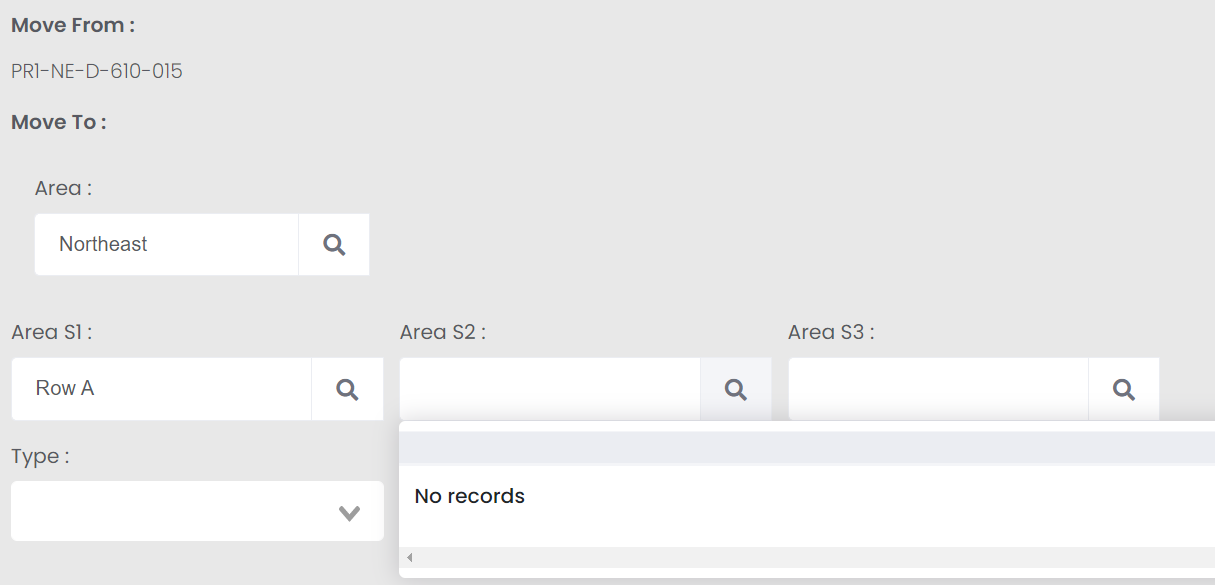
To change the type, drop your cursor in the empty field below Type for the list of location types to appear below.
Start typing in the field to narrow the list to location types starting with the letters you have typed.
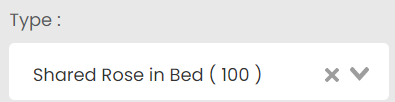
Click on the desired type and it will display in the field.
Click on the desired type and it will display in the field.
Should you make an incorrect selection in any field, simply click on the X within the field to clear the field.
As changes are made, the Location code updates in the Location Code field on screen.
The location record displayed below will show the following:
-
Site
-
Area
-
Area S1, S2, S3, if applicable
-
Current Type
-
Old Location CodeThe New Location Code updates as changes are made for you to verify the change is correct.
 Once the changes are confirmed, press the Move button on the right-hand side of the page.
 Should the new location already exist in byondpro, an error message will display and the location will not be moved.You will need to close out the message and select to move the location record to a new record.
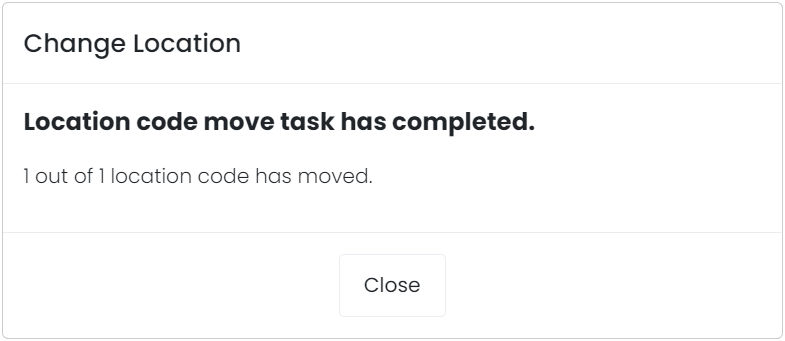
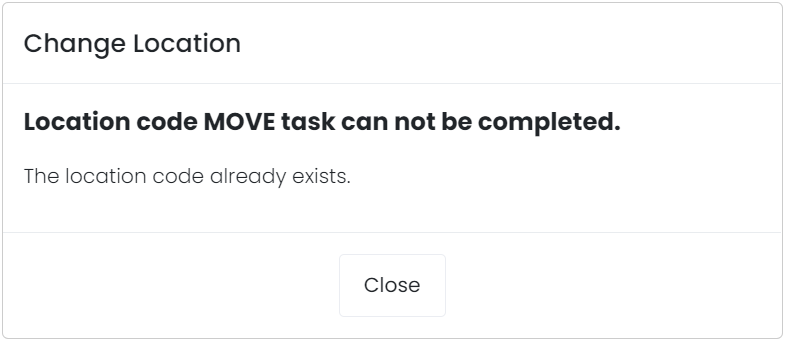 If the new location does not exist, a message will display confirming the location has been moved.Press Close on the message.
 If you were to visit the Location record, the location will be in the new area, with an updated location code to reflect the new area and type, if altered.
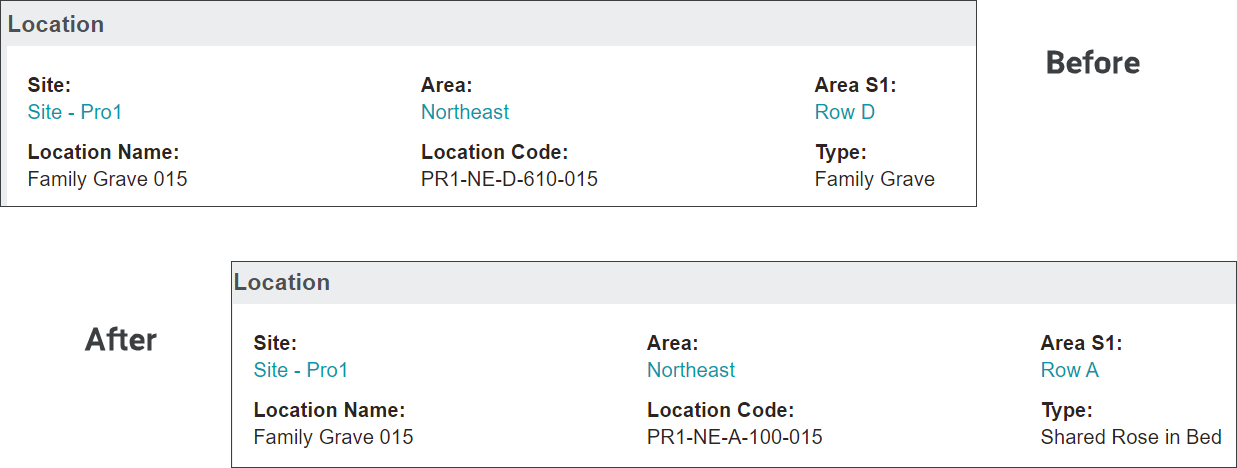 Please note that this process does not update the location name to reflect the area.To update the name to reflect the new area, press Change on the right-hand side of the location record.
 Update the text within the Location Name field to reflect the new area and press Save.
 Should you need to update the location segment of the code as well, use the Change Single Location Code function.