Manage Document Templates
The Document Templates section of byondpro allows users to add local files as templates and manage templates for use with the Merge to Word and Merge to PDF functions.
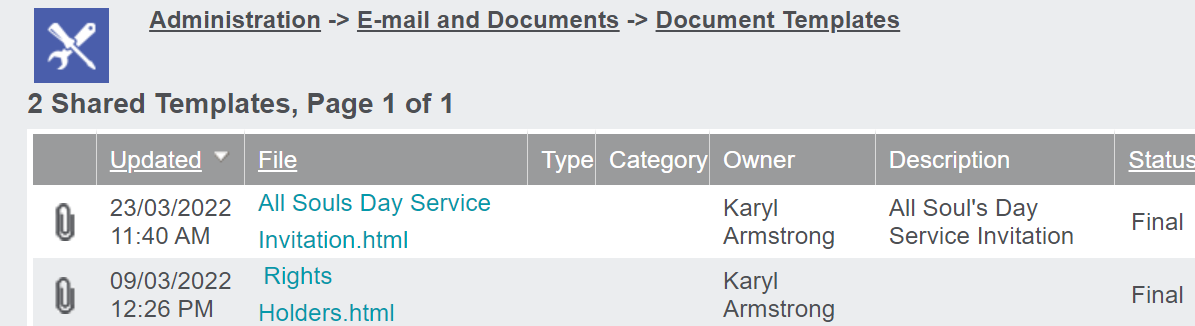
All existing document templates will display on the page.
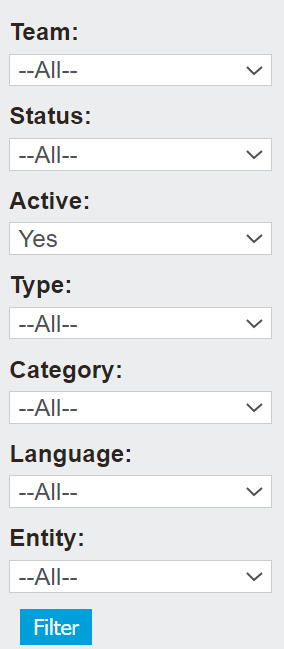
Should there be a range of templates , you can use the filter selections on the right-hand side of the page to locate the template you want to view.
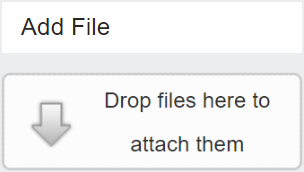
Add a File
If you already have a template created on your device, you can add the template here.
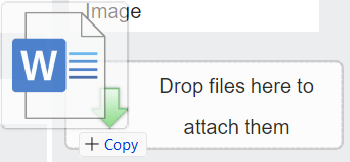
Simply drop the file into the drag and drop section.
Alternatively, press the Add File button on the right-hand side of the page, locate the file from your device and press Open to add.

Complete the fields in the Details information block.
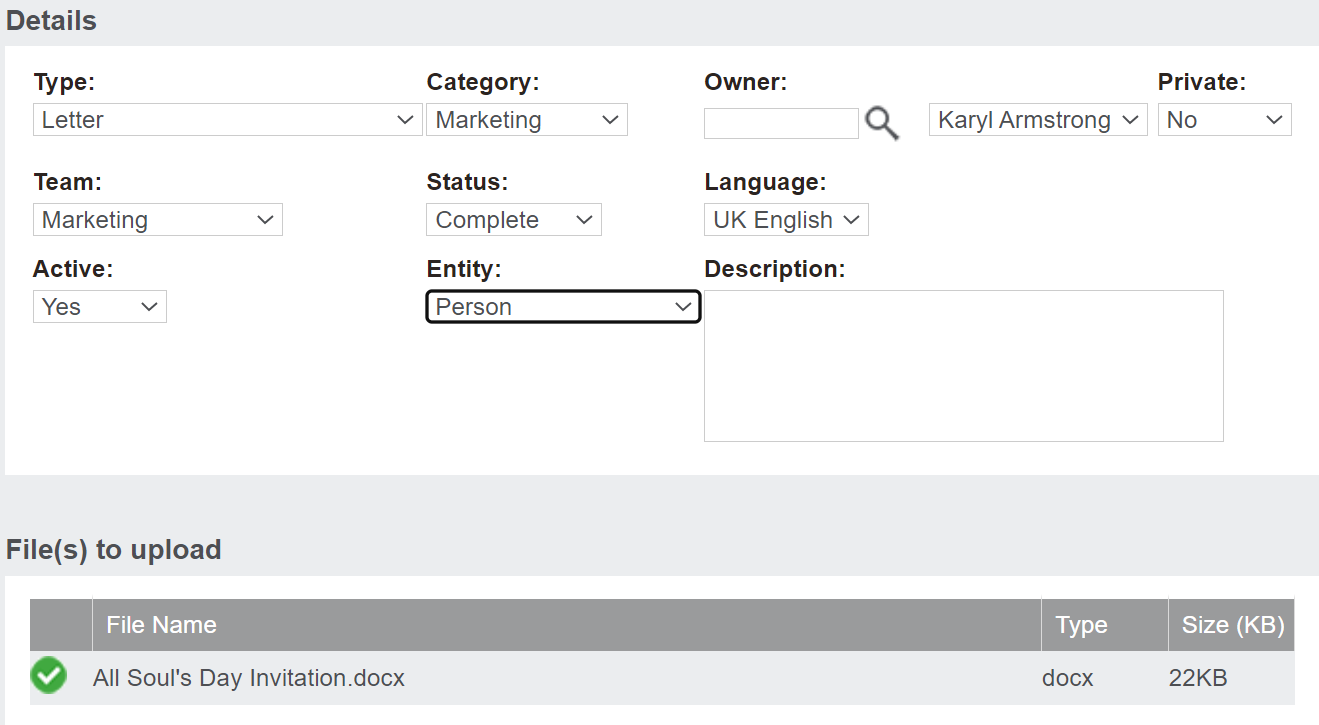
Once the fields are complete, press the Save button on the right-hand side of the page.

Manage a Template
To manage a template, click on the Template Name hyperlink.
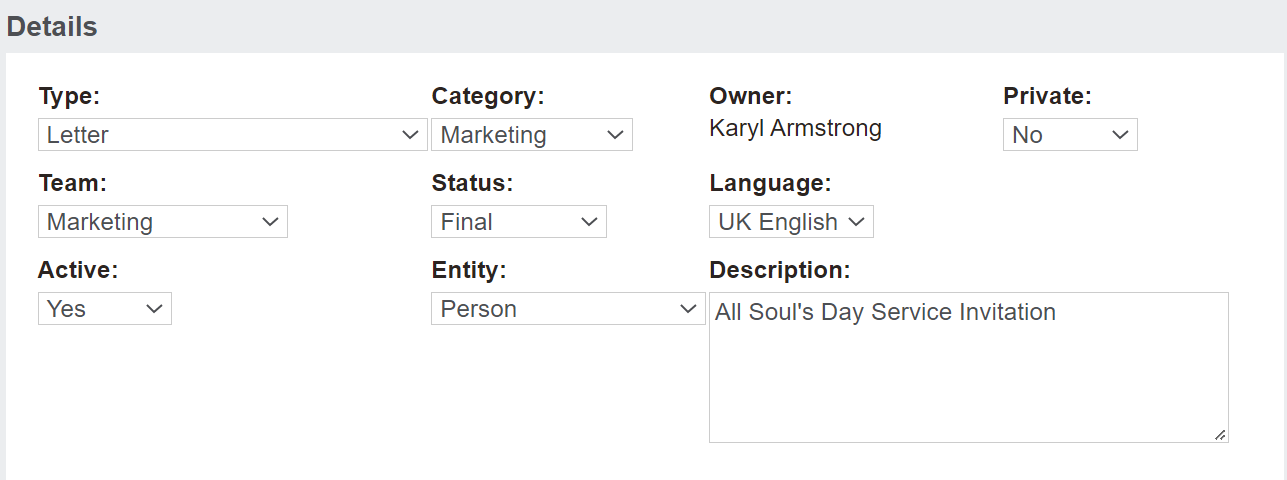
The Details added when the template was created will display and can be edited in this format.
Press the Save button to save any changes and return back to the Document Templates section.

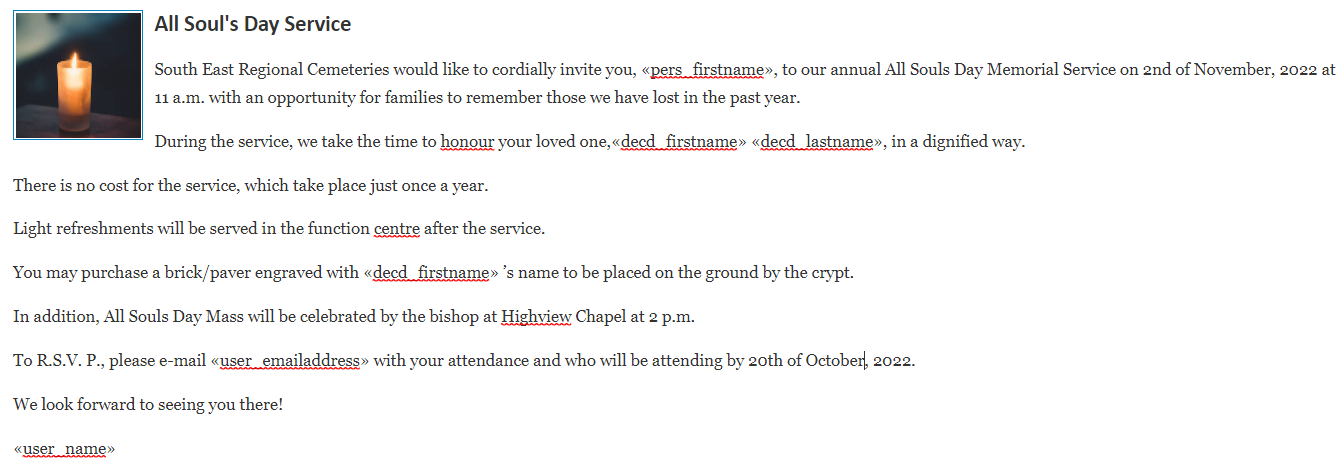
To view the template, click on the View Attachment button on the right-hand side of the page.

The template will open up on another page in your browser, allowing you to review it.
To delete a template, press the Delete button on the right-hand side of the page.

A pop-up window will display showing the details for the attachment, with an option to view the attachment before deleting it.
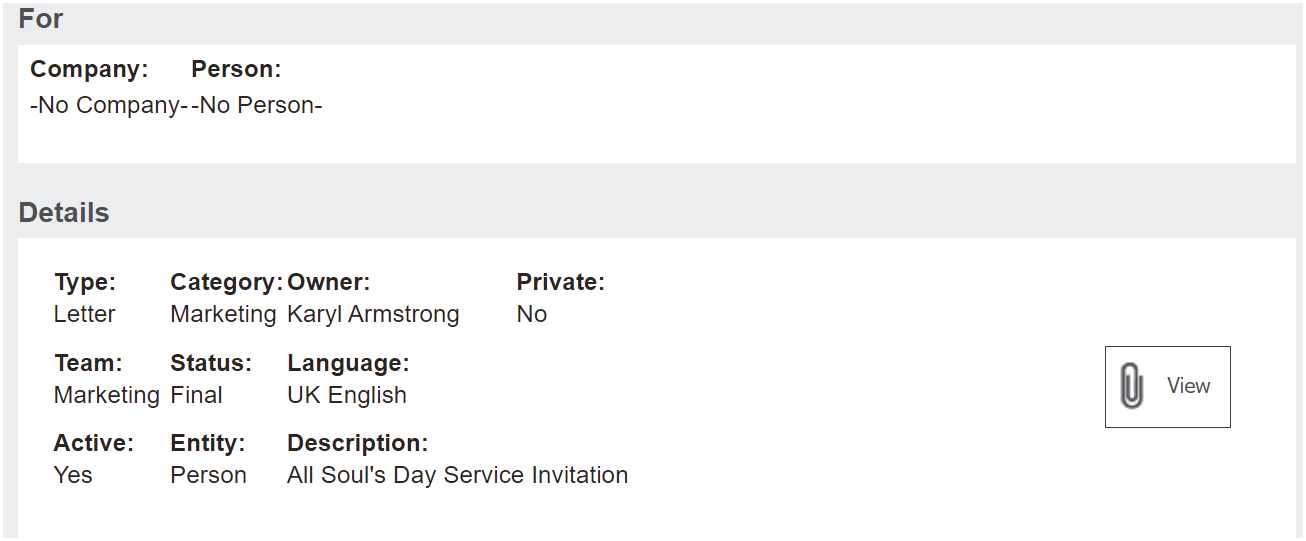
To confirm, press the Confirm Delete button on the right-hand side of the page.

To leave the particular template you are viewing and return to the Document Templates section, press the Cancel button.
