Finding Locations
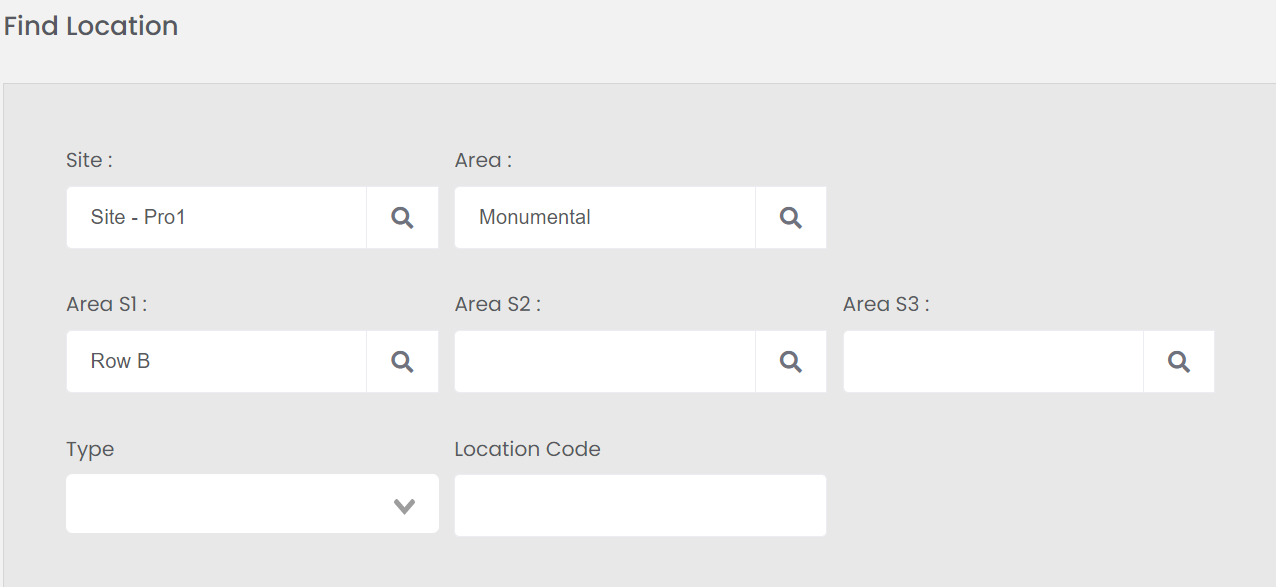
To start making the required changes to your cemetery locations, you will need to use the fields in the Find Location to select the records which will be changed.
There are two ways to complete a search for the desired locations.
-
Using the Site, Area and Sub-Area fields to narrow down all locations
-
Entering in part or all of the location code in the Location Code field.Depending on the way a search is being completed and the action being performed, the changes able to be made may differ.
Search by Area
For the first option, start with the Site field.
You can use the search select field to locate the site the location /s are in.
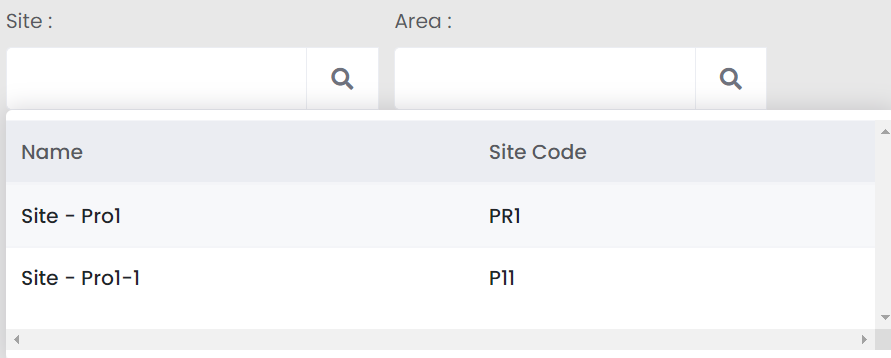
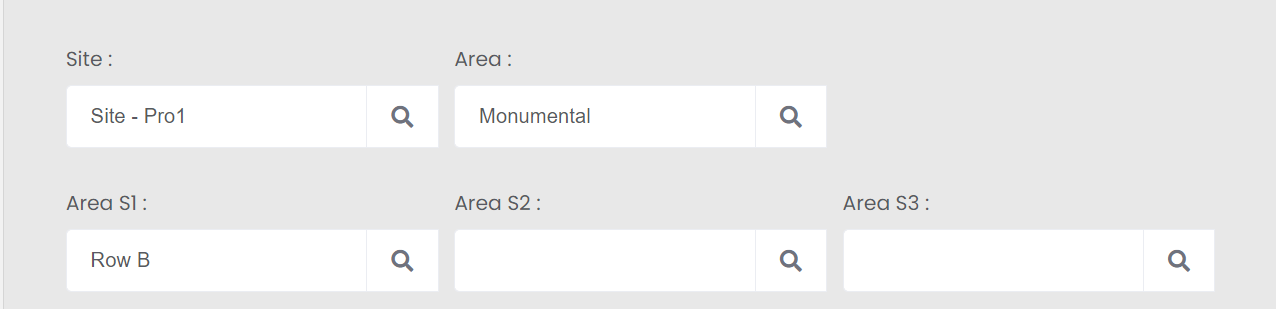
Once the site is selected, use the search select option in the Area field to locate the area the locations are in.
Complete the process in the Sub-Area 1, 2, and 3 fields, as necessary.
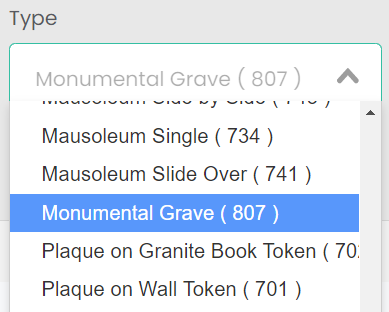
The Type field can be used to narrow down the list of location /s, in the instance there are multiple types of locations in the area and the changes are not applicable to all types in the specific area.
Simply drop your cursor in the empty field for the list of location types to appear below.
Entering text in the field will narrow the list to location types starting with the text you have typed.
Once the selections are made, select the Find button on the right-hand side of the page.

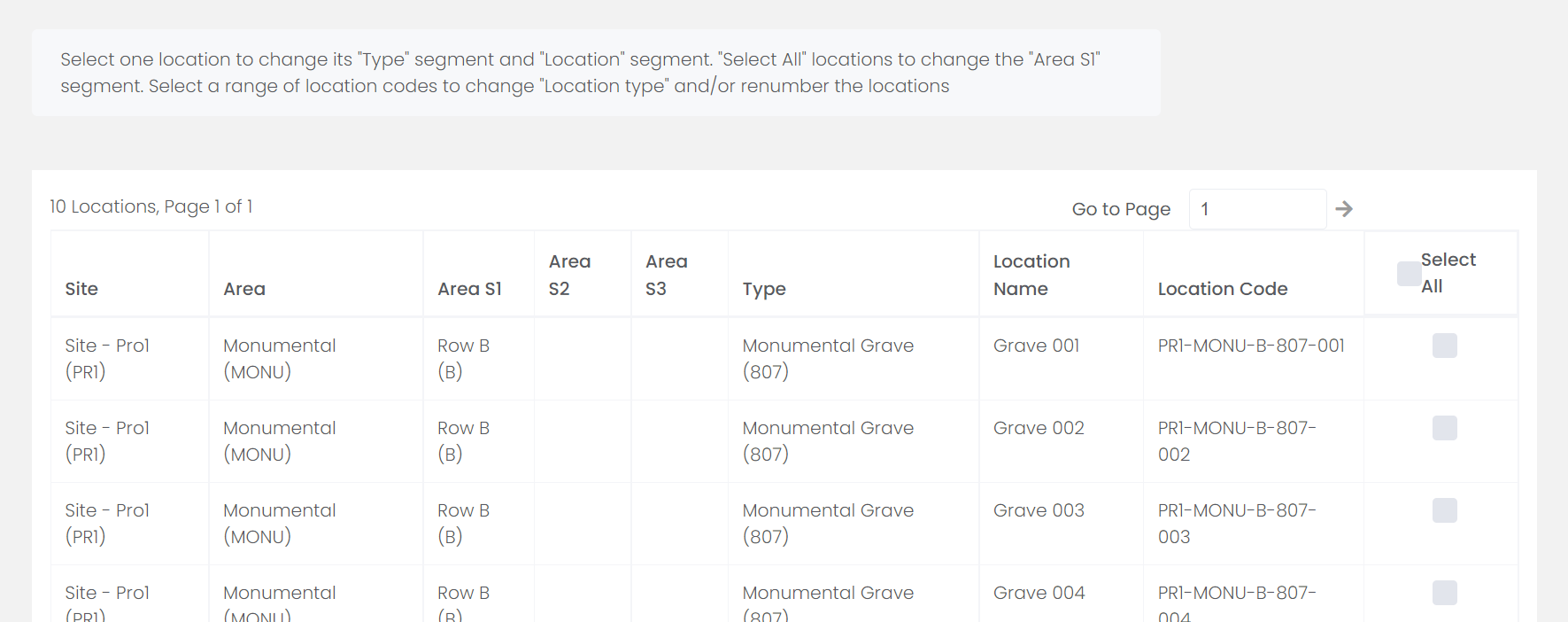
All locations which meet your search criteria will display below.
At any point, should the search fields need to reset, press the Clear button on the right-hand side of the page.
Search by Location Code
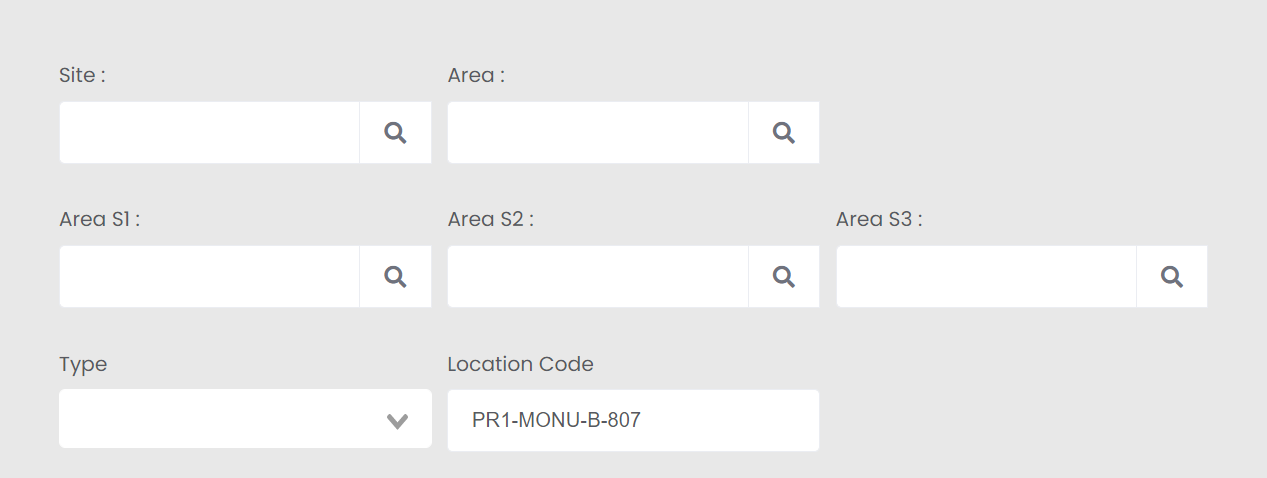
For the second option, simply type the segment of the location code in the Location Code field.
If you type the entire location code of a location record, for example, PR1-MONU-807-A-001, your search results will only reveal one location code.
In our example, we have typed in PR1-MONU-B-807, which includes the site, area, sub-area and type of location as the configuration of UseLocationType applies to our location records
Once the selections are made, select the Find button on the right-hand side of the page.
All locations which meet your search criteria will display below.
Selecting Locations
Review the selection list and tick all the boxes under the Select All header in line with the location /s you will be making a change on.
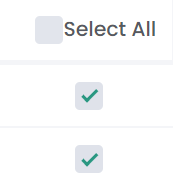
To include all the locations, tick the box next to Select All and all locations will be ticked.
You will then be able to untick individual locations as necessary.
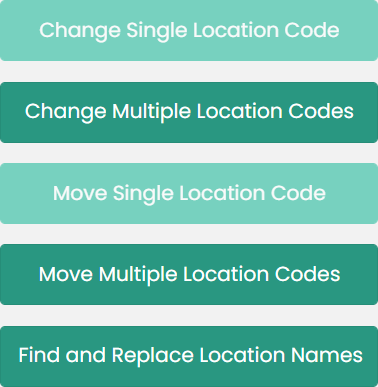
Should only one location be ticked, the following actions will be highlighted:
-
Change Single Location Code
-
Move Single Location Code
-
Find and Replace Location Names
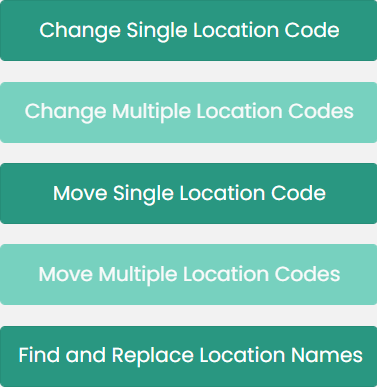
Should more than one location be ticked, the following actions will be highlighted:
-
Change Multiple Location Codes
-
Move Multiple Location Codes
-
Find and Replace Location Names