Creating Foreign CR Records
Foreign Cremated Remains refer to cremated remains that were not created by the cemetery trust.
In the out-of-the-box byondpro, these are labelled as Foreign CRs, however, our cemetery customers may have chosen another term such as External CRs.
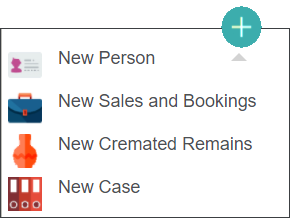
To add Foreign CRs, click on the plus icon and choose the New Cremated Remains selection
Complete the fields to create the records, as necessary.
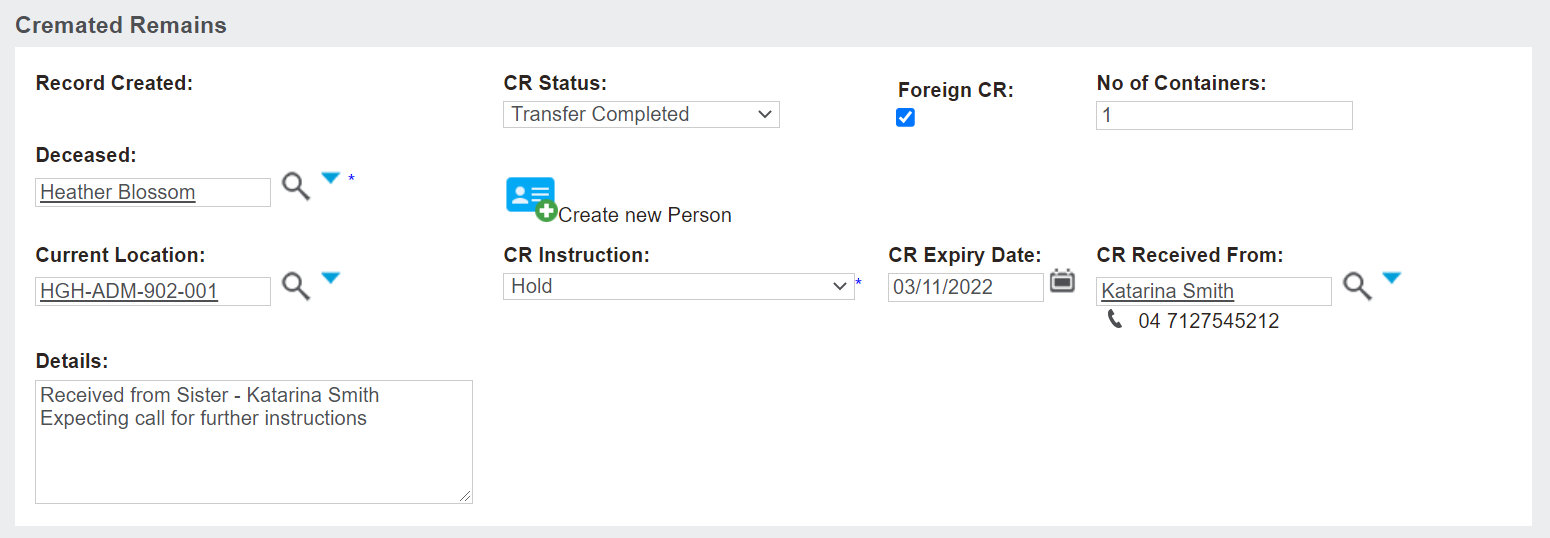
The CR Instruction and CR Status fields are required to complete.
However, when creating a CR record, no task is being created.
As such, we recommend adding Hold as the CR Instruction and Transfer Completed as the CR Status, or the equivalent of CR Instructions and Statuses in your byondpro.
New tasks can be created on the records to represent the movement of the cremated remains within the cemetery after the record has been created.
Be sure to tick the Foreign CR tick box, so the CR record is labelled as such.
Additionally, note how many containers the cremated remains are stored in the No of Containers field.
Add the Deceased record in the Deceased field.
Please note that if the person record is yet to be added to byondpro, clicking on the Create New Person button will allow users to create the record now, as reviewed in the Creating Person Records section of this guide.
The Current Location is for users to note where the cremated remains are upon receipt. In our example, the remains are currently in the Administration building.
Be sure to update the CR Expiry Date field if necessary. The field will default to 1 year as per background settings.
The CR Received From field may be the authorising person for the remains, however, does not need to be. This is the record of the person who brought the cremated remains to the cemetery.
If the CRs were received from another cemetery, users might want to add that cemetery's name in the Details section.
In our example, the remains were received from the deceased's sister and further instructions will come later.
Once completed, press Save on the right-hand side of the page.

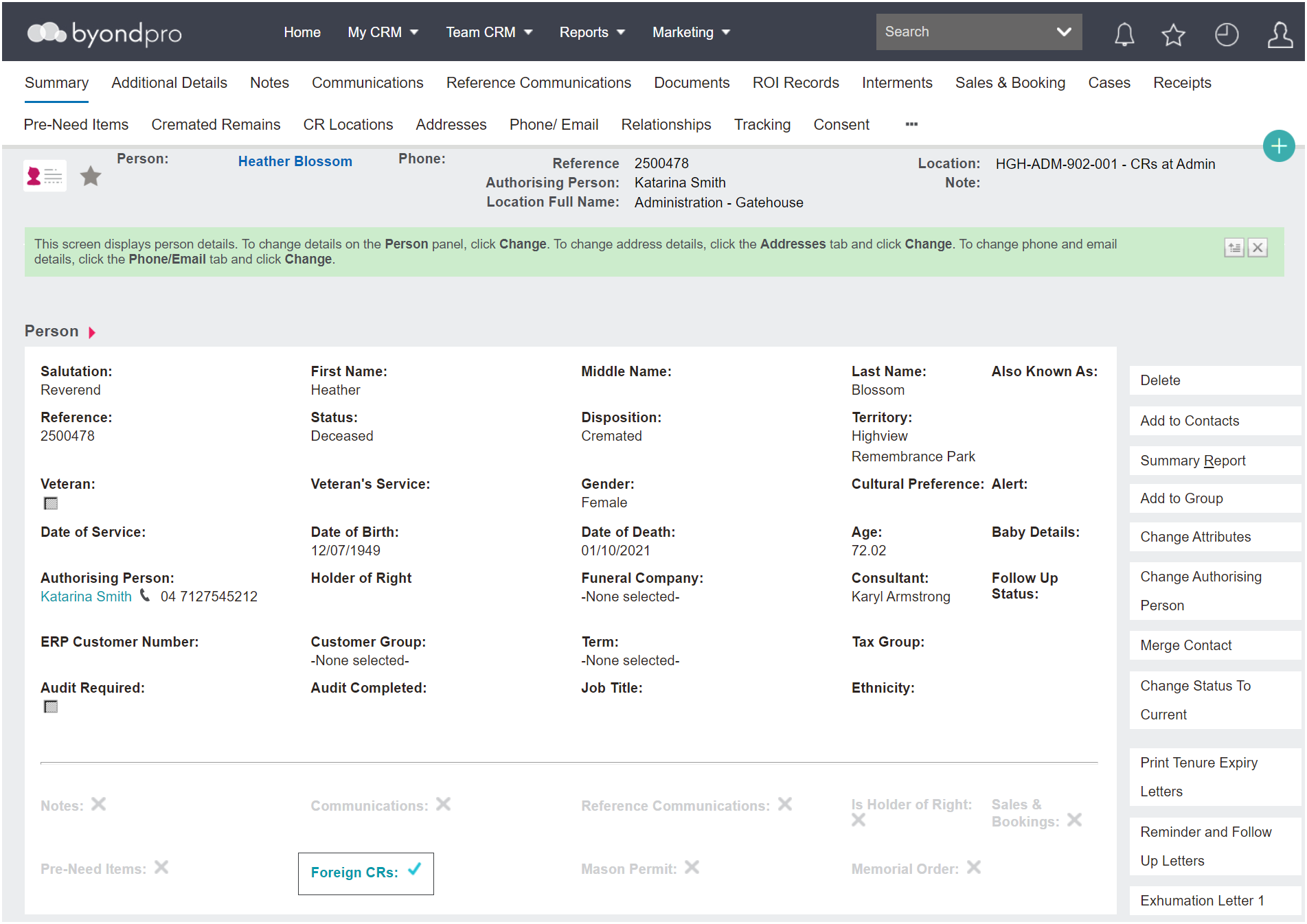
On the Cremated Remains record, the CRs display as foreign as indicated by the tick..

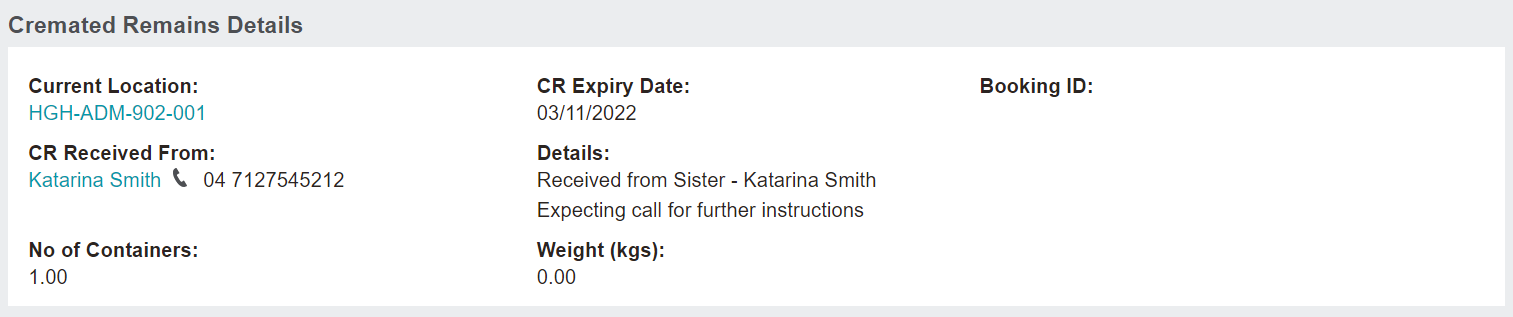
The details added when creating the record will display in the various sections of the Cremated Remains record.
Users might want to provide the person who delivered the cremated remains, or the person who sent the cremated remains in a CR receipt to confirm the remains have been received, by clicking on the Print CR Receipt button.

Returning the person record, the Summary tab of the Deceased record will now have a tick displaying the records as foreign.