Creating Cremated Remains Records
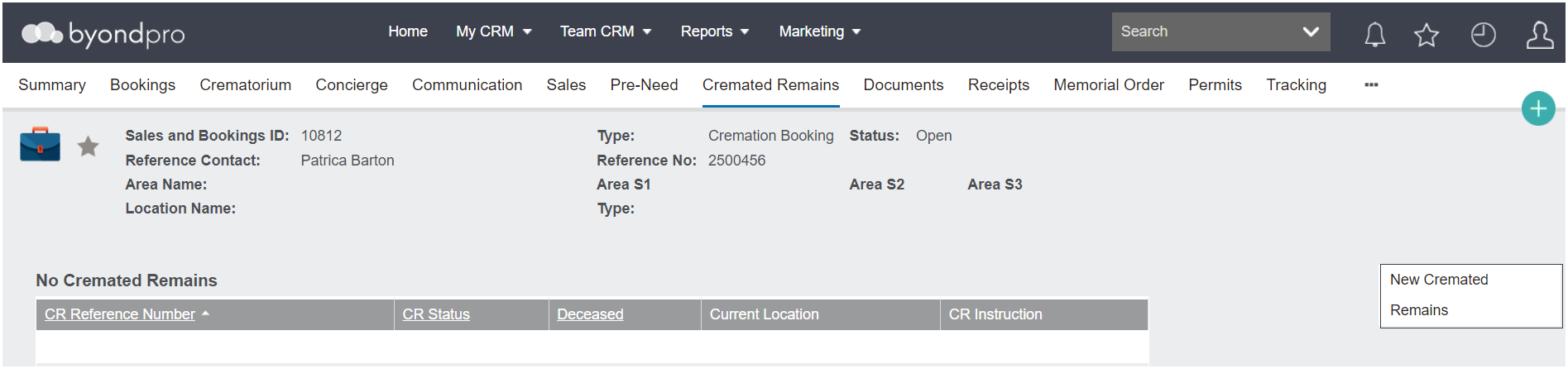
Cremated Remains records can be created from the Cremated Remains tab of a Cremation Sales & Booking
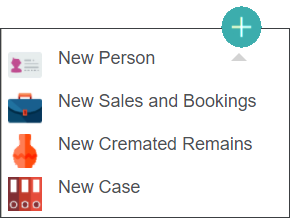
Alternatively, cremated remains records can be created by clicking on the plus symbol on the right-hand side of the page and selecting New Cremated Remains.
This option is intended for foreign cremated remains records only, not those that have been cremated on site and will be explored further in the Creating Foreign CR Records section of this guide.
If creating Cremated Remains records from a booking, there are a couple things to note:
-
The Deceased Contact record must be marked as deceased. If the record is not marked as deceased, then the New Cremated Remains button will not display on the Cremated Remains tab.
-
The Cremated Remains record can be created prior to completing a booking or after completing a booking. Users will not be restricted for when the CR record is created, however, your cemetery processes may determine when is the best time to create the record /s.
To create the record, choose the New Cremated Remains button on the right-hand side of the Cremated Remains tab of the booking.
The following screen appears for the user to complete.
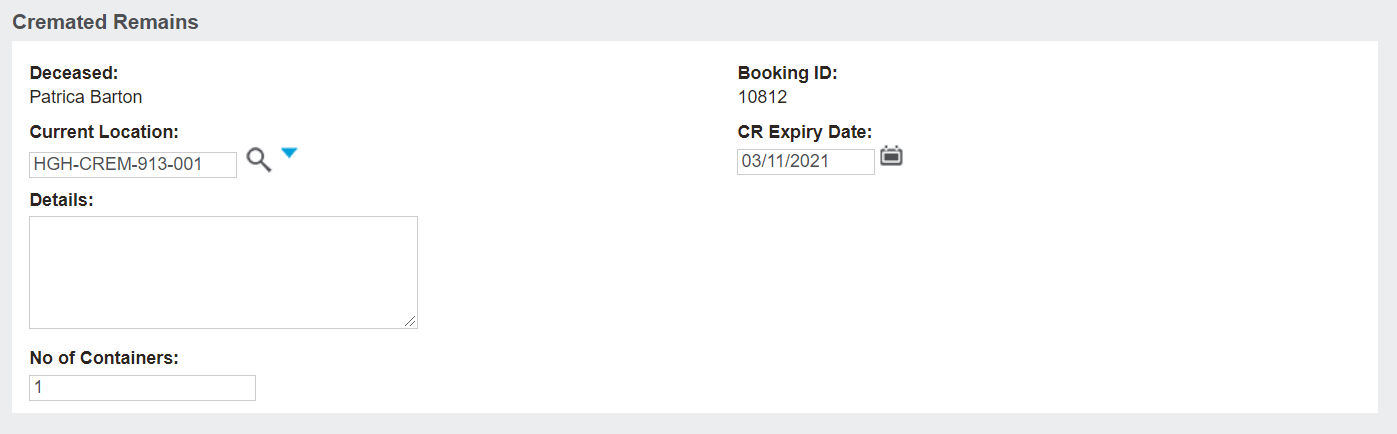
The Reference Contact flows through from the summary page of the Sales & Booking to the Deceased field.
The Booking ID flows through from the summary page of the Sales & Booking.
The Current location field will auto populate with the location code for the crematorium that the cremation was booked for.
In our example, the location code is HGH-CREM-913-001.
This field can be edited, if necessary.
The CR Expiry Date field refers to the period of time the cemetery is going to hold onto the remains in line with their business processes.
Cemetery customers will have the expiry time frame configured into their byondpro and can use this date, along with reports such as the CR Expiry Report, to track remains that have been kept beyond the time frame.
Within Australia, generally once the cremation has occurred, the authorising person has up to 12 months to collect, inter, or memorialise the ashes.
In addition to the expiry date added here, tasks will have expiry dates associated with them.
The byondpro User Guide, accessible from the Toolbar, provides a list of the default expiry dates which apply to each task. These defaults may vary from customer to customer.
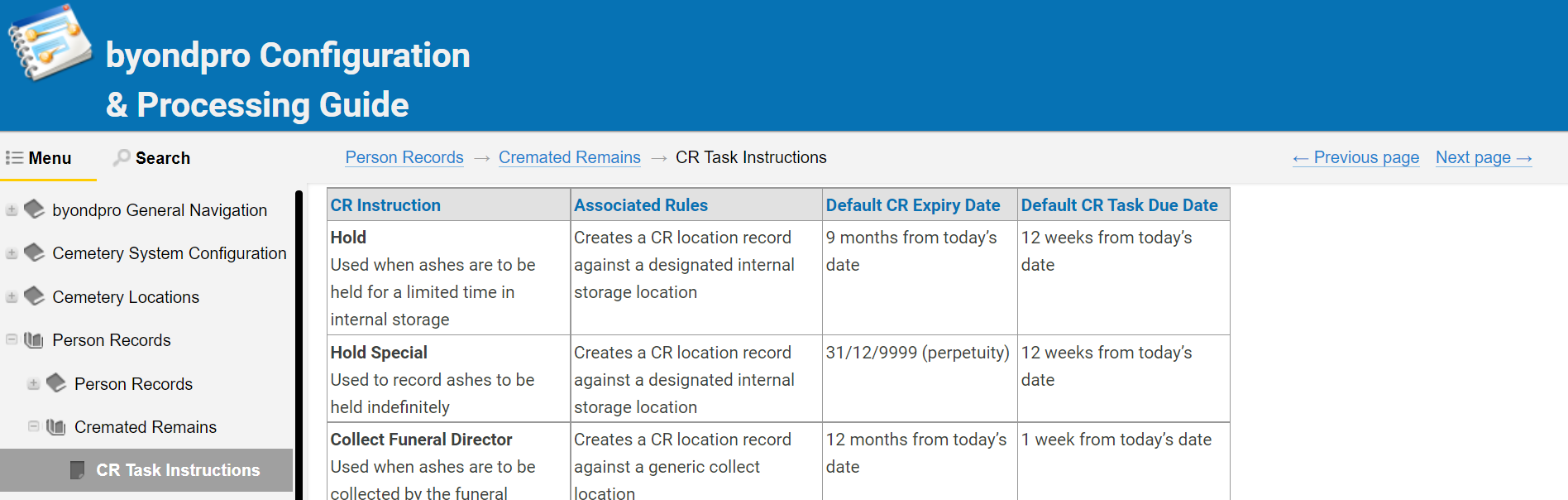
Should you need to update the CR Expiry date from the pre-programmed logic, you will be able to edit this field.
Any important details can be added into the Details section.
If there are multiple containers for the Cremated Remains and they will all be handled in the same manner, such as all to be collected by the family, users can note this in the No of Containers field.
Once all necessary fields have been completed, choose Save on the right-hand side of the page.

A cremated remains record now appears in the Cremated Remains tab of the booking.
This includes:
-
A hyperlink to the cremated remains record
-
The CR Status, if applicable
-
The deceased record linked to the cremated remains
-
A hyperlink to the current location
-
The CR Instruction, if applicable
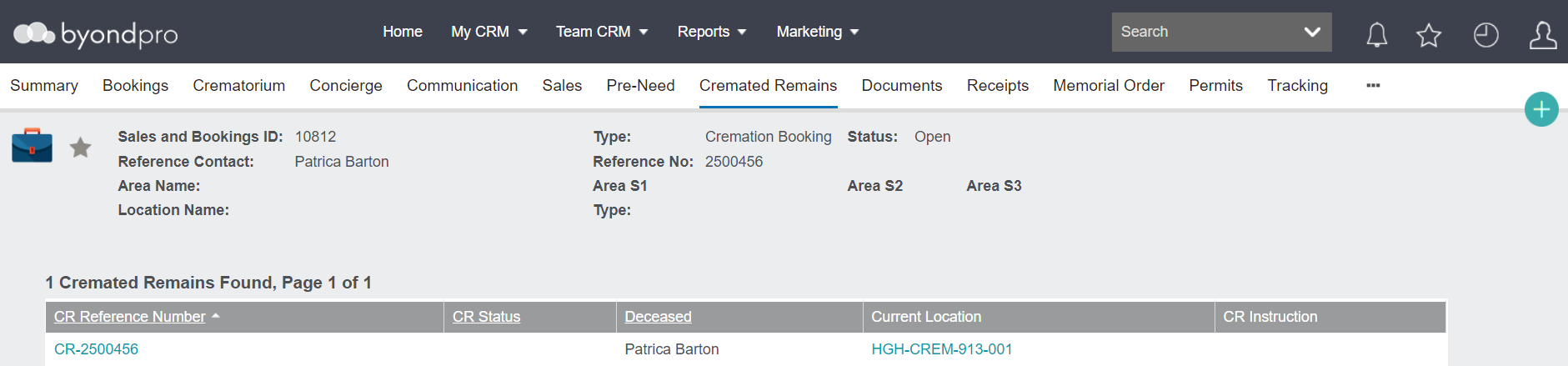
You might note that there is a link between the Person Reference Number and the Cremated Remains Reference Number.
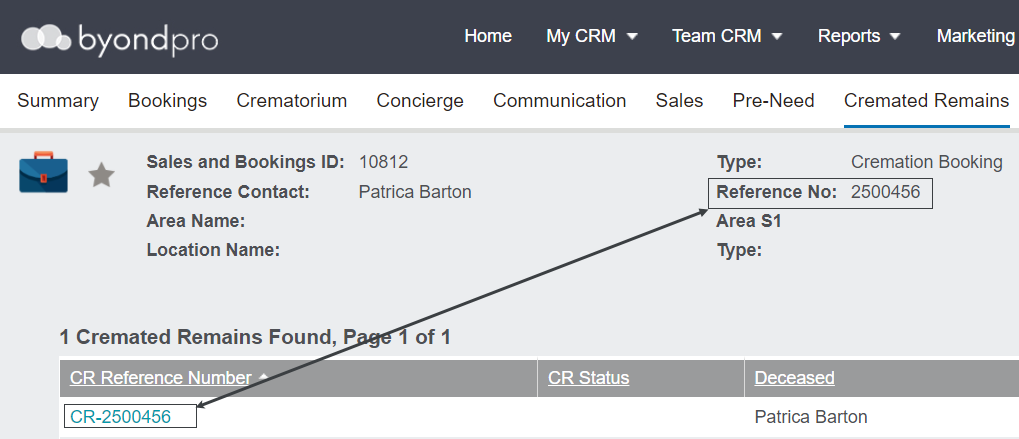
For the out-of-the-box byondpro, the numbering convention for the CRs is CR-XXXXXXX, with the X's being the reference number of the deceased record.
Should a separate numbering sequence be in place, the custom configuration of UseseparateCRNumberSeq will be set to Y in the administration settings and will display the numbering in line with that set in the reference number table. Our OpusXenta consultants can assist with this setting.
This setting would be completed upon your byondpro implementation by your OpusXenta consultant.
Once the cremated remains record has been created, users would likely want to locate the Cremated Remains record by completing a search or from the Person recod, visiting the Cremated Remains tab and clicking on the Cremated Remains reference number hyperlink.
Users can print out some CR Labels and send the cremation certificate.