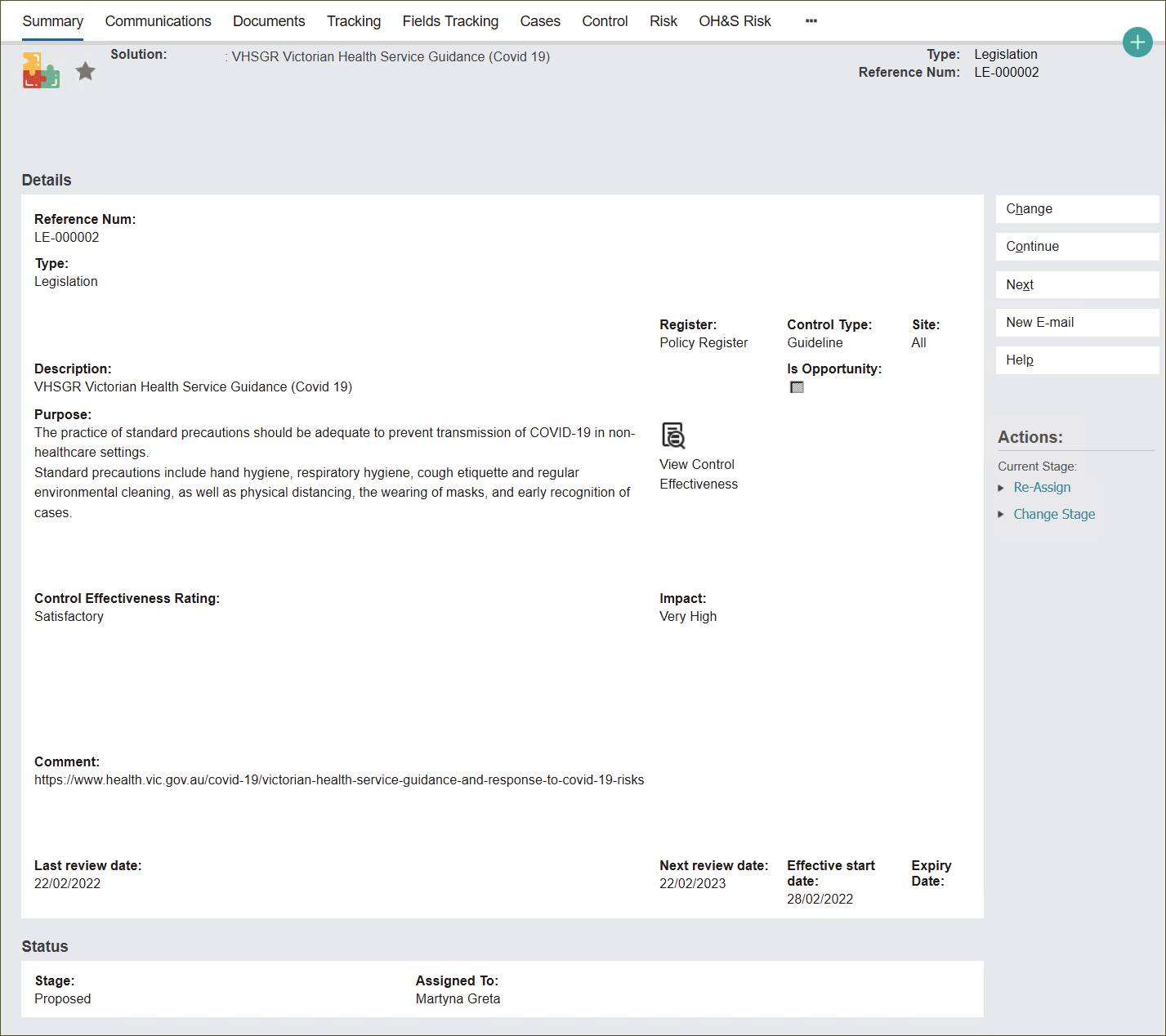
Create Legislation
From the New Solution screen, click Type and select Legislation.
The screen alters including required Details fields.
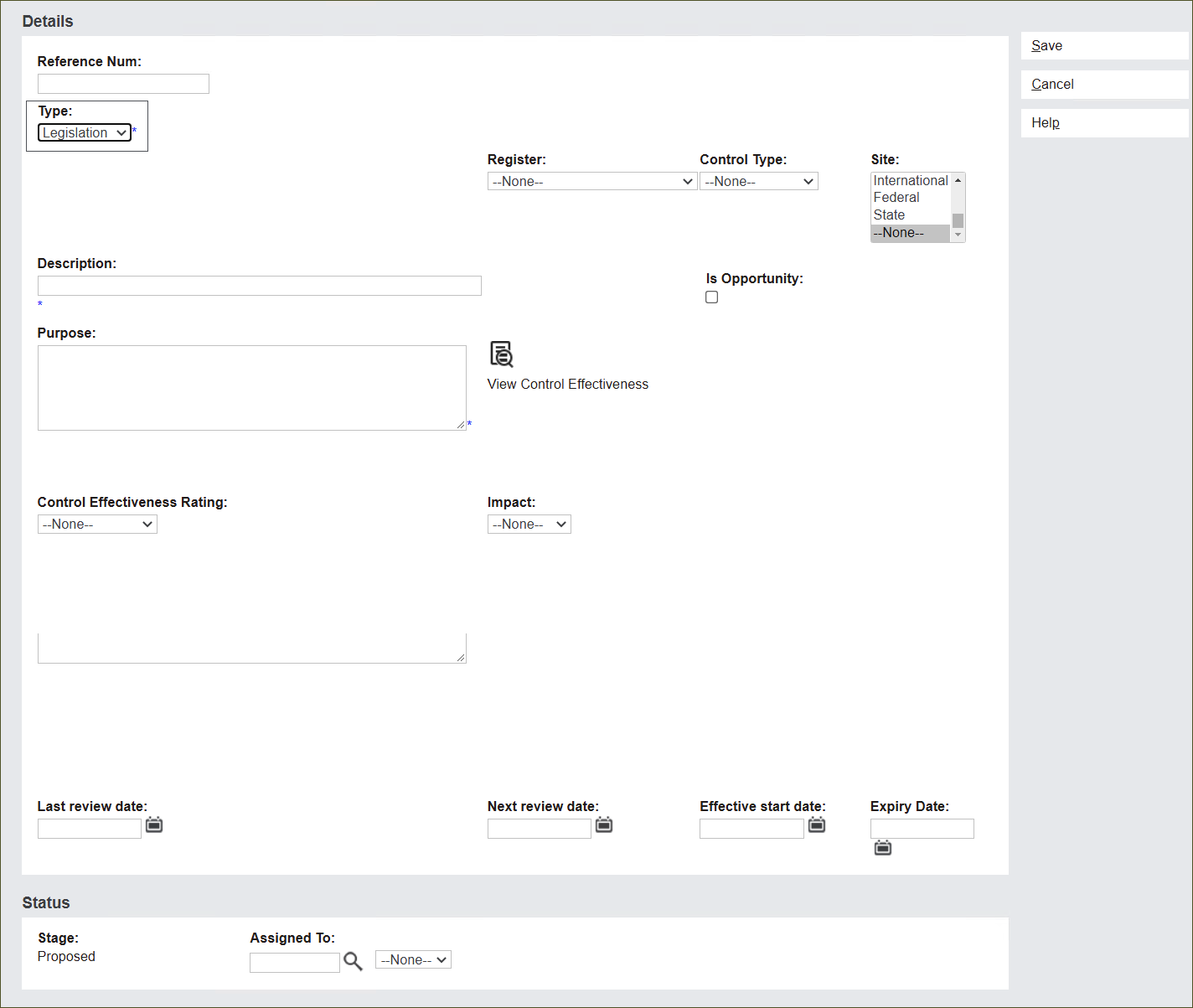
Note: The Legislation screen uses the same fields as the Control record to capture information.
Fill in the information describing the Legislation.
The Reference Num field is not editable. The system will automatically generate a Reference Number once you save the Solution.
Navigate to the right side of the Details section.
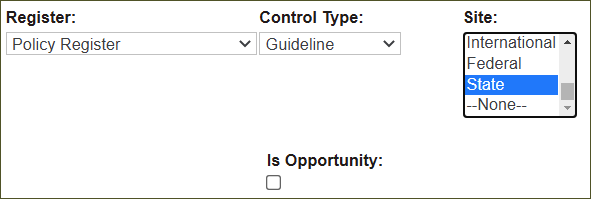
Click on the Register field to select from available register types to classify the Legislation.
Click on the Control Type field to select from available types.
From the Site menu select a name of a site influenced by the Legislation. You can nominate All, multiple sites or only one site.
Tick the Is Opportunity box to flag the Legislation as a potential opportunity for the business or leave it blank.
Let's look at these functions on an example.
The Legislation record VHSGR Victorian Health Service Guidance is a part of the Policy Register.
The Control Type is a Guideline as it is a local government recommendation.
It applies to sites located in the State - Victoria.
The Is Opportunity field is left blank.
Navigate to the left side of the screen to describe the Legislation in greater details.
In the Description field type in a brief description of the legislation.
In the Purpose field type in information about the objective behind the record.
Note: Description and Purpose are mandatory fields.
In the Comment field type in any additional information.
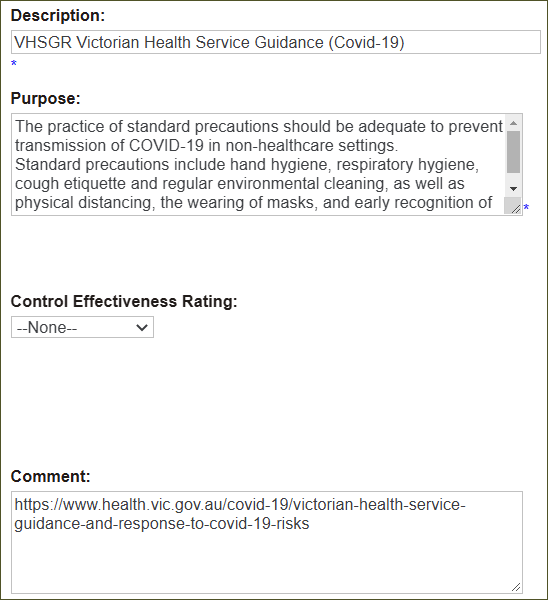
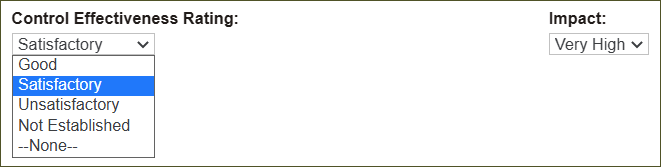
Click on Control Effectiveness Rating and Impact fields to evaluate the Legislation.
Click on the Control Effectiveness Rating field and select from available options to assess the effectiveness of the Legislation in mitigating the risk, as per Control Effectiveness rating.
Click on the Impact field and select from available options to assess what impact the Legislation will have on risk mitigation.
Type in dates or click the calendar icon and select to assign dates related to the review process, start and expiry in the fields below.

Status is an information block describing the current Stage and the user Assigned to monitor the record.
Stage of every newly created record will always be Proposed.
This can be edited after the record is created when the record goes through a workflow to be accepted into a risk register.
In the Assigned To field type in or press the magnifying glass icon and select the user’s name who will monitor the record.

Press Save to secure the record.
The Legislation record has been created.