Create Invoice & Sync Repayment Plan
Create Invoice
Once the Contract is signed and approved and all information is entered, depending on your business processes the contract may now be sent to finance for final approval.
Once final approval granted, the invoice can be created.
Back on the Sales Order tab, select Create Invoice.
Once the invoice is created, users will need to sync the repayment plan (see below).
Sync Repayment Plan
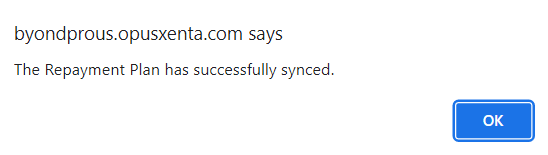
Navigate back to the repayment plan tab and select the Sync Repayment Plan button.
The sync process overwrites the instalments calculated in Sage 300 with the repayment plan details calculated in byondpro.
It updates the AR debtor and open invoices and now forms the basis for the AR statements and aged trial balance debtor reports that are managed in Sage 300.

Sync Repayment Plan - Error
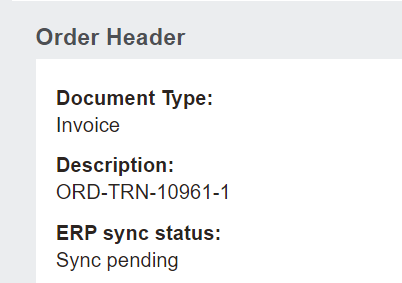
If an error message is received, check the original sync status of the invoice.
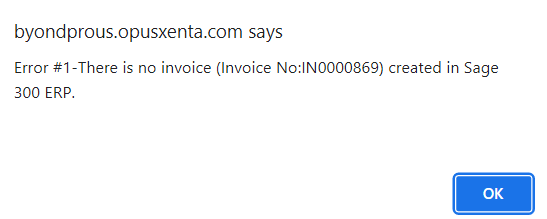
If the invoice is still sync pending or sync failed, it means the invoice has not processed across to Sage 300 and the sync repayment plan functionality will not process until the sync error is rectified.