Add a New Tax Code
If there is a need to add additional tax codes, and you have an ERP / finance system you are integrating to, you will need to consider the tax code setups in this software too.
If not integrated into Sage 300 and based in Australia, it is recommended these codes must match the customer’s BAS requirements.
If Integrated to Sage 300:
Log into Sage 300 and visit Tax Services > Tax Services > Tax Class, as the tax groups list in byondpro must mirror with the configuration settings in Sage 300.
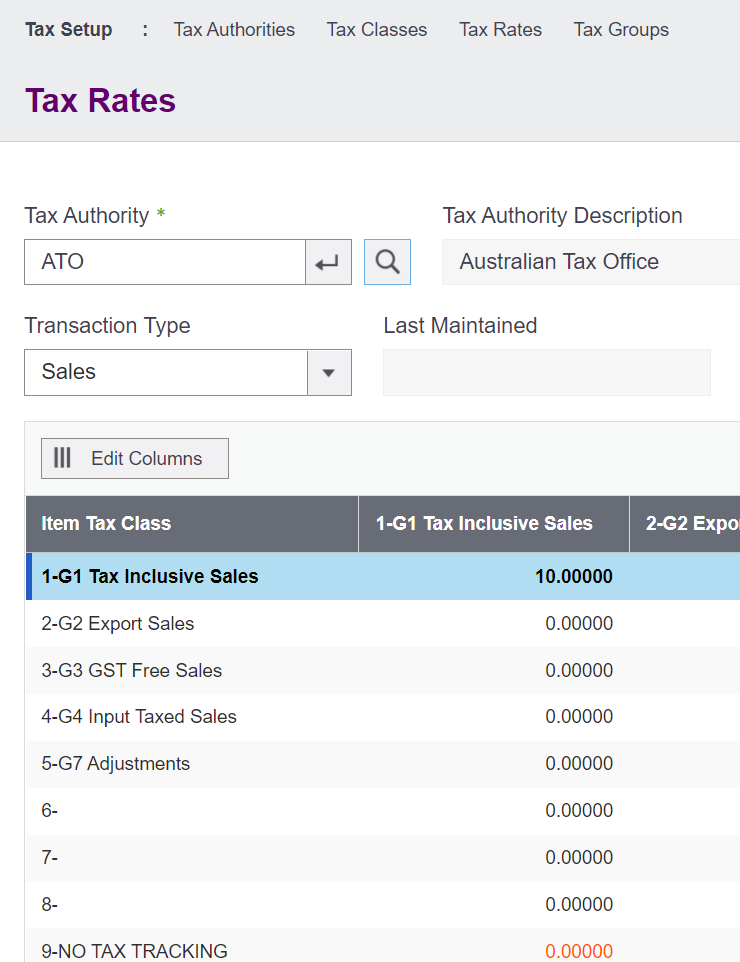
Returning to byondpro, navigate back to Profile Menu > Administration > Cemetery System Setup > Tax Setup
Add the new tax code, by clicking New on the right side of the page.

Complete the fields as necessary.
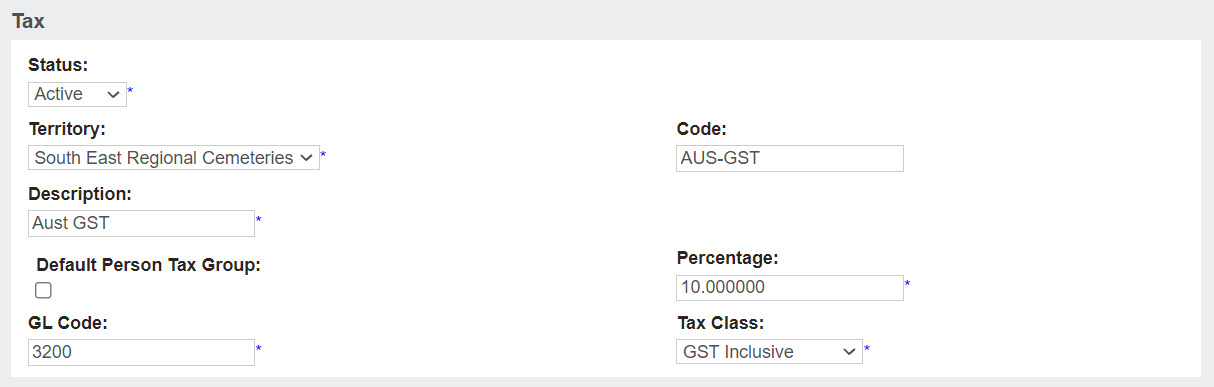
Status and Territory will default to Active and your overarching cemetery trust.
The Description of the tax code can be different; however, the Tax Code and the unique identifier, must be the same as in your ERP.
Note, the Percentage is the tax rate to be applied to items set-up under this tax. For our example, a tax rate of 10% will apply.
Customers can choose whether individual items sold are tax inclusive or tax exclusive in relation to item price on the category level.
The GL Code is for information purposes only and has no direct functionality, however, is recommended to reflect the appropriate General Ledger code in Sage 300 or the customer’s ERP.
Choose from the selection list within the Tax Class field. The setup of the selection list within the Tax Class field will be reviewed in the next section.
Once all necessary fields are marked as complete, choose the Save button on the right side of the page.