Supplier Prices: New/Edit
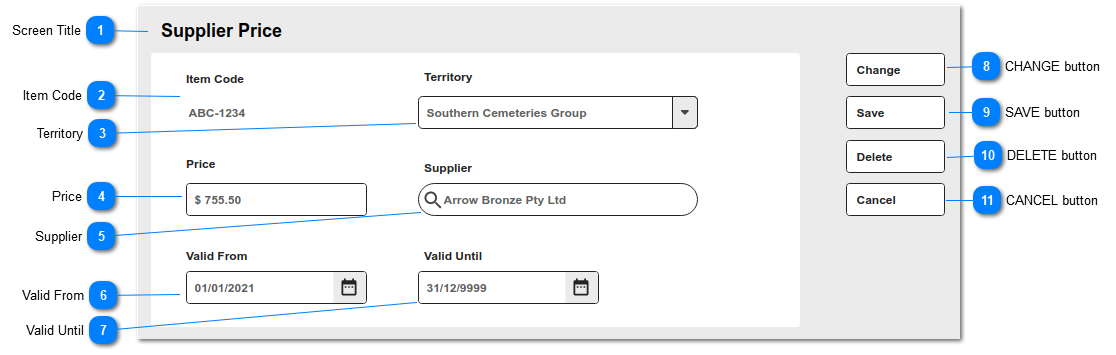
This is the New/Edit screen to manage Supplier Price entries.
The supplier price is what the cemetery (or funeral home) pays to the supplier for the products or services purchased.
 Screen Title
This is the Screen Title: Supplier Price
|
|
 Item Code
This is the code for the parent item record; it is read only.
|
Type
|
Notes
|
Rules
|
Compulsory
|
Format
|
Edit
|
Size
|
Default
|
Error Message
|
|
Text
|
|
1. Item Code auto-fills from originating item record.
1a. Read-only.
|
Y
|
|
N
|
|
|
| |
|
 Territory
This is a list of configured Territories.
|
Type
|
Notes
|
Rules
|
Compulsory
|
Format
|
Edit
|
Size
|
Default
|
Error Message
|
|
Selection List
|
|
1. Selection list of Territories
1a. Default selection is uppermost organisation level (0)
|
Y
|
|
Y
|
|
|
| |
|
 Price
This is the Supplier (buy) price.
|
Type
|
Notes
|
Rules
|
Compulsory
|
Format
|
Edit
|
Size
|
Default
|
Error Message
|
|
numeric
|
|
1. Supplier Price entry
2. This field accepts only positive amounts (>0)
|
Y
|
Currency
|
Y
|
|
0.00
|
| |
|
 Supplier
This is Supplier / company record from whom the cemetery purchases the goods or services (item).
|
Type
|
Notes
|
Rules
|
Compulsory
|
Format
|
Edit
|
Size
|
Default
|
Error Message
|
|
Search Select
|
|
1. Lookup to the Company records.
1a. Filter to Type = Vendor
2. When screen is in VIEW mode, hyperlink to Company summary screen
|
Y
|
|
Y
|
|
|
| |
|
 Valid From
This is the starting date from which the supplier price applies, when used in the Purchase Requisition feature.
|
Type
|
Notes
|
Rules
|
Compulsory
|
Format
|
Edit
|
Size
|
Default
|
Error Message
|
|
Date
|
|
1. Date entry field
2. On entry, check VALID UNTIL date.
2a. If blank, no action.
2b. If value entered, validate that date entered is less than VALID UNTIL date.
2c. If not less than VALID UNTIL date, display error message
|
Y
|
|
Y
|
|
|
2c. Please check the Valid From and Valid Until dates entered.
| |
|
 Valid Until
This is the ending date to which the supplier price applies, when used in the Purchase Requisition feature.
|
Type
|
Notes
|
Rules
|
Compulsory
|
Format
|
Edit
|
Size
|
Default
|
Error Message
|
|
Date
|
|
1. Date entry field.
2. On entry, check VALID FROM date.
2a. If blank, no action.
2b. If value entered, validate that date entered is greater than VALID FROM date.
2c. If not greater than than VALID FROM date, display error message
|
Y
|
|
Y
|
|
|
2c. Please check the Valid From and Valid Until dates entered.
| |
|
 CHANGE button
This is an action button to put an existing summary record into edit mode.
|
Type
|
Notes
|
Rules
|
Compulsory
|
Format
|
Edit
|
Size
|
Default
|
Error Message
|
|
Button
|
Subject to all standard CRM rules.
|
1.This Button is visible when the screen is in VIEW mode.
2. Selection places the screen into edit mode
|
N
|
|
|
|
-
|
| |
|
 SAVE button
This is an action button to save the record.
|
Type
|
Notes
|
Rules
|
Compulsory
|
Format
|
Edit
|
Size
|
Default
|
Error Message
|
|
Button
|
Subject to all standard CRM rules.
|
1.This Button is visible when the screen is in NEW or EDIT mode.
2. When selected:
2a. New entries are inserted to the database.
2b. Edited entries are updated in the database.
3. On Save, validate that record entered does not match an existing entry for:
- Item Code
- Territory
- Supplier
- Valid From
- Valid Until
3a. If matching record exists, show error message and return user to Supplier Price entry screen.
|
N
|
|
|
|
-
|
3a. Please review the data entered. A Supplier Price entry matching this record's Territory, Supplier and Validity Dates already exists.
| |
|
 DELETE button
This is an action button to delete the record.
|
Type
|
Notes
|
Rules
|
Compulsory
|
Format
|
Edit
|
Size
|
Default
|
Error Message
|
|
Button
|
Subject to all standard CRM rules.
|
1.This Button is visible when the screen is in EDIT mode.
2. When selected, the user is prompted with standard CRM warning, and options to proceed or cancel.
3. The record is soft-deleted in the database.
|
N
|
|
|
|
-
|
| |
|
 CANCEL button
This is an action button to return the user to the list of Order summary screen, without committing any record changes to the database.
|
Type
|
Notes
|
Rules
|
Compulsory
|
Format
|
Edit
|
Size
|
Default
|
Error Message
|
|
Button
|
Subject to all standard CRM rules.
|
1. This button is visible when the screen is in NEW/EDIT mode.
2. When selected, returns the user to the Order summary screen.
|
N
|
|
|
|
-
|
| |
|