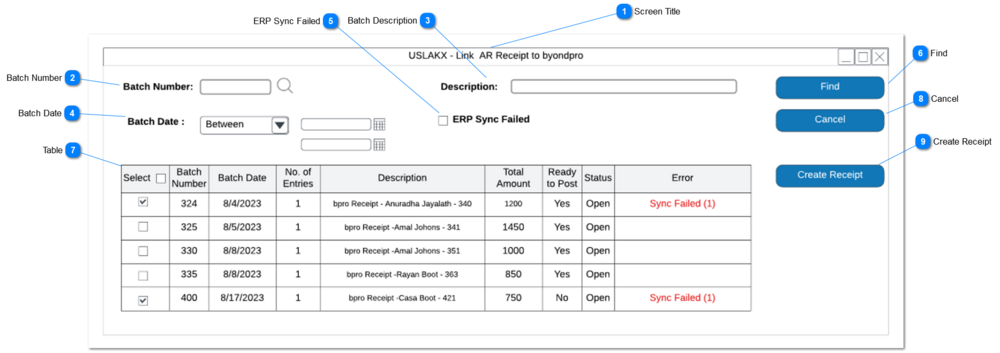
Clicking the action button will filter the batch records based on the filter criteria.
All filter criteria kept null it will list batch records without any filters.
All unprocessed batch records will be filtered. also system will also load batch records state the status as "void" entries which were not written back to byondpro.
This is a function to read the receipt entries in the selected batch and write receipts entries in byondpro.
1. Receipt creation function will apply to selected batches from filtered batch record.
2. Write 1 byondpro receipt record for each line entry in the byondpro batch.
Detailed field lists below.
2a. Repeat receipt header data on each byondpro receipt.
2b. Every byondpro receipt entry to will support multiple payment types such as Card, Cash, Check USA and Cheque.
Prerequisite: creation of Payment Type created in sage300 which support receipt function in byondpro.
3. If ARTCR/CNTBTCH field is null (i.e. not matched to a source reciept) skip the line entry and continue to process.
4. Set the ERP sync field to completed.
5. Finish the processing sequence with a completion message that lists the unmatched receipt entries.
6. Receipt written back from sage 300to byondpro will identify receipt set-off against repayment plans installment. Refer Receipts Recurring Payment for rules on how $ are applied
7. If CCTRANSTTS = "SPS Void Transaction Completed" in sage 300 receipt table (ARTCR), Rece_Status will be marked as "Voided" in byondpro. If a canceled receipt was settled against repayment plan/ sales order the installment status will be reversed back to original status as per Repayment Plan rules. Outstanding balance be revised by adding amount of canceled receipt.
E.g. - Installment value - 1000
Paid Amount - 1000
Cancel Receipt Amount - 500
Change Status - Unpaid
7. warning will be triggered if the batch records line entries exceed more than 200 records. If the user click okay system will create receipt records.
Pre-condition:
Select at-least one record from the listed batch records.
5. Receipt write-back process completed. The following entries could not be matched in byondpro:
[ARTCR/DOCNBR] -
[ARTCP/IDINVC] -
[ARTCP/AMTPAYM]
7. "batch records line entries exceed more than 200 records. this will slow the receipt write-back. would you like to proceed?"
Receipt Screen
byondpro Data Field
Sage300 Table
Field
Notes
Reciept Amount
rece_amount
Rece_amount
ARTCP
AMTPAYM
Cheque Number
rece_chequenumber
Rece_chequeNumber
ARTCR
IDRMIT
Reciept Number
Rece_accpacReceiptNumber
rece_accpacReceiptNumber
ARTCR
DOCNBR
Payment Type
Rece_PaymentType
rece_PaymentType
ARTCR
CODEPAYM
Reciept Source
Rece_Source
Rece_Source
ARTCR
CNTBTCH
Reciept Source Description
Rece_SourceDescription
rece_SourceDescription
ARBTA
BATCHDESC
Sales and Booking
Rece_OPSSaleId
rece_OPSSaleid
AUSMCXI
OrderHeader
Company Payor
Rece_companyPayer
rece_companypayer
AUSMCXI
OrderHeader
If Company match in byondpro
Payer (Code)
Rece_IdCust
rece_IdCust
ARTCP
IDCUST
If Person match in byondpro
Invoice Number
Rece_invoiceNumber
Rece_Invoicetext
ARTCP
IDINVC
Payer Name
Rece_payorname
rece_payorname
ARCUS
NAMECUST
If Person match in byondpro
Reciept Date
Rece_receiptdate
rece_receiptdate
ARTCR
DATERMIT
To identify the source Sales & Booking ID in byondpro, from the Receipt in the Invoice: