Order Header: Invoice/CN Rules
This describes the rule updates required for the CREATE INVOICE and CREATE CREDIT NOTE functions, to accommodate the new Cost-of-Goods options for non-ROI items.
CREATE INVOICE
ERP Integration: Sage 300
If Order Details PACKAGE is blank/null, use fields from ORDER DETAILS table
If Order Details PACKAGE is not null, use fields from SALES PACKAGE DETAILS table
AR INVOICE entry
Insert 2 lines for each byondpro Order Detail
|
Description
|
GL Account Code
|
Amount
|
Tax Class
|
|
[ITEM CODE] + [ITEM DESCRIPTION]
|
GL Account COGS
|
Extended Cost * -1
|
3 (no tax)
|
|
[ITEM CODE] + [ITEM DESCRIPTION]
|
GL Account Expense/Clearing
|
Extended Cost
|
3 (no tax)
|
Pre-Need Register
If pre-need conditions apply, then pass the following values to the Pre-Need data table (refer also
PRE-NEED: INCLUDE COGS)
These field inserts apply to the same pre-need entry to be created for revenue entries.
|
Order Details Source
|
Pre-Need Entry
|
|
Extended Cost
|
Cost Amount
|
|
Item Number > Category
|
Pre-Need Entry
|
|
GL Account - Pre-Need COGS
|
GL Deferred Cost Account
|
|
GL Account - Cost of Goods Sold
|
GL COGS Account
|
NOTE: GL segment over-ride rules apply, based on the Order Header/Site.
NEW CREDIT NOTE
When creating a NEW credit note, based on the source INVOICE number, populate following Order Details from corresponding invoice detail (package detail) line item. This follows the same conventions as Unit Price / Revenue GL Accounts:
- Unit Cost
- Extended Cost
- GL Account COGS
- GL Account Expense/Clearing
CREATE CREDIT NOTE
ERP Integration: Sage 300 - AR CREDIT NOTE entry
Insert 2 lines for each byondpro Order Detail
|
Description
|
GL Account Code
|
Amount
|
Tax Class
|
|
[ITEM CODE] + [ITEM DESCRIPTION]
|
GL Account COGS
|
Extended Cost
|
3 (no tax)
|
|
[ITEM CODE] + [ITEM DESCRIPTION]
|
GL Account Expense/Clearing
|
Extended Cost * -1
|
3 (no tax)
|
PRE-NEED REGISTER: no action/change required - existing function will mark entries as redeemed
The following updates to the CREATE INVOICE rule set are required to accommodate the Sales Commission Sharing feature.
Validate Commission Sharing:
1. If Configuration:
CommShare = Y AND Commission Earned > $0.00
1a. Add a pop-up Warning message: Do you need to update commissions?
YES: cancel invoice creation sequence and return user to the order header
NO: proceed to step 1b.
1b. Check Commission % Total = 100
if yes: proceed with invoice sequence.
if no: display error message and return user to the order header.
Error Message: Commissions have not been fully distributed. Please review the Commission Details
Detailed Commission Tracking:
If the Detailed Commission Tracking feature is active, then detailed Commission records must reflect the % re-distribution created by the commission sharing feature
Configuration: DetailedCommissionTrackingNeeded = Y
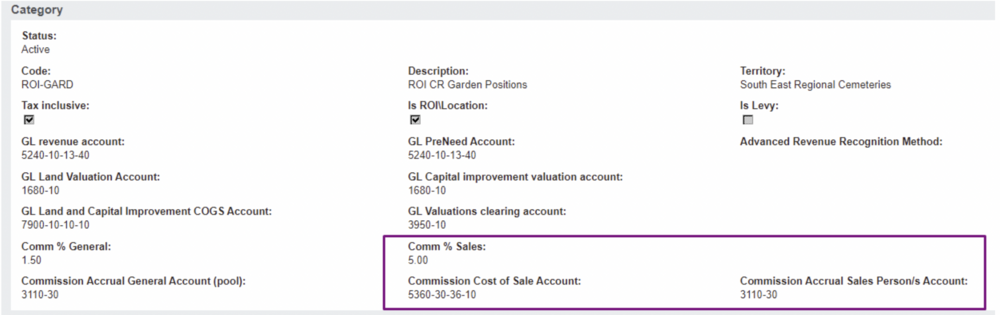
The Commission Sharing feature affects ONLY the Salesperson Commission calculations, as highlighted on the Category record below.
All calculations relating to the Salesperson commission, must be re-distributed according to the Sales Commission Distribution calculated on the Order Header.
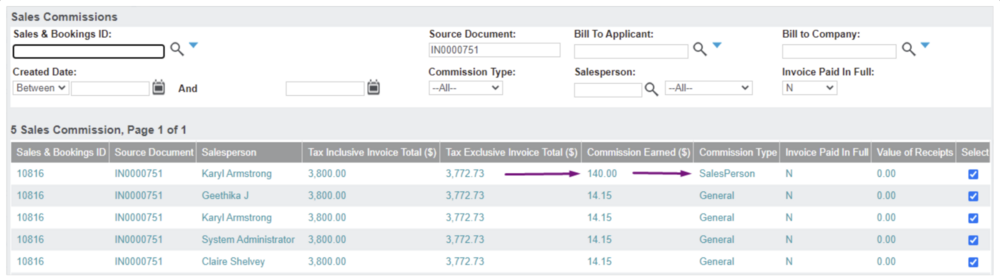
The relative commission earnings must pass to the Detailed Commission Tracking data table.
In this example, the first line entry would be subject to redistribution:
Commission Type: Salesperson.
Commission Earned: $140 - could be redistributed to multiple parties and result in multiple line entries for each salesperson that was nominated in the Commission Details table.