To properly display this page you need a browser with JavaScript support.
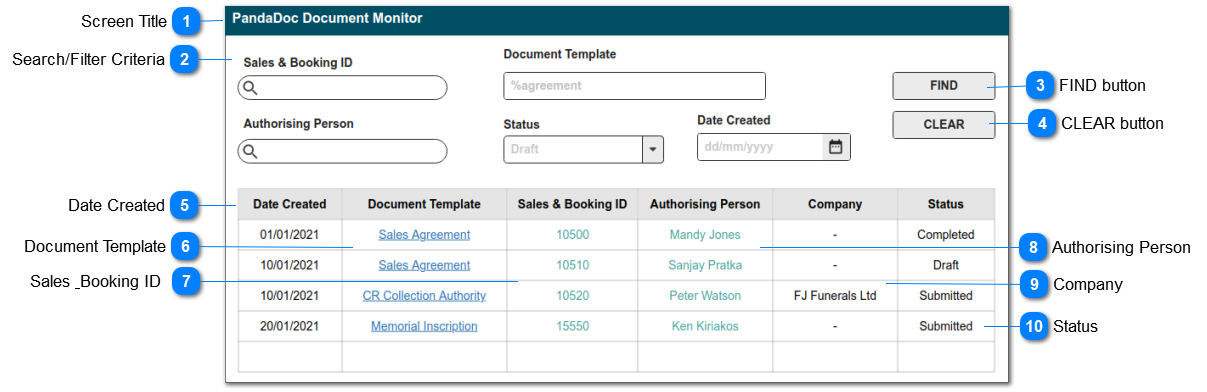
Document Monitoring Screen
This screen will be visible to users with "PandaDoc Access Rights" under the My CRM menu.
It is a listing of documents submitted from byondpro to PandaDoc, showing the current document status, and key attributes from byondpro.
The end user will have the ability to click through and open the document within PandaDoc - if they have appropriate permissions.
Screen Title
This is the screen title: PandaDoc Document Monitoring
Type
Notes
Rules
Compulsory
Format
Edit
Size
Default
Error Message
Title
1) this screen / menu item in My CRM is visible to users with custom security rights.
N
Search/Filter Criteria
The fields shown here will be provided as standard search criteria.
Type
Notes
Rules
Compulsory
Format
Edit
Size
Default
Error Message
Search Criteria
The fields listed will be stored standard with the PandaDoc document entries in byondpro.
SALES & BOOKING ID: search select
DOCUMENT TEMPLATE: name of the document template used in PandaDoc
AUTHORISING PERSON: person search select
STATUS: selection list of statuses provided by the PandaDoc API
DATE CREATED: date of document submission in PandaDoc
N
FIND button
This is an action button to initiate a new search based on the filter crriteria selected
Type
Notes
Rules
Compulsory
Format
Edit
Size
Default
Error Message
Button
1.Selecting the FIND button will initiate a search of the PandaDoc document entries, filtered according to the selections made in (2).
2. Search results to be listed in the grid shown below.
3. Records will be based on the "AND" operation among the search filters.
N
CLEAR button
This is an action button to clear all search results
Type
Notes
Rules
Compulsory
Format
Edit
Size
Default
Error Message
Button
1. Selecting the CLEAR button, will clear all search parameter selections previously made in (2).
1a. Will empty the search results grid of previous results.
N
Date Created
This column in the search results grid will show the date the PandaDoc document was created.
Type
Notes
Rules
Compulsory
Format
Edit
Size
Default
Error Message
Date/Time
Column header to be sortable
1. Date PandaDoc entry is initiated from byondpro
Y
N
Document Template
This column in the search results grid will show the name of the document template, as stored within PandaDoc.
Type
Notes
Rules
Compulsory
Format
Edit
Size
Default
Error Message
Text
Column header to be sortable
1. Document template name from PandaDoc.
2. Click-through to open PandaDoc document management interface; user to provide authentication password, as required by PD
Y
hyperlink
N
Sales & Booking ID
This column in the search results grid will show the originating byondpro Sales & Booking ID
Type
Notes
Rules
Compulsory
Format
Edit
Size
Default
Error Message
String
Column header to be sortable
1. Sales & Booking ID for the initiating transaction.
2. Click-through to corresponding Sales & Booking summary screen
N
hyperlink
Y
Authorising Person
This column in the search results grid will show the name of the person, linked to the originating Sales & Booking as the Authorising Person.
Type
Notes
Rules
Compulsory
Format
Edit
Size
Default
Error Message
String
Column header to be sortable
1. First + Last Name of the Authorising Person on the initiating Sales & Booking.
(source: tran_AuthPersonID)
2. Click-through to corresponding Person summary screen
N
hyperlink
N
Company
This column in the search results grid will show the name of the company, linked to the originating Sales & Booking as the funeral company (or stonemason).
Type
Notes
Rules
Compulsory
Format
Edit
Size
Default
Error Message
String
Column header to be sortable
1. Name of the Company on the initiating Sales & Booking.
(source: tran_FuneralCompanyID)
N
N
Status
This column in the search results grid will show the current status of the document, as controlled by PandaDoc
Type
Notes
Rules
Compulsory
Format
Edit
Size
Default
Error Message
String
Column header to be sortable
1. Current status of the document, as returned via the PandaDoc API.
N
N