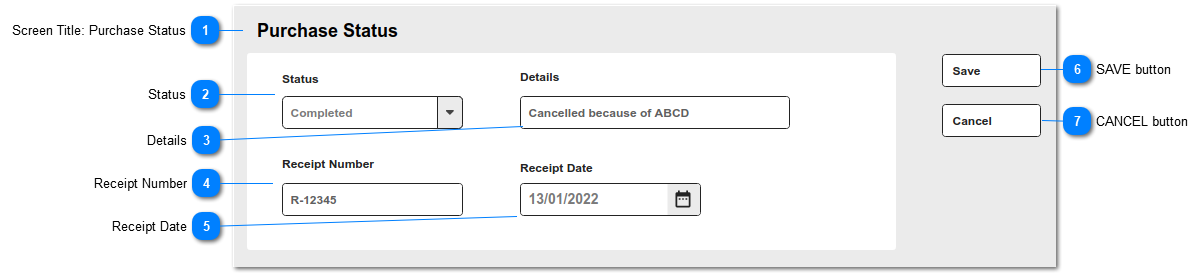
This screen updates the purchase order status.
Status Rules:
|
Status
|
Purpose
|
Rules affecting PO Header screen
|
|
Open
|
when order is being prepared
|
|
|
Issued
|
when PO has been sent to supplier (or integrated ERP)
|
Purchase Order Header - hide buttons
- Add Item
- Hide Issue PO [v2/ERP integration]
|
|
Completed
|
when PO is no longer required
|
Purchase Order Header - hide buttons
- Add Item
- Hide Issue PO [v2/ERP integration]
- Hide Change
- Hide Change Status
|
|
Cancelled
|
when PO has been receipted
|
Purchase Order Header - hide buttons
- Add Item
- Hide Issue PO [v2/ERP integration]
- Hide Change
- Hide Change Status
|
 Screen Title: Purchase Status
This is the screen title: Purchase Details
|
|
 Status
This is the list of Statuses. The other screen fields are dependent on the Status selection made by the user.
|
Type
|
Notes
|
Rules
|
Compulsory
|
Format
|
Edit
|
Size
|
Default
|
Error Message
|
|
Selection List
|
Selection List values are:
- Open
- Issued
- Completed
- Cancelled
|
1. This field is the Purchase Order Header: STATUS field.
1a. This screen opens with the corresponding pre-filed value.
2. On selection of Cancelled, show DETAILS field.
3. On selection of Completed, show:
3a. RECEIPT NUMBER: auto-insert PURCHASE ORDER NUMBER and "-R".
3b. RECEIPT DATE: auto insert current date
4. On selection of Issued, validate that PURCHASE TOTAL results in a positive value.
4a. If PURCHASE TOTAL is negative, show error message.
4b. Return user to Change Status screen in edit mode, with all previous selections in place.
|
Y
|
|
Y
|
|
|
4a. The Total of this Purchase Order is negative. Please review Purchase Details before Issuing this order.
| |
|
 Details
This is the Details fields from the Purchase Order Header; shown if status changes to cancelled
|
Type
|
Notes
|
Rules
|
Compulsory
|
Format
|
Edit
|
Size
|
Default
|
Error Message
|
|
Multi-line Text
|
|
1. Show if STATUS: Cancelled
1a. On Save, validate that DETAILS is not N/Null
|
Y
if status = Cancelled
|
|
Y
|
|
|
| |
|
 Receipt Number
This is the purchase receipt number; will be auto-assigned from originating PO number
|
Type
|
Notes
|
Rules
|
Compulsory
|
Format
|
Edit
|
Size
|
Default
|
Error Message
|
|
Text
|
Example:
Purchase Order Number: PO-1234
Receipt Number: PO-1234-R
|
1. Show if STATUS: Completed
2. Insert PURCHASE ORDER NUMBER + "-R" suffix.
|
Y
if status - completed
|
|
Y
|
|
|
| |
|
 Receipt Date
This is the date the purchase order goods/services are received.
|
Type
|
Notes
|
Rules
|
Compulsory
|
Format
|
Edit
|
Size
|
Default
|
Error Message
|
|
Date
|
|
1. Show if STATUS: Completed
2. Insert current date
3. Disallow future dates
|
Y
|
|
Y
|
|
Current date
|
| |
|
 SAVE button
This is an action button to save the record.
|
Type
|
Notes
|
Rules
|
Compulsory
|
Format
|
Edit
|
Size
|
Default
|
Error Message
|
|
Button
|
Subject to all standard CRM rules.
|
1.This Button is visible when the screen is in EDIT mode.
2. When selected:
2a. UPDATE field values 2-5 on the Purchase Order Header
2b. Write Tracking record on Purchase Order Header for changes to fields 2-5.
|
N
|
|
|
|
-
|
| |
|
 CANCEL button
This is an action button to return the user to the Purchase Order Header screen, without committing any record changes to the database.
|
Type
|
Notes
|
Rules
|
Compulsory
|
Format
|
Edit
|
Size
|
Default
|
Error Message
|
|
Button
|
Subject to all standard CRM rules.
|
1. This button is visible when the screen is in NEW/EDIT mode.
2. When selected, returns the user to the Purchase Order Header screen.
|
N
|
|
|
|
-
|
| |
|