WR and Feedback selection lists
Users can customise fields and screens of the Cases records. We will take a closer look at the selection lists allowing the users to narrow down the topic/ category of a Client Feedback and Works Request.
Navigate to Administration -> Customization and press Cases.
You will be presented with an alphabetical list of fields that can be customized. Scroll down to find the respective customisation options or click CTRL+ F and type in feedback or WR.
We will illustrate the customisation on an example of the Works Request fields.
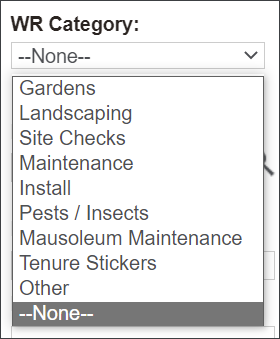
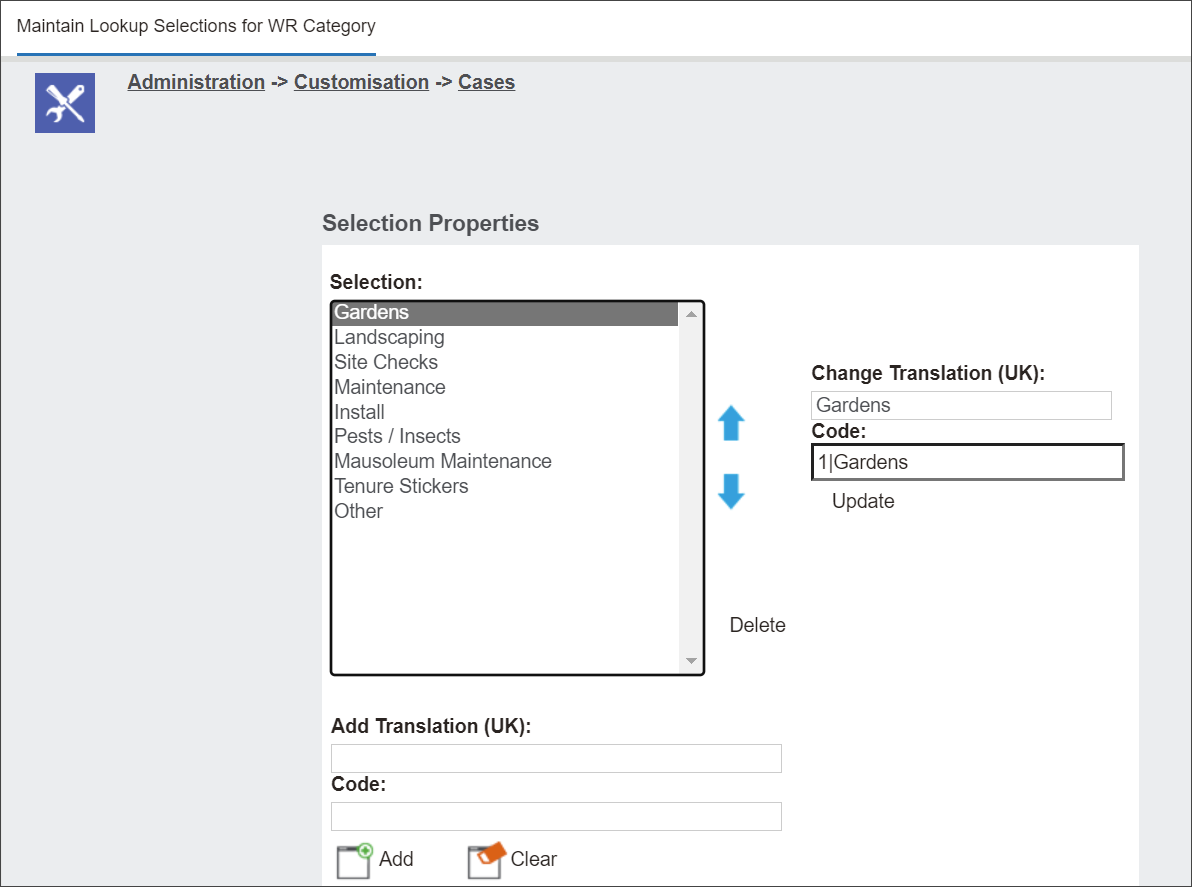
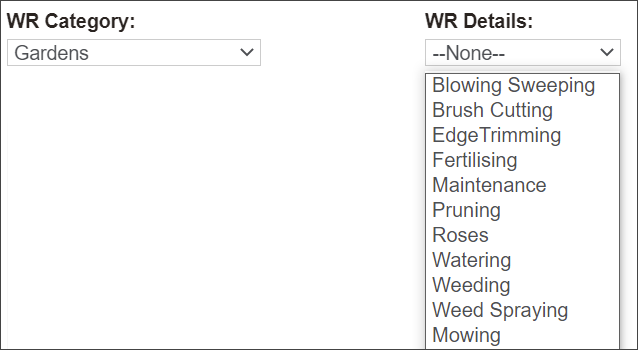
When byondpro users record a Works Request, they can narrow down what the request relates to by selecting from the WR Category list. The users are presented with the below selection list. This selection list is configured in the Administration/ Customisation/ Cases/ WR Category ->Selection.
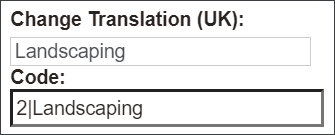
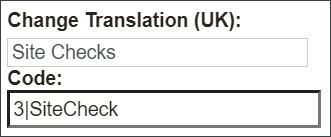
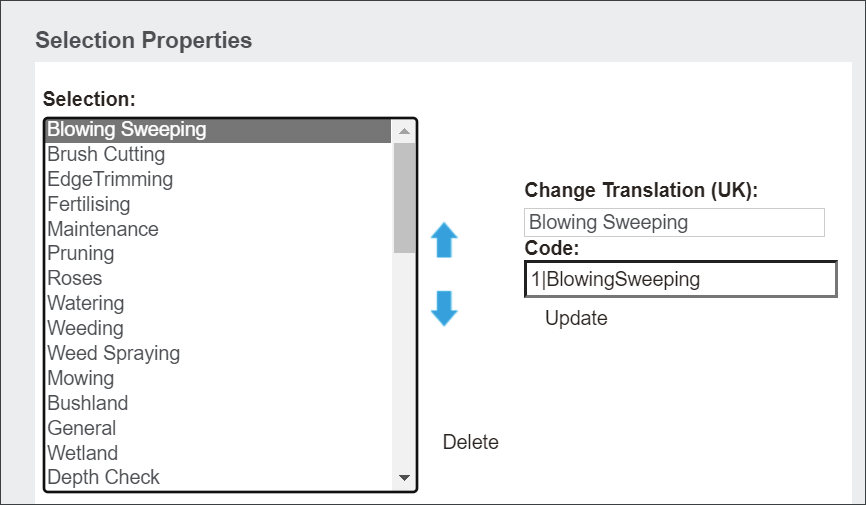
You can notice that the wording for the selection list is typed in the Translation field, while the respective Code below in the corresponding field. The Codes wording has additional values. The Code for Gardens Category is 1|Gardens. The codes to the other values in the selection list follow the same pattern 2| Landscaping, 3| Site Checks.
It allows the system to present the users only with a WR Details selection list that's relevant to a particular WR Category.
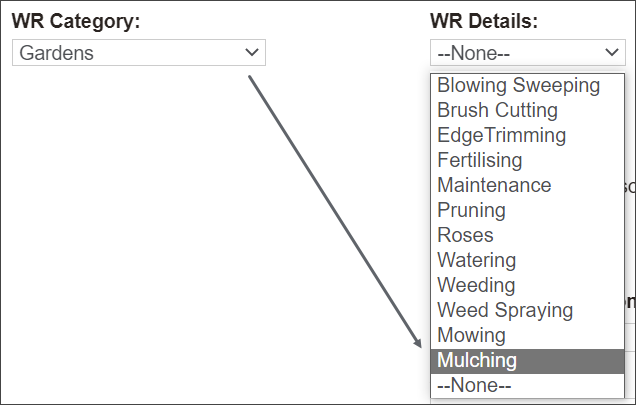
For example, when the byondpro users select Gardens in the WR Category field, they are presented with WR Details selection list only relevant to the Gardens.
The Code for Gardens begins with 1|. The same Code value is then used in the WR Details -> Selection to connect the Details selection options with a particulate Category option.
Notice on the screenshot below that the Code for Blowing Sweeping begins with 1| which connects this Details value with the Gardens Category.
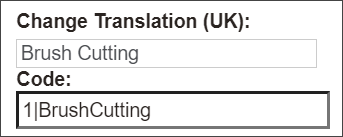
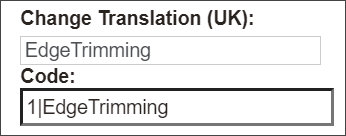
The other options in the Details list follow the same Code logic.
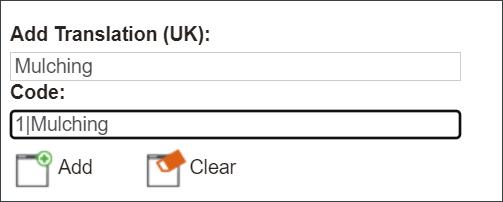
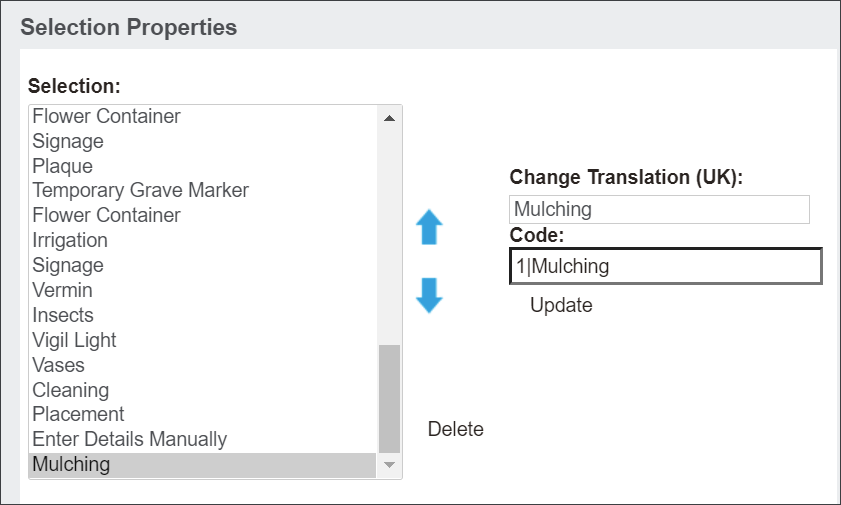
Add a new value to the list by typing in the Details option in the Add Translation field and then type in the Code beginning with the value of a corresponding Category.
See the example below where a Mulching option was added to the WR Details selection list and connected with the Gardens WR Category with the Code 1|.
Note: If the users require the same wording that applies for two WR Categories, the items can be duplicated in the WR Details, however a corresponding code need to be applied. For example, the Maintenance option in the Details selection list is required in both Gardens and Landscaping Categories. The users can add 1|Maintenance in the list to connect with the 1|Gardens Category and 2|Maintenance in the list to connect with 2|Landscaping Category.
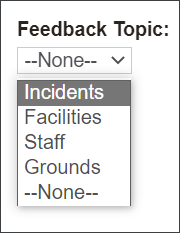
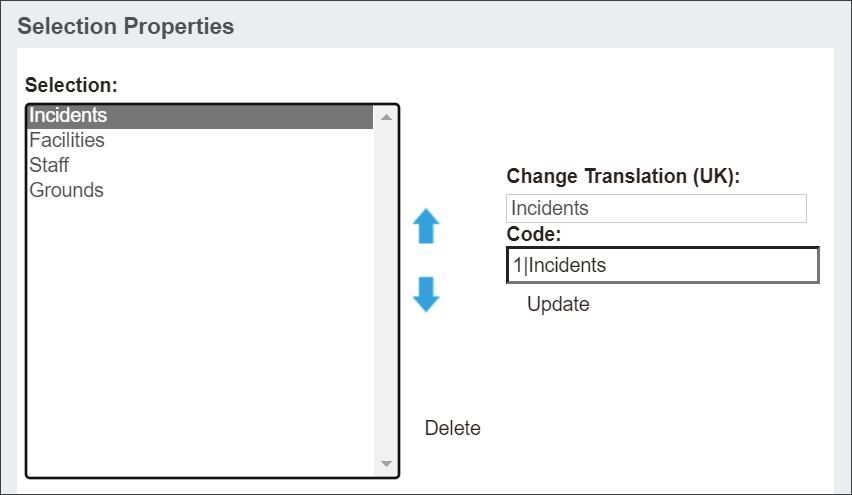
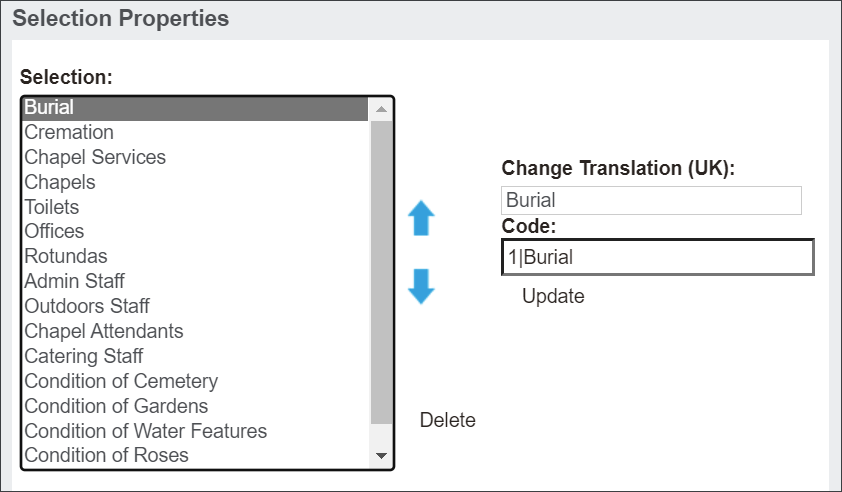
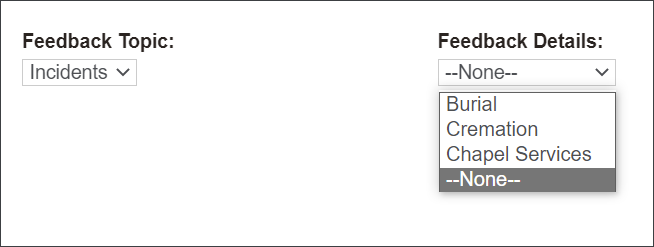
The Feedback Type and Details selection lists follow the same logic as the WR Category and Details. The values connect by using a number and a pipeline symbol Code.
Note: The values in the Feedback Category are Negative or Positive and don't connect with the Feedback Details and Type, therefore don't have the number and a pipeline at the beginning of the Code.