Workflow Actions
The workflow Actions feature allows users to change the current Stage of the Case and the assigned user, as the Case is being investigated.
Access the Actions buttons from the Summary screen.
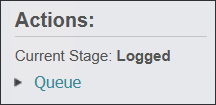
The Stage of every new Case is Logged.
Press the Queue hyperlink to change the stage to Queued.

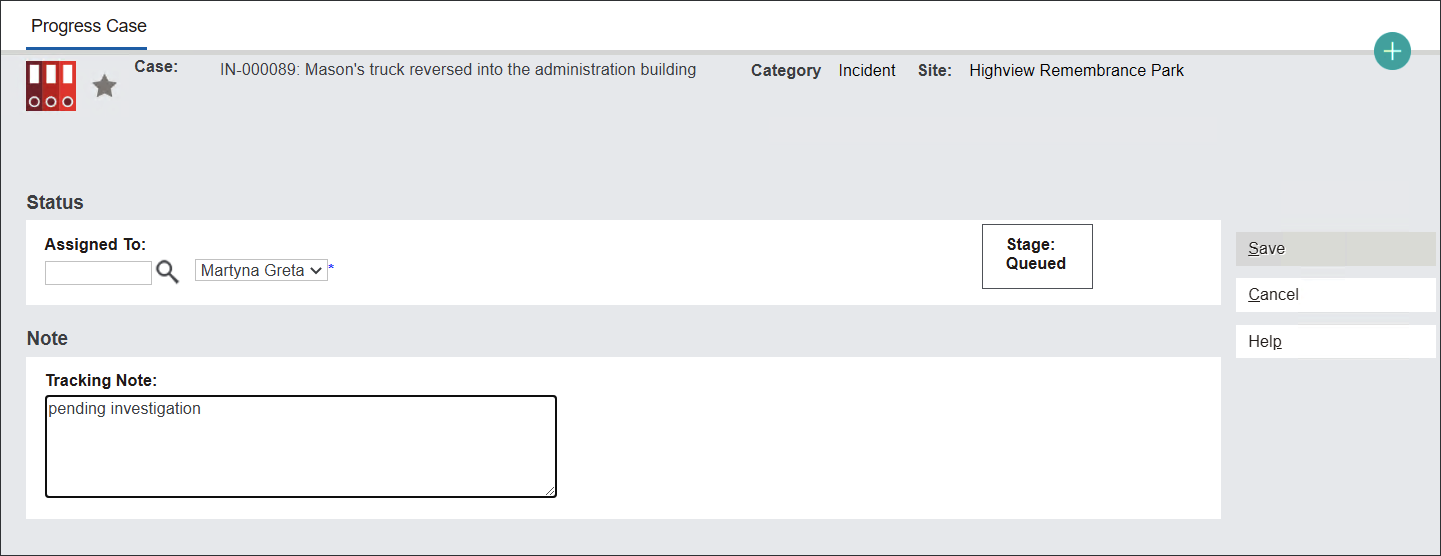
A new screen with appear called Progress Case.
In the Status section you can change the user who manages the record.
In the Assign To field type in the user’s name or press magnifying glass icon and select the user from a drop-down list.
In the Note section add a Tracking Note by typing in the reason for changing the Stage and/or reassigning to a different user (if applies).
Press Save to secure the changes.
Other Actions are now available on the Summary screen.
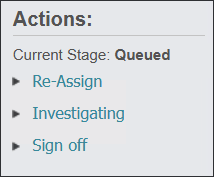
Press the Re-Assign hyperlink to change the user managing the Case.
Press the Investigating and Sign off hyperlinks to track the investigation process and/or to resolve the Case.
Follow the approach outlined above to perform the actions.
The saved changes can be viewed in the Workflow Tracking tab of the record.