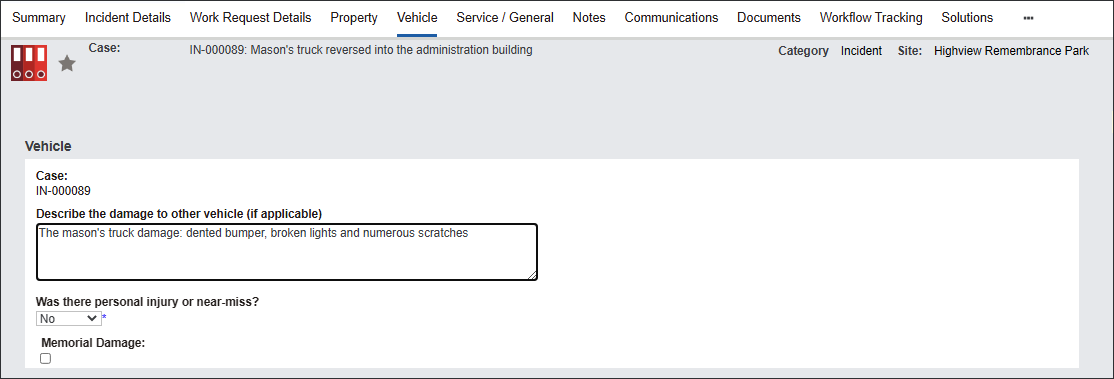
The Vehicle tab stores information related to vehicle damage during the Incident.
Begin capturing information in the Vehicle section.
The system auto-populates the Case number in the first field.
Type in a detailed description of the damage in the Describe the damage to other vehicle field.
Select Yes or No in the Was there personal injury or near-miss?
Tick Memorial Damage if it applies.
Navigate to the Cemetery vehicle details section.
If the damage occurred to the cemetery vehicle, type in the following information in the text fields: Year, Make, Model, and Registration Number.
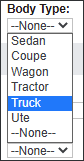
Select the Body Type of the vehicle from the available options.
Navigate to the Cemetery driver details section.
If the damage occurred to the cemetery vehicle, type in the driver's details in the following fields: Driver, License Number, Expiry Date, and Years held.
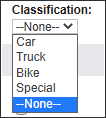
Select the Classification from the available options.
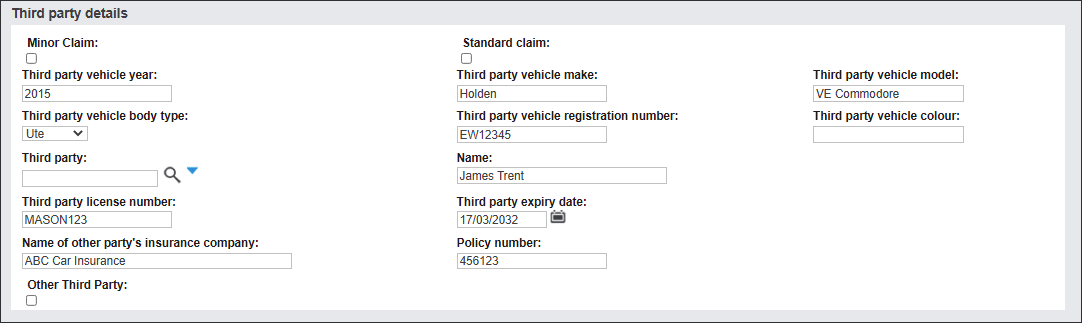
Navigate to the Third party details section, if the vehicle damage occurred to a third party's vehicle, like in our example.
The Minor Claim and Standard Claim tick boxes flag the type of insurance claim that is related to the vehicle damage.
Tick the appropriate box or leave it blank if it doesn't apply.
Type in the vehicle and driver's details in the available text fields.
If the driver is an existing contact at the cemetery, you can select a name using the magnifying glass icon.
If the driver is not an existing contact at the cemetery, you can type in a name in the Name field.
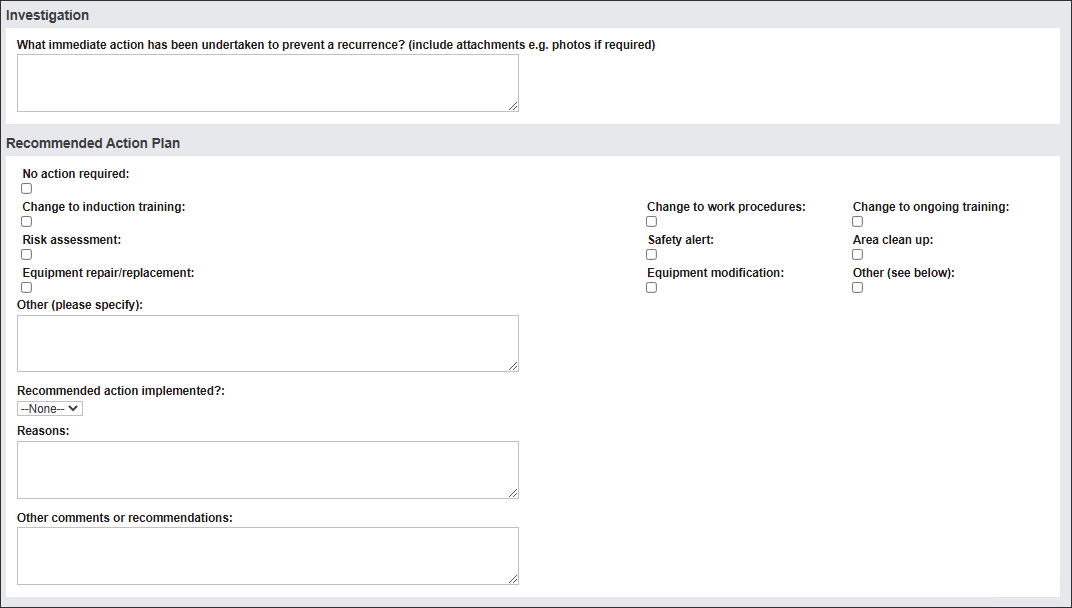
Navigate to the Investigation and Recommended Action Plan sections.
Populate the available fields as outlined in the
Property section.
Press Save to secure the changes.