Using Search Select Fields
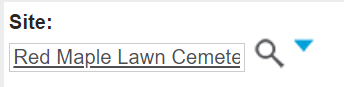
Many fields within byondpro, such as the site field below, have a text field, with a magnifying glass and a little blue triangle to aid with the search.
In the byondpro User Guide, these are referred to as Search Select fields.
To use the Search Select fields, type into the field the full selection and press the magnifying glass to secure the record with an underline.
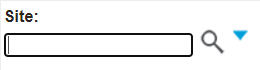
By clicking on the magnifying glass without typing in text, the user is presented with a list of all sites in the system.
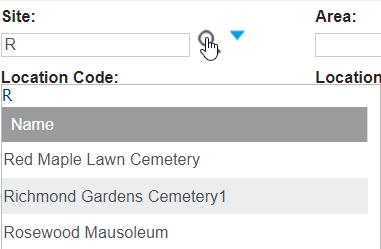
Users can also start typing in the field and then press the magnifying glass to lock in the option or narrow down the list by the filter criteria entered in.
Clicking on the blue triangle will open a selection list, which includes the options of Find and Clear. To clear the information already in the field, choose Clear.
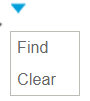
By pressing Find, users are presented with a pop-up window displaying the relevant search criteria to narrow down the search.
Users can use the new search screen by filling in the relevant fields.
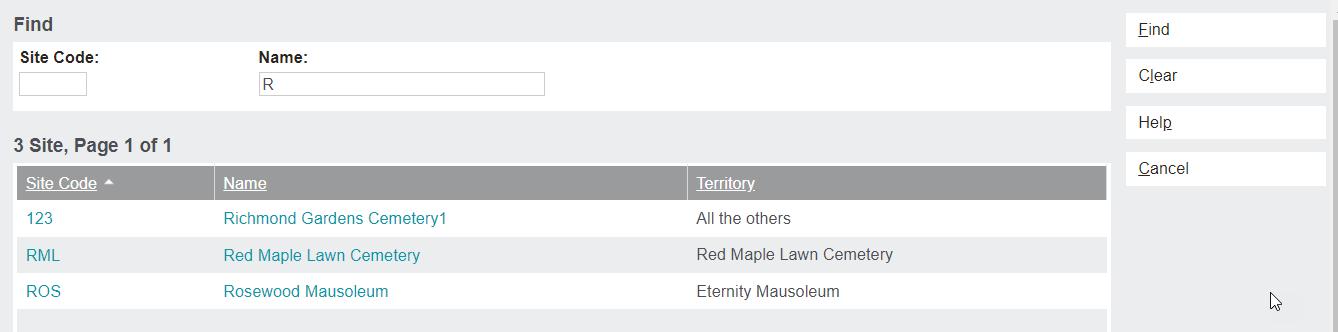
Once the option is located, clicking on the hyperlink will place the chosen option in the field.