Summary Tab
Header
The header follows onto every tab as the user navigates through the Sales & Booking record. It provides the user basic details based on the information completed when the booking was made and updates as changes are made to the booking.

Mark the booking as a favourite, by clicking on the star in the header and it will turn yellow.

Users can find bookings flagged as favourites by:
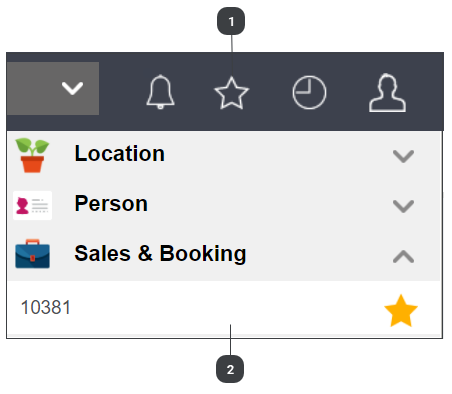

Clicking on the star on the toolbar.


Then, locating the booking under the Sales & Booking header.
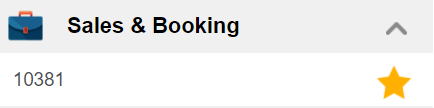
The Status on the header will update throughout the booking process as relevant changes are made to the booking.
Timeline
Below the header, a visual timeline of core appointments (i.e. Chapel service, Burial service, Vehicle service) display. The timeline is linked to the Communication tab of the Sales & Booking.

As different events are added to the booking, the user will see them displayed.
Today appears on the timeline and once events have passed, they will appear grayed out. Future events are in blue.
Appointments can be edited by clicking directly on the appointment, making the change, and pressing save.
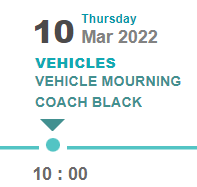
Alternatively, users can navigate to the Communication tab to access the appointments.
Sales & Booking Information Block
Below the timeline is the Sales & Booking information block. Details are completed upon creating the booking and will be updated as a user makes changes to the booking.
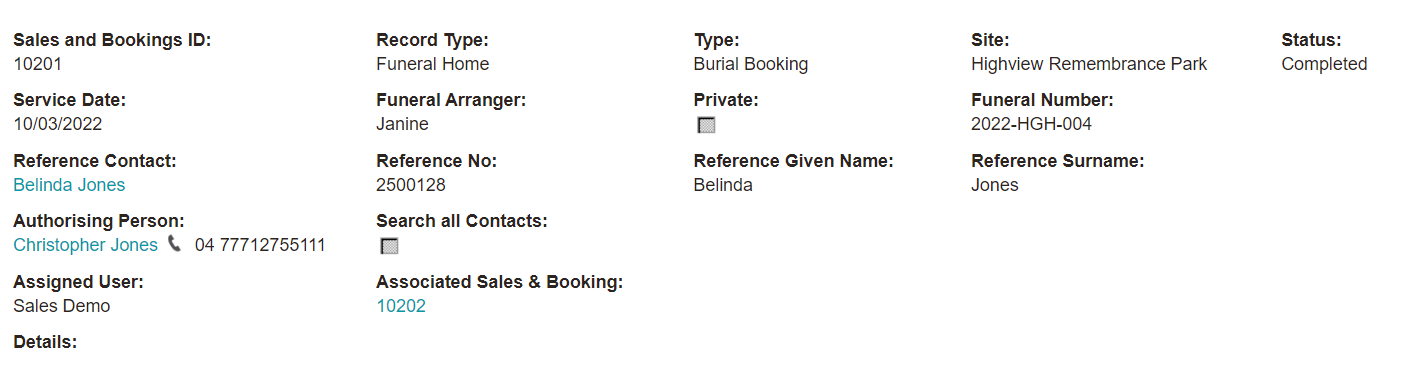
The Reference Contact, Authorising Person, and Associated Sales & Booking all serve as hyperlinks to the appropriate records.
If Task Manager is in use, clicking on the status will bring the user to byondcloud Task Manager to view details. The status will start as pending initiation and as updates are made in the application, the status will change.