Reports
The byondpro Reports regarding Cases and Risks are customisable to meet our customers’ needs.
This section will review reports that can help with the review, assessment and management of the Risk Register.
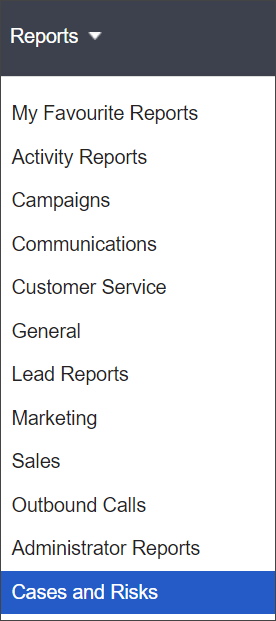

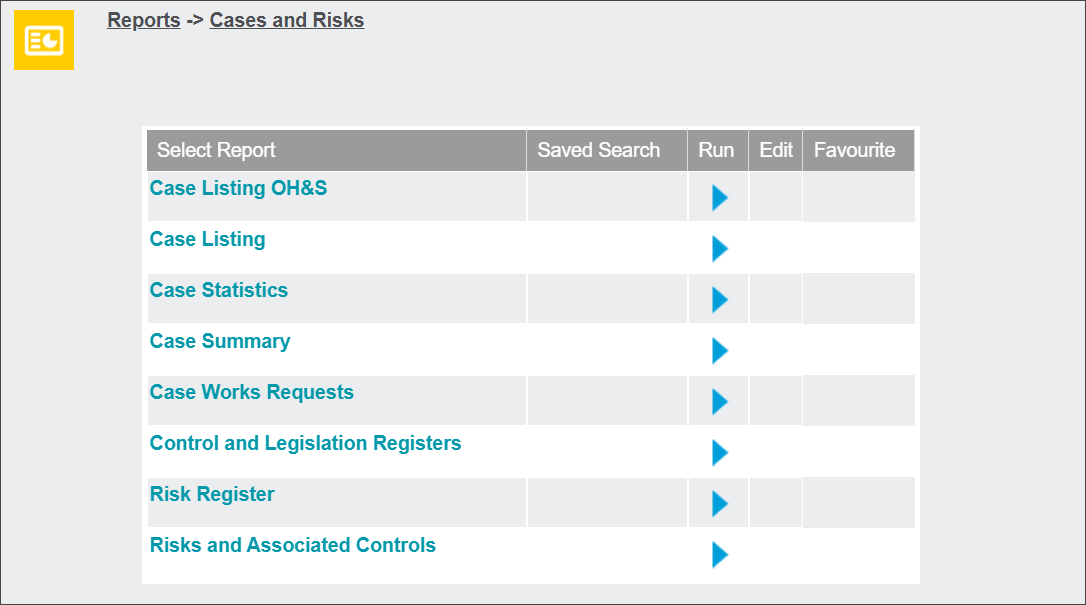
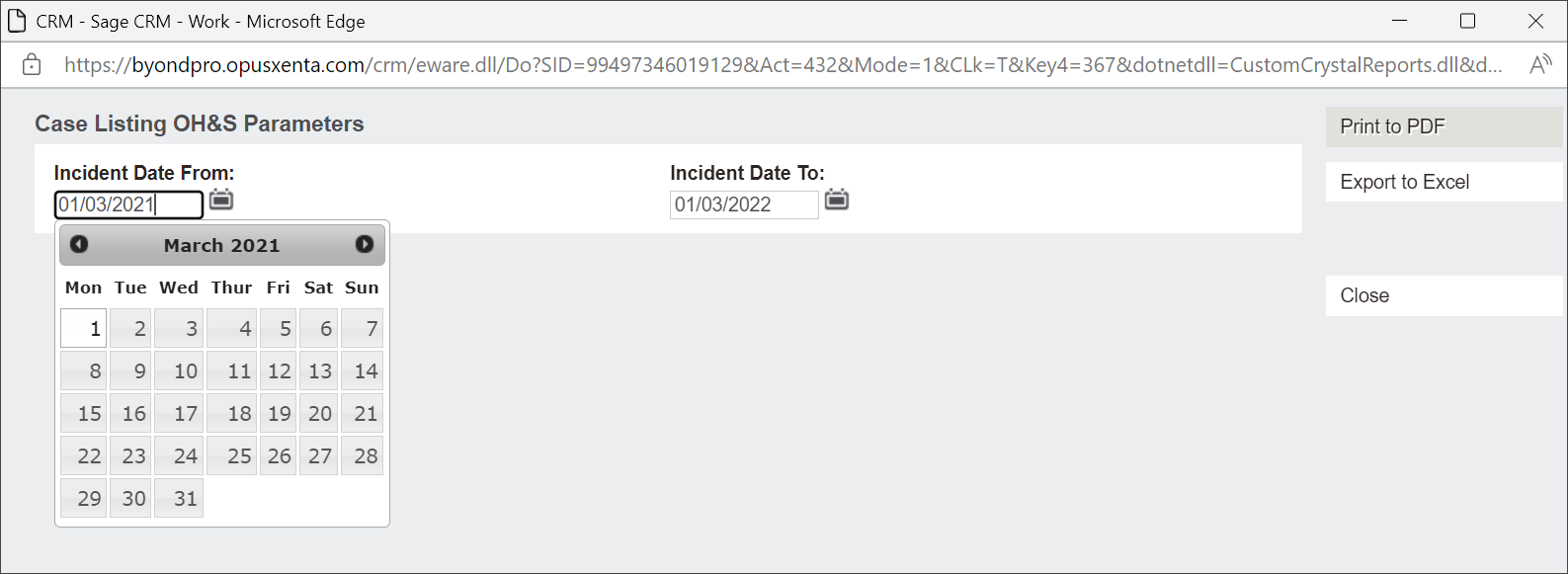
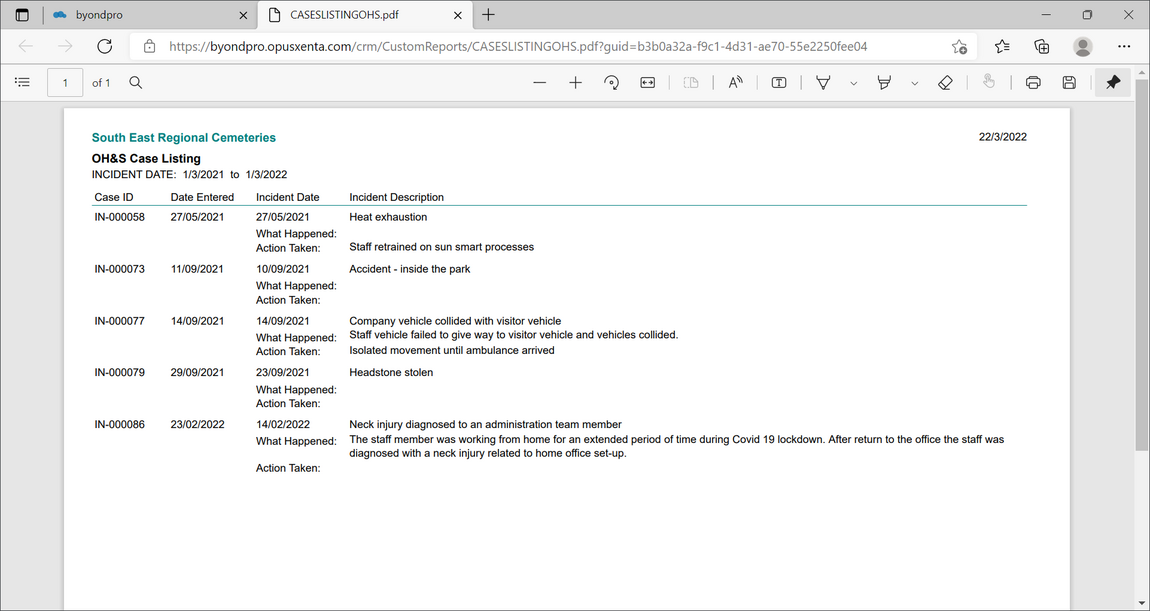
The Case Listing OH&S Report displays a list of Incidents related to the OH&S Risk Register.
The information displayed on the Report can be filtered by date.
The Reports are available in two formats: PDF and Excel.
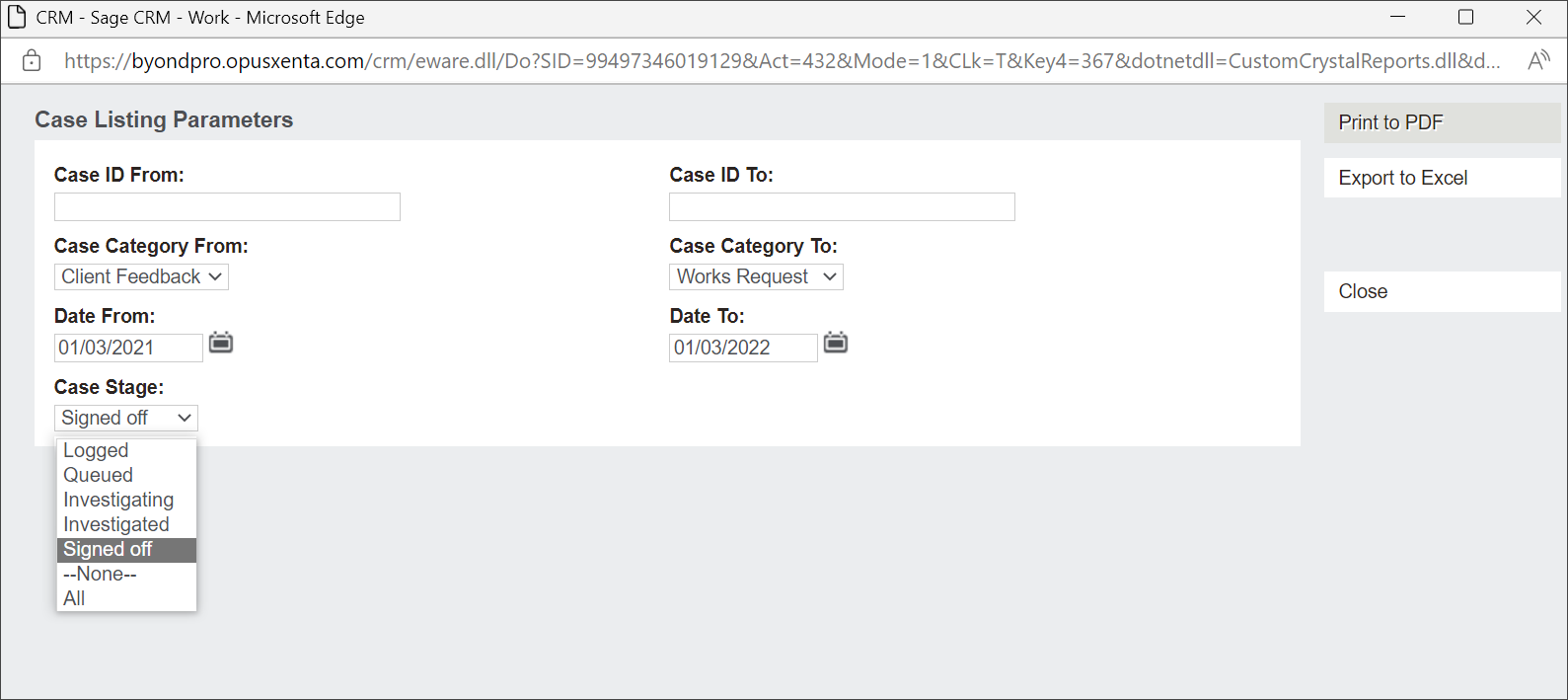
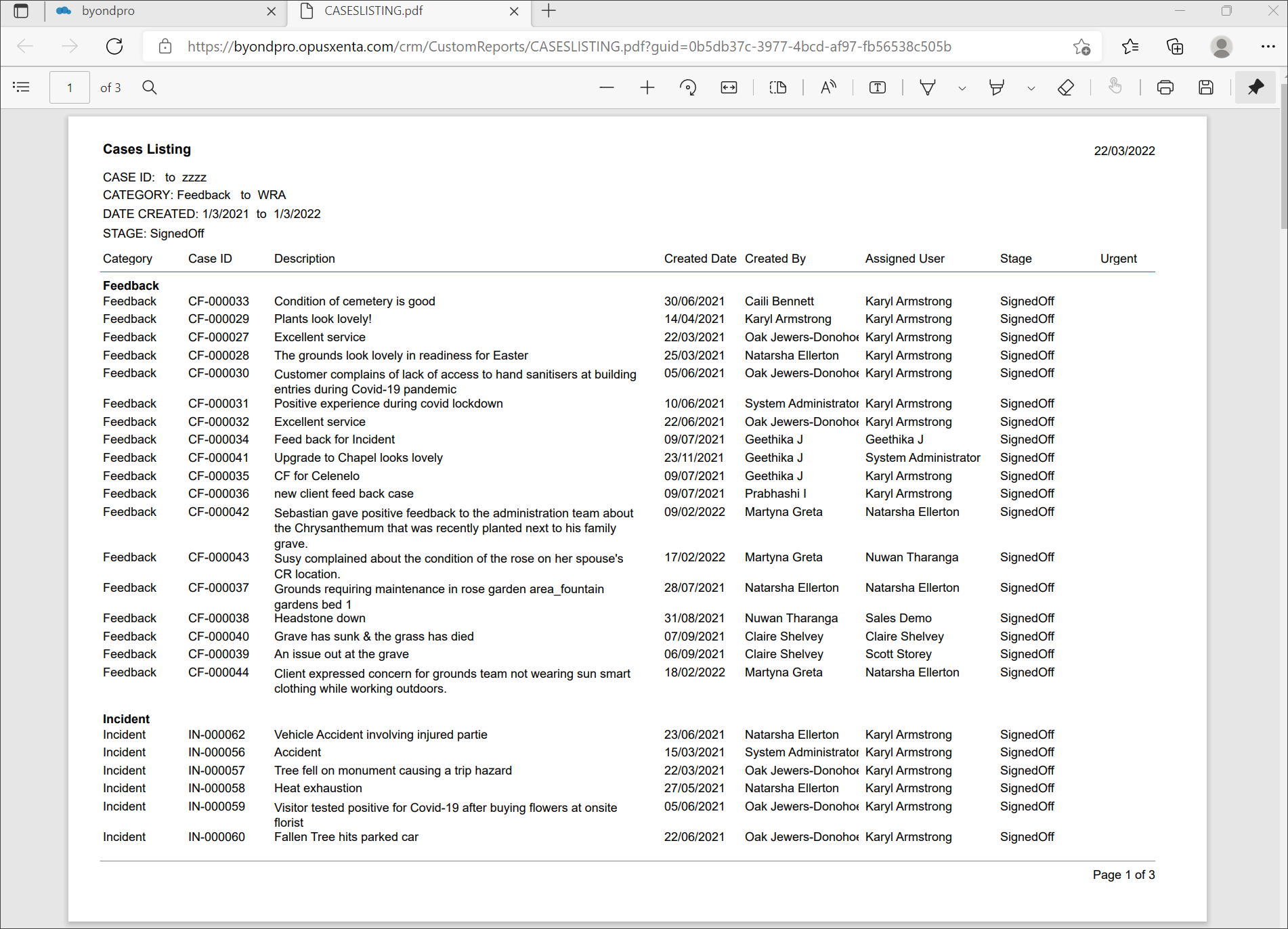
The Case Listing Report displays a list of chosen Case Category/ies, sorted by the date, ID numbers and Stage.
In our example, we'll view all Case Categories created between March 2021 and March 2022 that have been Signed off.
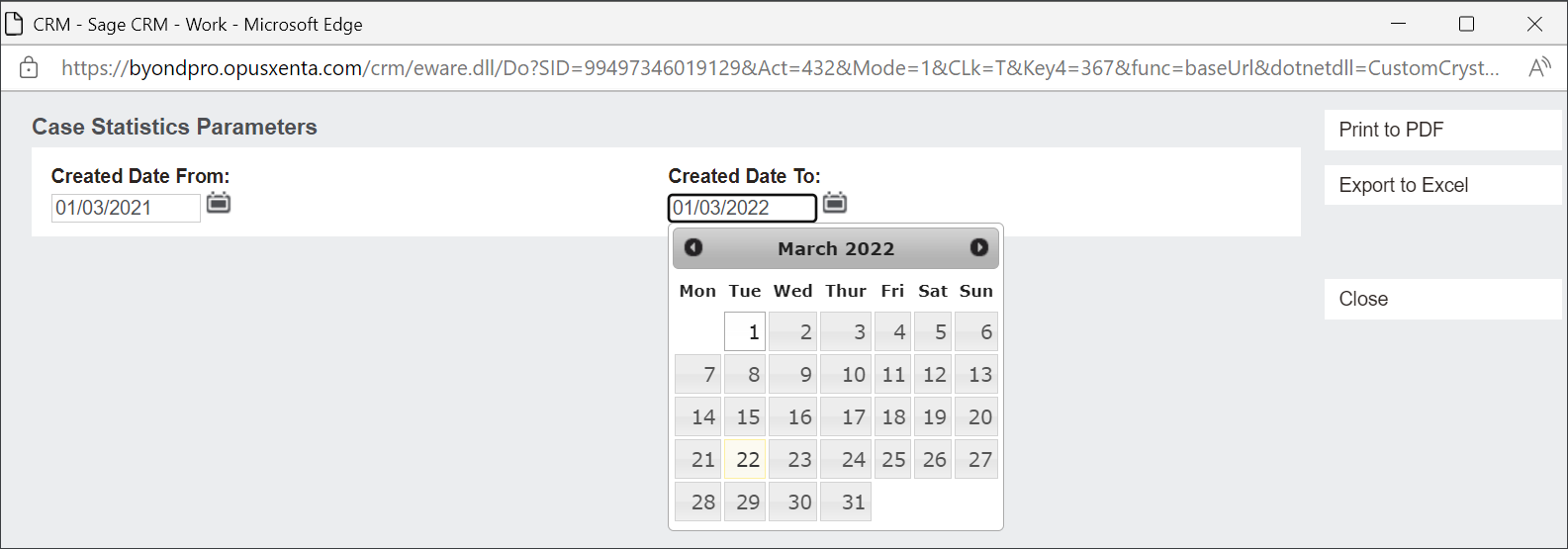
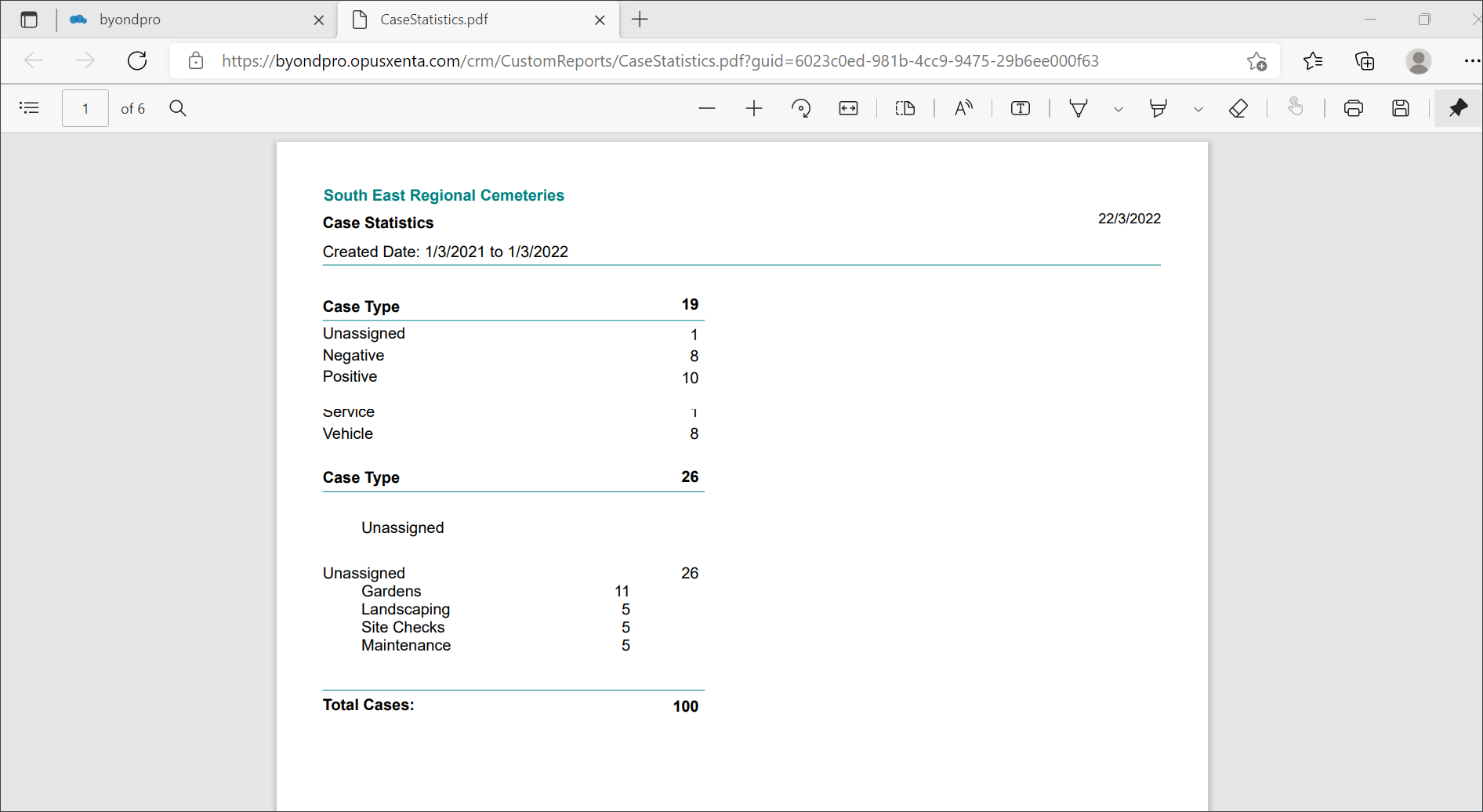
The Case Statistics Report displays figures allowing users to analyse the Cases occurrence and impact, for example:
-
Were the Cases positive or negative
-
Who was injured: staff or visitors
-
What resources were damaged: property, vehicle, or services
-
What area of business the Cases referred to: gardens, maintenance etc.
The information displayed on the Report can be filtered by the created date.
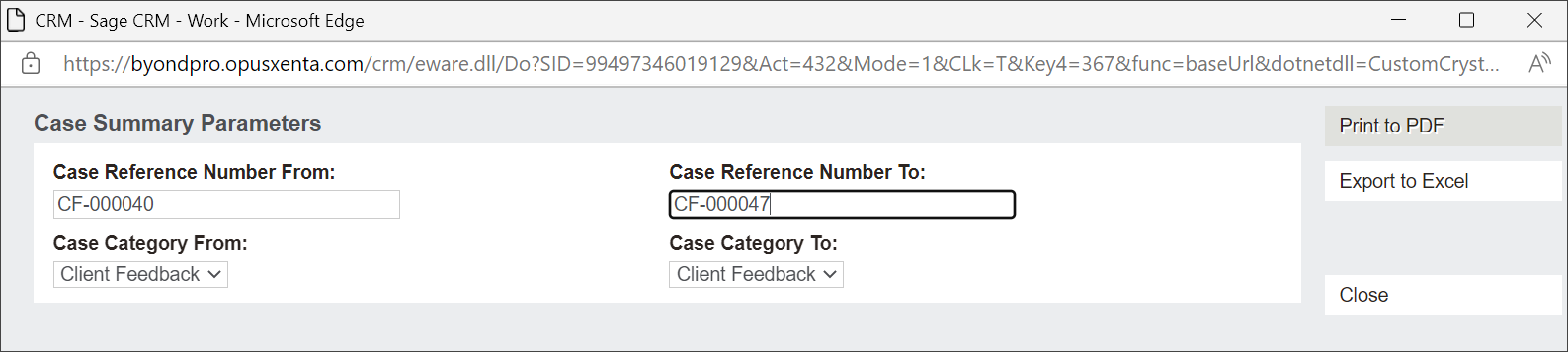
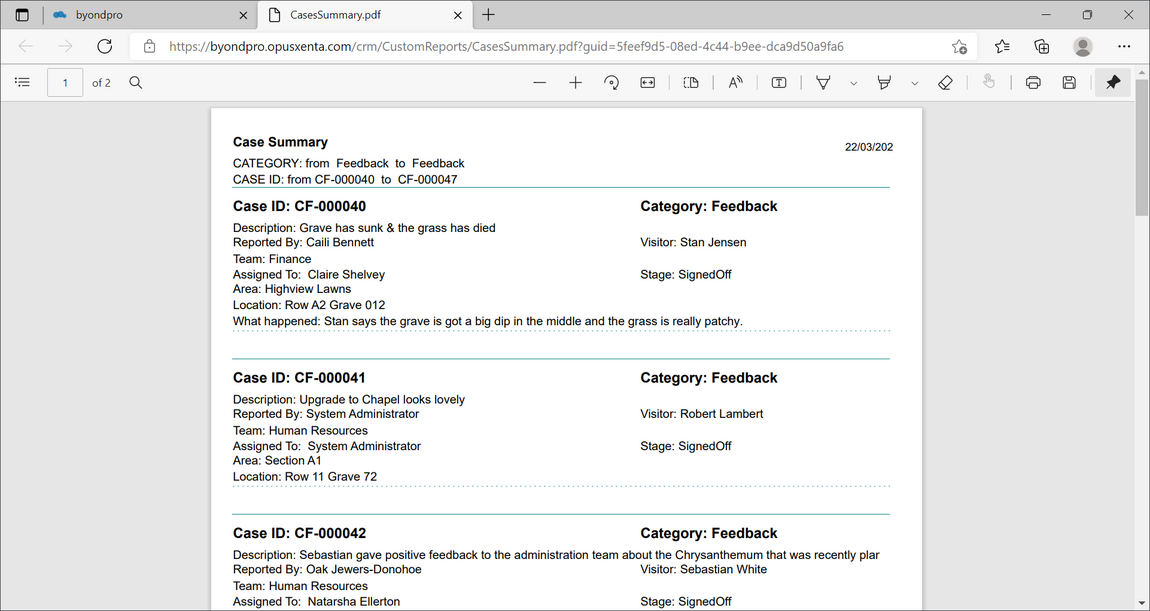
The Case Summary Report displays brief statements regarding the chosen Case Category/ies.
In our example, the information displayed on the Report was filtered to display only Client Feedback summaries from reference number 40 to 47.
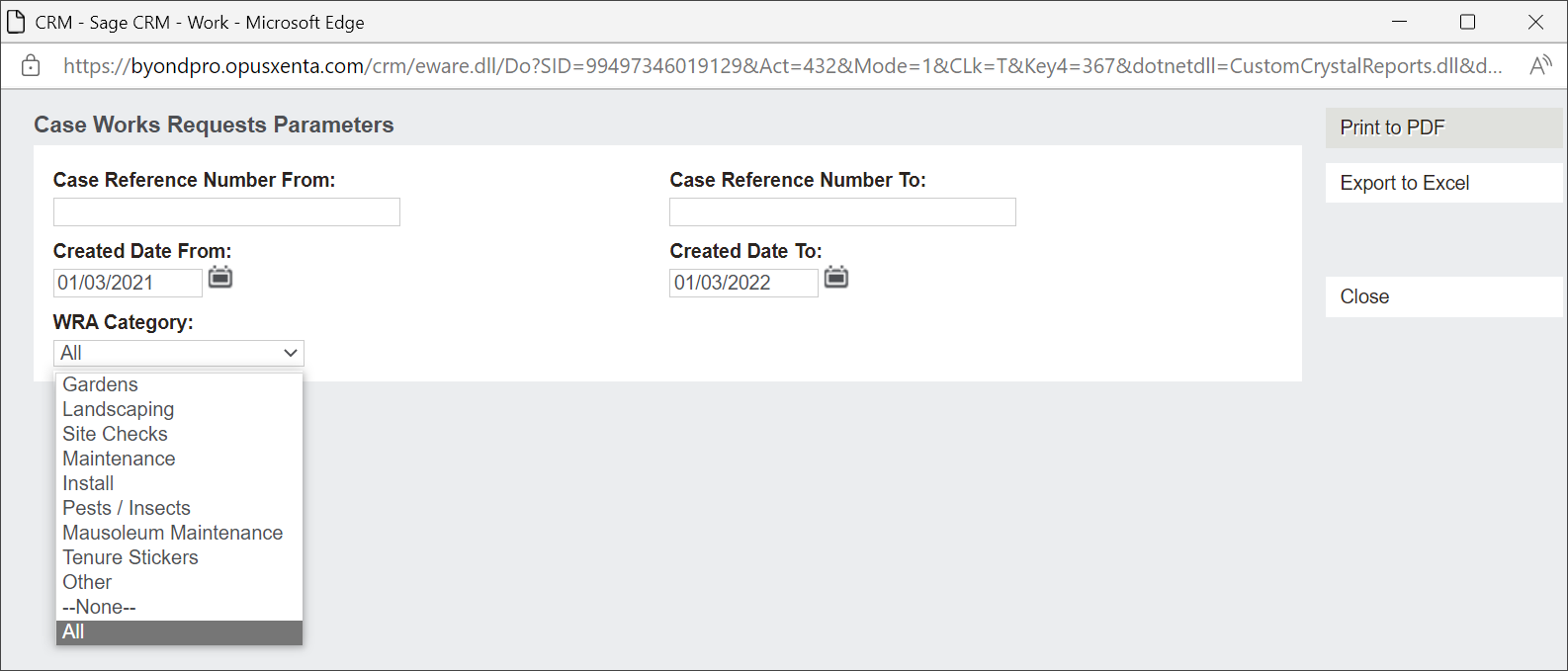
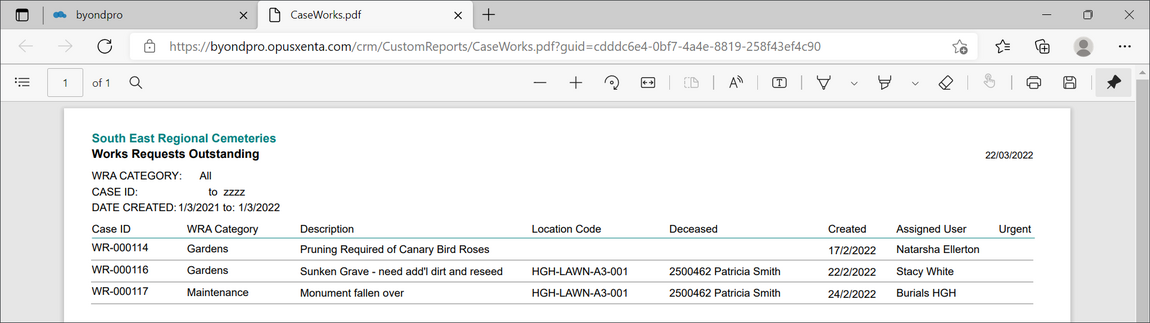
The Case Works Request Report displays a list of outstanding Works Requests that require attention.
The information displayed on the Report can be filtered by the reference numbers, created date and WRA Category.
In our example, the Report was filtered by the created date and included All WRA Categories.
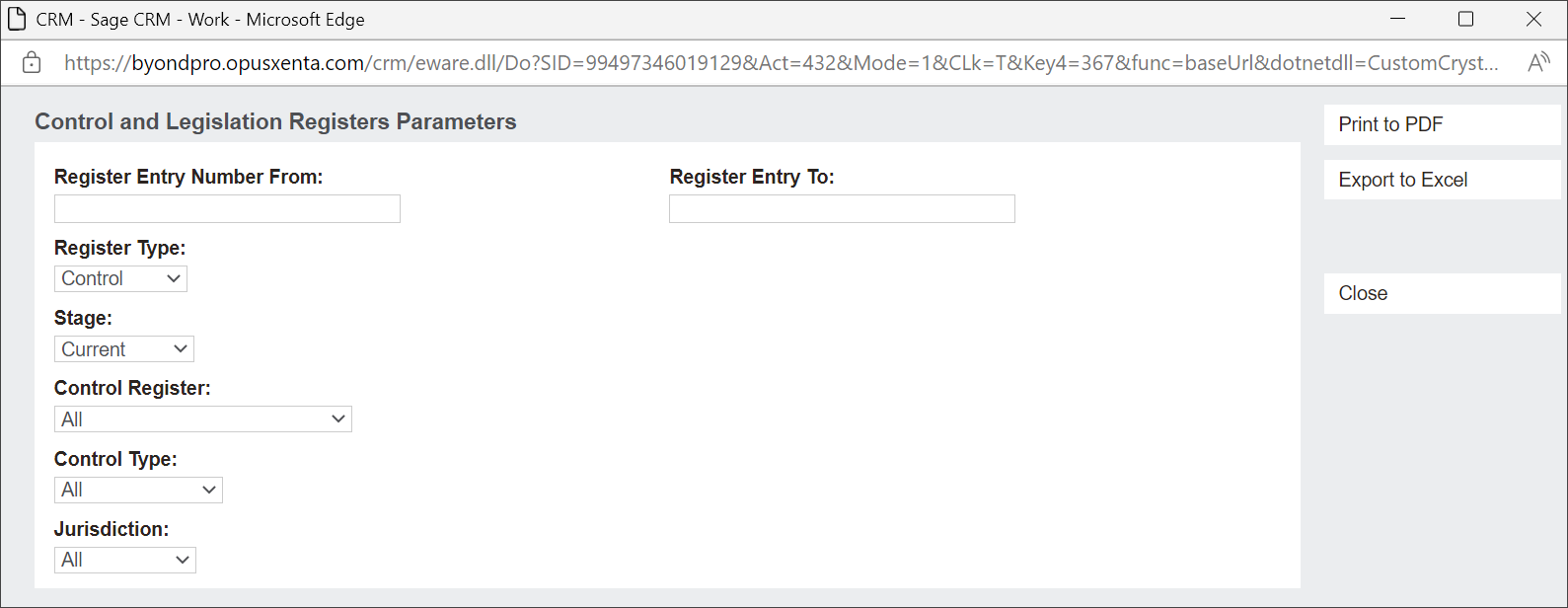
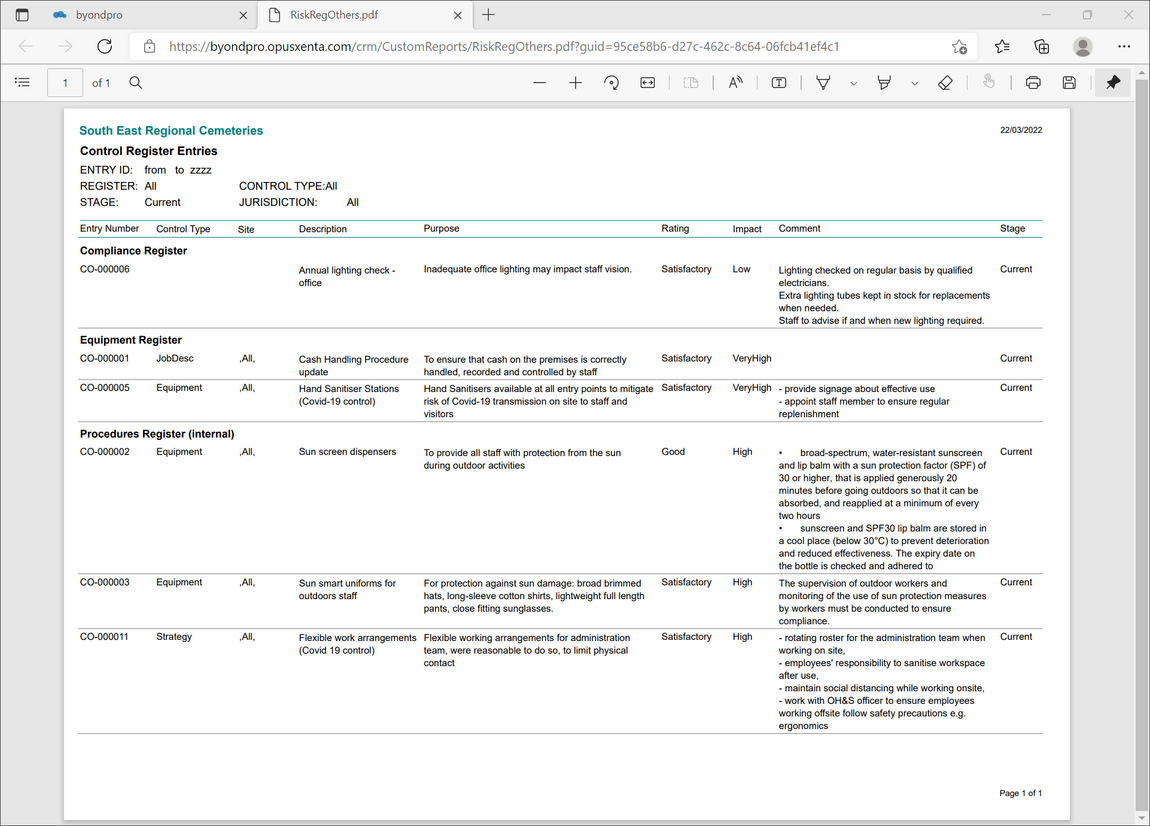
The Control and Legislation Registers Report displays all captured information about Control and/or Legislation records.
The information displayed on the Report can be filtered by:
-
The Stage e.g. Current, Proposed
-
The Control Register e.g. PPE Register, Policy Register
-
The Control Type e.g. Procedure, Guide, Regulation
-
The Jurisdiction e.g. State, International or a particular site.In our example, the Report displays information about all Current Controls in the system.
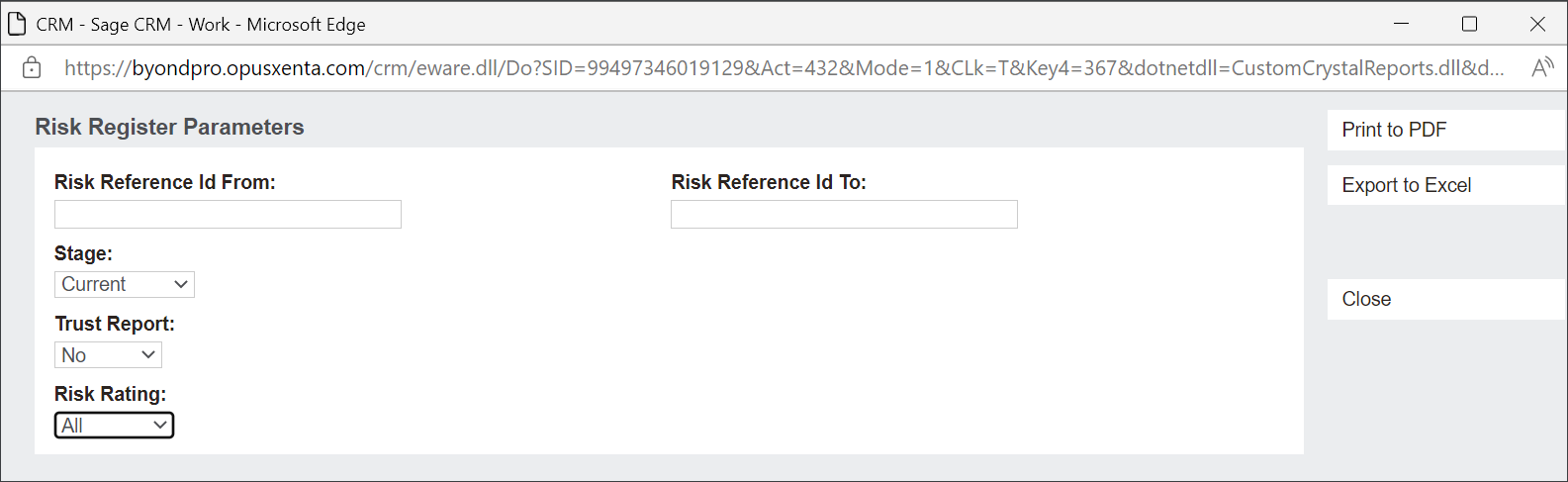
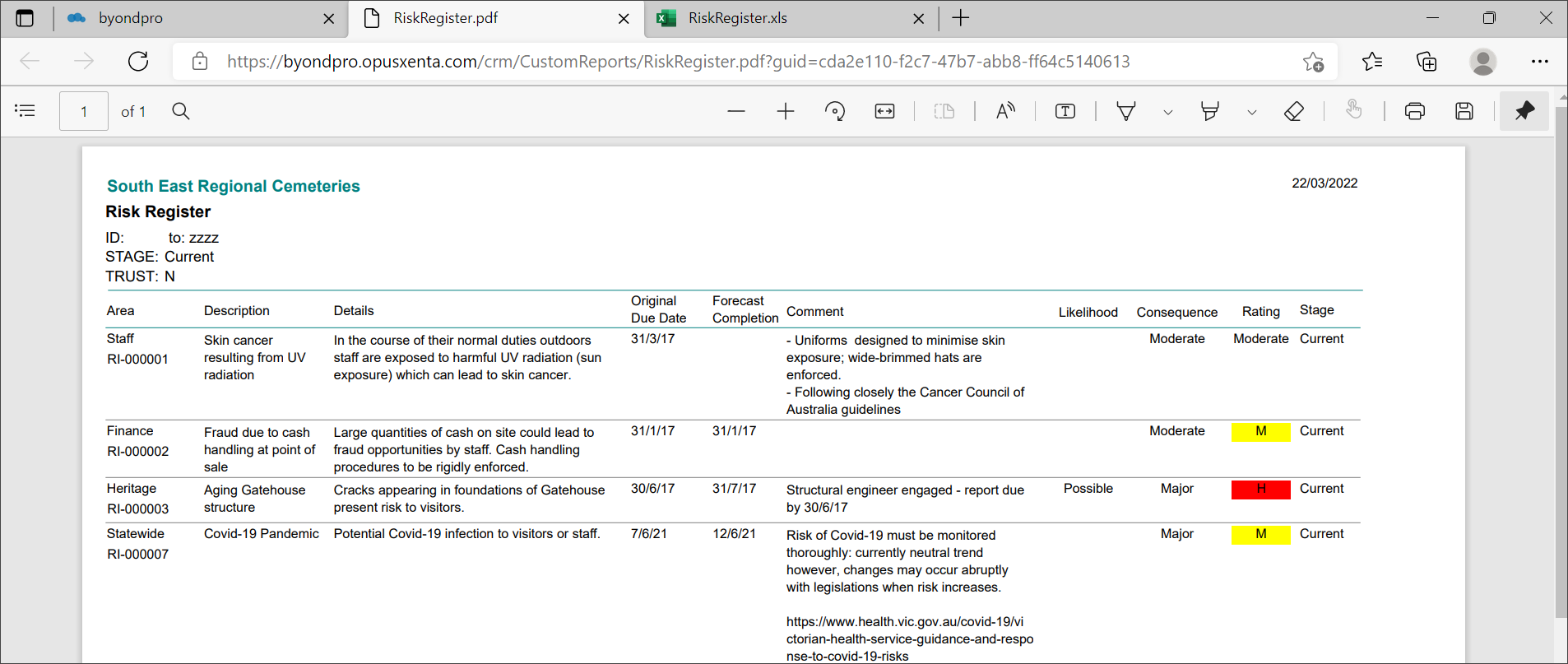
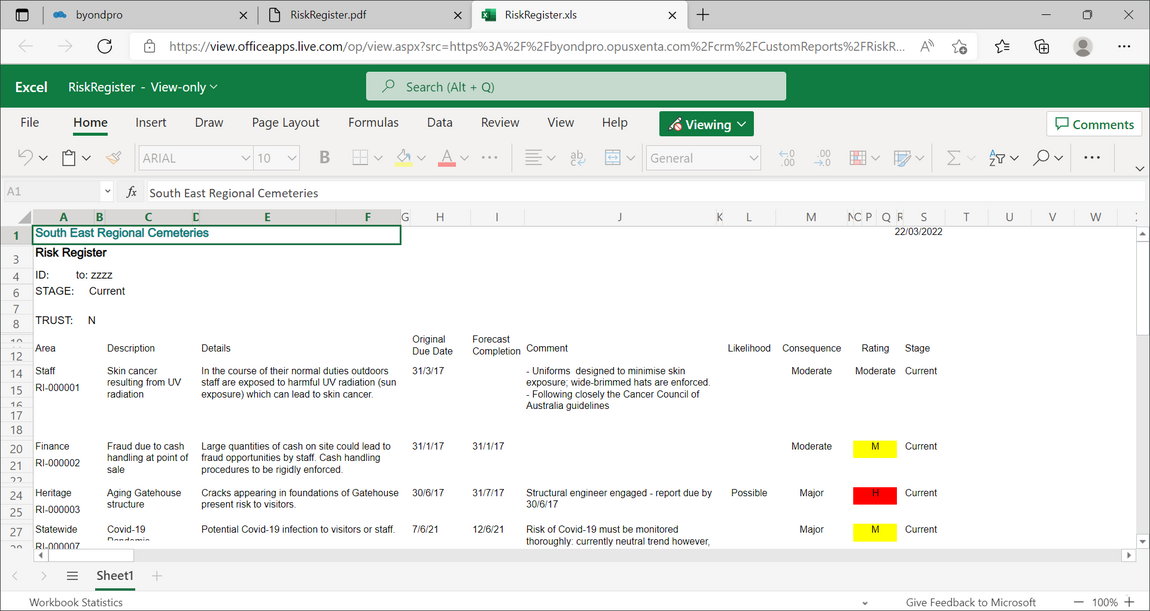
The Risk Register Report displays all captured information about the Risk records entered in the system.
The information displayed on the Report can be filtered by:
-
The Stage e.g. Current, Proposed
-
The Trust Report necessity
-
The Risk Rating e.g. High, Low, Moderate.In our example, the Report displays information about all Current Risks including All Risk Rating levels and no need for the Trust Report.
View the Report in Excel.
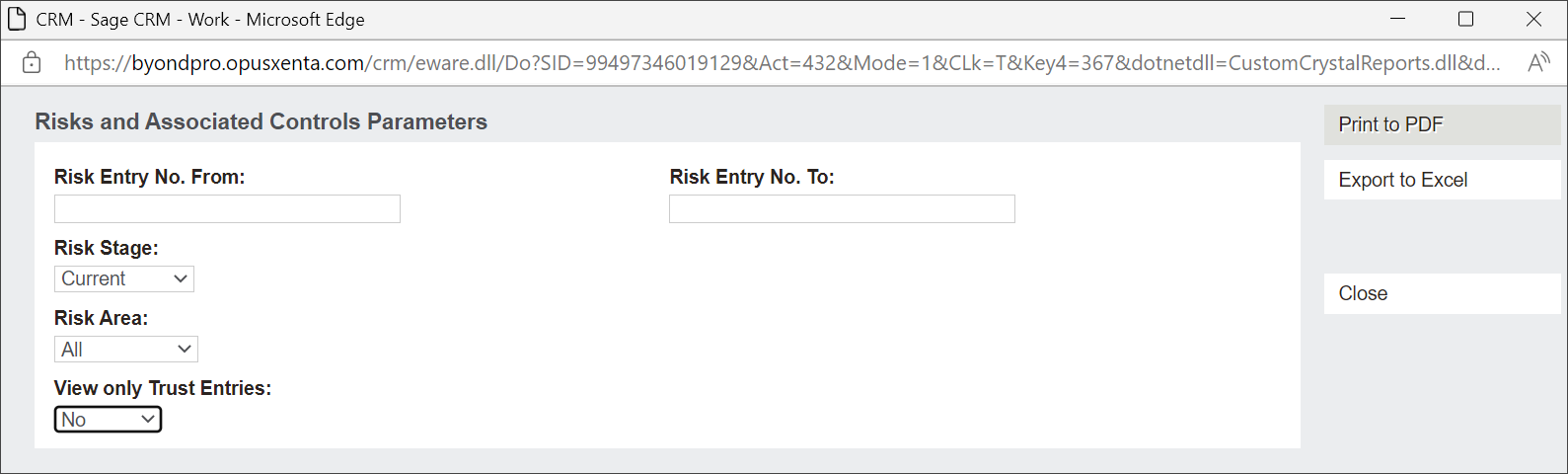
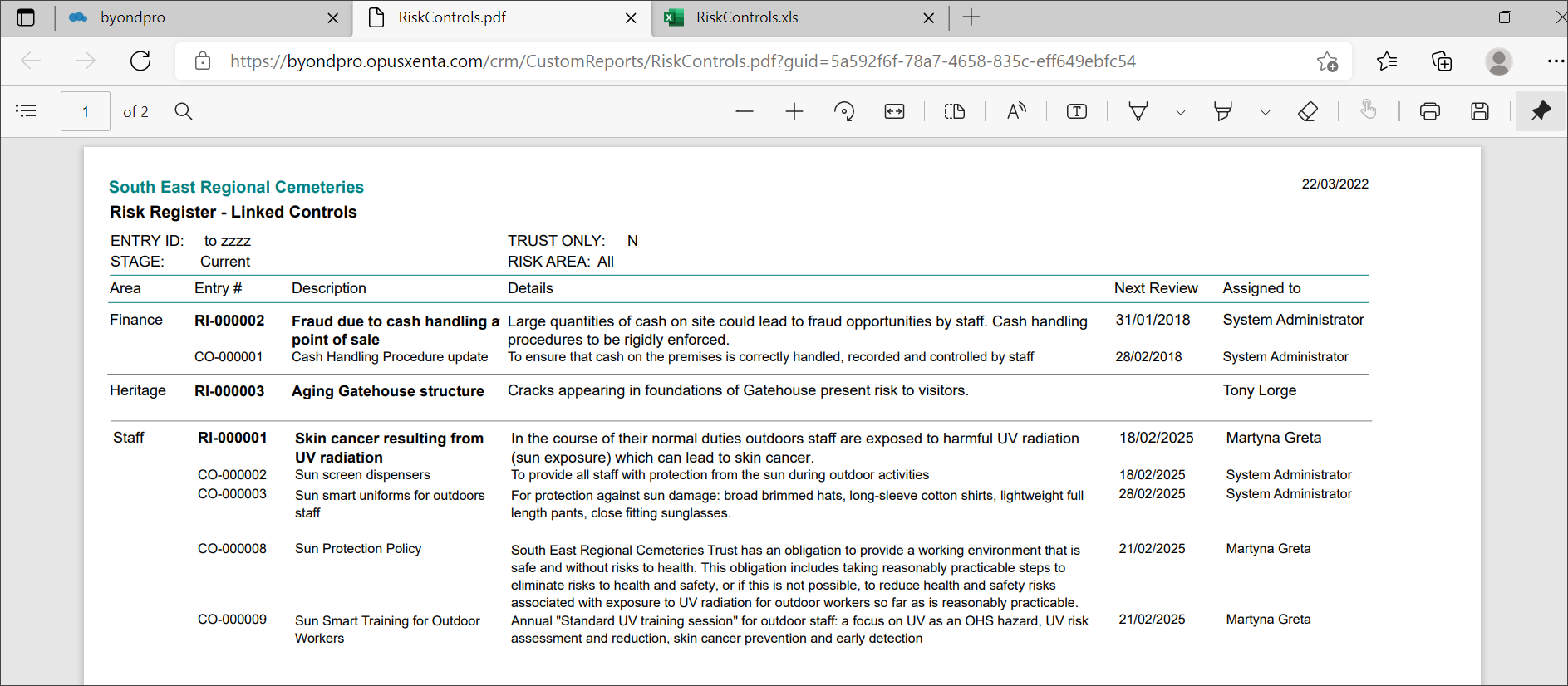
The Risk and Associated Controls Report displays all captured information about Risk records and related Controls entered in the system.
The information displayed on the Report can be filtered by:
-
The Stage e.g. Current, Proposed
-
The Risk Area e.g. Finance, Staff
-
The Trust Report necessity.In our example, the Report displays information about all Current Risks including All Risk Area levels and no need for Trust Report.
Users can also print the Summary Reports related to individual Cases.
Press the Print Case Summary button on the Summary screen.

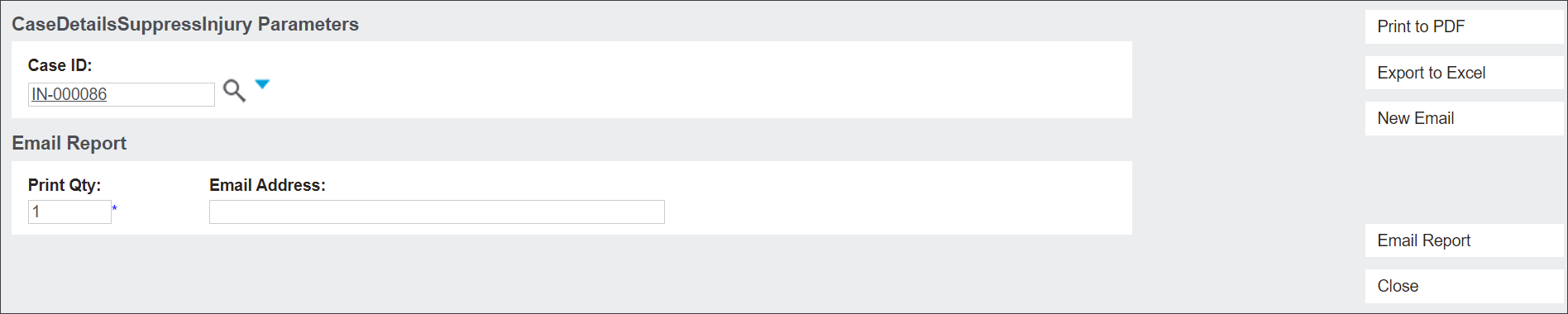
From the new screen users can decide on the format: PDF, Excel or an e-mail, using the action buttons on the right.
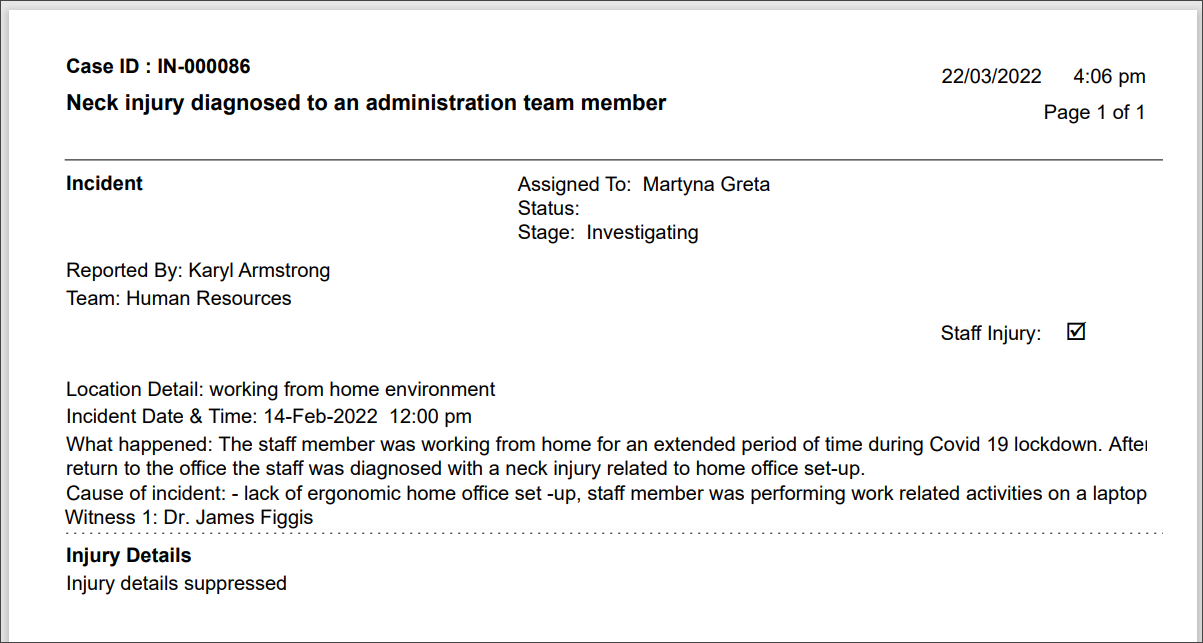
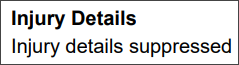
The above example displays another confidentiality feature of the Cases functions.
When an injury occurred to staff, the Injury Details are available only to the Human Resources team. The details are suppressed from other users.