From a processing and screen perspective, the Accounts Receivable Refund Write Back functions like the AR Receipt Writeback.
Users can create a Refund batch in Sage 300 against credit notes (not overpayments).
Then by running the refund write back, it creates a refund in byondpro (a negative receipt) against the original Sales & Booking/Credit Note, and thereby shows customer service staff that the credit transaction was closed out by the Finance team.
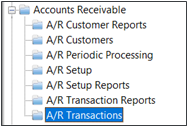
To process a refund write back, in Sage 300, navigate to A/R Transactions.
Create the Refund Entries / Refund batch for the transaction/s that need to be refunded.
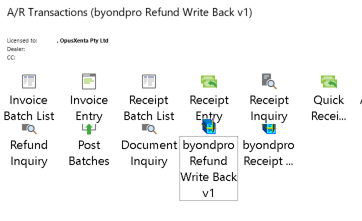
Once the refund batch is prepared, post the batch, and then select the AR Refund Writeback icon.
Note: multiple refunds can be processed and written back in the one batch.
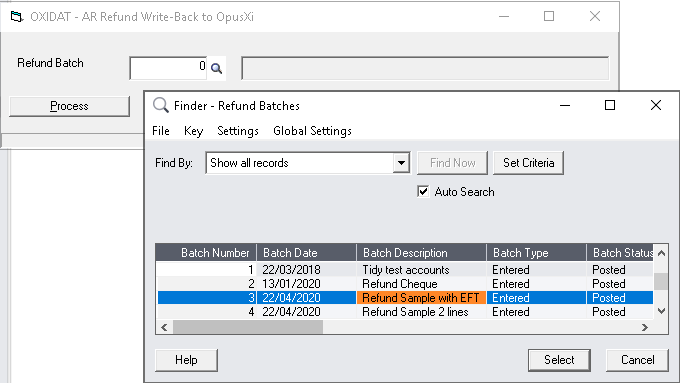
Use the magnifying glass to see the list of refund batches (refine the search using the find by or filter options if required).
Scroll down and select the batch to write back from the list displayed.
Choose the Select button on the bottom right, to lock in the batch to be written back.
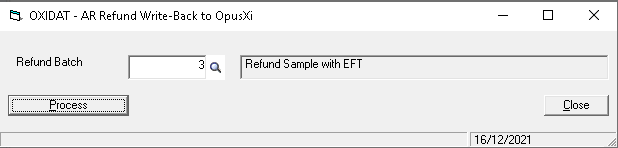
Confirm this is the refund batch to be written back, then choose the Process button.
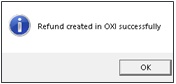
A message will display on screen confirming the refund write back has been successful.
Note: if you’ve processed the write back for the batch previously, you’ll get a message on-screen advising that the entries already exist in byondpro.
The refund will be written back against the original sales and booking credit note in byondpro.