Record Gardening Activities
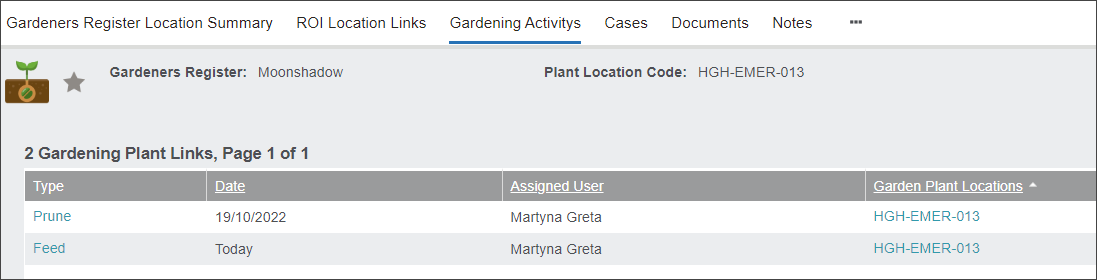
To build a list of gardening activities that need to occur or have already occurred, press the Plant Location Code hyperlink and navigate to the Gardening Activities tab.
On the Gardening Activities tab you can view the history of activities performed on each plant. The list includes the following details:
-
Type of activity, for example Prune, Mulch, Shape
-
-
Assigned User who either performed the activity or recorded it in byondpro, and
-
Garden Plant Location code.
To add a New Gardening Activity press the corresponding button on the right side of the screen.
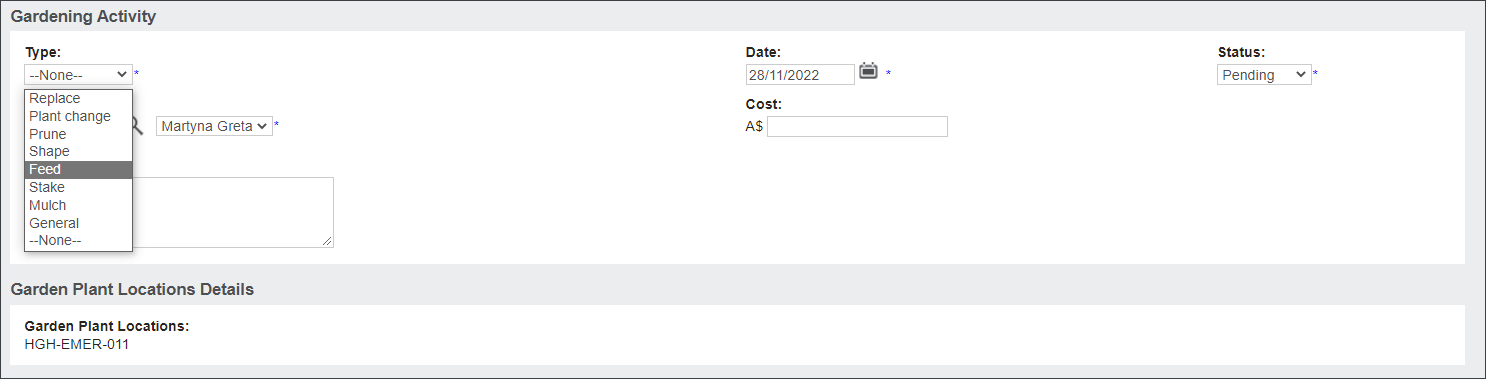
Then select the Type of Gardening activity, for example Feed.
The Date will be auto-populated with today's date, however can be changed manually.
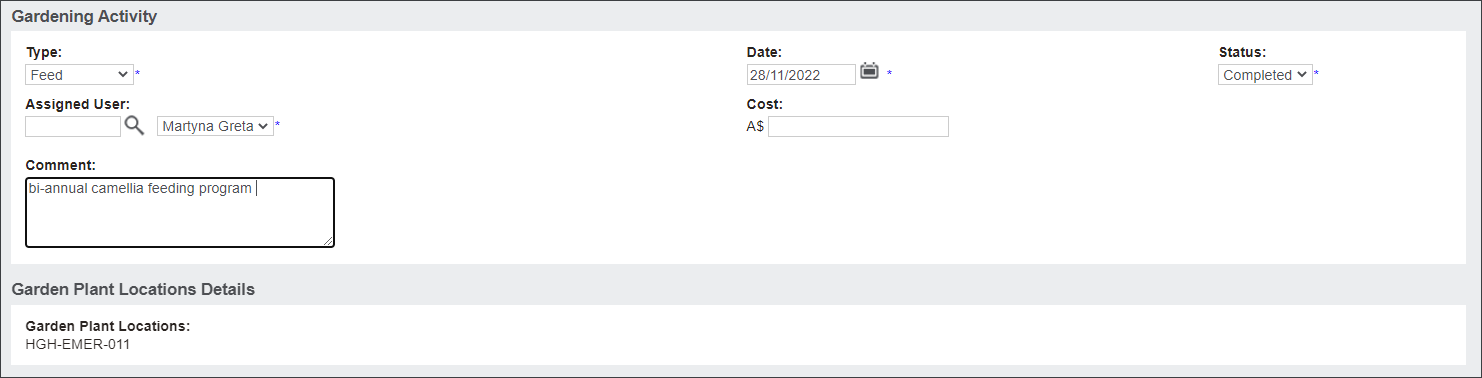
In the Status field, select from the following:
-
Pending - the activity needs to occur
-
Completed - the activity has occurred
-
In the Cost field, the user can type in how much the activity costs. This information is useful in situations when large sums are spent on plants' maintenance, for example to replace plants. It can be an indicator that certain plant species need to be reconsidered, moved to a different area or soil needs to be tested.
In the Comments field type in any additional details about the Gardening Activity. Then press Save.
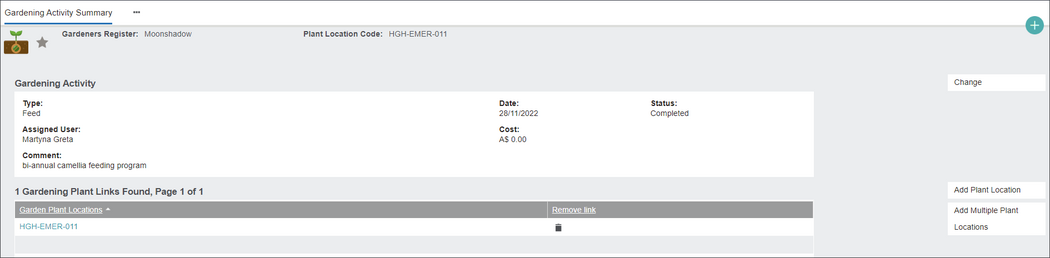
The user can add additional plant records to the Gardening Activity or exit the screen if it only applies to the one plant.
The user can add plants:
-
individually using the
Add Plant Location button, or
-
in bulk using the
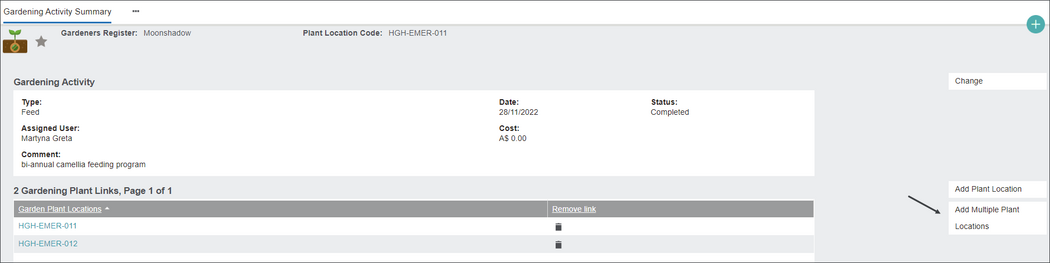
Add Multiple Plant Locations button.
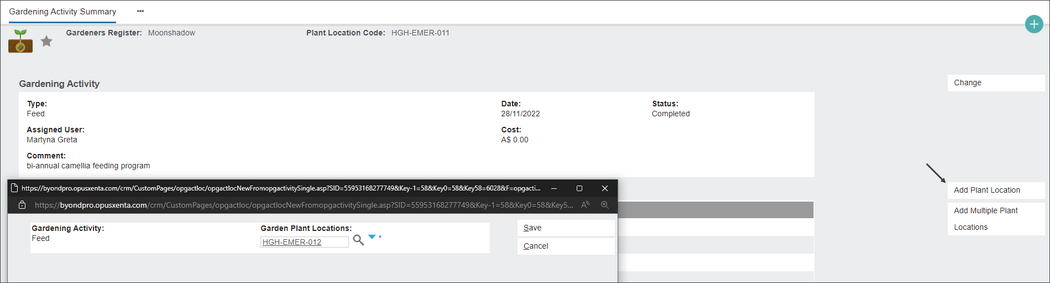
To add an individual plant record press the Add Plant Location button.
Type in the Garden Plant Location Code in the pop-up window and press the magnifying glass. Then press Save.
The individual plant will be added to the Gardening Plant Links list. The Gardening Activity can be removed from the record by pressing the bin icon in line with the record.
To Add Multiple Plant Locations to the Gardening Activity press the corresponding button the the right side of the screen.
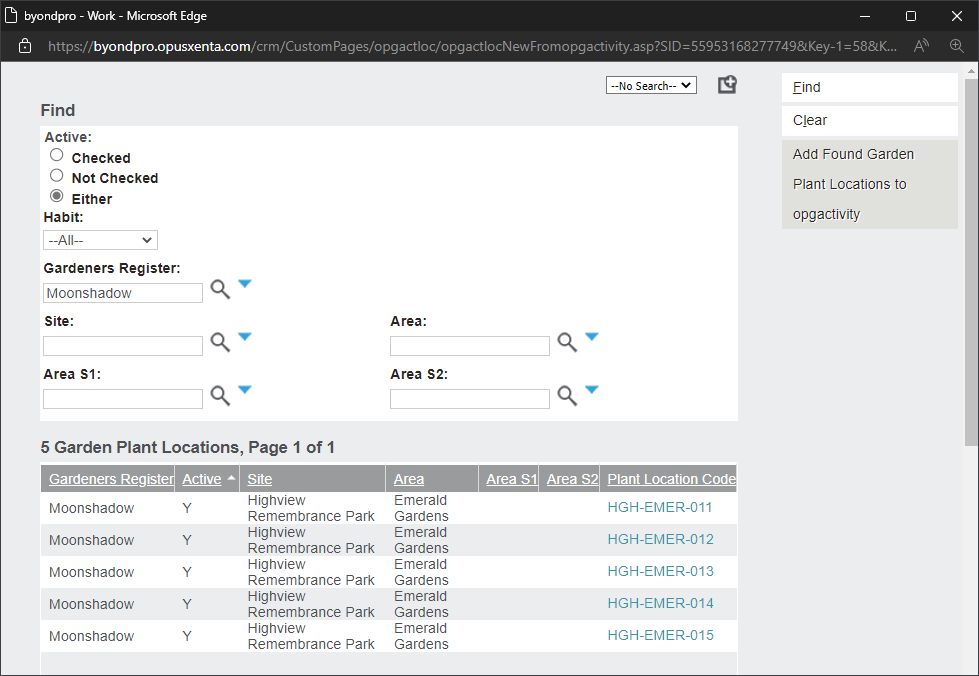
On the pop-up window search for plant records by:
-
typing in the Gardeners Register name, for example Moonshadow, and pressing the magnifying glass, or
-
typing in the plant's location in the Site, Area, Area S1 and S2 fields.
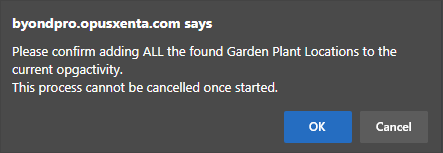
Then press the Add Found Garden Plant Locations to opgactivity button.
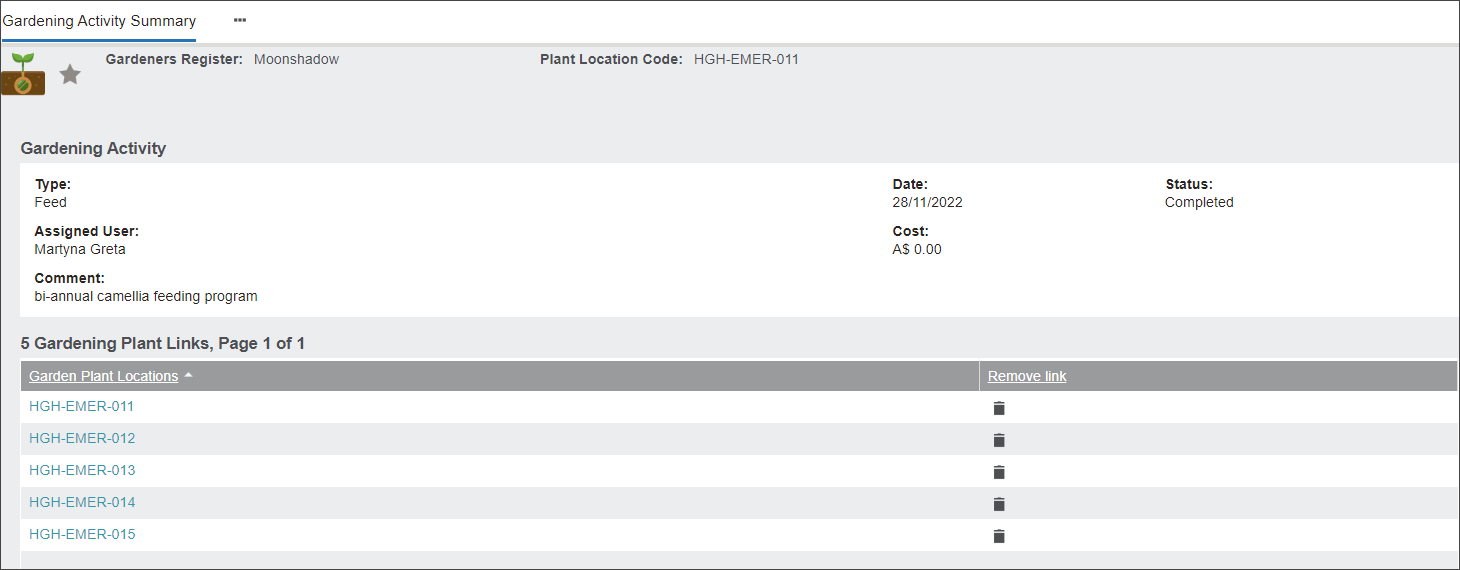
The Gardening Activity has been added to each plant record.
Press the Plant Location Code hyperlink and navigate to the Gardening Activities tab to see the actions recorded.