byondpro now allows users to create appointments and bookings quickly, starting directly in the calendar overview, making booking resources a more efficient process.
To make a Quick Booking, visit the
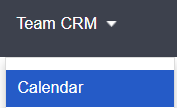
Toolbar and select
Team CRM > Calendar.
On the top right-hand side of the screen, the following buttons now exist:
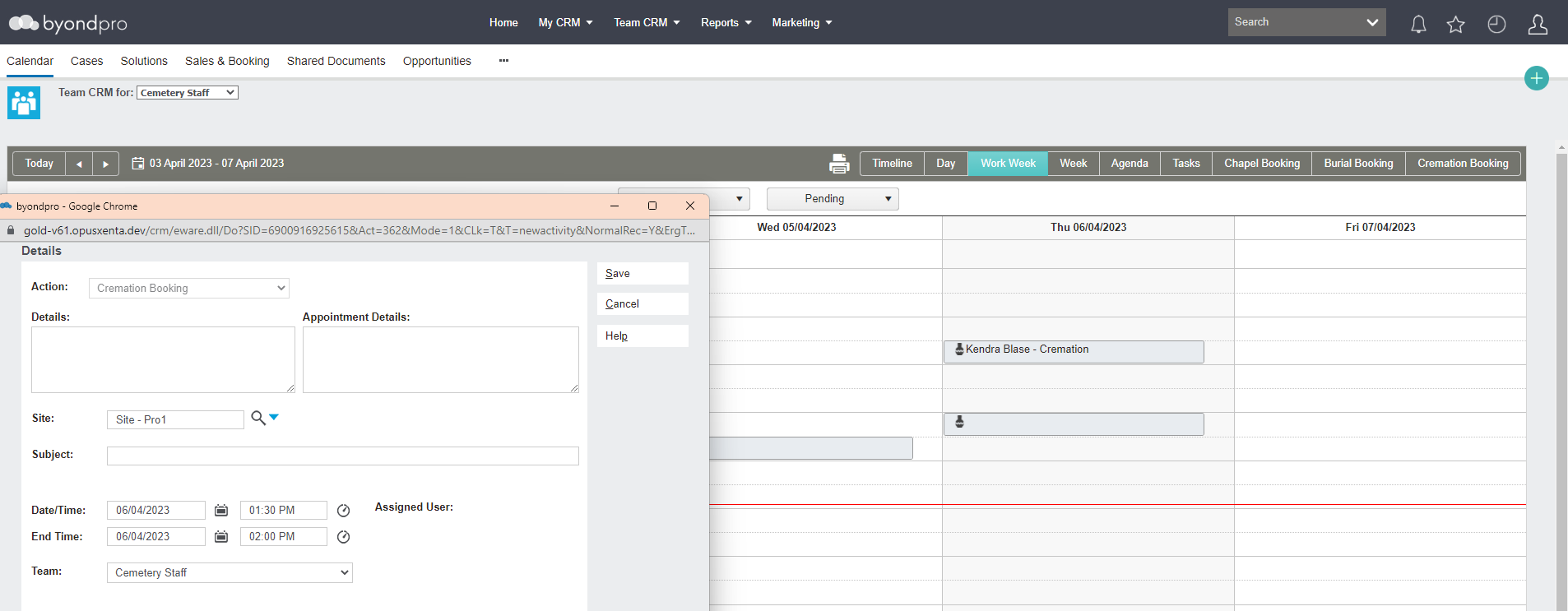
Select the type of booking you are trying to make.
In our example, we are making a cremation booking.
A pop-up window displays against the calendar, allowing for visibility of the current appointments booked while making the booking.
Please note the quick booking screen displays best with your browser at 100% zoom.
In the pop-up window, select the Date/Time.
The remaining fields populate based on the configuration settings on your
default resource.
It is possible to add more details at this time, however, not required.
When ready select the Save button on the right-hand side of the page.
Should you wish to cancel at any time, select the Cancel button.
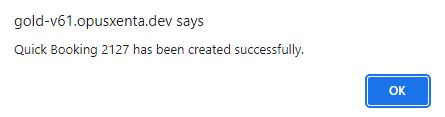
Once saved, a pop-up window displays a message confirming that the appointment and resource are booked. Select OK.
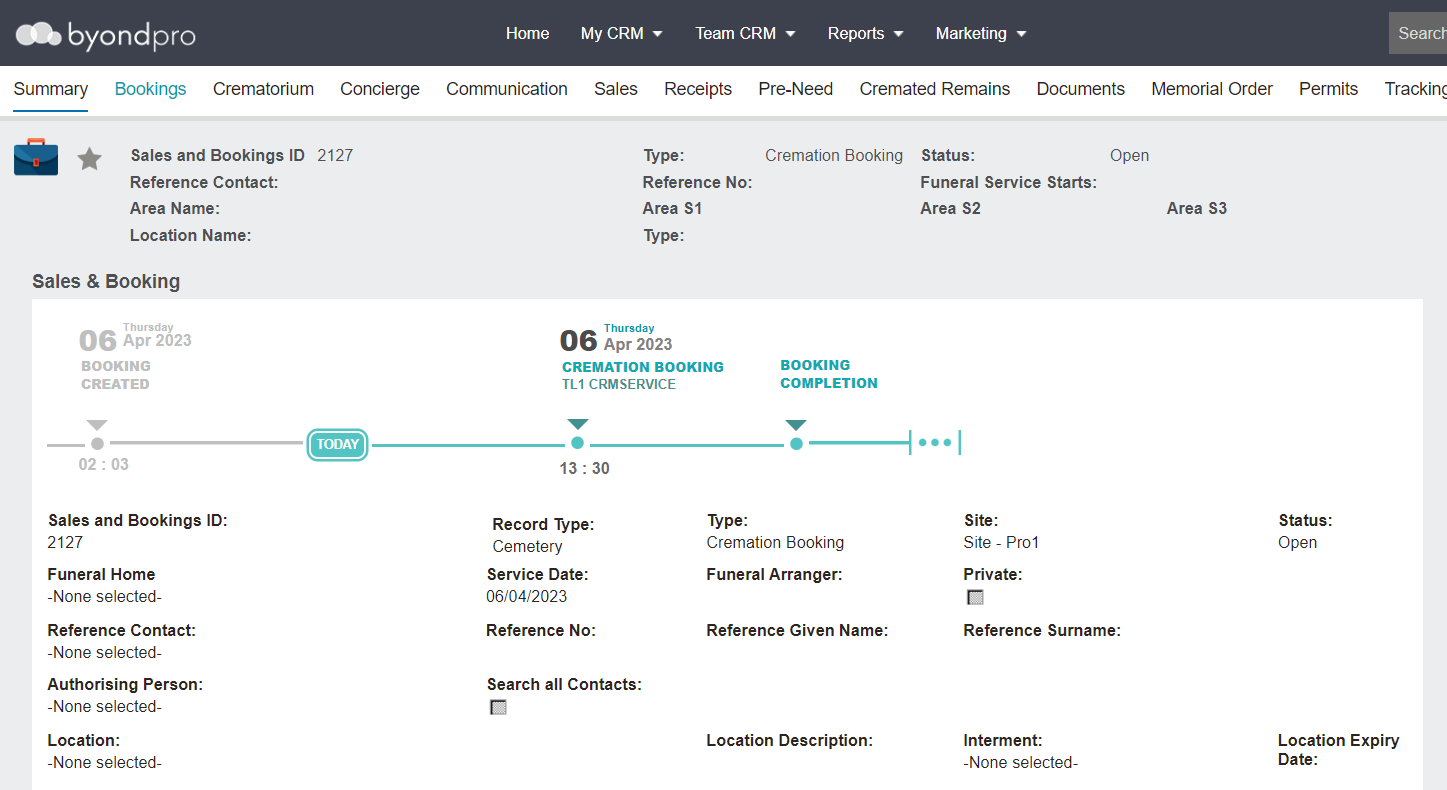
You will be taken to the new Sales & Booking record upon saving.
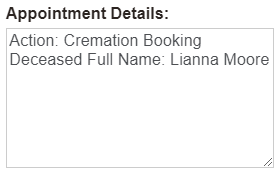
When more details are provided, such as the deceased name, they can be added to the booking.
The Appointment Details section of the appointment will be updated to reflect the additional details.