Purpose
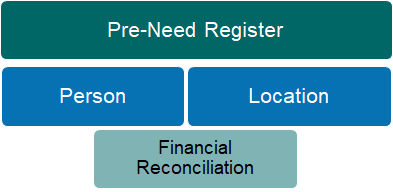
The Pre-Need Register records every item sold under a pre-need arrangement by person and location, tracking the original sales documents and eventual redemption (or use) of the items.
The Pre-Need entries include General Ledger codes so that unearned income and future revenue accounts can be reconciled with your financial system, and reports are provided under the Finance Reports menu for this purpose. In a Sage 300 integrated system the General Ledger codes are used to process journal entries recording the redemption/use. The General Ledger codes are determined as a pre-need item is sold, using the codes entered against the Item Category.
Every pre-need entry is linked to a reference person and listings can be viewed from the Person record / Pre-Need Items screen. Where relevant, pre-need entries are linked with a location and entries can be viewed from the Location record / Pre-Need Items screen.
Adding New Records
Pre-Need records are created during the sales invoice process, with a single line entry written for each item code invoiced. When a line item is marked as pre-need, the quantity field cannot be edited and invoice units of 1 only are accepted.
The Pre-Need items are associated with the person entered as the Reference on the order header and with the Location recorded on the detail line entry.
Editing Records
Pre-Need entries can be edited to change the Person or Location linked to the record. It is not possible to edit sales invoice data, including document number, date, value or General Ledger accounts.
Redeeming Pre-Need Records
Pre-Need records are redeemed (or marked as used) from the Sales & Bookings / Pre-Need Items screen, using the REDEEM link in the Action column. Entries previously redeemed cannot be used again.
The Pre-Need items screen lists all pre-need entries associated with the Reference Person and/or Location linked on the Sales & Booking Summary screen.
Entries can only be redeemed once the invoice has been paid in full. To over-ride this control, it is possible to use the Make Item Redeemable feature on the Pre-Need Register. This requires the user to enter a reason for the over-ride which is stored on the entry for future reference. If the Advanced Revenue Recognition feature is switched on, redemption can be set to at time of invoice, on payment in full or by manual redemption.
Items are also marked as redeemed if a credit note is raised on the originating invoice document.
Button Functions
|
Button
|
Description
|
|
Change
|
Switches the screen to edit mode
|
|
Cancel
|
Cancels the data entry process and returns to list of pre-need entries
|
|
Save
|
Updates the record
|
|
Make Item Redeemable
|
Function to over-ride the control preventing redemption if invoice has not been paid in full.
Requires text entry explaining reason for use.
|
Field List
|
Field
|
Description
|
Associated Business Process
|
|
Territory
|
The site/cemetery to which the Reference person is linked
|
|
|
Person
|
Link to person record who is the intended recipient of pre-need items
|
Can be edited
|
|
Location
|
Link to location record intended for use of pre-need items
|
Can be edited
|
|
Source Document
|
Invoice number of originating sale
|
Determined during sales invoice process.
GL account numbers are taken from the configuration entry on the Item Category.
In Sage 300 integrated system, redeem process creates GL journal debiting unearned income and crediting revenue accounts.
|
|
Source Document Date
|
Invoice date
|
|
Item
|
Item code
|
|
Item Description
|
Item description for product or service purchased
|
|
Amount (tax exclusive)
|
Value of item
|
|
GL Unearned Income Account
|
General Ledger balance sheet account code in financial system holding (that held) corresponding valuation
|
|
GL Revenue Account
|
General Ledger revenue account code in financial system (to be) used on redemption
|
|
Redeemed
|
Checkbox where Y indicates item has been used
|
Determined during Pre-Need Redemption process
|
|
Redeemed Date
|
Date field records when redeemed
|
|
Redeemed User
|
User name identifies staff member who processed redemption
|
|
Item Made Redeemable
|
Checkbox where Y indicates redemption over-ride was actioned
|
Determined using the Make Item Redeemable function.
Displayed on screen only if actioned
|
|
Item Made Redeemable User
|
User name identifies staff member who made item redeemable
|
|
Item Made Redeemable Reason
|
Text field records reason why item was made redeemable
|
|
Item Made Redeemable Date/Time
|
Date & time field records when item was made redeemable
|
|
ERP Sync Status
|
Data transfer status update
|
ERP integrated systems only
|