Permit Application - byondcloud
Monumental Masons registered with byondcloud and authorised to transact with your cemetery site can submit their permit application via byondcloud for the cemetery to review and approve.
In byondcloud the Mason will create and submit a new permit.
The permit will be marked in both byondcloud and byondpro as Submitted.
byondcloud:

byondpro:

When the new permit application is made through byondcloud, the corresponding permit is created in byondpro.
Cemetery staff can then manage the permit from the records that have automatically been created and integrated to byondpro.
The permits can be reviewed and progressed in either the byondpro or byondcloud applications.
In byondpro, open the Permit Summary by clicking on the Permit Type hyperlink in byondpro.
The permit will include the deceased and authorising person's details, grave location that the works are associated to, and any documentation that has been submitted by the mason.
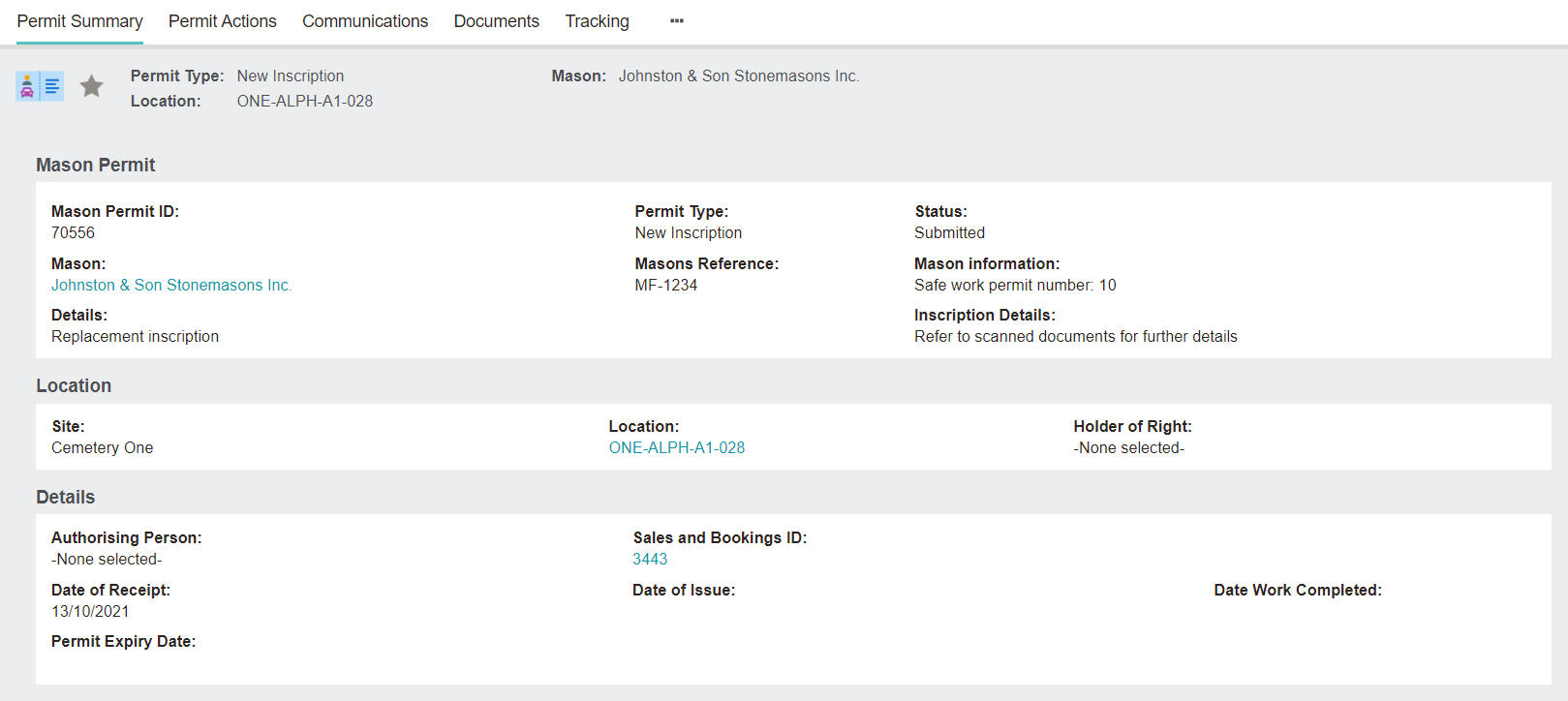
Any documentation added to the byondcloud booking will appear on the Documents tab of the permit in byondpro.
However, if documents are added directly against the sales & booking or permit in byondpro, these will not integrate back across to byondcloud.

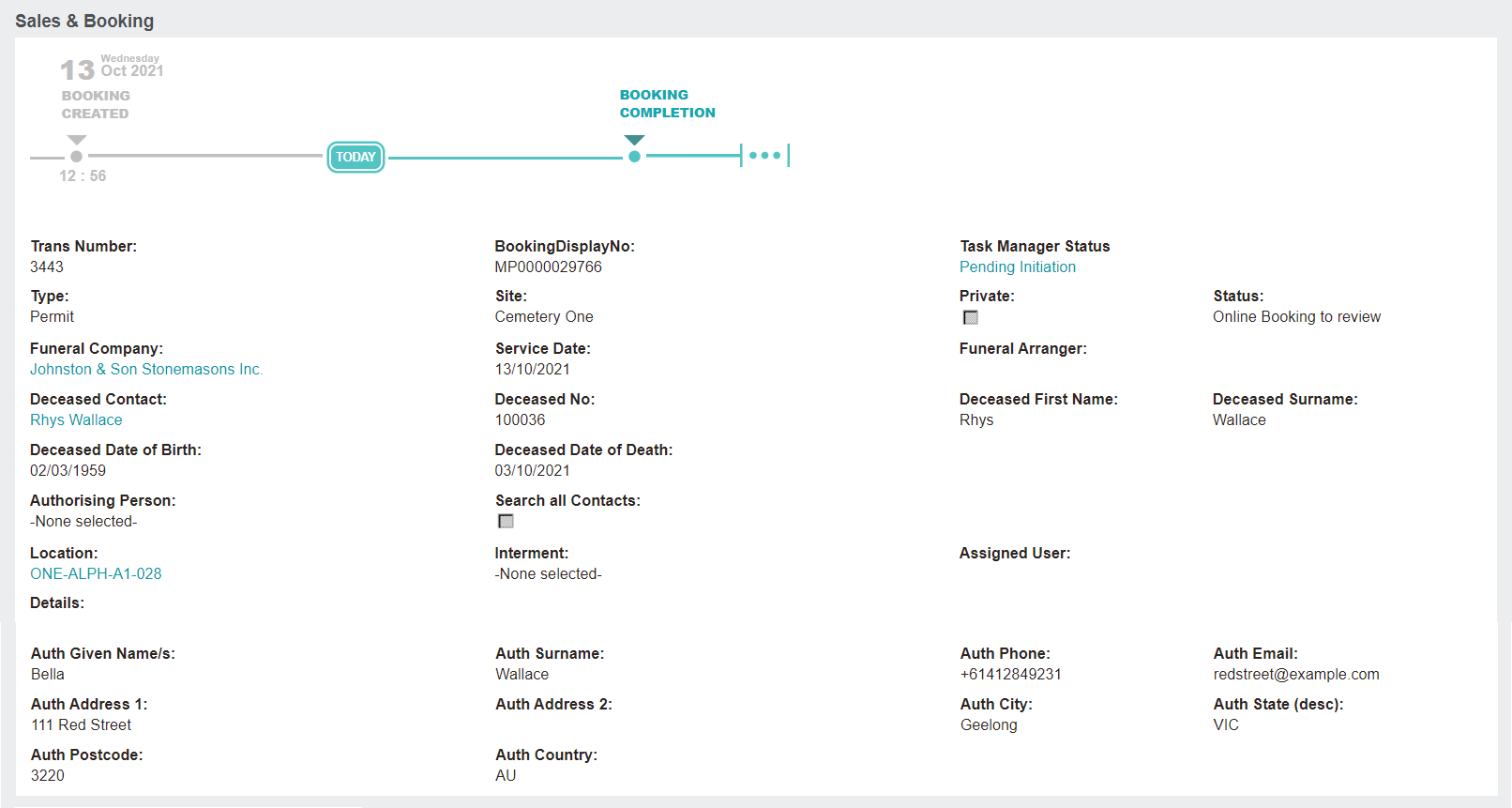
The authorising person's details entered by the mason flow through to byondpro in the form of the Auth Given Name / s, Surname, etc. at the bottom of the Sales & Booking summary.
However, the Authorising Person field remains empty, and the byondpro system does not create a new authorising person record nor use an existing record.
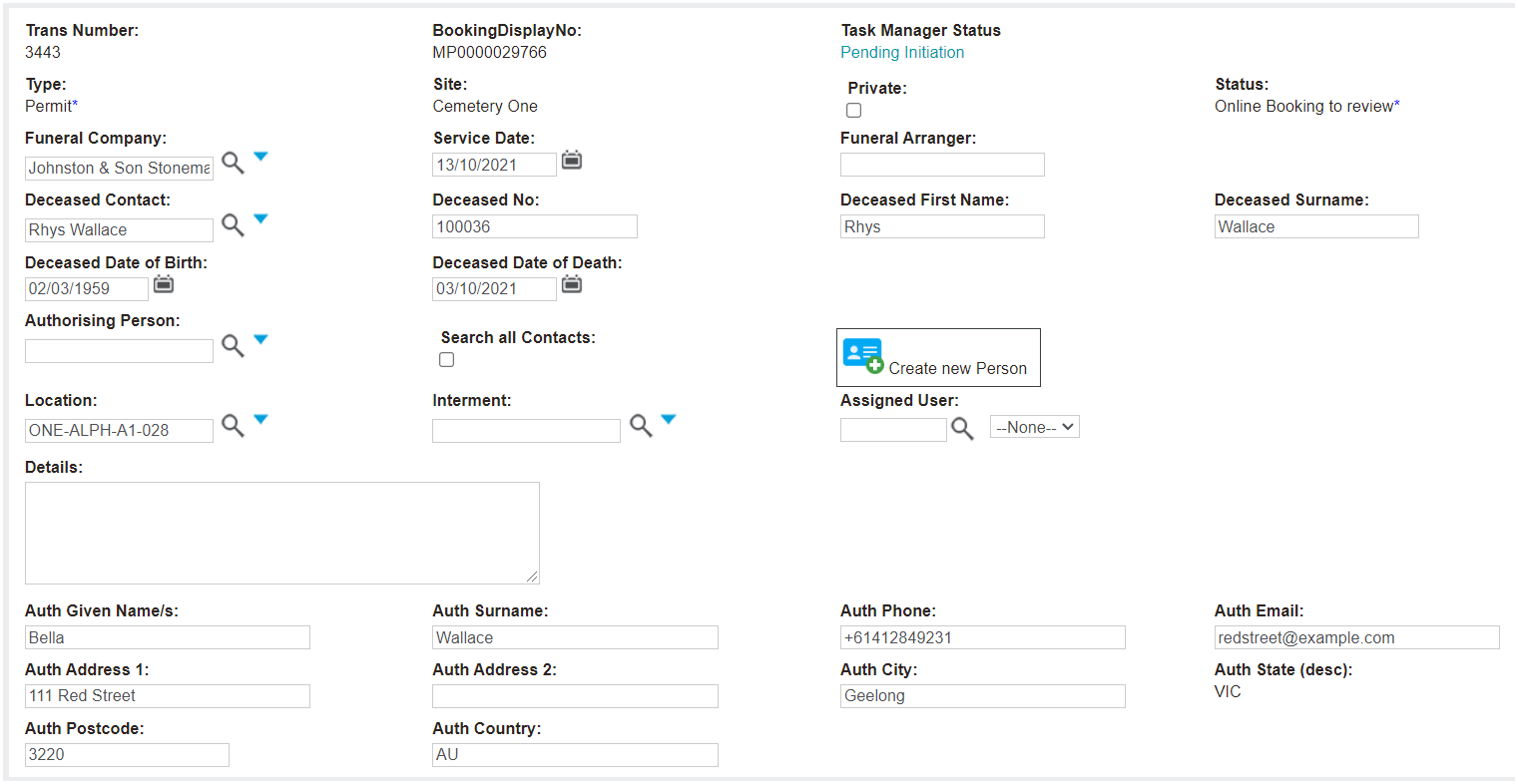
The cemetery must review the paperwork and records in byondpro to confirm the details provided by the Mason are accurate.
If so, the cemetery can add the authorising person to the Sales & Booking. To do this, click Change Attributes, then use to search select field to find the authorising person record.
Current development (coming soon): a de-duplication sequence where the authorising person entered by the mason will be checked against the byondpro database. Cemetery staff can then check the authorising person and select from the existing record /s in byondpro. This will then place the authorising person into the corresponding field on the Sales & Booking summary. If there is no match, they can still add a new person and select the new person record to place in the authorising person field on the Sales & Booking summary screen.
If the person record needs to be added to byondpro, remember you can create the person from the Sales & Booking window and add the person to the authorising person field.
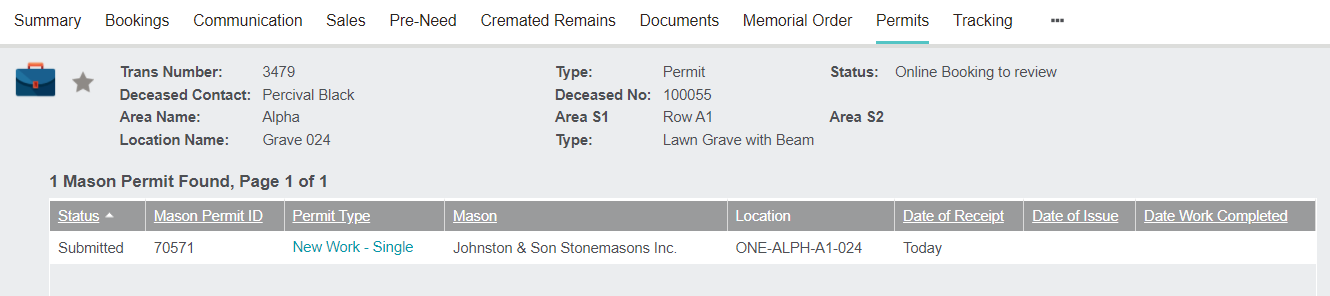
On the Sales & Booking, take a look at the Permits tab.
You can open the individual permit and view all the information, including documents, that have been captured here from the byondcloud entry created by the mason.