Payment Processor
The Payment Processor screen will locate all the payments due up to and including the date entered.
Access the Payment Processor by clicking on the arrow next Seach on the toolbar and select Payment Processor.
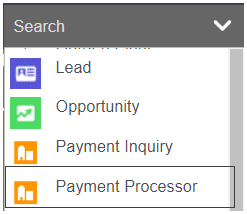
From the screen, select the date to run the payments by in the To Date field.
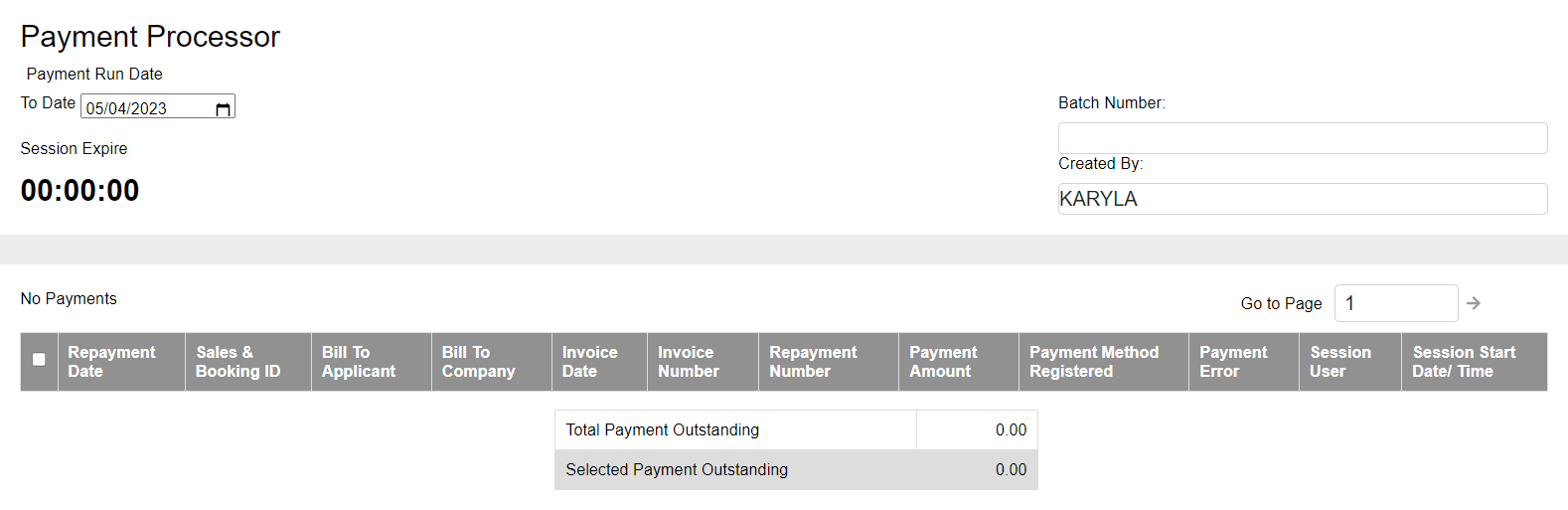
Once a date has been selected, press Find on the right-hand side of the page.

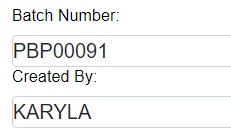
A batch will automatically be generated.
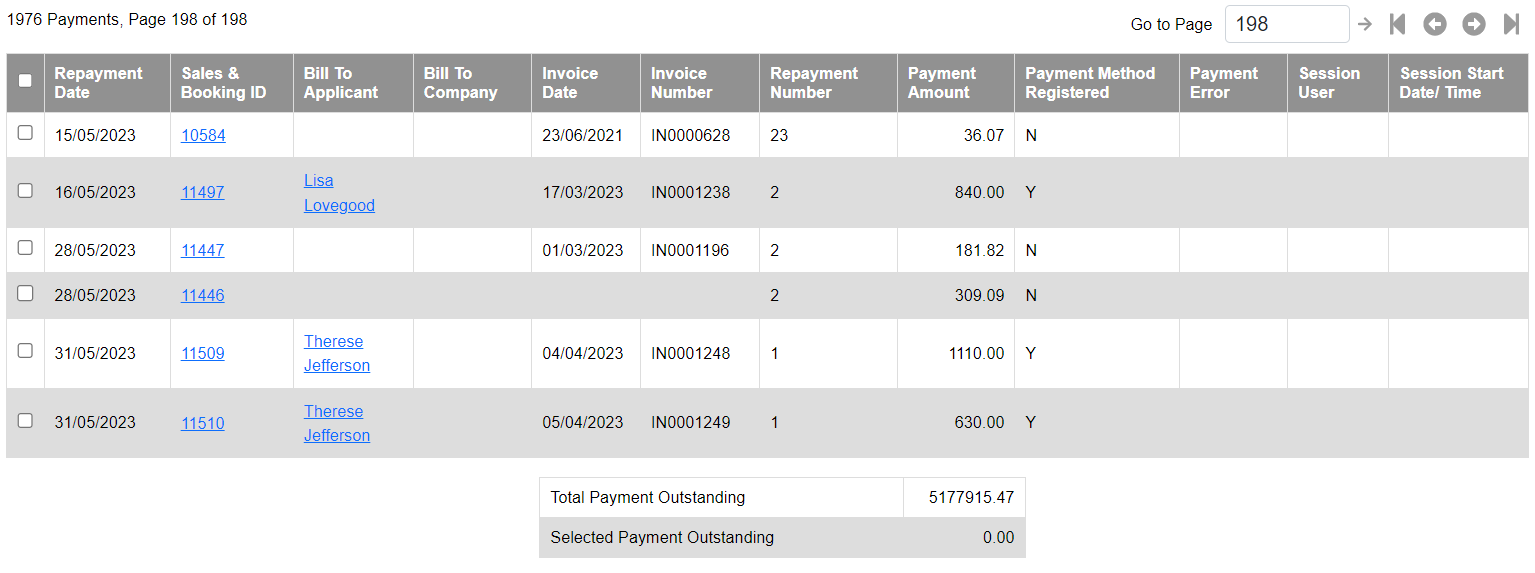
Payment notices due prior to and on the date selected will display with the following information:
-
Tick box to select payments to make
-
Repayment Date
-
Sales & Booking ID hyperlink
-
Bill to Applicant / Bill to Company
-
Invoice Date
-
Invoice Number
-
Repayment Number
-
Payment Amount
-
Whether the Payment Method has been registered
-
If the payment has been attempted to process, the payment error will display.
-
Session User
-
Session Start Date / TimeIn addition, the following will display at the end of the list:
-
Total Payment Outstanding
-
Selected Payment Outstanding
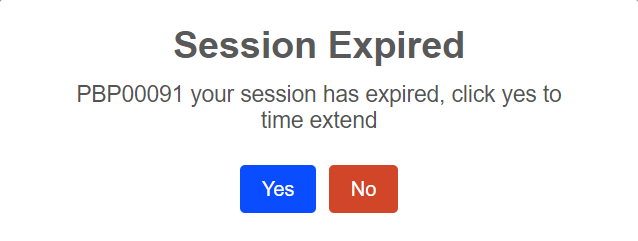
Under the Session Expire field is a count down, placng a time limit on the session.
When the time limit has expired, a pop-up window will display providing an opportunity to extend the session, if necessary.
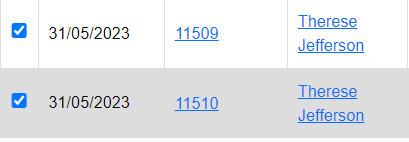
To select all payments in the list, tick the box in line with the header.

To choose individual payments, tick the boxes in line with the payments you want paid.
Once all payments have been chosen, press the Execute Payment button on the right-hand side of the page.
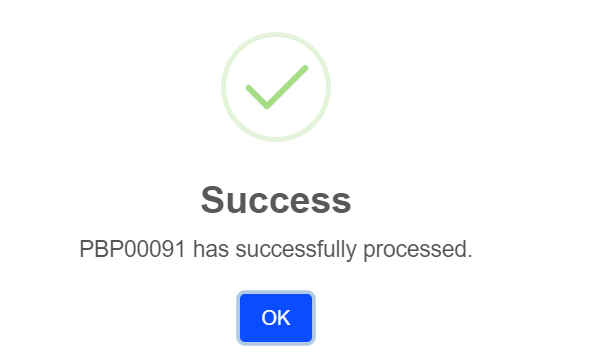
A message will display confirming the batch has been processed.
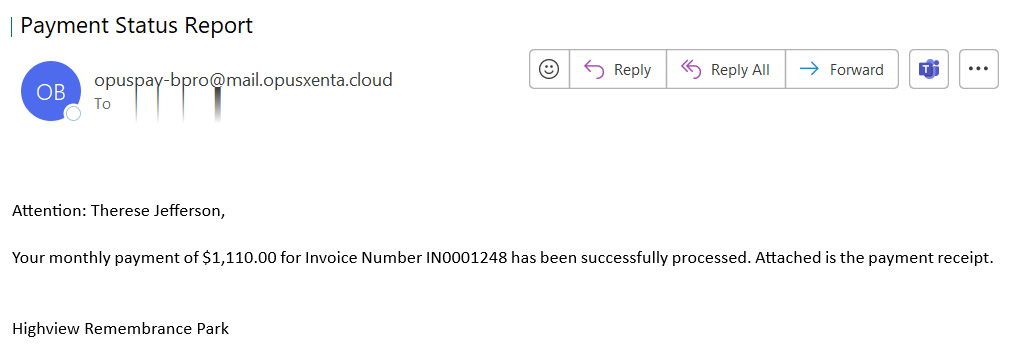
An e-mail will be sent to the customer with a copy of the receipt.
The Repayment Plan tab of the Sales Order will display the payment as paid.

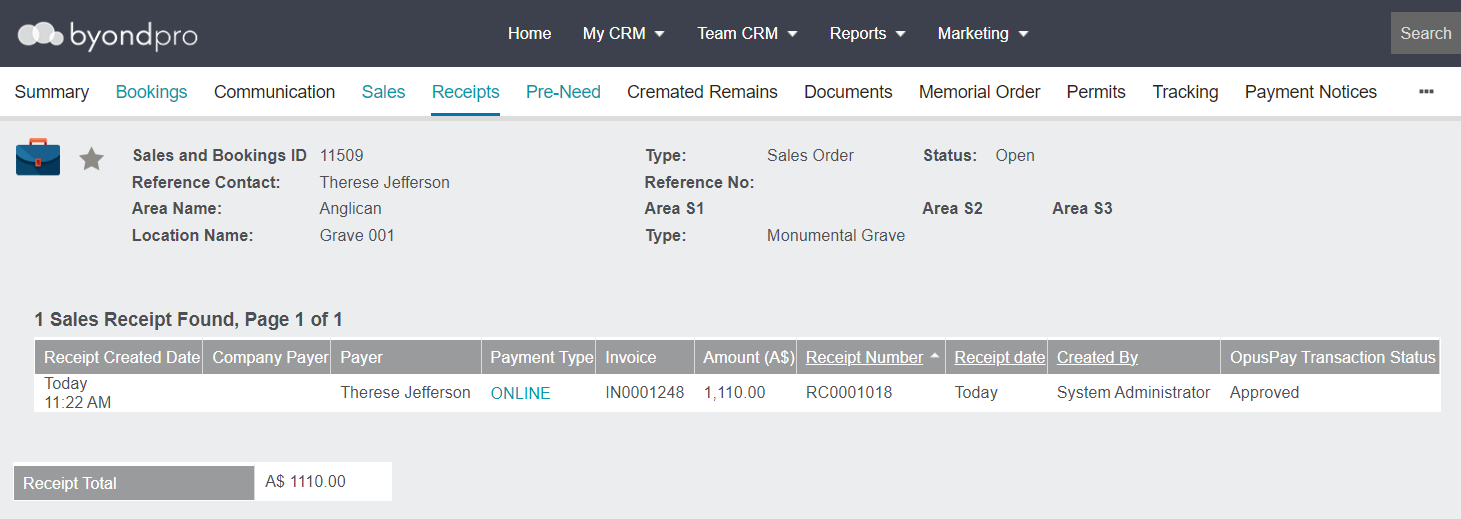
The Receipt tab of the Sales & Booking will display the online payment.
Should you want to cancel the batch at any stage, press the Cancel button.
A message will display confirming the the batch has been cancelled and the user will be taken back to the home screen.