My CRM and notifications
Users can manage their workload from My CRM menu and receive e-mail notifications regarding the Cases assigned to them.
My CRM
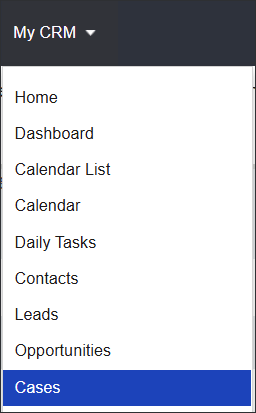
Navigate to My CRM menu and select Cases.
The system navigates to the Cases dashboard - a list of Cases assigned to the logged-in user.
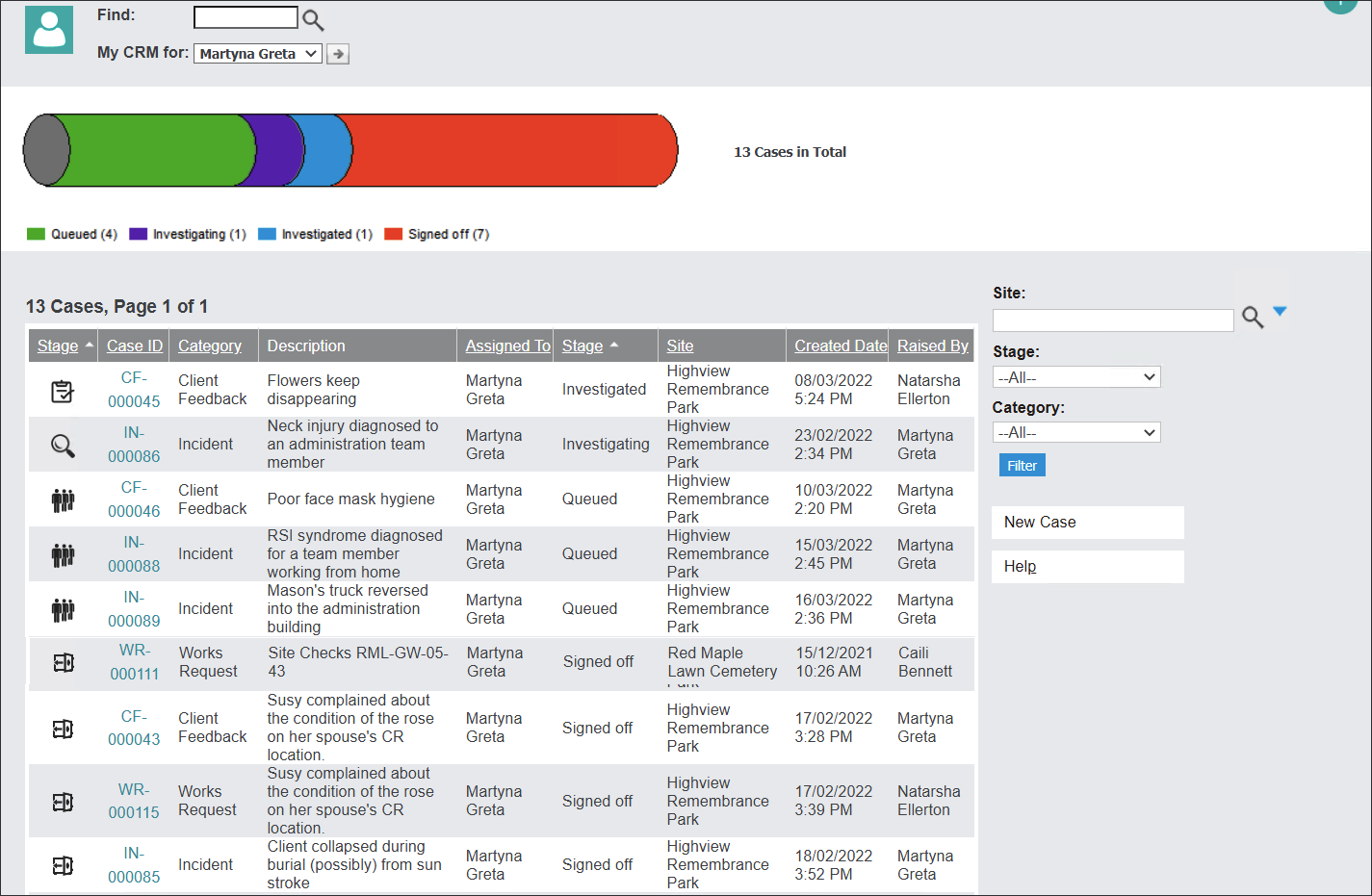
The colorful pipeline is a visual representation of the number of cases at different stages but also a filter.
Press the chosen section of the pipeline to view Cases at a particular stage.
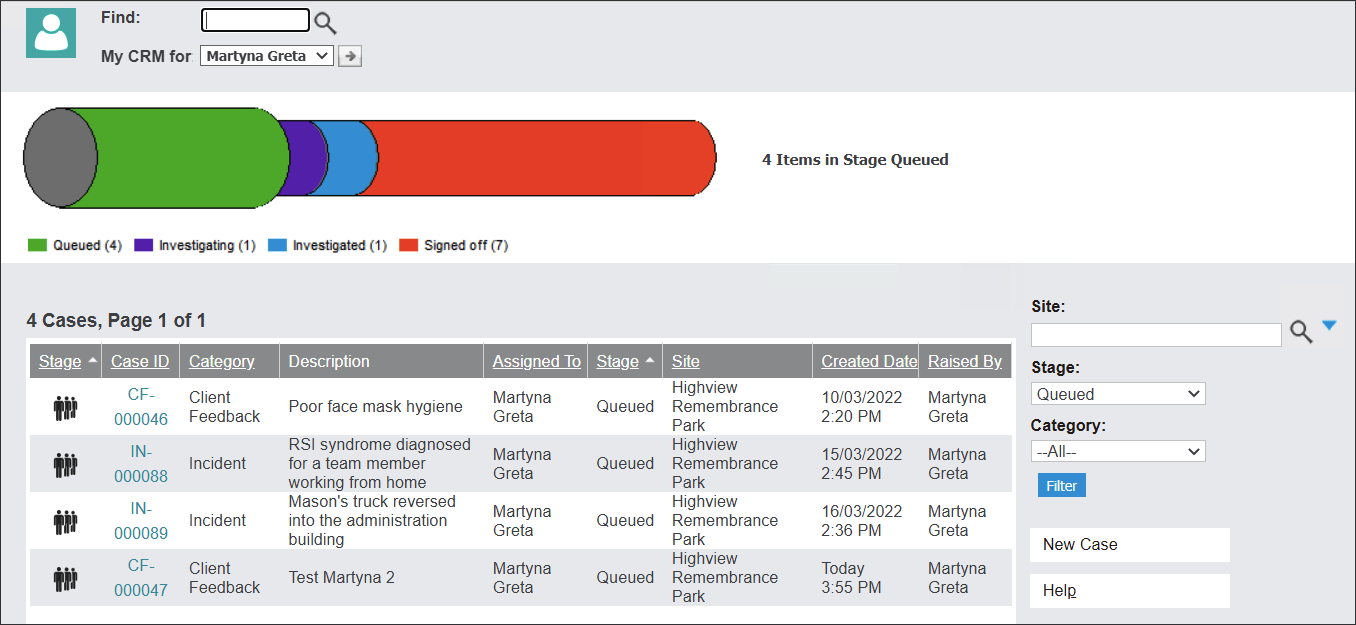
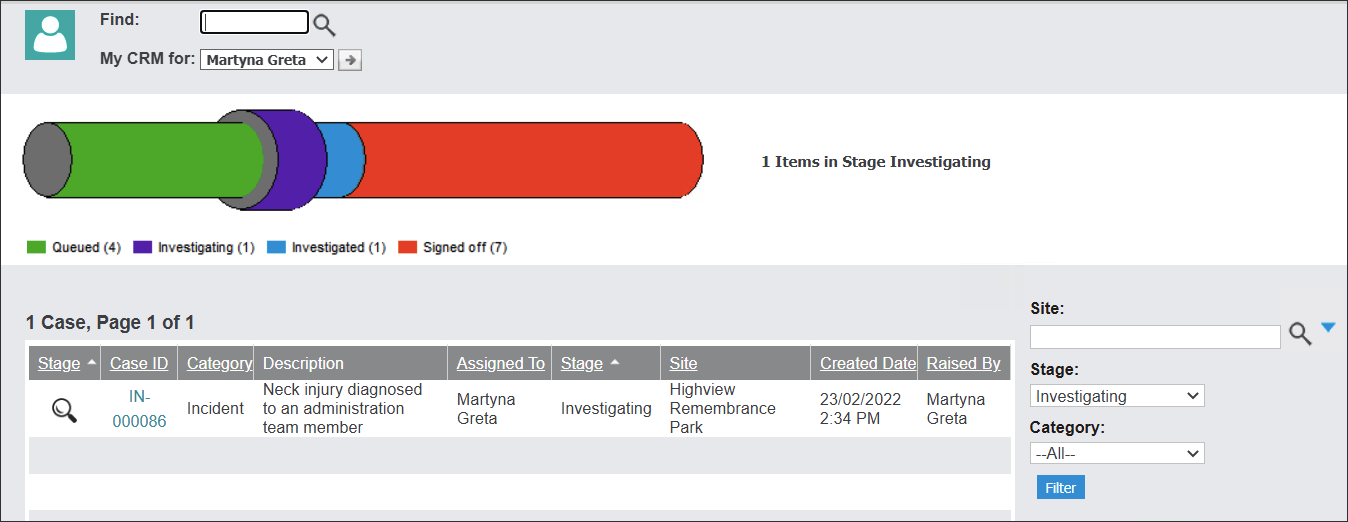
Users can also sort through the assigned Cases by clicking on drop-down menus on the right and pressing the Filter button.
Notifications
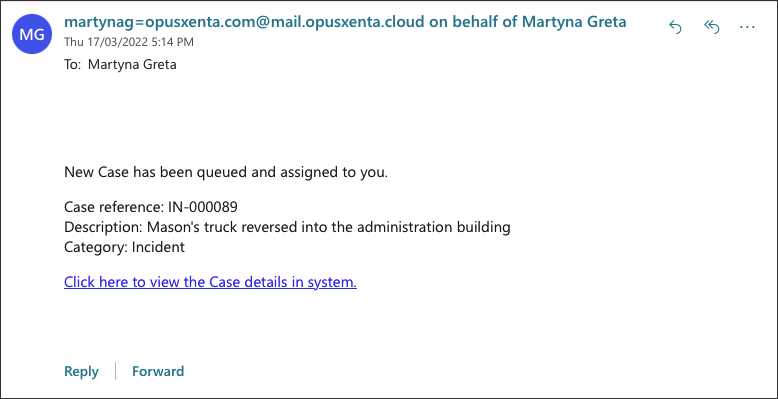
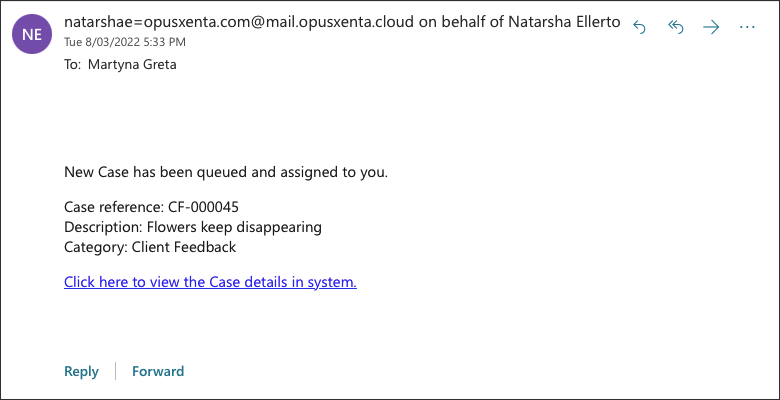
The system generates emails to notify the users about a newly assigned Case, creating a new Case or changes to existing Cases regarding the Stage and reassigning the user.