Memorial Order Batch Receipts
From the home screen, click Memorial Order Batch Receipt.
This function allows cemetery staff to receipt multiple memorial orders in one batch by entering a list of Sales & Booking ID numbers.
Users can add as many Sales & Booking IDs as they require by entering the booking ID in the search text box and clicking the Find button on the right-hand side of the page.
This will list each booking ID entered in the Memorial Order Found block below.

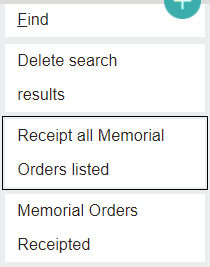
Once all bookings have been added, click Receipt all Memorial Orders listed to receipt all the orders in one action.
The following window will open, prompting the user to enter the Date Received. After entering the date, click Receipt all included Memorial Orders.

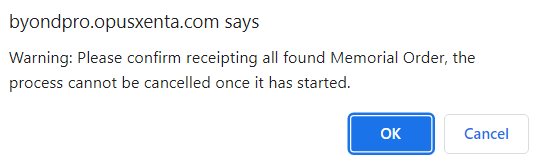
The following warning will appear. Click OK to continue.
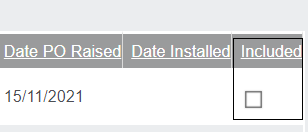
If the user decides against receipting one of the selected Memorial Orders, they can untick the Included checkbox to the right of the memorial order to remove it from the batched task.
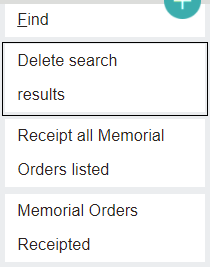
Clicking the Delete search results button will clear all the listed memorial orders.
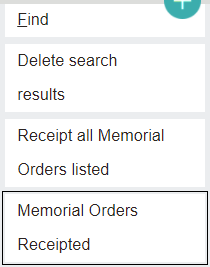
Clicking the Memorial Orders Receipted button will produce a document with all the receipted memorial orders within a set date range.
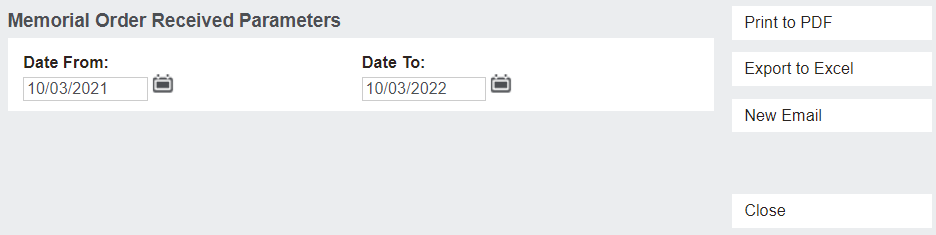
After selecting a date range, click Print to PDF to create a printable document, or Export to Excel to create an excel spreadsheet document. Users can also click New Email to send the document in an email.
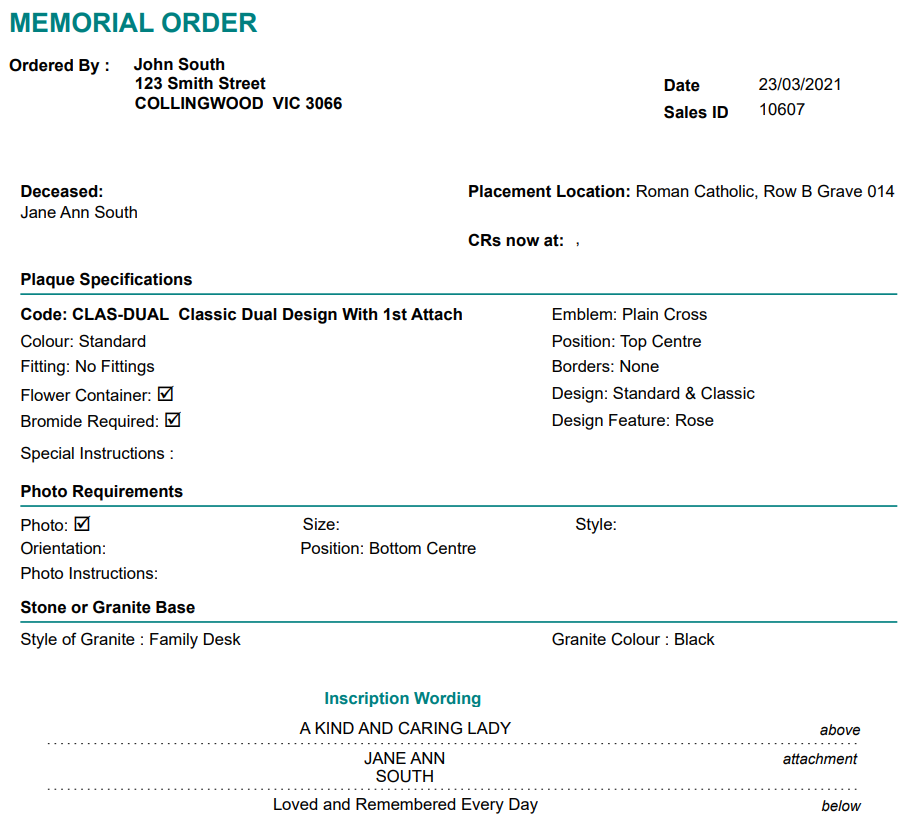
Each memorial order receives its own page with detailed information about the memorial order displayed.
Back on the Memorial Order on the Sales & Booking entry, the Date Received field is automatically filled out, removing the need to go back and update each record.

Once the memorials are receipted, the cemetery staff may need to create an appointment if the next of kin are attending the memorial installation/CR placement.
If the next of kin aren't attending, the cemetery may simply go ahead with installing the memorials, as covered in Memorial Order Installations, or they may need to create a works request and assign it to a cemetery staff member, as covered in the Works Request & CR Placement topic.