Location Associated Item Setup
This setup provides suggestions on items available for sale based on the location and can be used in conjunction with the Item Group Setup.
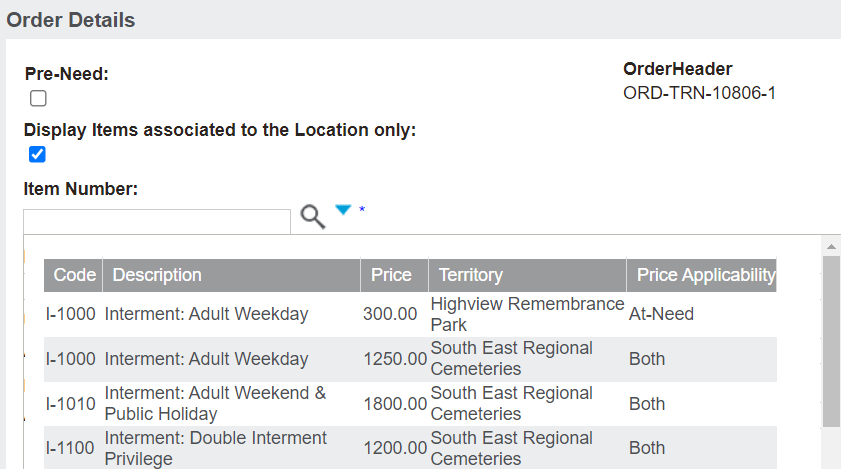
When a user adds a location to a Sales Order and then proceeds to add items, users can look at the associated items.
A search using the magnifying glass will only return items in the associated items list for the area / location type.
Should users need to see all items available in the cemetery, they can un-tick the Display Items associated to the Location only box.
This setting is particularly helpful where areas have policies in place that allow only certain types of memorialisation.
This setting negates the need for individual users to remember what can be sold in each area.
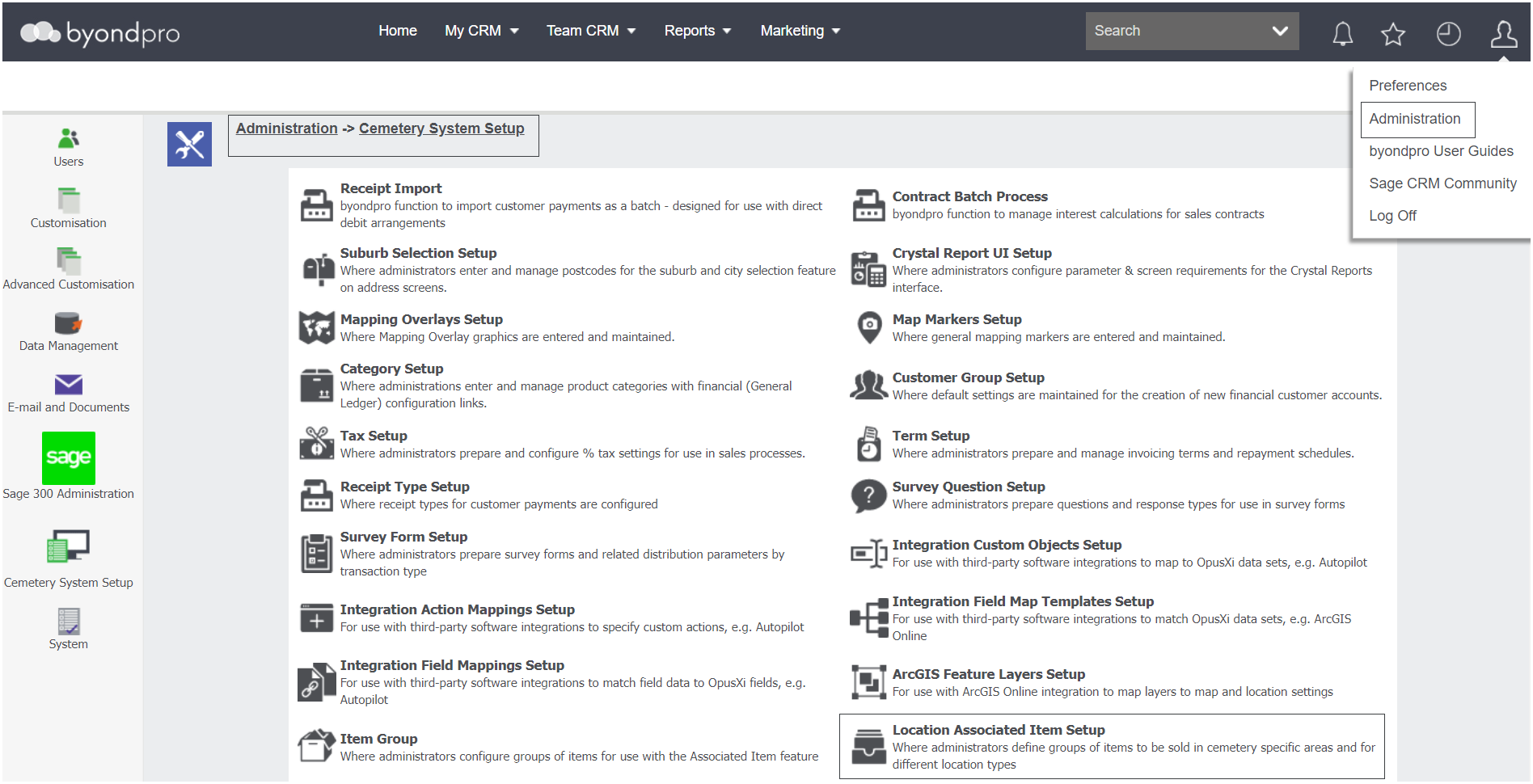
Navigate to Profile Menu > Administration > Cemetery System Setup > Location Associated Item Setup
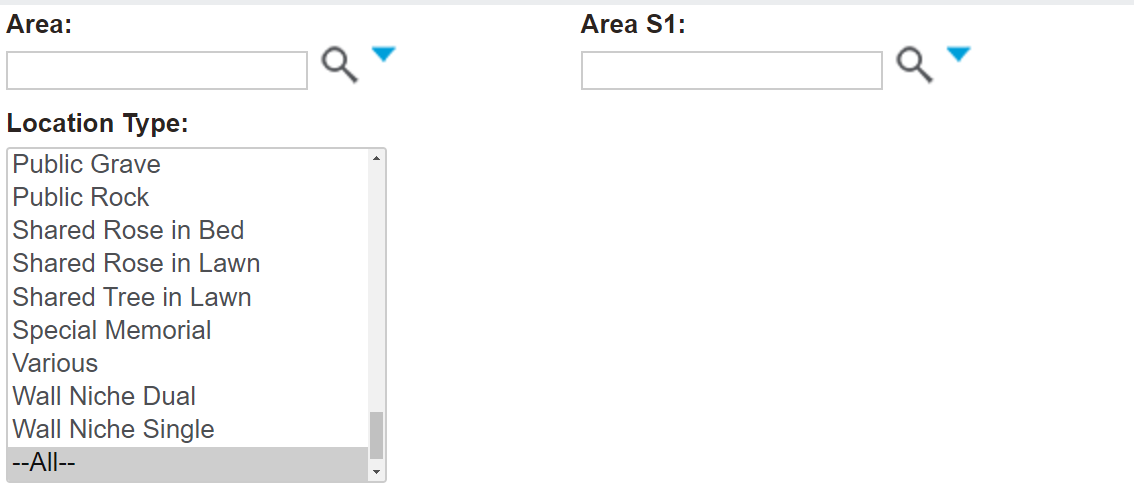
Should there be a long list of location and location types, use the search fields to narrow the list and then press Find on the right-hand side of the page.
The Clear button will reset the page to list all Location Associated Items.
To add a new Location Associated Item, click on the New button.
Existing Location Associated Items display. To access one, click on the Area or Location Type hyperlink.
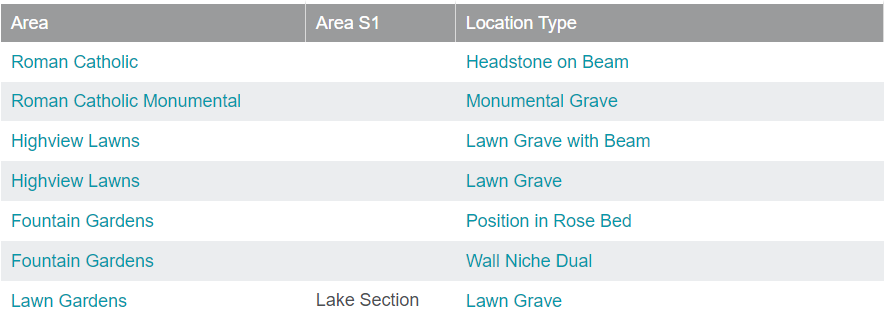
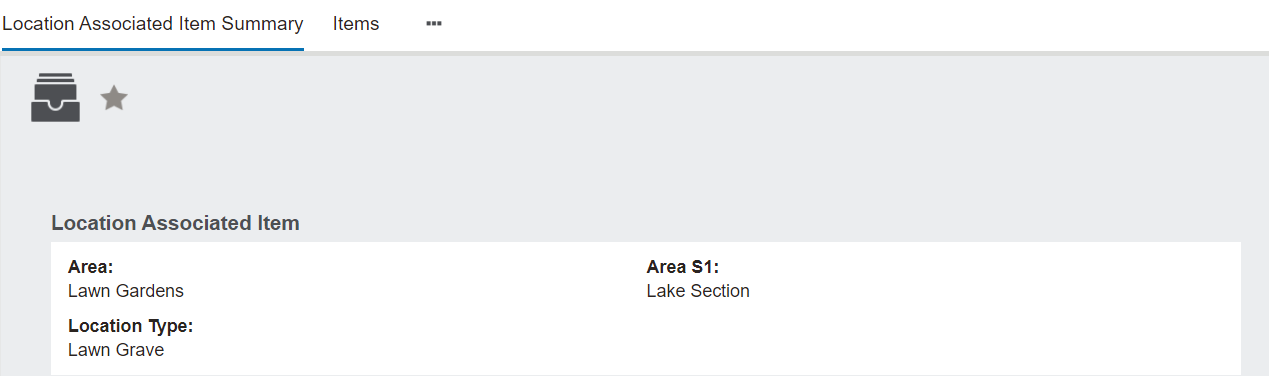
In our example, we will look at the Lawn Gardens area.
The summary of the Location Associated Item includes the Area, Area S1, if applied and the Location Type.
By visiting the Items tab, we can see the different items or groups of items that might be sold in these locations.
For our Lawn Gardens group, the following items and item groups may be sold in the lake section of the lawn gardens area:
-
Individual item for Interment - Attendance at CR Placement
-
All items in the Memorials: Lawn Graves group
-
All items in the Interment Services: Graves group
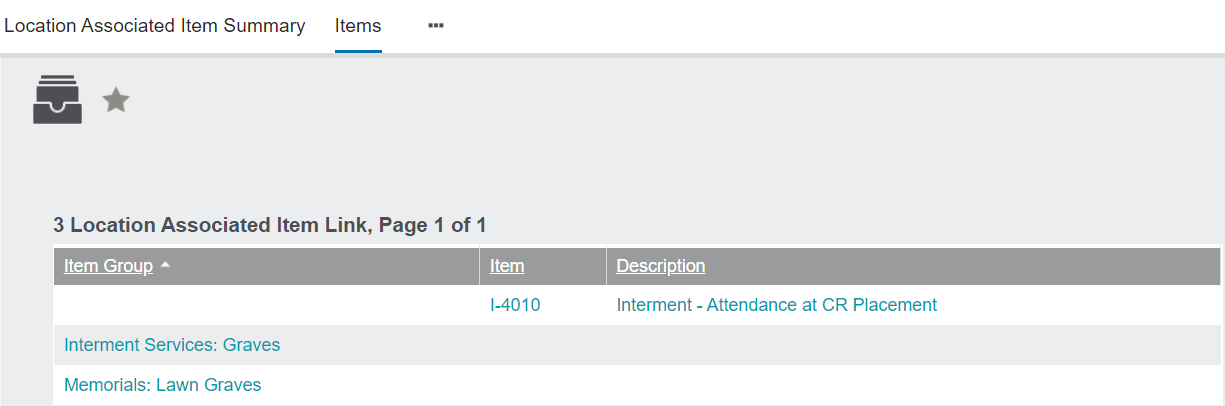
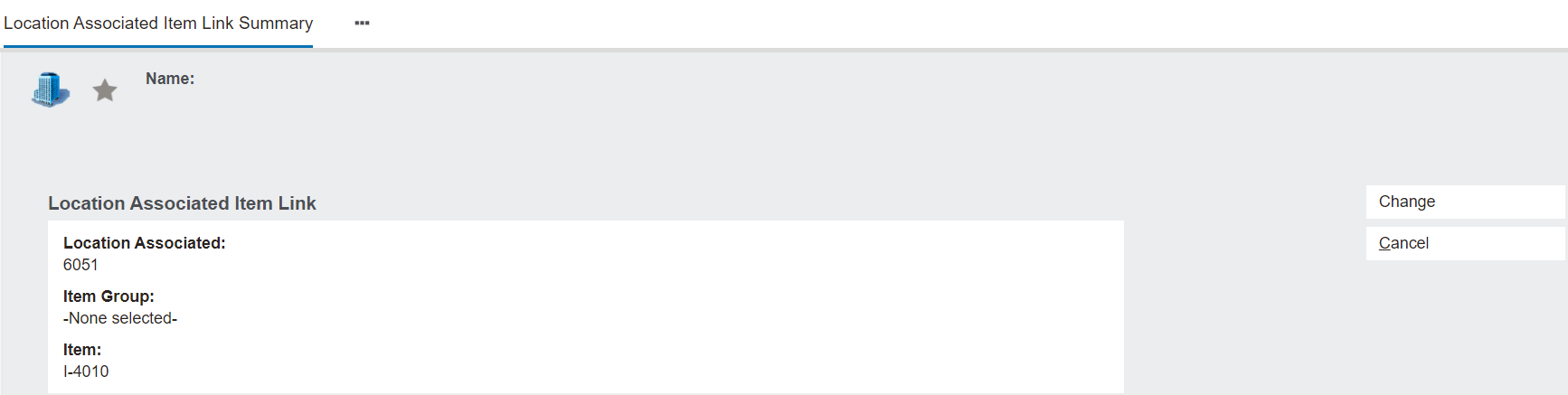
Click on the Item or Item Group hyperlink to access a link summary.
Should a change be required to the link, press the Change button on the right-hand side of the page.