This tool monitors the integration between byondpro and Sage 300. The Iman integration ensures the user experience isn’t slowed down waiting for the sync between byondpro and Sage 300 to occur before proceeding with the transaction.
The sync runs in the background every few seconds to push transactions from byondpro to Sage 300.
In the Integration Monitor area, the flow of these transactions is monitored and will occasionally falter.
Transactions might falter if setups in byondpro, such as a term or the general ledger account on a category, were not mirrored in Sage 300.
Without the term or general ledger account within Sage 300, the transaction has nowhere to land in Sage 300.
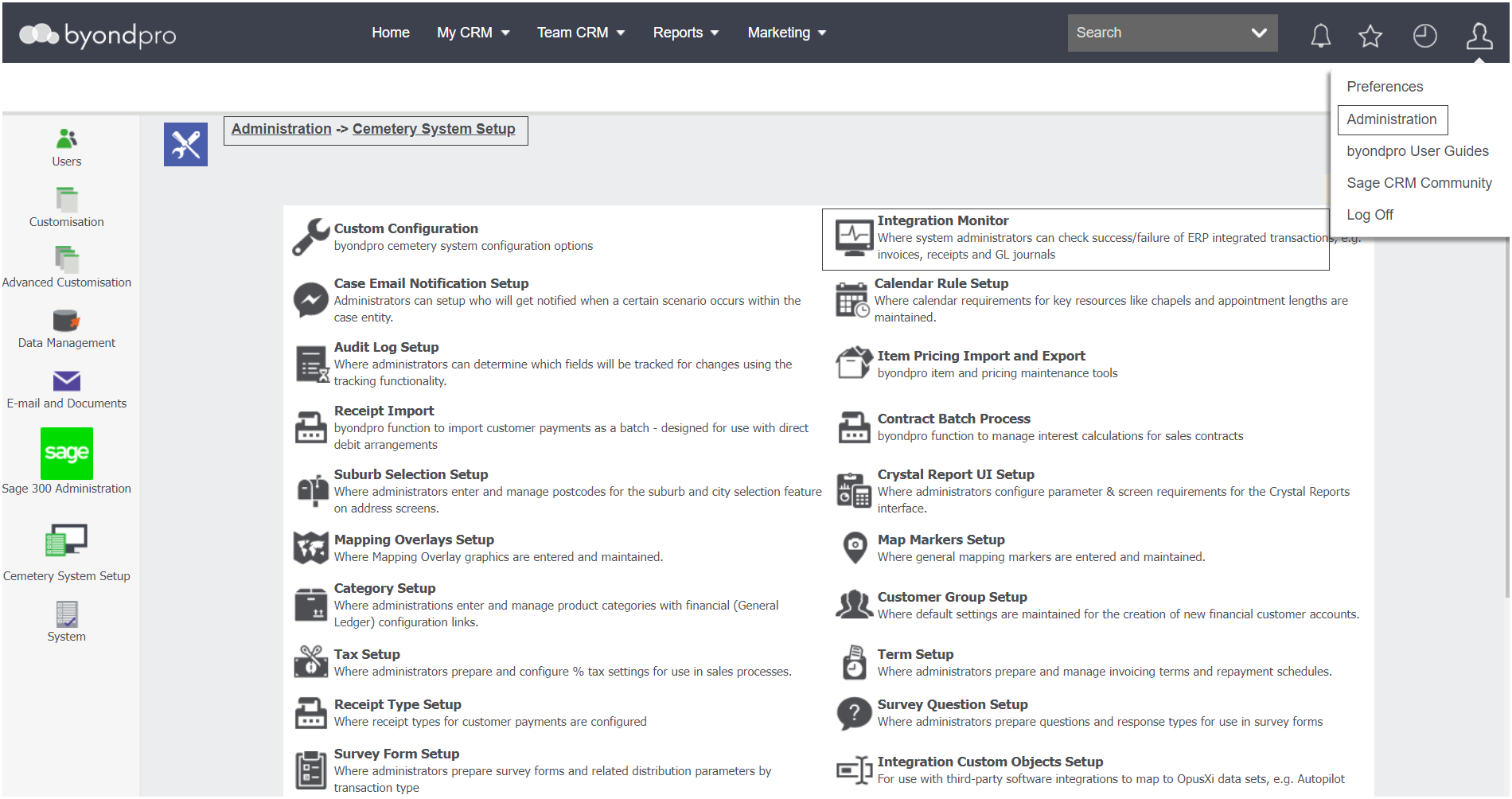
Navigate to Administration > Cemetery System Setup > Integration Monitor.
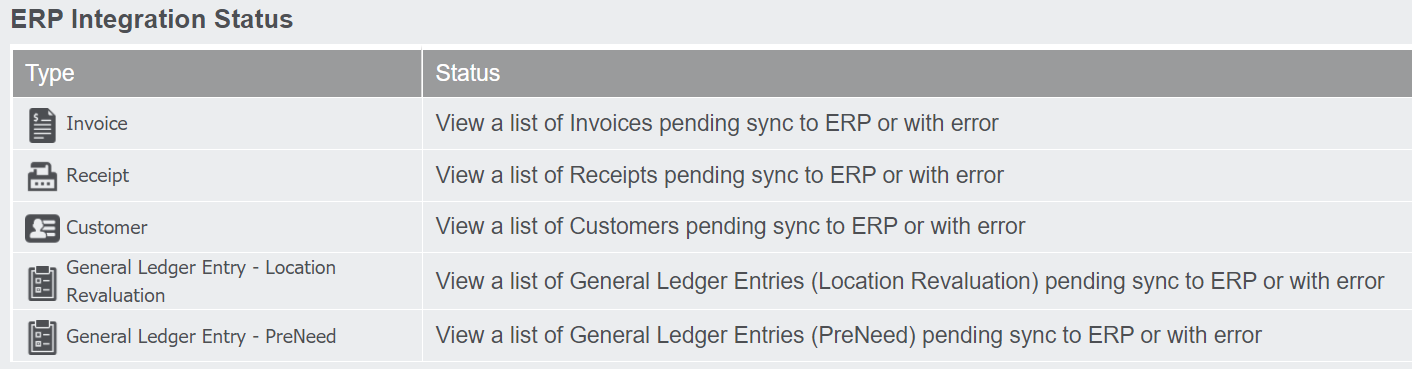
All sales entries that byondpro monitors appear in list format.
For our example, we will look into the Invoice option. When we click into the invoice option, a list of all invoice errors will appear.
Let us take a look at the error associated to Booking 10319, which states '1020 - Terms Code "F48" is not defined in A/R Terms'.
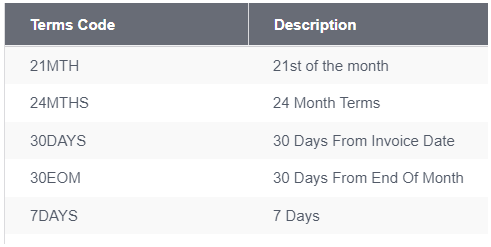
When we review Sage 300, there is no term of F48 in our Sage 300.
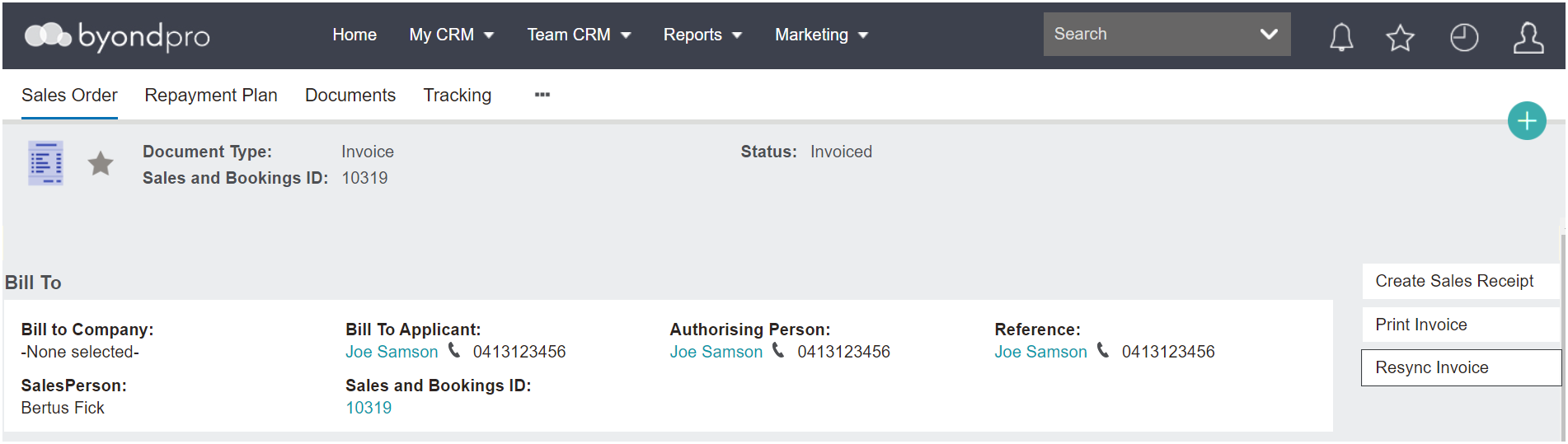
Returning back to byondpro, we can go into the sales order by clicking on the booking reference number hyperlink.
Visit the Sales Order from the Sales tab of the booking.
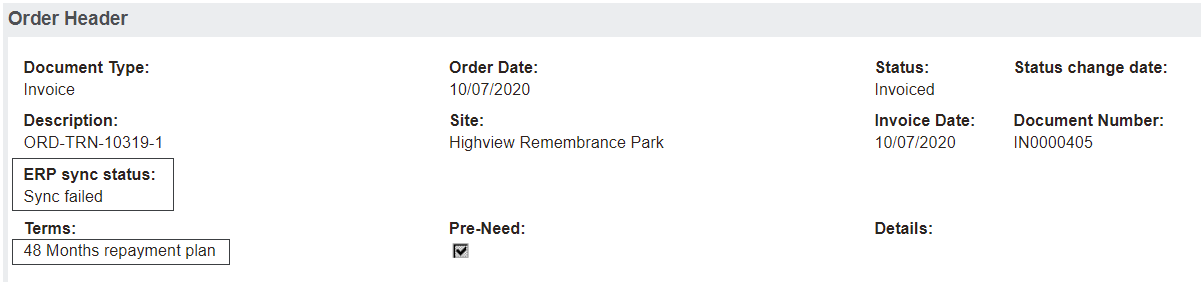
Note the term is listed as 48 Month Repayment Plan and the ERP sync status has failed.
A scheduler runs in the background every 15 to 25 seconds to attempt to process transactions that fail to sync. After 5 attempts, the transaction will fail, and the system will not attempt to re-sync it.
Users would likely be able to view the error within the Integration Monitor after 2 minutes.
Valid Sales Setup
If the error is due to a term, general ledger account, or other sales setup that is valid for the cemetery, however, was not added into Sage 300, the set up would need to be added into Sage 300.
For example:
1. In the case the error was for an invalid term, however, the term is a valid term for the cemetery, it will need to be added to Sage 300.
2. If the error is related to an invalid General Ledger account, however, the GL account is the valid account, it will need to be added to Sage 300.
Once added, a user will need to press the Resync Invoice button on the invoice, for the transaction to flow through to Sage 300.
Invalid Sales Setup
If the term, general ledger account, or other sales setup is not valid for the cemetery, the customer would need to follow the below steps.
We have mapped out the 2 examples above, an invalid Term and an invalid General Ledger account.
1. Create the unwanted Terms Code in Sage 300 to push the invoice through.
Then, if they need to, create a credit note to back it out of the system.
Once the credit note is processed, they would need to inactivate the term in Sage 300 & byondpro so they cannot be selected again.
Next, create a new invoice with the correct terms if a credit note was created. This action stops a non-syncing invoice and credit note staying stuck in the Iman integration.
2. Create the unwanted General Ledger code in Sage 300 and resync to push it through.
Then, create the appropriate correction journal in Sage 300 or raise a credit note in Sage 300.
Next, inactivate the unwanted general ledger account in Sage 300 and update the category GL in byondpro.
If a credit note was raised, then reinvoice.