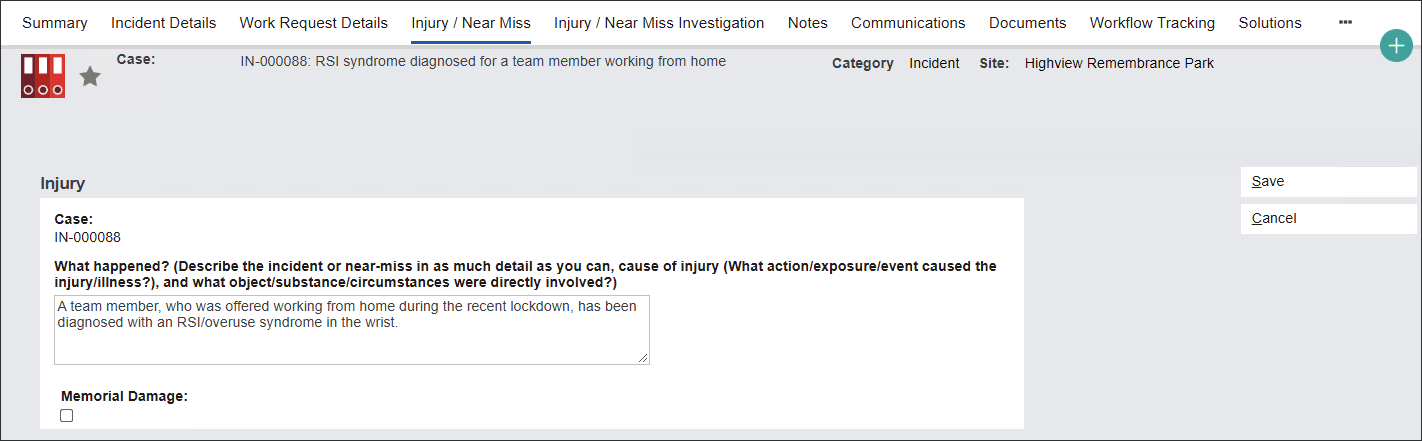
The Injury/Near Miss tab stores information about the injury to the staff or 3rd party.
The system automatically navigates the users to the tab once the information in the Incident Details tab is saved.
Once saved, this tab is available only to the Human Resources team for confidentiality purposes.
Begin capturing information in the Injury section.
In the What happened? field type in details about the cause of injury.
If the injury is related to a Memorial Damage, tick the box below the text field.
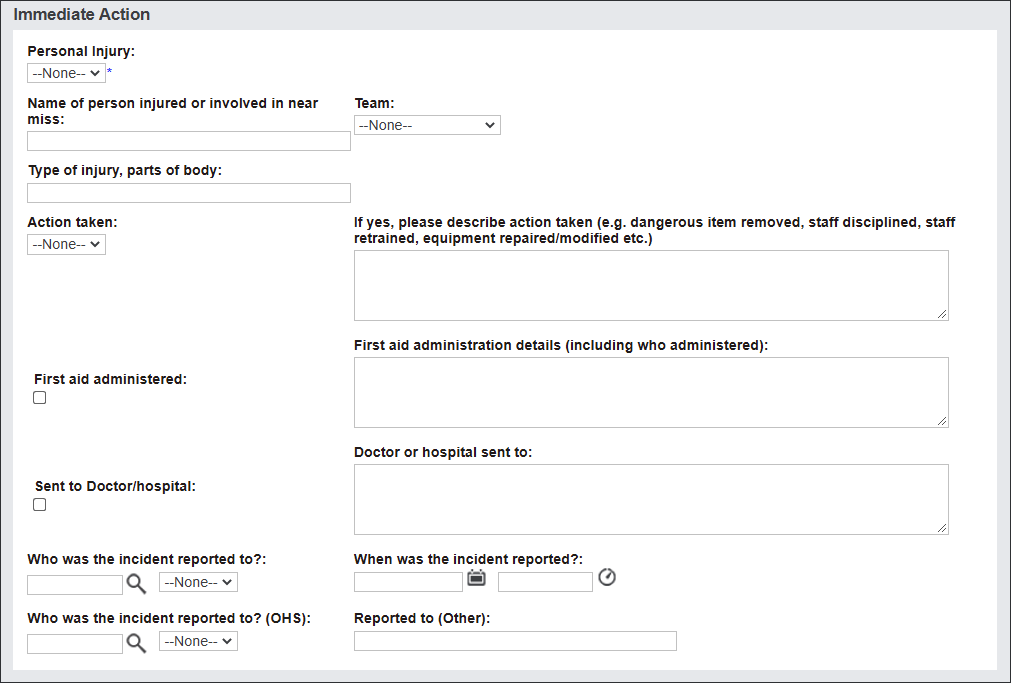
Navigate to the Immediate Action section.
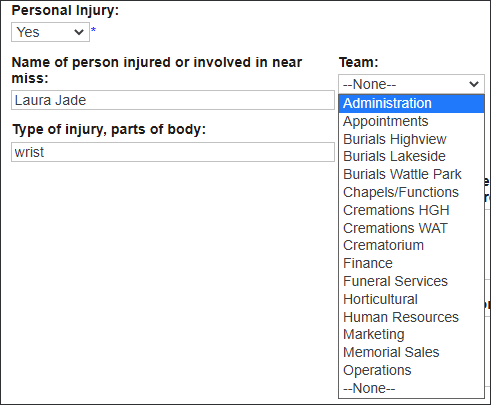
From the Personal Injury field select Yes or No.
Type in the Name of person injured or involved in near miss.
From the Team drop down menu select which team the injured person works with.
Type in the Type of injury, parts of body field requested information, in our example it's a wrist.
Describe the actions taken by selecting Yes or No from the Action Taken field and then typing in the details of the actions.
If the Incident happened onsite, for example a visitor collapsed during a burial service, first aid could have been administered.
In these instances users can tick the First aid administered box and type in its details.
In our example the incident happened offsite and we have no knowledge of first aid administration so the fields are left blank.
Users can also capture whether the injured person required professional assistance like doctor or hospital staff.
Tick the Sent to Doctor/hospital box and type in details of the Doctor or hospital sent to.
Provide names of employee/s whom and when the incident was reported to by typing in name/s, date and time or clicking on available icons and selecting from the options.
Press Save to secure the changes.