Finding Information

Find Menus
There are several ways to open byondpro Find menus.
-
Home page - with buttons for each major cemetery processing area
-
General: Persons living and deceased, cremated remains, appointments
-
Locations: cemetery locations, sites, deceased positions, gardeners register and activities
-
Sales: sales & bookings, memorial orders, reminder quotes, items & pricing, mason permits
-
Other: reports, cases, risks, plaque receipts and installations
-
Search list - drop down menu of every searchable data table
-
Recent list - selecting the icon on the category header
Using the Find Screens
The find screens are configured specifically for each area of byondpro and show search criteria and results relevant to that processing area.
Common to every Find screen are the following elements:
|
Element
|
Purpose
|
|
Find (block)
|
Search criteria fields
Results can be refined by entering values into more than 1 criteria field
|
|
Find (button)
|
Select button to search the database or use key combination ALT+F
|
|
Clear (button)
|
Clears criteria entered previously in all search fields
|
|
Saved Search
|
Allows fast recall of previous search criteria and results
Create new saved searches
Refresh/Update saved search criteria
Delete previous saved searches
 |
|
Results (grid)
|
Displays results of search in column format
Underlined column headers indicate results can be sorted by that column
Arrows in column header indicate results are sorted ascending/up or descending/down  |
|
Number of Records
|
Indicates number of search results found and number of pages of results
e.g. 12 People, Page 1 of 1
|
|
Page Navigation
|
Shows current results page number.
Button arrows allow scrolling between pages
 |
Tips for Successful Searches
|
Number
|
Description
|
|
Text Fields
|
Searches assume field results start with the characters entered
e.g. Peters returns Peters, Peterson, Petersson, Petersen etc
Use % wild card to replace characters at beginning or middle of string e.g. Peters%n returns Peterson, Petersson, Petersen
|
|
Date Ranges
|
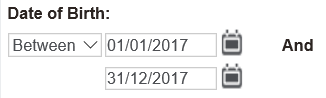
Between: requires specific to/from date entries
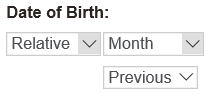
 Relative: allows broad selections of Previous/Current/Next by Day/Week/Month/Year
 |
|
Search Select
|
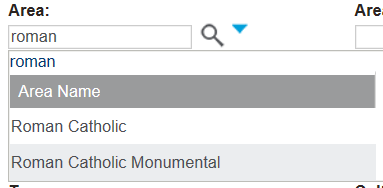
Are look up fields to a related table of data and show with the magnifying glass symbol
Narrow the search criteria by providing some characters and select the finder icon (magnifying glass) to lock in the selection (displays underlined).
Select the down arrow (shown in blue) to open detailed search screen for this data table
 |
|
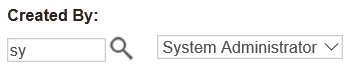
User Select
|
Enter a few characters of the name into the search field and matches show to the right.
Use the drop down menu for detailed selections
 |
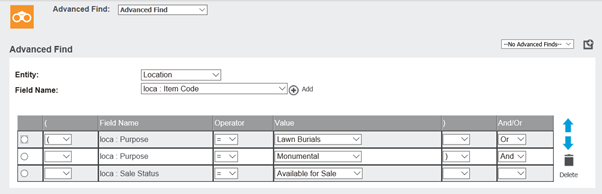
Advanced Find
The Advanced Find feature allows complex search criteria involving multiple operators (= + < >), the use of brackets and AND/OR statements.