Export & Import Prices
This feature follows the same principles as working with Items.
From the Item Pricing Import and Export page, click on Export Prices and byondpro will create a file in your PC’s downloads folder that contains every item price record.
To edit an existing price entry, leave the following values as exported:
-
ID (column A)
-
Item Code (B)
-
Item Description (C)
-
Make changes as required to:
-
Price (D)
-
Valid From (E)
-
Valid To (F)
-
Territory (G)
-
Tenure Period (H)
And save the worksheet.

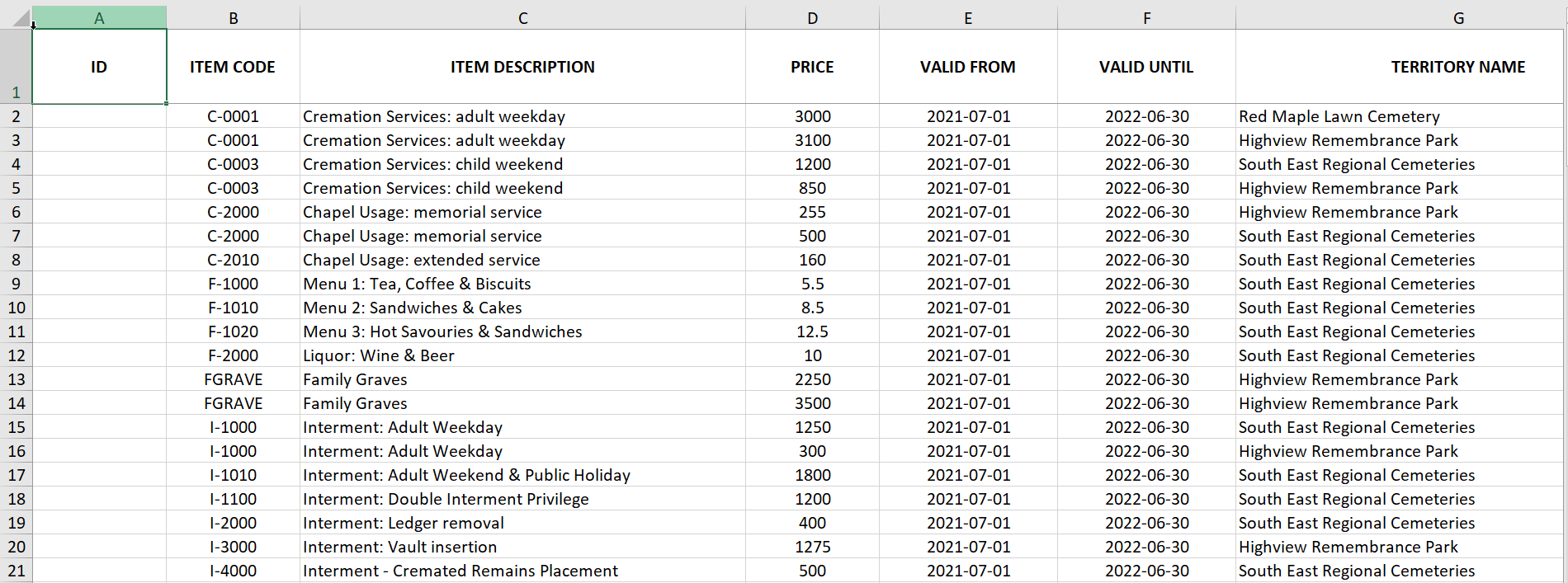
To create a new price entry, leave the ID (column A) empty and only complete columns B to H.

Microsoft Excel can be a bit fussy about dates, so please be sure to use this format: yyyy-mm-dd in your worksheets, e.g. 1 July 2019 is entered as 2019-07-01.
If it won’t respond, try this:
1. Prepare your dates in column A “as normal”: 1/07/2019.
2. Put this formula in column B: =TEXT(A1,"yyyy-mm-dd")
3. Copy column B and use Paste Special Values to update your Valid From / To date columns

Import Prices
Before importing the list back into byondpro, ensure:
-
To filter out all unwanted items and prices
-
To update the current prices and add additional ones to the list
-
The date format is YYYYMMDD, i.e. 20220630
-
Remove the contents of the ID column, IF you are creating new price entries
If the ID column is left, the current prices will be overridden, leaving the database with no price history.
This would make the timing of the price update extremely important.
The example below shows how your spreadsheet would look in the example of creating new price entries.
First, save and close your Pricing Excel worksheet.
Then select Import Prices from the Cemetery System Setup directory in byondpro.
Browse to where your updated worksheet is stored and choose to Import the new Item or Price list.
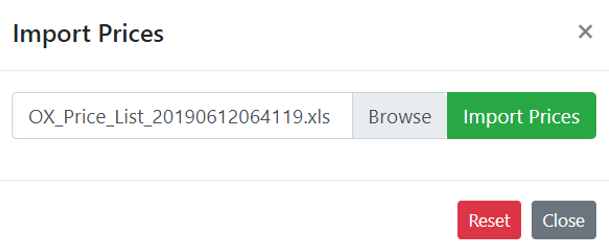
The import tool checks that all values are logical and displays a confirmation screen.
If you get a green message that no pre-import validation errors were found, select Update Prices to finish the import.
If you receive a red error message, use the search feature to identify which entry in the worksheet is causing a problem, e.g. invalid item code.
Then correct that row in your Excel worksheet and re-save the document.
In byondpro, select Import Again, then re-select the corrected file to run the validations and import process.
A green Success! message confirms your Prices import file has been processed.