In a sales & booking, person records may not already be in the database.
On the Sales & Booking summary screen and the Sales Order summary screen, there is a Create New Person button which allows the user to create the record (s) while creating a booking, editing a booking, or creating a Sales Order.
While the Creating Person Recordssection of this guide will provide more detail on how to create a person record, here are a few useful tips for creating the person records within a booking.
From the Sales & Booking summary screen
Whether creating a booking initially, or editing a booking to include the person records, the following outlines the process for creating new person records from the Sales & Booking summary screen.
Create the Authorising Person first, starting by clicking on the Create New Person button.
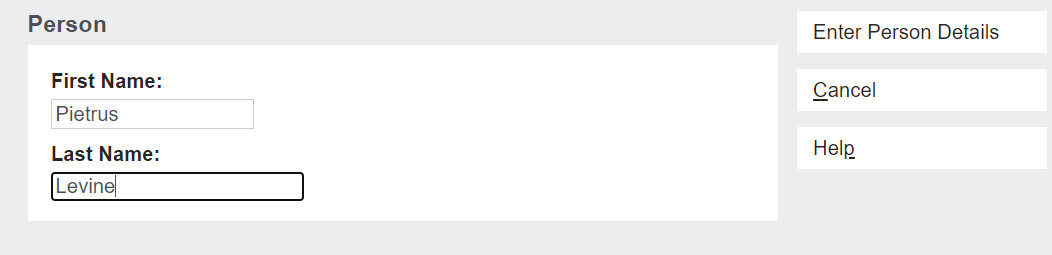
A pop-up window displays for the user to fill in the First Name and Last Name of the person record. The process for creating a person record from the Sales & Booking is the same as creating a person record outside of a booking.
On the authorising person record, choose the Select Person button and the authorising person field will populate with the record.
Create the reference contact, starting with clicking on the Create New Person button.
Mark the person record as deceased and add the authorising person to the deceased record.
Close out the pop-up window, as this is no longer required.
Add the reference contact in the Reference Contact field of the Sales & Booking.
From the Sales Order summary screen
When completing a sales order, the Bill-to Company or Applicant field, Authorising Person, & Reference Contact are fields the user will need to complete. While the user can save the sales order without these fields being completed, the fields have processing steps which rely on them being completed.
For example, the authorising person becomes the holder of right on the location record upon invoice. Therefore, it is important to complete the fields with the appropriate records.
Should one or all of the records not be added to the database at the time of creating the sales order, users can add them, starting with clicking on the Create New Person button.
A pop-up window displays for the user to fill in the First Name and Last Name of the person record. The process for creating a person record from the Sales & Booking is the same as creating a person record outside of a booking.
Once the person record is added, choose Select Person on the person record and this will populate the Bill-to Applicant field only.
If adding the authorising person or reference person, instead of choosing Select Person, close out the pop-up window by pressing the close button.
Then add the authorising person or reference contact in the relevant field of the sales order.