Creating New Records

New Menus
Many record types are created using the NEW menu (top right of the byondpro screen). Selecting this displays a selection menu of record types, including:
-
Company
-
Person
-
Sales & Bookings
-
Cremated Remains (foreign)
-
Items and Prices
-
Memorial Items
Other record types are created from within their related processing screens, including:
-
Cemetery locations
-
Quotes, invoices and credit notes
-
Cash receipts
-
Memorial orders
-
Appointments
If created from within a parent record, some new forms are pre-filled with related information, for example:
-
New Sales & Booking record created from a deceased Person record - fills the reference and cemetery location fields
-
New Appointment created from within a Sales & Booking record - fills with company, sales ID, deceased and location fields
-
New Case record created from a deceased Person record - fills the reference and cemetery location fields
Person Deduplication Feature
When adding new Person records byondpro will check the first and last names entered against the database and provide a warning if a matching record exists with the same name. A list is displayed of matching records with a snapshot of key dates and address information to help you evaluate if the existing record is the same as you are entering.
-
If you identify a record match, you can select the record from the grid and continue with data entry.
-
If there is no match, you can select the button to "Ignore Warning and Enter Individual"
Mandatory Fields
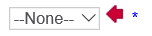
Mandatory fields are marked with an asterisk * and require an entry value before allowing the record to be saved.
If no information has been entered, the user will receive an error message and the field requiring completion is highlighted with a red arrow.