Create Works Request
From the New Case screen, click Category and select Works Request.
The screen alters including required Case Details fields.
The Works Request screen shares the same screen as the Client Feedback, however it's altered to capture information for addressing short-term issues.
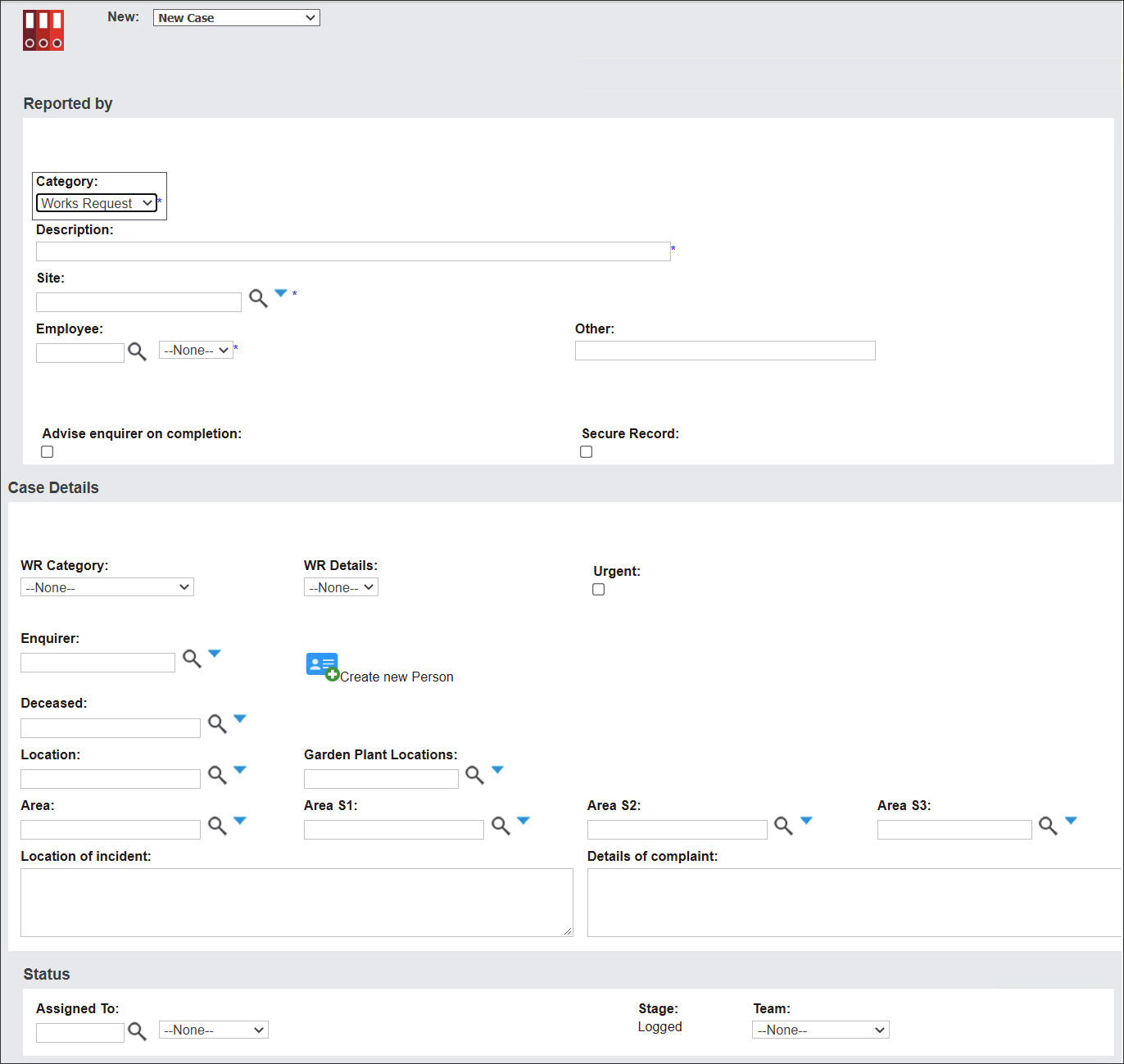
Begin creating the record by populating the fields in the Reported By section.
In the Description field type in a brief description of the request.
From the Site menu select the name of a site where the works need to happen.
In the Employee field type in or press the magnifying glass icon and select the user’s name who logged the request.
If the request was reported not by a site employee, for example a contractor, type in the person's name in the Other field.
There are two tick boxes which allow you to decide whether the request:
-
Requires follow up with the feedback enquirer - Advise enquirer on completion and\or
-
Is confidential and should be available only to certain users - Secure Record.
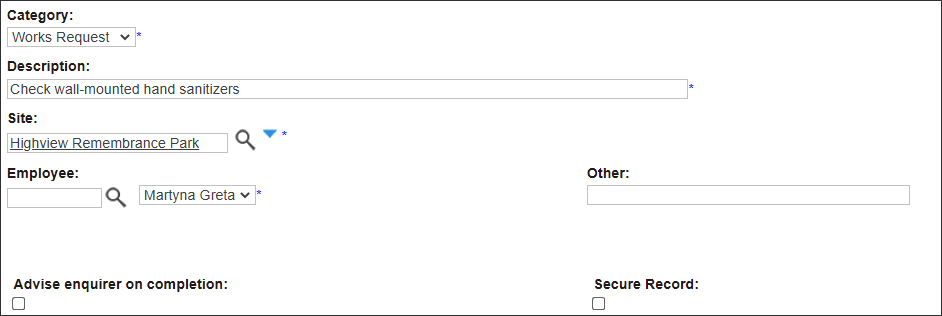
See these fields displayed in the example below.
Navigate to the Case Details section.
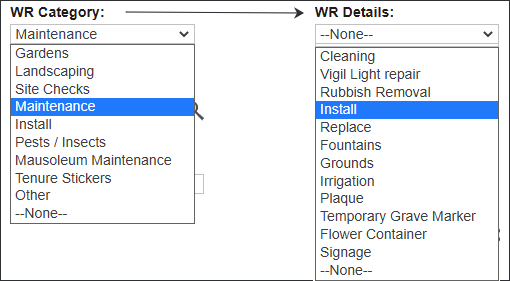
The fields WR Category and WR Details describe the request.
Click on each field and select from the available options.
The Enquirer field allows users to record the customer's name by typing in or pressing the magnifying glass icon to search for an existing Person record.
Alternatively, users can create a new record by clicking on the Create new Person button.
In the example Robert Lambert from a funeral company Angel Services is the enquirer.
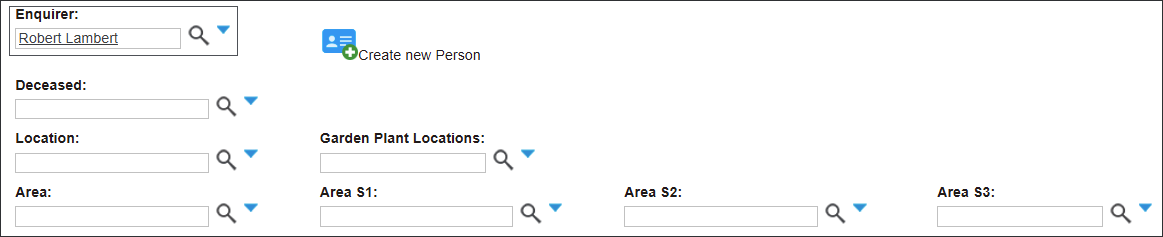
Enter the Deceased person record in the Deceased field to cross-reference the request, for example to a service or location.
If the Deceased record is connected to a location the system will auto-populate all related fields: Location, Area, Area S1 and Area S2.
In the example above, the Works Request is related to the site's buildings rather than grounds or particular locations, so these fields remain blank.
Please, view the Create new Client Feedback section to see how to populate these fields when the works request is related to a location e.g. a grave top-up.
If the Works Request is related to plants' maintenance, e.g. pruning roses, the Garden Plant Locations field is available to populate.
The Location of incident and Details of complaint fields are text boxes narrowing down the description of the Works Request.
Type in information regarding the request.

Status is an information block describing the current Stage and the user Assigned To monitor the request.

Stage of a newly created Case is Logged.
This can be edited after the Case is saved and the record goes through a workflow, for example for further investigation.
Note: See more details in the section Workflow Actions.
In the Assigned To field type in or press the magnifying glass icon and select the user’s name who will monitor the Case.
Cases can also be assigned to a team.
Click on the Team field and follow the same approach as outlined in the Assigned To field.
Press Save to update the record.
The Works Request record has been created.