Create Pre-Need on Invoice
The purpose of setting the create pre-need on invoice to þ at an item level is for customers to manage their pre-need transactions by sending all sales of this item to the pre-need table regardless of whether the sale is at-need or pre-need.
**Users / consultants should approach this setting with caution and understand the full implications prior to ticking this box.
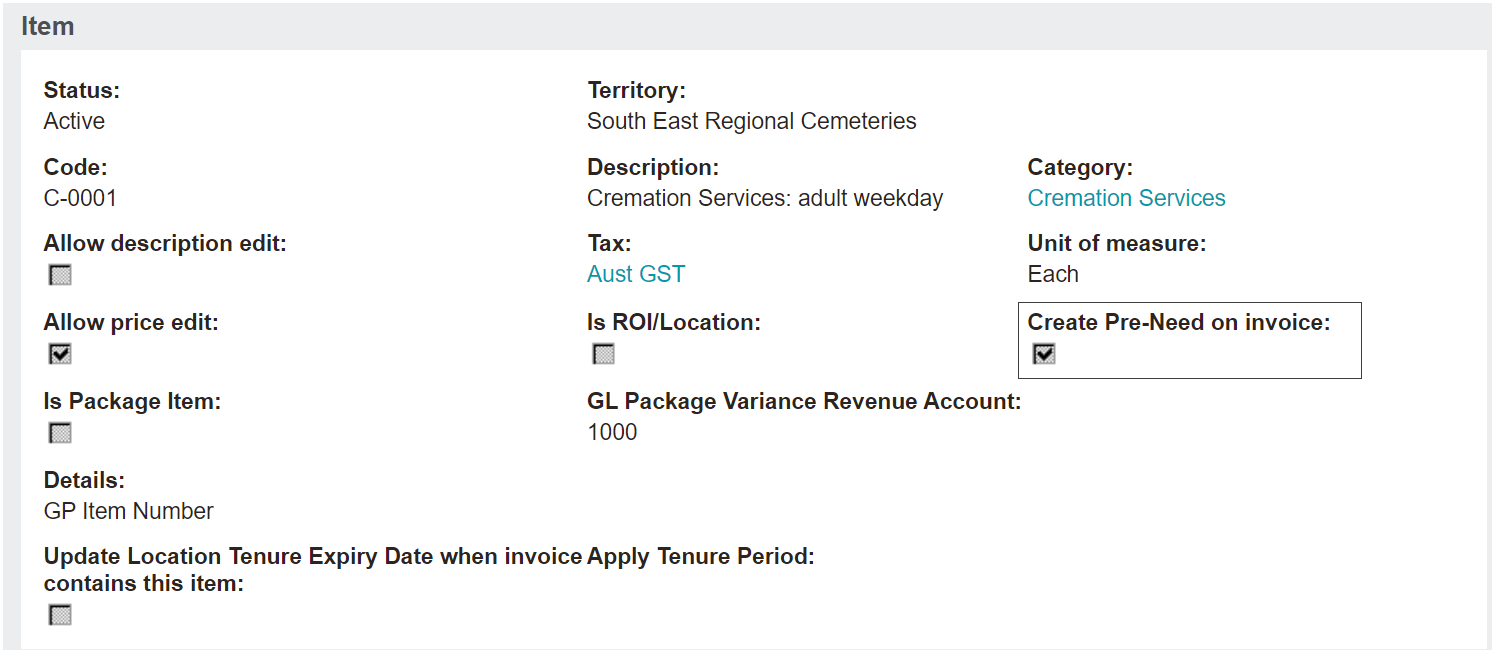
Where Advanced Revenue Recognition is not switched on and the item setting has the Create Pre-need on invoice ticked, the setting will send all at-need and pre-need purchases to pre-need. These items will need to be manually taken up / redeemed to recognise the revenue.
Where Advanced Revenue Recognition is switched on, in any circumstance whether the item is sold as at-need or pre-need, all purchases will be processed as pre-need AND will look to the ARR setting and honor that setting. These items will automatically recognise revenue based on the category setting:
-
On payment in full
-
At time of invoice
-
On redemption.
Note, this is a rare setup option for customers, at this stage there is only one customer who uses this functionality.
It has been particularly helpful for them where some elements of the package would be required for use now (at-need) and some items to be held for use at a time in the future (pre-need).
This process could eliminate the need for sales staff to remember to set appropriate flags at the time of sale.
However, the process comes with an extra step to be carried out by the finance team. The finance department would need to review all burials & cremations for the month and then go through the preneed register, find the corresponding burial or cremation, and redeem each of the items that have been used at need.
The original sale would have processed all the items purchased directly to unearned income on the balance sheet, meaning no revenue was recognised during the month.
The finance teams’ processes remove the value from the unearned income account and processes to the appropriate revenue general ledger account for the specific item in the relevant financial period.
It is important to remember to be cautious at the time of configuration to not inadvertently flag items as ‘Create pre-need on invoice’ unless the customer specifically want to follow this process.
To re-iterate, setting this flag on the item will trigger any at need invoices to be processed as pre-need.
Where Advanced Revenue Recognition Method is configured to Y in custom configuration and the item setting Create Preneed on Invoice is ticked, the processing steps will look to the category setting to see what ARR method to apply on every at need purchase as well as on every pre-need purchase.
As mentioned above, this is a rare configuration and is not the normal process that the majority of our customers will use, but it is important to explain the outcome if the preneed on invoice is ticked on the item at time of configuration for your learning purposes.
