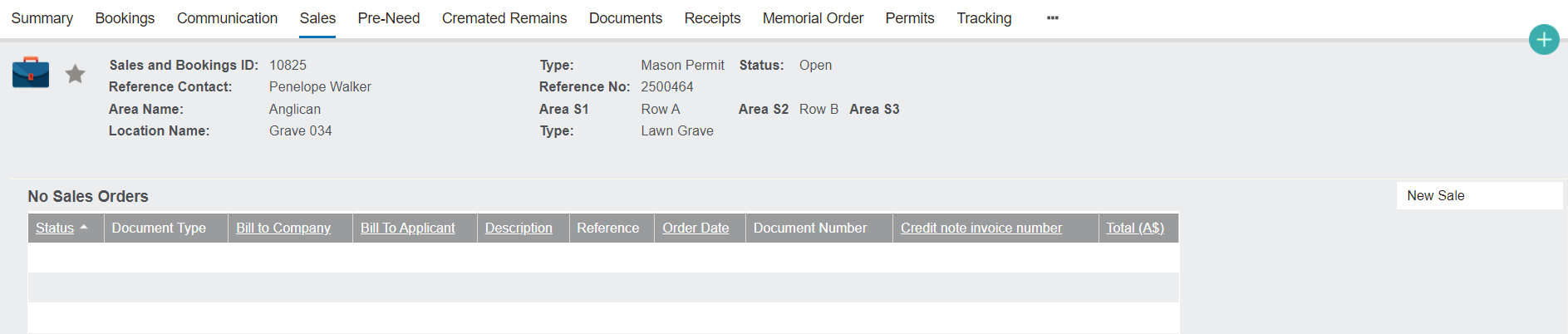
From the Sales & Booking record, click on the Sales tab. From this tab, we will create a new Sales Order by clicking the New Sale button on the right-hand side of the screen.
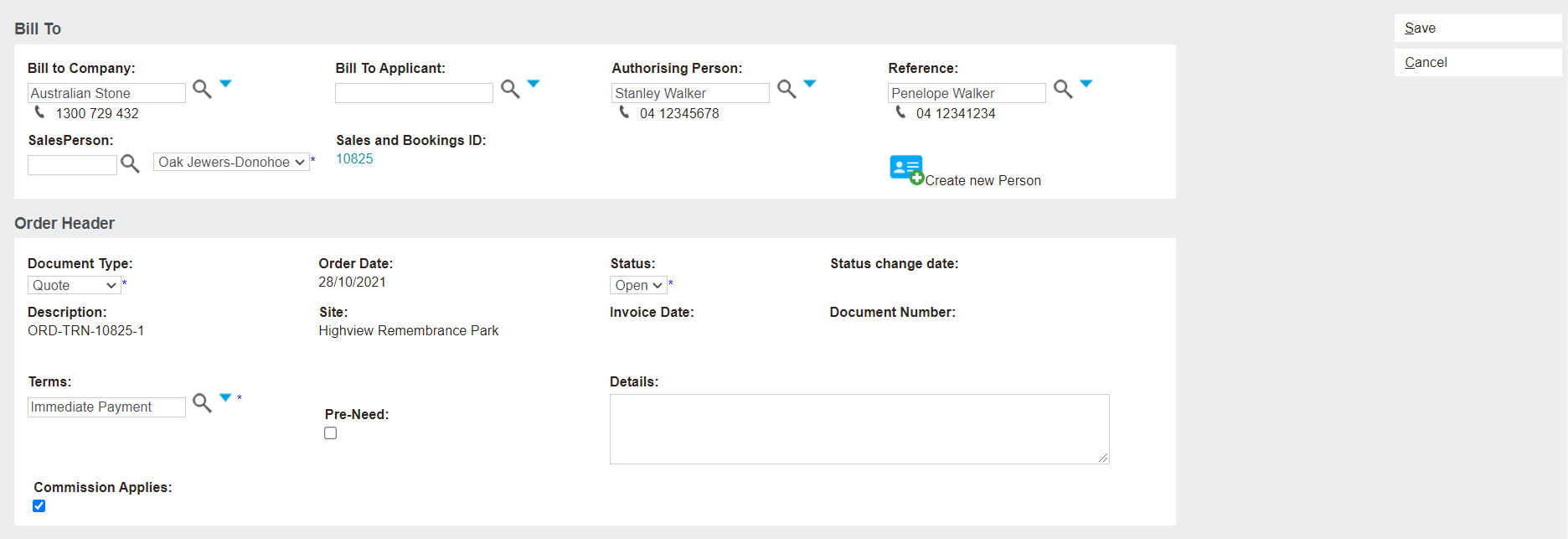
This resulting page will include the Bill To and Order Header information blocks for you to fill out.
The Bill To block will be populated with the Authorising Person and Deceased / Reference Person, and gives the option for the order to billed to a company or to the authorising person.
In the case of a mason permit fee, it's expected that the fee will be billed to the stonemason's company.
The Order Header block will default to a Document Type of Quote and a Status of Open, so we will leave those as such.
The Terms field will be populated with the company's preferred repayment terms, such as Immediate Payment.
There are also options to add Details, or to tick whether Commission Applies.
The Pre-Need option shouldn't apply to a mason permit, and should be left unticked.
Once all required fields are completed, click the Save button on the right-hand side of the screen.
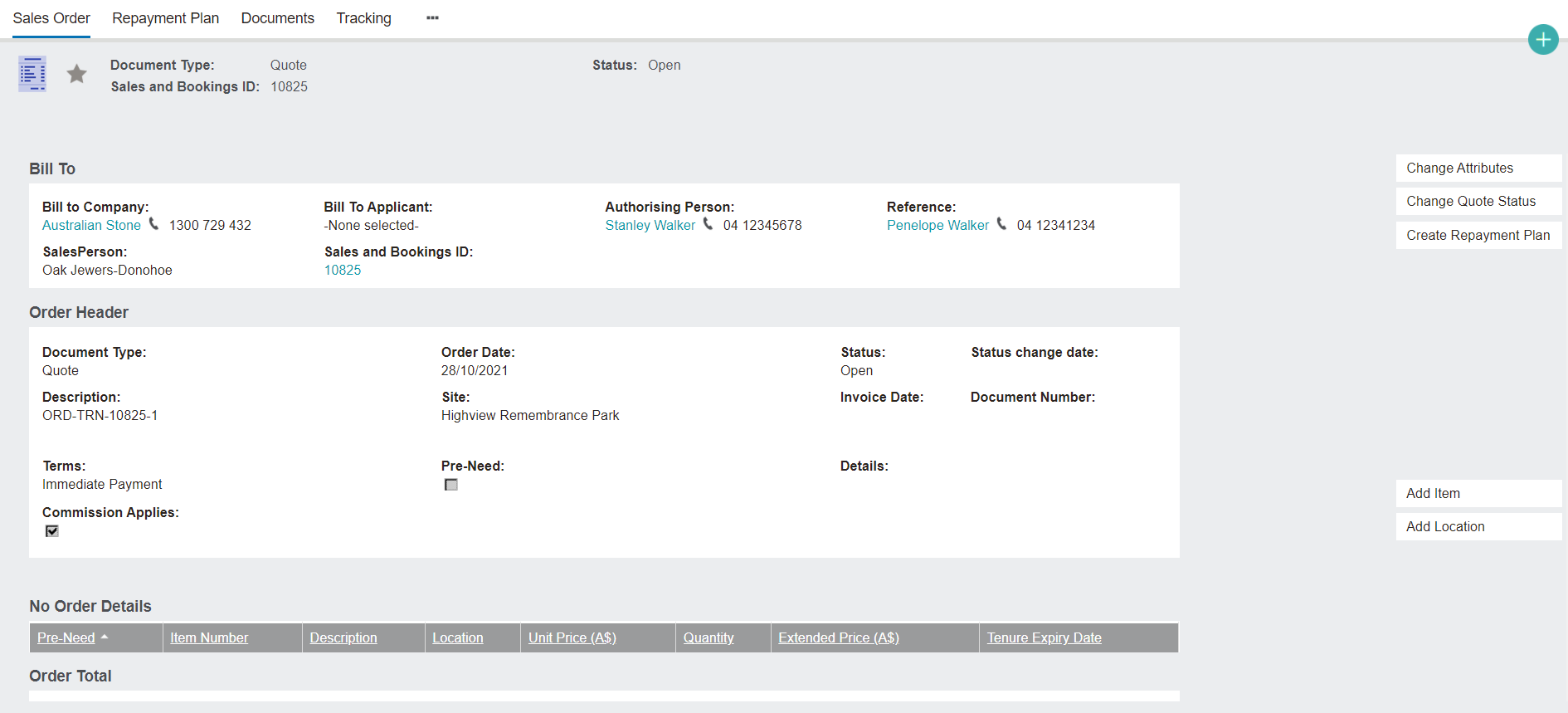
We're now taken to the new Sales Order record, where we can see the details of the order that we have supplied and edit them if required using the Change Attributes or Change Quote Status buttons on the right-hand side of the screen.
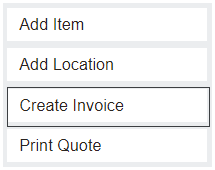
The next step is to click the Add Item button on the bottom right-hand side of the screen.
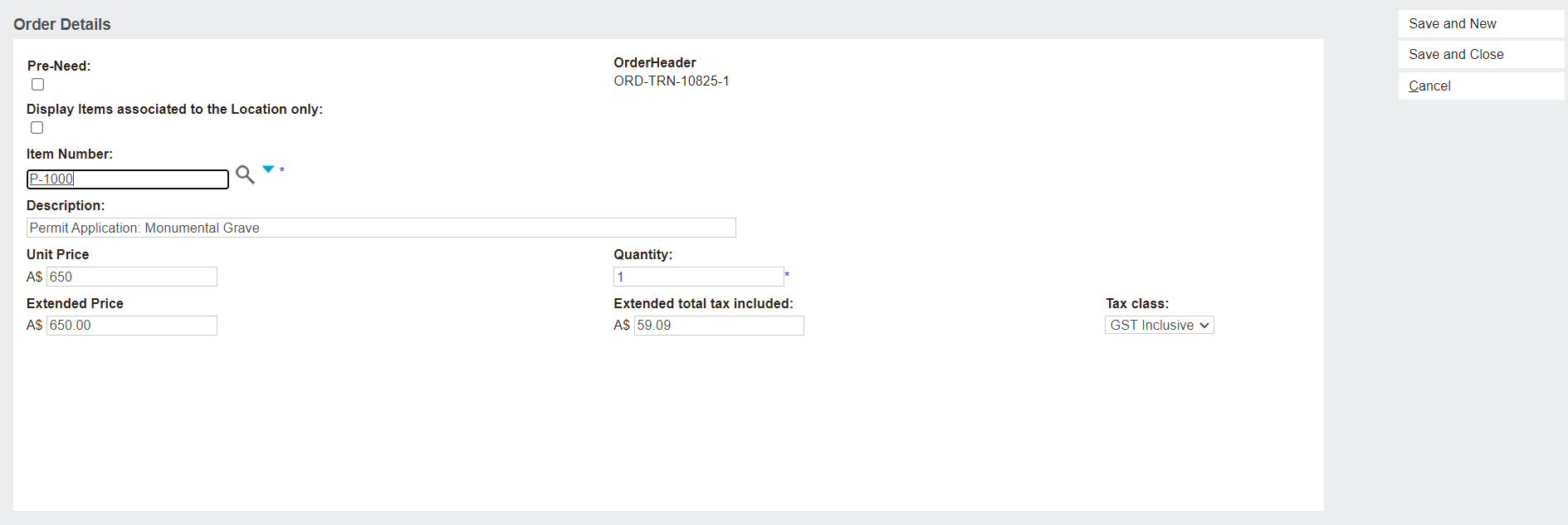
This will open the Order Details screen where we can add sales items to our order.
The Item Number field is a search function that allows you to search for items that have been configured on your byondpro account.
Make sure the Display Items associated to the Location only tickbox is unticked if the permit fee is not set up as an associated item on the location type the permit application applies to.
Once you have filled the Item Number, the Description, Unit Price, Extended Price, and Extended total tax included fields will automatically populate based on the item numbers configuration in your administration settings.
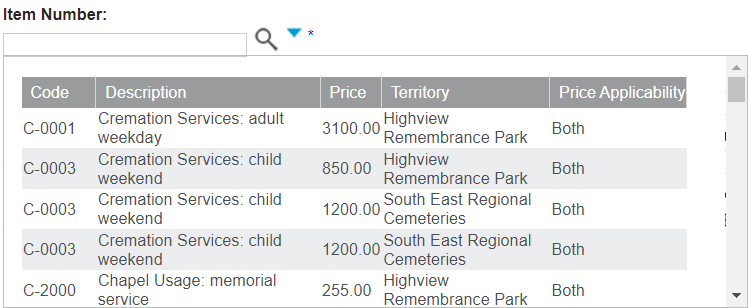
If the Item Number field is empty, you can click on the magnifying glass to display a complete list of all your configured items.
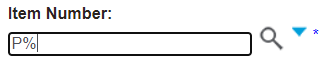
Or you can use the wildcard search function to find the permit item. In our system, our permit application fee item is P-1000, so we type P% and the field populates. You may also be presented with a drop down selection of all items starting with P, select the correct item from the options presented.
Click on Save and Close on the right-hand side of the screen, which will return you to the Sales Order page.
Towards the bottom of the page, the Sales Details and Order Total fields have now populated with our Permit Application item.
Back on the Sales Order page, either print a quote to send the mason, or proceed directly to Create Invoice.
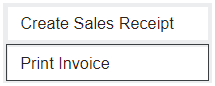
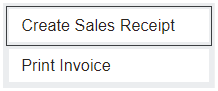
Next, click Print Invoice to create a printable PDF or to send the invoice as an email to the mason.
Once the mason has paid the permit fee, click on the Create Sales Receipt button.
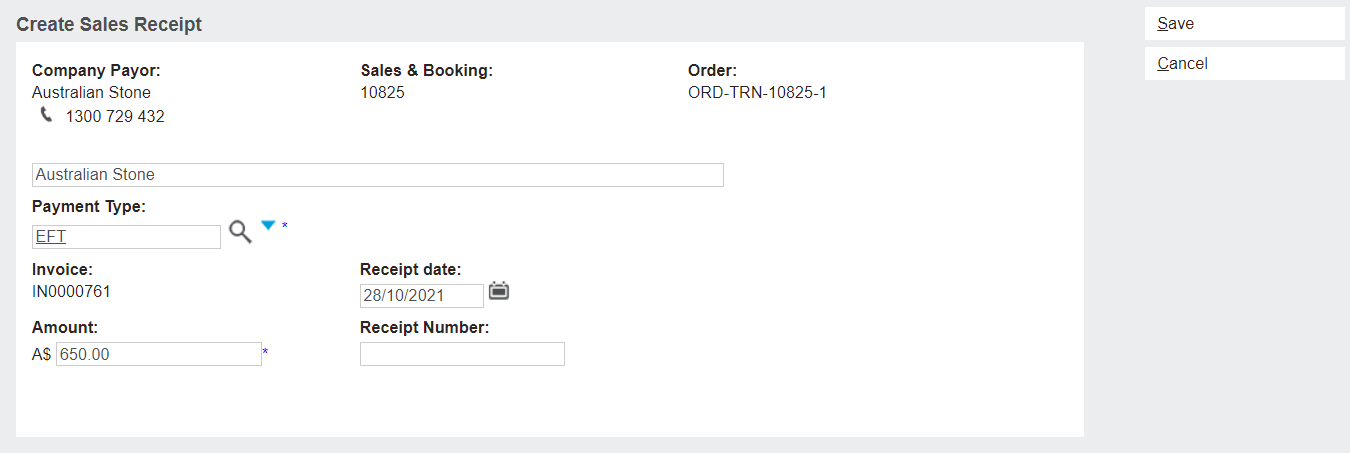
This will prompt you to enter the details of the transaction - such as payment type and receipt date. The receipt date defaults to today’s date, this field can be changed to a date in the past, but will not accept future dates.
Click the Save button to finalise the receipt.
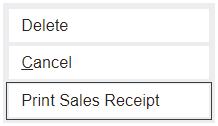
Before closing the receipt, you can click Print Sales Receipt to supply the mason with a digital or physical copy of the receipt.