Create a Mason Permit
From the Sales and Booking record, go to the Permits tab.
This tab allows you to create and action permits for any works requested by the mason.
To begin, click on the New button on the right-hand side of the screen under Filter.
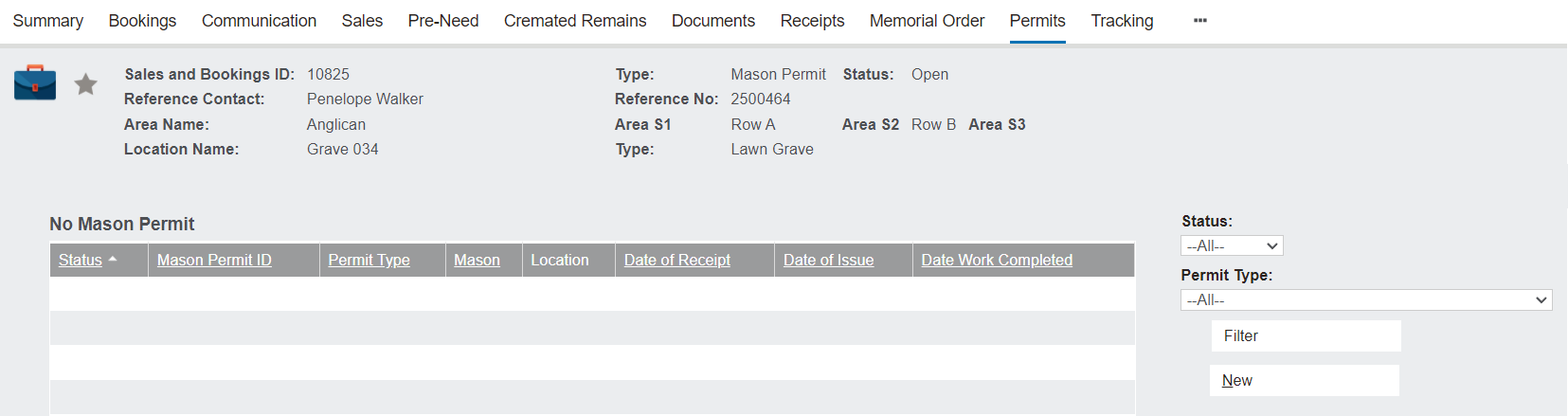
This will open the New Mason Permit screen, which includes three information blocks: Mason Permit, Location, and Details.
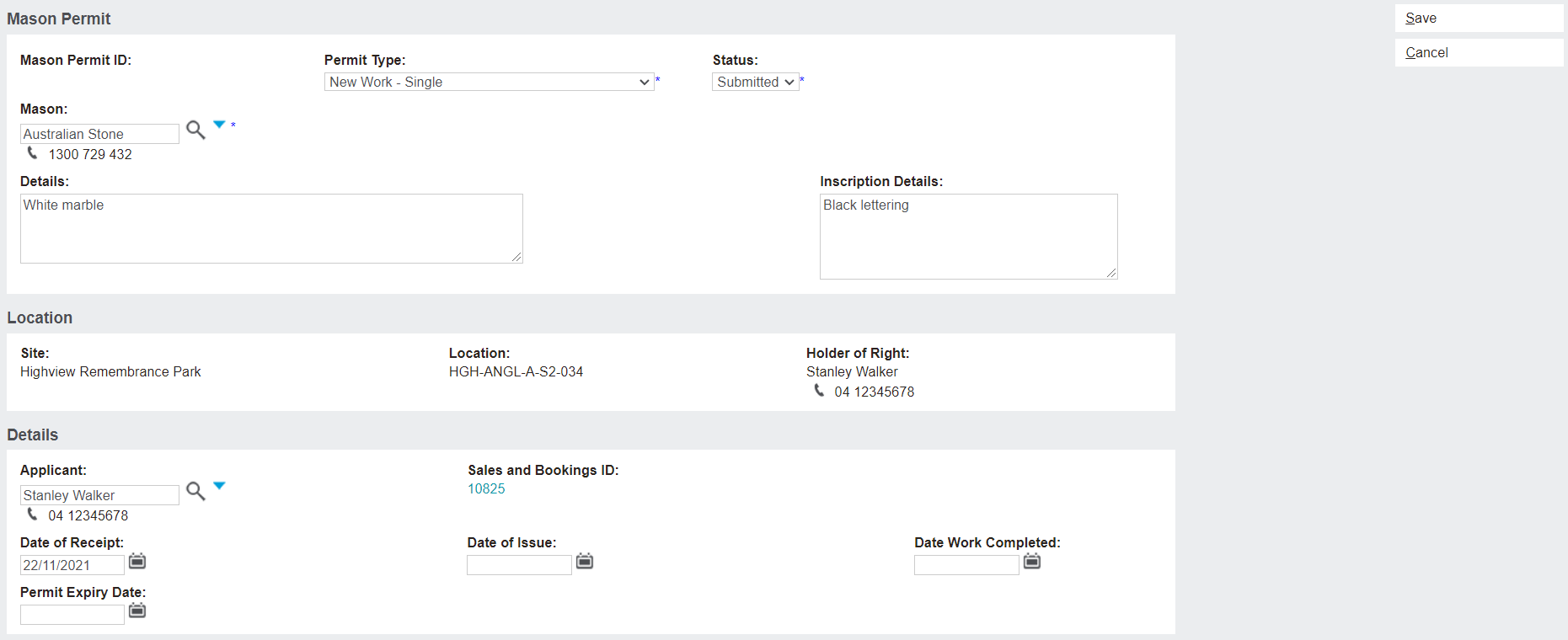
There are three blocks of information on this page:
Mason Permit
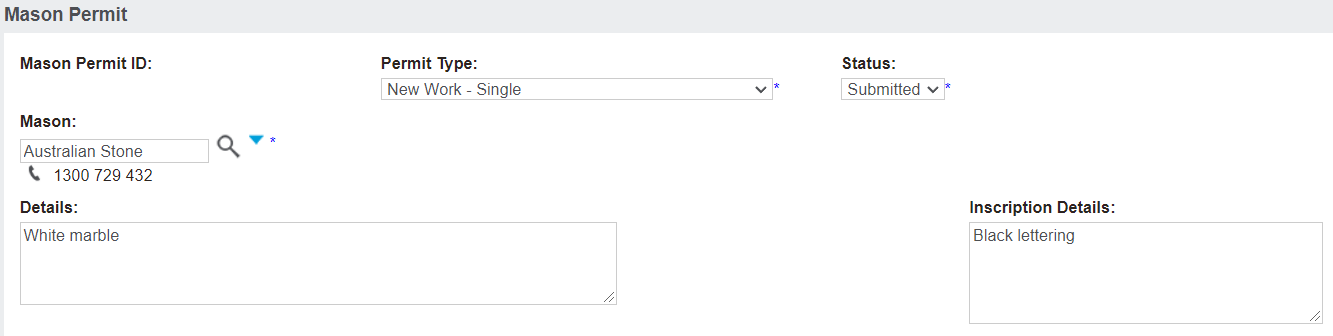
The Mason Permit block is where information about the permit will be entered.
The Mason Permit ID is the number by which permits are organised within byondpro, and it will auto-populate once the new mason permit entry has been saved.
The Permit Type drop-down indicates the type of works that are to be undertaken by the mason.
The Status is the stage of the permit application process that the permit is in.
The Mason doing the works is also captured here, and will auto populate from the Sales Order.
The Details field can be filled with specifics of the work, such as the stone type used, whereas the Inscription Details can be filled with information about the inscription, such as the type of lettering used or a translation in the case of a foreign language inscription.
Location
The Location block will be auto populated with the Site, Location, and Holder of Right.

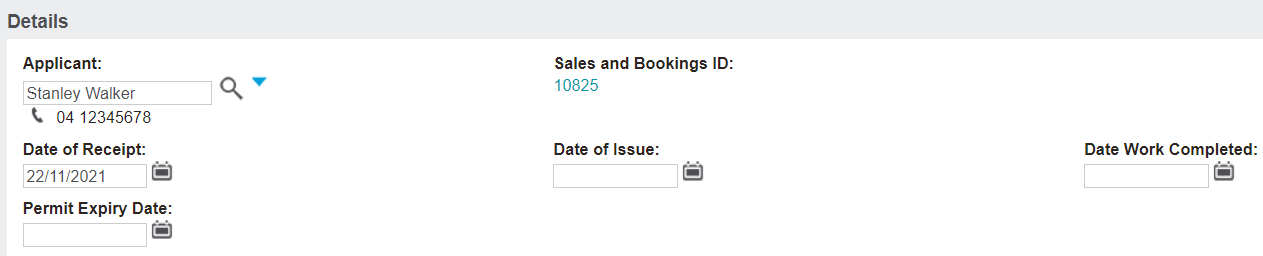
Details
The Details block allows for the authorising person / holder of right who is seeking to have the works done to be listed under Applicant.
It also has a Sales and Bookings ID hyperlink that will take the user to the sales & booking record linked to the permit.
The Permit Expiry Date at the bottom is customisable and will auto-populate. Date of Issue and Date Work Completed will auto populate as the relevant statuses of the permit are met.
Once all fields have been completed, click Save on the right-hand side of the screen.
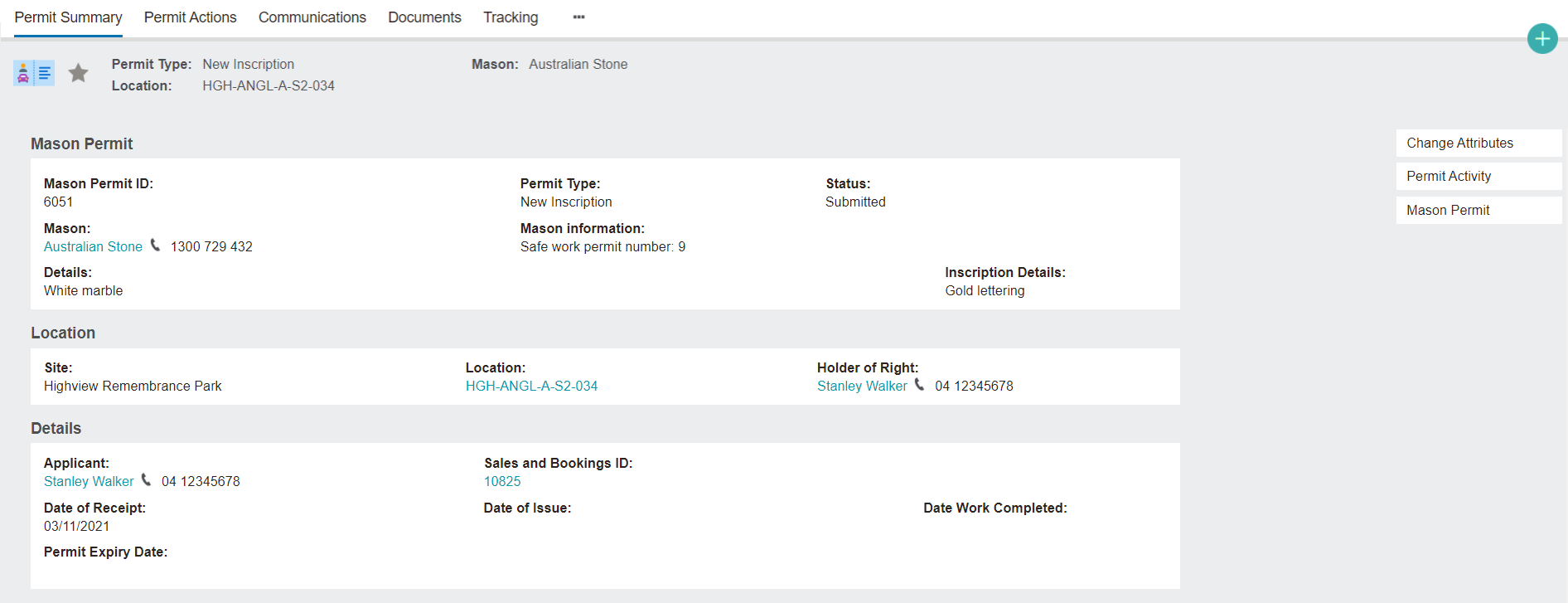
The new mason permit entry will be created on the Sales and Booking record's Permits tab with a status of submitted (unless otherwise changed as part of the initial entry).
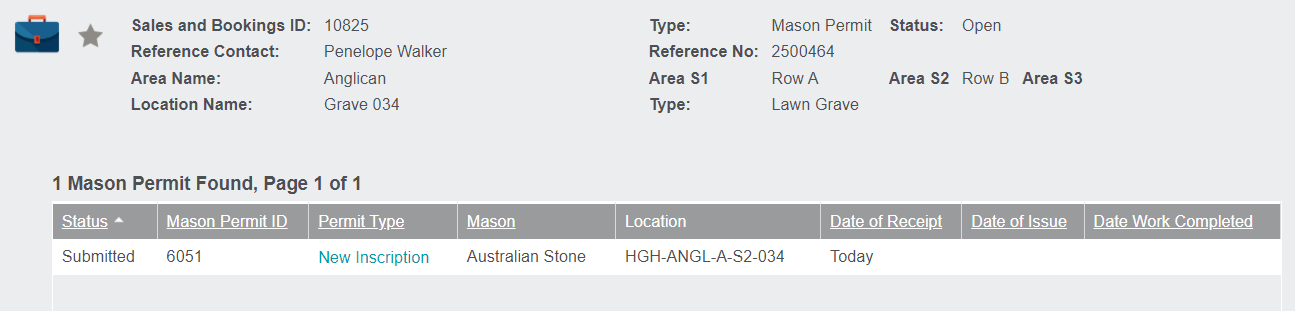
Clicking on the Permit Type hyperlink will open the Permit Summary page.